ACTIVE MALWAREWINDOWSTESTED: WINDOWS 7, WINDOWS 10
How to fix Error 0xA00F4244 (0xC00DABED) on Windows
Resolve Error 0xA00F4244 (0xC00DABED) on Windows 10 quickly and effortlessly. Expert-tested solutions ensure your system runs smoothly, fixed in minutes.
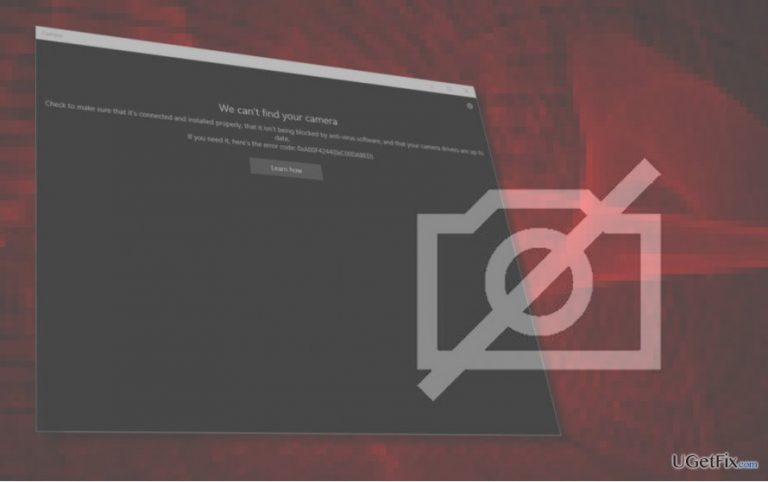
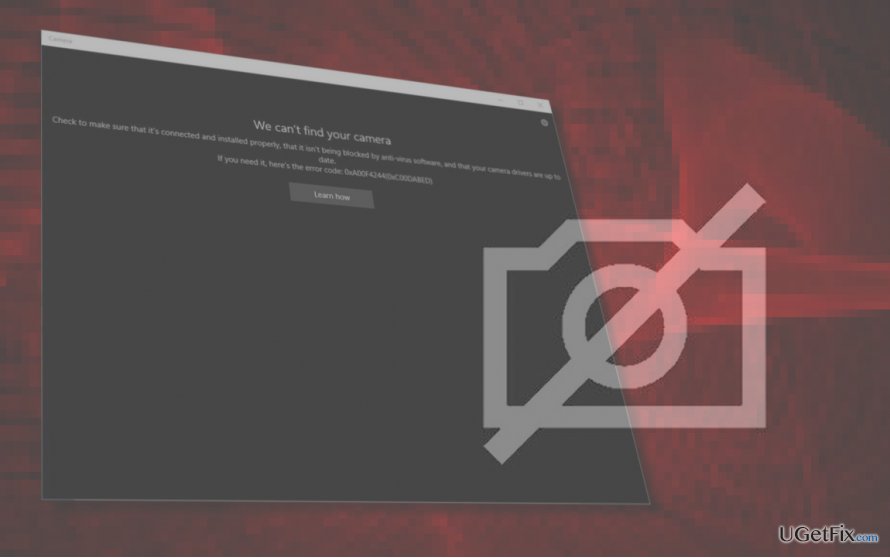
After the upgrade from Windows 7 to Windows 10, I get an error “We can't find your camera - Error code: 0xA00F4244 (0xC00DABED)” when trying to launch the front camera on my Lenovo T410. What steps should I take to fix that?
“We can't find your camera - Error code: 0xA00F4244 (0xC00DABED)” is an error that strokes those Windows OS who upgraded to Windows 10 from Windows 7 in particular. The problem happens when some of the update files are damaged or fail to install properly, which is why the inbuilt Windows Camera app may stop working properly. In addition, the culprit may be outdated camera drivers or third-party anti-virus, which may be blocking the files of the Camera app.
According to Microsoft engineers, WebCam errors take the leading positions of the current Windows 10 bugs and, unfortunately, they haven’t been resolved up-till-now. Therefore, the only chance to fix the 0xA00F4244 (0xC00DABED) error is to initiate several system changes manually. First of all, we would highly recommend you to check the system foe malware or incompatible software. If that doesn't help, reset your camera app and update drivers.
0xa00f42440xc00dabedRun a full system scan with a professional anti-malware
Malware and other serious cyber infections can negatively affect overall system's performance, includinga aplications. Thus, the Windows Camera app may start malfunctioning if a virus is hiding in your OS. To check that, run a scan with [d1] or another professional anti-malware.
Try a Clean Boot
To check if your PC contains an app, which is incomapatible with the Camera app, try the Clean Boot. If that would help, your task will be to enable the apps one by one to find out, which one is causing the 0xA00F4244 (0xC00DABED) error.
Click Windows key and type msconfig.
Select System Configuration and open Services tab.
Mark Hide all Microsoft services box and select Disable all.
Open Startup tab and click Open Task Manager.
Click on each startup item separately and select Disable.
Close Task Manager and click OK on the System Configuration window.
Reboot the PC.
Reset your webcam
Click Windows key + I to open Settings.
Select App and Features.
Locate Camera and click it.
Select Advanced options and then Reset.
Reboot the PC.
Update camera drivers
Right-click on Windows key and select Device Manager.
Expand Imaging devices section and right-click on your system's webcam.
Select Update Driver Software.
Then click on Browse my computer for software driver option.
Select Let me pick from a list of device drivers on my computer option.
Check the Show compatible hardware option and select USB Video Device.
Click Next and then close Device Manager.
Reboot the system.
Hoepfully, these steps helped you to fix the camera error 0xA00F4244 (0xC00DABED). If, nevertheless, you still cannot open the webcam or it shows the black screen with an error code, please let us know so that we would further analyse the problem.
Bottom line
To fix the error 0xA00F4244 (0xC00DABED), check for malware, reset the camera app, and update the camera drivers. If the issue persists, try performing a Clean Boot to identify any incompatible applications. If none of these solutions work, consider seeking professional technical support.
Frequently asked questions
This error typically occurs due to issues with the camera driver, corrupted camera apps, or improper privacy settings that prevent the camera from functioning properly.
You can update your camera driver by going to Device Manager, locating the camera device, right-clicking it, and selecting 'Update driver' to search automatically for updated driver software.
Yes, ensure that camera access is enabled in the Privacy settings, and verify that the camera app has the necessary permissions to access your camera.
Hardware troubleshootingDriver installation and rollbackDevice Manager errorsUSB and peripheral issuesFirmware updates
Ryan Mitchell specialises in hardware troubleshooting and driver management for Windows systems. His expertise covers device recognition failures, driver conflicts, firmware updates, and peripheral connectivity issues across all major manufacturers. Ryan's systematic approach to hardware diagnosis — starting with Device Manager, working through driver rollback and clean installs, and escalating to BIOS-level checks — has made his guides a reliable resource for both home users and field technicians. He covers GPUs, printers, audio devices, USB controllers, network adapters, and external storage.





Report an issue
What's wrong with this guide? We review every report and update or remove content.
Report received — thank you. We'll review and fix it.
You need a free account to submit a report.
Be the first to comment