How to fix
Error 0xc00007b: Application was unable to start correctly
on Windows
Resolve the 0xc00007b error on Windows 10 and 11 quickly with our expert-tested solutions. Get your applications running smoothly again, fixed in minutes!

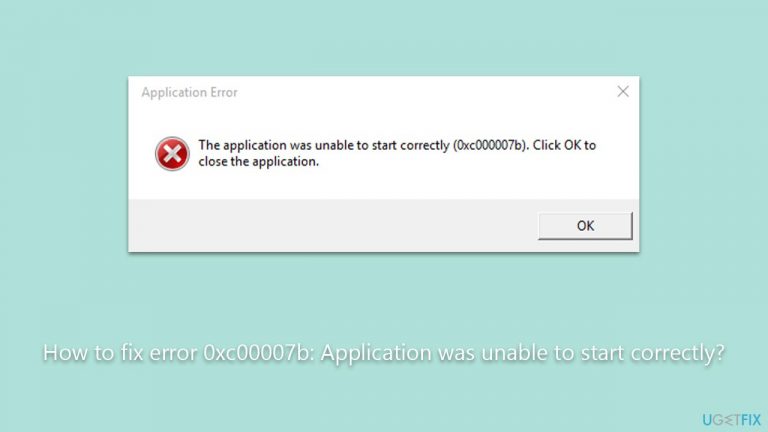
What causes How to fix error 0xc00007b: Application was unable to start correctly?
- Corrupted system files
- Incorrect .NET framework
- Problems with Microsoft Visual C++ Redistributable packages
- Mix-up between 32-bit and 64-bit versions of Windows and the application
- Incompatibility between the application and the operating system
Repairs Windows system files, removes malware, and restores a clean OS state — without reinstalling.
A few days ago, my computer crashed with BSOD and rebooted. After that, Windows no longer works well. One of the main problems is that I can't open most of the apps and games because of the 0xc00007b error. Is there anything I can do to fix this, or do I need to reinstall Windows?
Application startup errors are common but frustrating issues that users encounter in the Windows operating system. These errors can stem from various problems within the system and can impede the proper function of programs. One such error is the 0xc00007b error code, and it's specifically associated with the application's inability to start correctly.
The 0xc00007b error code appears when a user tries to launch an application, typically within Windows 7, 8, or 10. This error signifies a mix-up between 32-bit and 64-bit versions of Windows and the application. In essence, the error is an indication that the user is trying to run an application that's intended for 64-bit architecture on a 32-bit system or vice versa. This conflict leads to an inability for the application to initialize properly.
Several underlying causes can trigger the 0xc00007b error. It may be a result of corrupted system files, an incorrect .NET framework, or problems with Microsoft Visual C++ Redistributable packages. These factors can contribute to the incompatibility between the application and the operating system.
There are various solutions to remedy the 0xc00007b error, depending on the root cause. Solutions may include reinstalling or repairing the application, updating or reinstalling .NET framework, and ensuring that the correct version of Microsoft Visual C++ Redistributable is installed. System file scans and using the application in compatibility mode are also potential fixes.
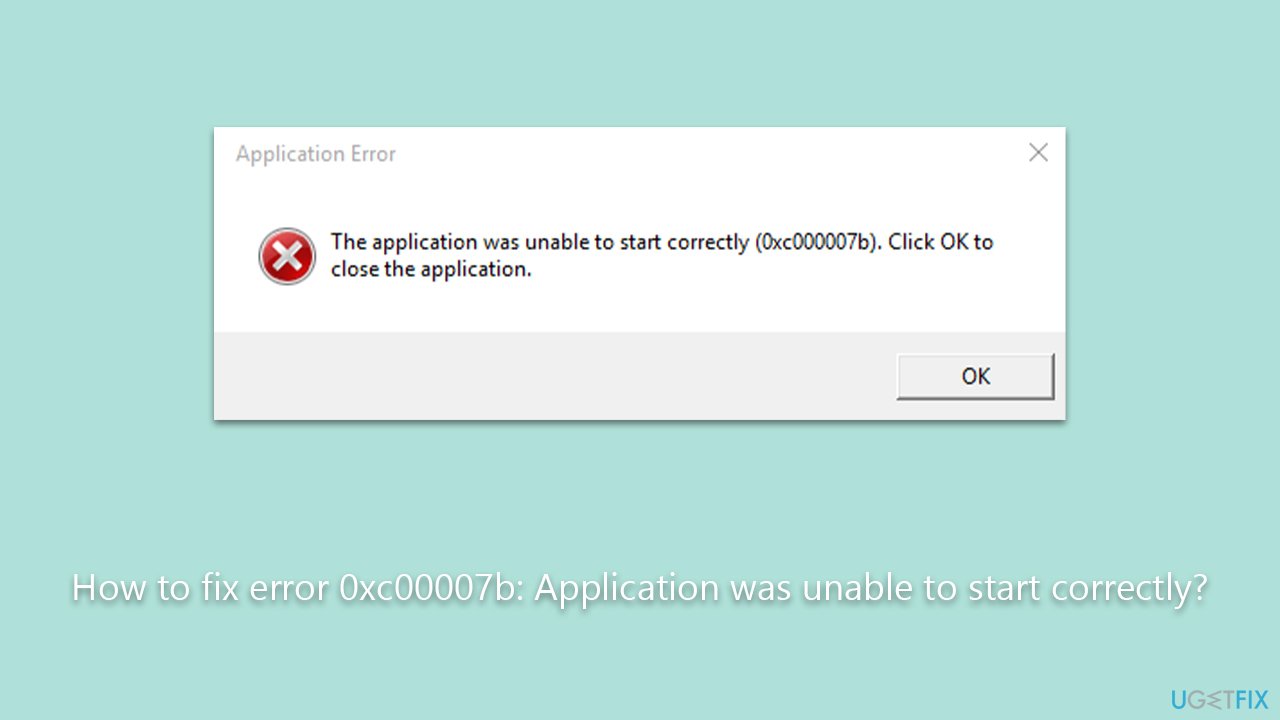
In the sections below this article, step-by-step instructions are provided to diagnose the underlying issue and apply the appropriate solution to resolve the 0xc00007b error. If you would like to try an automatic approach, we recommend trying a powerful PC repair app [d1] before proceeding with manual solutions.
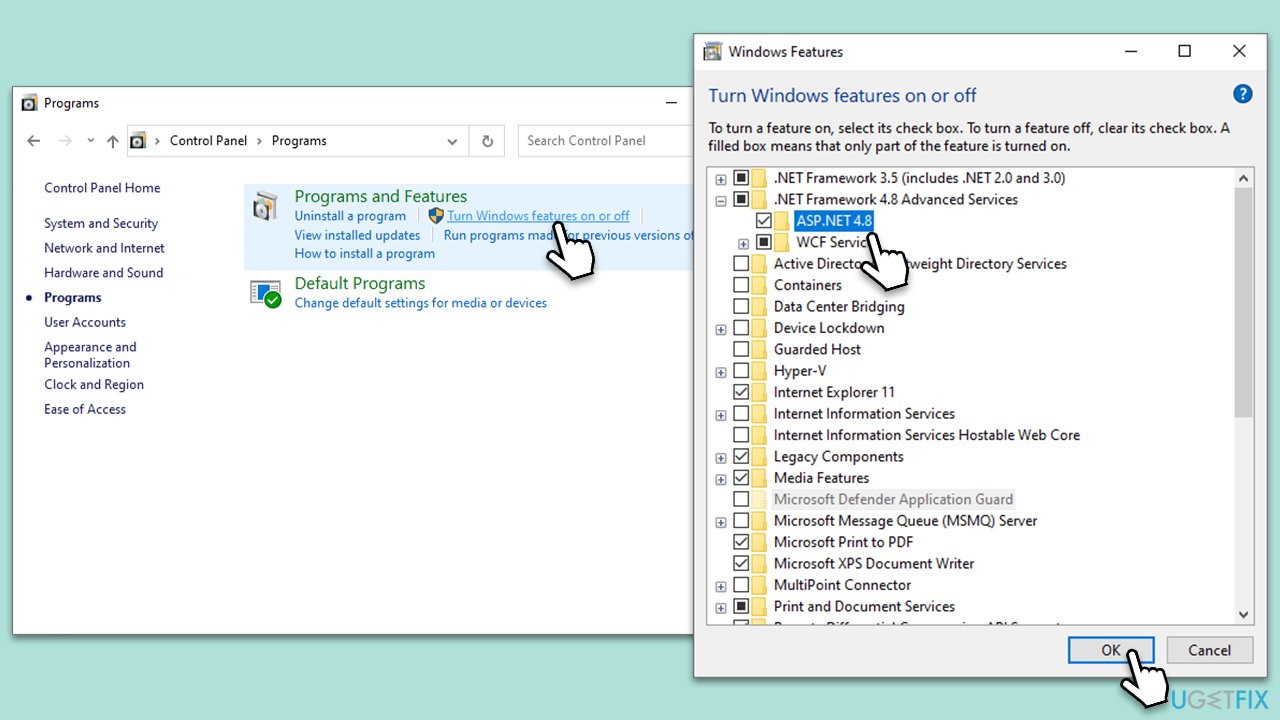
Fix 1. Make sure .NET Framework components are enabled in Windows Features
The .NET Framework is a critical part of many applications, and if the components are not enabled, it could lead to the 0xc00007b error. Enabling these components ensures that the application has access to the necessary libraries and resources.
- Type Control Panel in Windows search and select Programs.
- Select Turn Windows features on or off.
- Enable .NET Framework 3.5 (includes .NET 2.0 and 3.0).
- Next, enable .NET Framework 4.8 Advanced Services and press the plus (+) icon next to it.
- Make sure to enable ASP.NET 4.8 as well.
- Click OK.
Fix 2. Install DirectX SDK legacy component
Some applications require DirectX for proper graphical rendering, and lacking the legacy components might cause the error. Installing this SDK ensures compatibility with older DirectX-dependent applications.
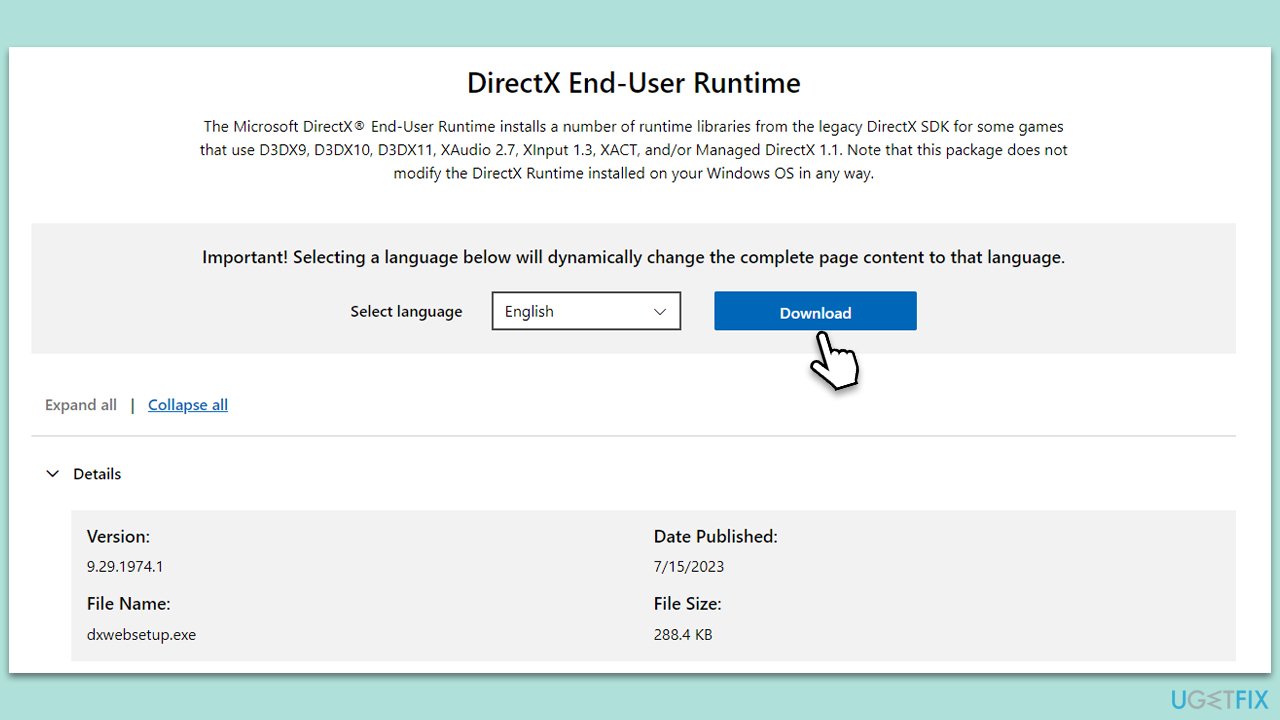
- Open your browser and navigate to the official Microsoft website for DirectX End-User Runtime Web Installer.
- Select your language and click Download.
- When the installer downloads, click the dxwebsetup.exe file to run it.
- Follow the prompts and finalize the process.
- Restart your PC as necessary.
Fix 3. Reinstall Visual C++ Redistributables
Visual C++ Redistributables are essential components for running certain applications. Corrupted or missing redistributables can cause the error. Reinstalling them can rectify the issue.
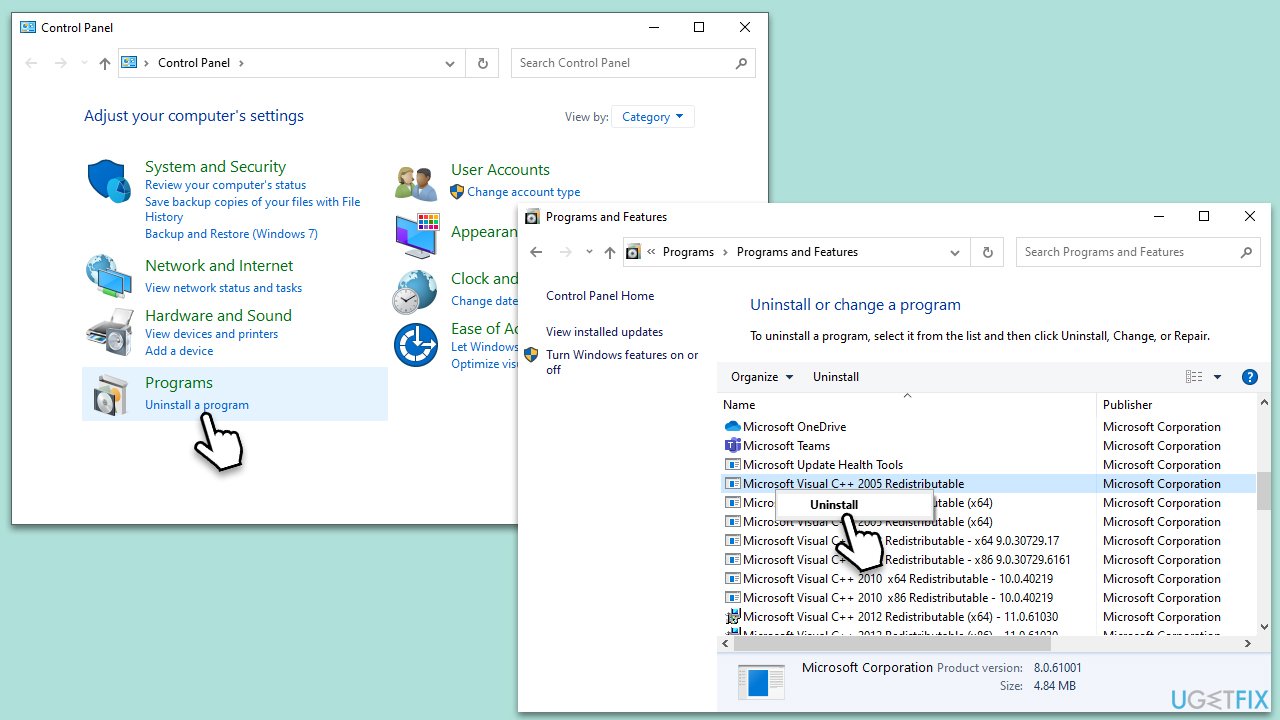
- Type in Control Panel in Windows search and hit Enter.
- Go to Programs > Uninstall a program.
- From the list, find all the Microsoft Visual C++ entries, right-click and select Uninstall.
- Follow on-screen instructions to remove these components.
- Restart your system.
- Open your browser and navigate to the official Microsoft website for Visual C++ downloads.
- Download all the missing components and install them as required.
Fix 4. Run SFC and DISM
Running System File Checker and Deployment Image Service and Management Tool can fix corrupted or missing system files that might cause the error.
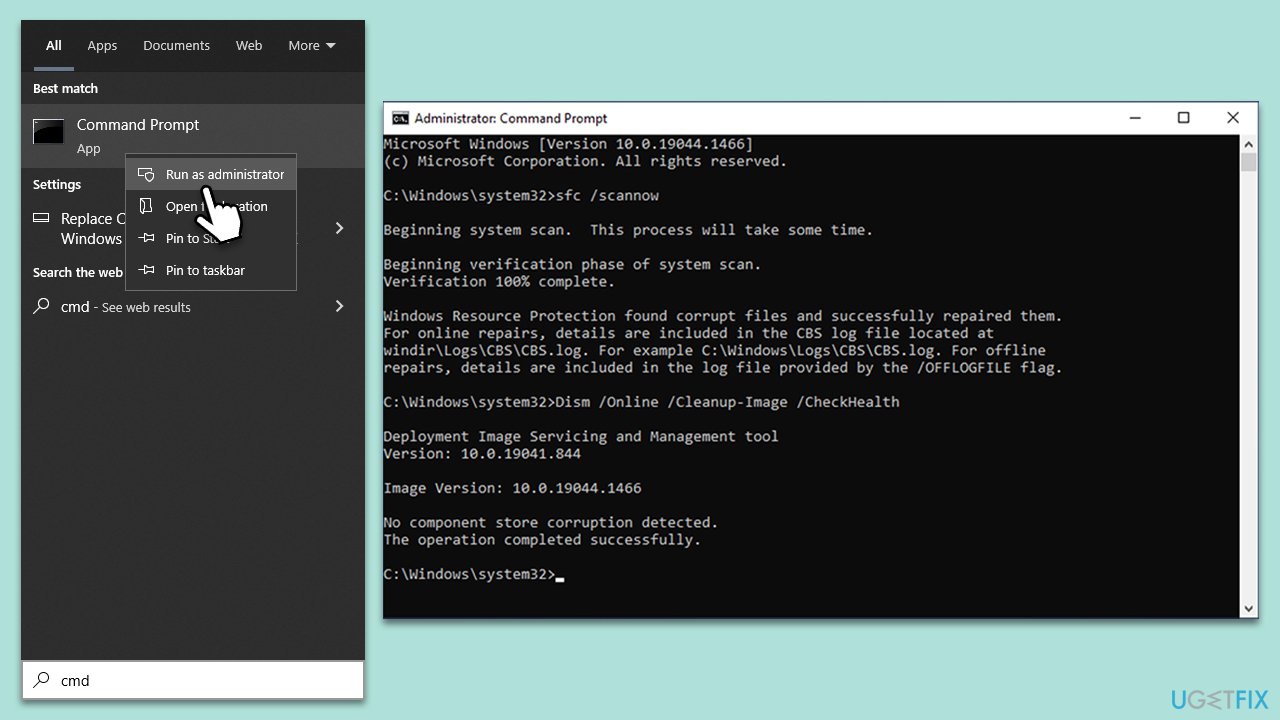
- Type cmd in Windows search, right-click on Command Prompt, and select Run as administrator.
- Type this command and press Enter:
sfc /scannow - Wait for the scan to finish.
- As soon as the scan finishes, Windows will report whether integrity violations were found and if they could be fixed. Regardless of the outcome, use these commands next, pressing Enter after each:
Dism /Online /Cleanup-Image /CheckHealth
Dism /Online /Cleanup-Image /ScanHealth
Dism /Online /Cleanup-Image /RestoreHealth
(Note: if you get an error executing the last command, add /Source:C:\RepairSource\Windows /LimitAccess to it and try again.) - Close down the Command Prompt and restart your PC.
Fix 5. Disable XMP or other overclocking
Overclocking might lead to instability in the system and cause the error. Disabling XMP or other overclocking settings can restore stability.
- Restart your computer and press the BIOS key as it begins to boot up (typically F2, F10, F12, or Del, depending on the manufacturer).
- In the BIOS interface, navigate to the Advanced, Performance, or Overclocking tab (the name varies by motherboard).
- Look for options such as CPU Configuration, Overclocking Settings, or similar.
- Reset these settings to default or disable the overclocking options, including XMP.
- Save and Exit from BIOS, which will reboot your system.

Fix 6. Reinstall the application in question
A corrupted installation of the application might cause the error. Reinstalling it may resolve the issue.
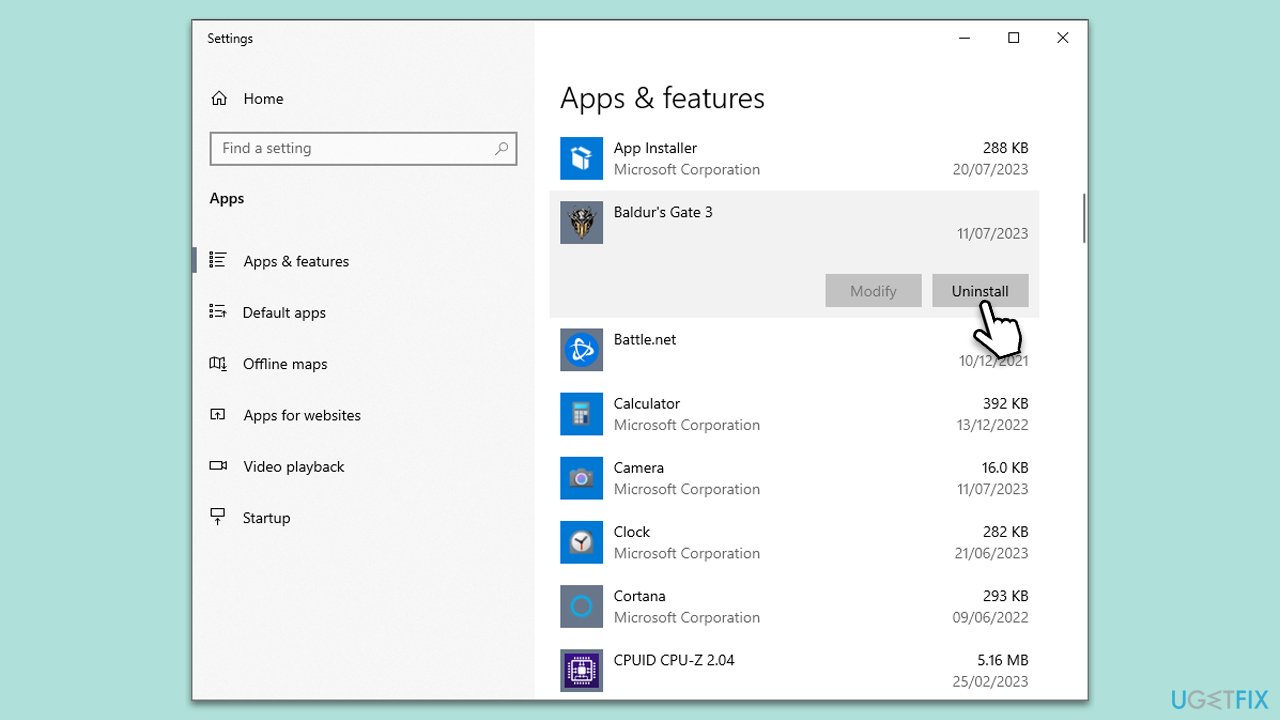
- Right-click on Start and pick Apps and Features.
- Scroll down to locate the app that's causing the error.
- Click Uninstall and proceed with the prompts.
- Restart your computer.
- Download and install the app.
Fix 7. Try System Restore
System Restore can roll back system changes that might have led to the error. It's an option to revert the system to a state before the problem occurs.
- Type in Create a Restore point in Windows search and hit Enter.
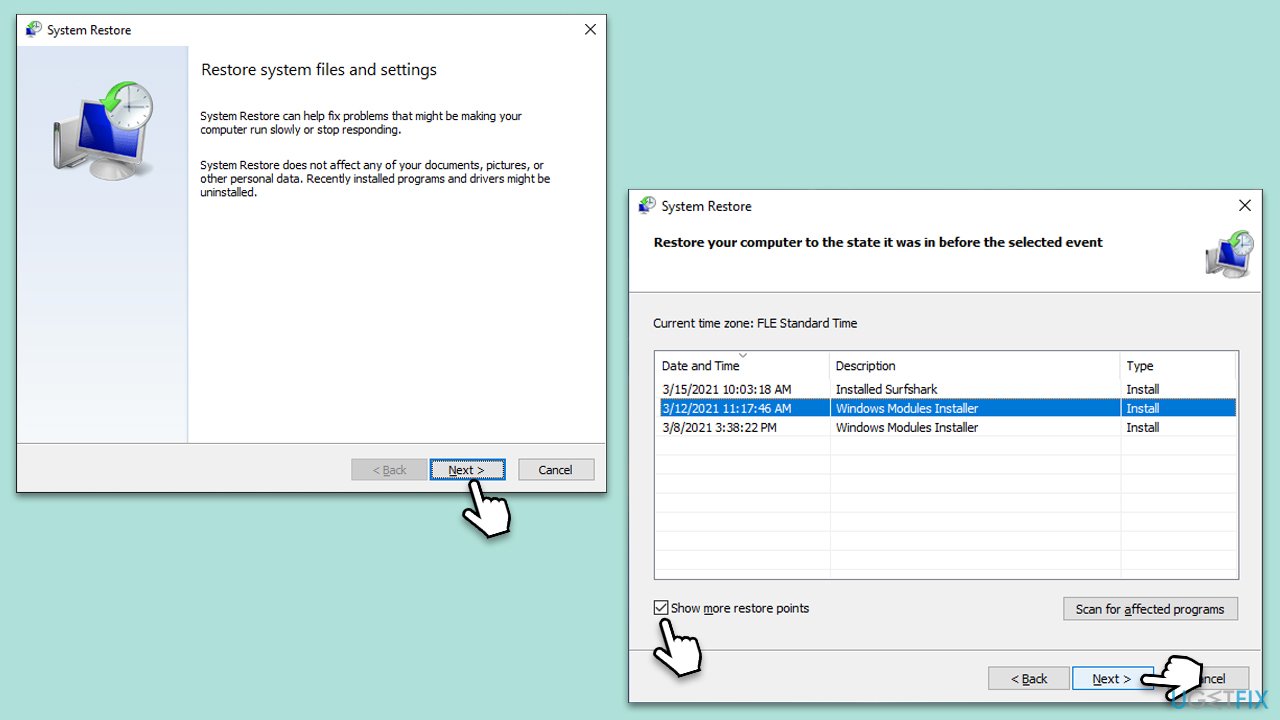
- Go to the System Protection tab and pick System Restore.
- Click Next.
- Click Show more restore points (if available).
- Pick the time before the problem occurred and click Next.
- Follow the prompts to finish the process.
Bottom line
To fix the 0xc00007b error, you can try reinstalling or repairing the application, updating or reinstalling the .NET framework, and ensuring the correct version of Microsoft Visual C++ Redistributable is installed. Additionally, performing system file scans and using compatibility mode may help. If none of these solutions work, consider using a powerful PC repair app or reinstalling Windows.
Frequently asked questions
This error typically occurs due to a mismatch between 32-bit and 64-bit versions of applications and their dependencies, such as DLL files.
You can use the System File Checker tool by running 'sfc /scannow' in the Command Prompt to identify and repair corrupted files.
Yes, reinstalling the application can often resolve the issue, especially if the installation files have become corrupted.




Report an issue
What's wrong with this guide? We review every report and update or remove content.
Report received — thank you. We'll review and fix it.
You need a free account to submit a report.
Be the first to comment