How to fix
Error 0xC004C032 when installing MS Office
on Windows
Resolve the 0xC004C032 error when installing MS Office on Windows 10 or 11 quickly and efficiently. Solutions you can trust, expert-tested.

What causes How to fix error 0xC004C032 when installing MS Office in Windows?
- Internet connection issues
- System does not meet minimum requirements
- Invalid product key
- Outdated Windows updates
Repairs Windows system files, removes malware, and restores a clean OS state — without reinstalling.
Hello. I tried to install the free version of the Microsoft Office suite but I received the 0xC004C032 error. Can you help me solve this issue?
Microsoft Office is a suite of productivity software applications that offer various tools to create and manage documents, spreadsheets, presentations, and more. It includes popular applications such as Microsoft Word, Excel, PowerPoint, and Outlook, among others.
When attempting to install the trial version of Microsoft Office on a Windows device, people frequently encounter Error 0xC004C032. The complete error message is as follows:
Microsoft Office couldn’t activate your time-based license because the activation server reported a problem.
Error code: 0xC004C032
This error can have an impact on users by preventing them from installing Microsoft Office and using all of the software's features. Those who rely on Microsoft Office for work or personal tasks may find it inconvenient.
Checking the internet connection, ensuring that the system meets the minimum requirements to install the software, verifying the product key, and ensuring that the device is up to date with the latest Windows updates are all possible solutions to this error. It is important to note, however, that the specific solution may differ depending on the root cause of the error.
In this guide, you will find 5 steps that should help you fix error 0xC004C032 when installing MS Office in Windows. Keep in mind that the manual troubleshooting process can be lengthy. You can try a maintenance tool like [d1] that can fix most system errors, BSODs,[ref en-1] corrupted files, registry[ref en-2] issues, or clear cookies and cache.[ref en-3] Otherwise, follow the step-by-step instructions below.
Solution 1. Delete Office Copies
- Press the Windows key + R on your keyboard to launch the Run window
- Type Control and press Enter or click on OK
- In the Control Panel window, click on Uninstall a program, which can be found under the Programs section
- Type the name of the program you want to uninstall into the search bar located in the top-right-hand corner of the window
- If multiple versions of the program appear, right-click the version that you're not using and select Uninstall
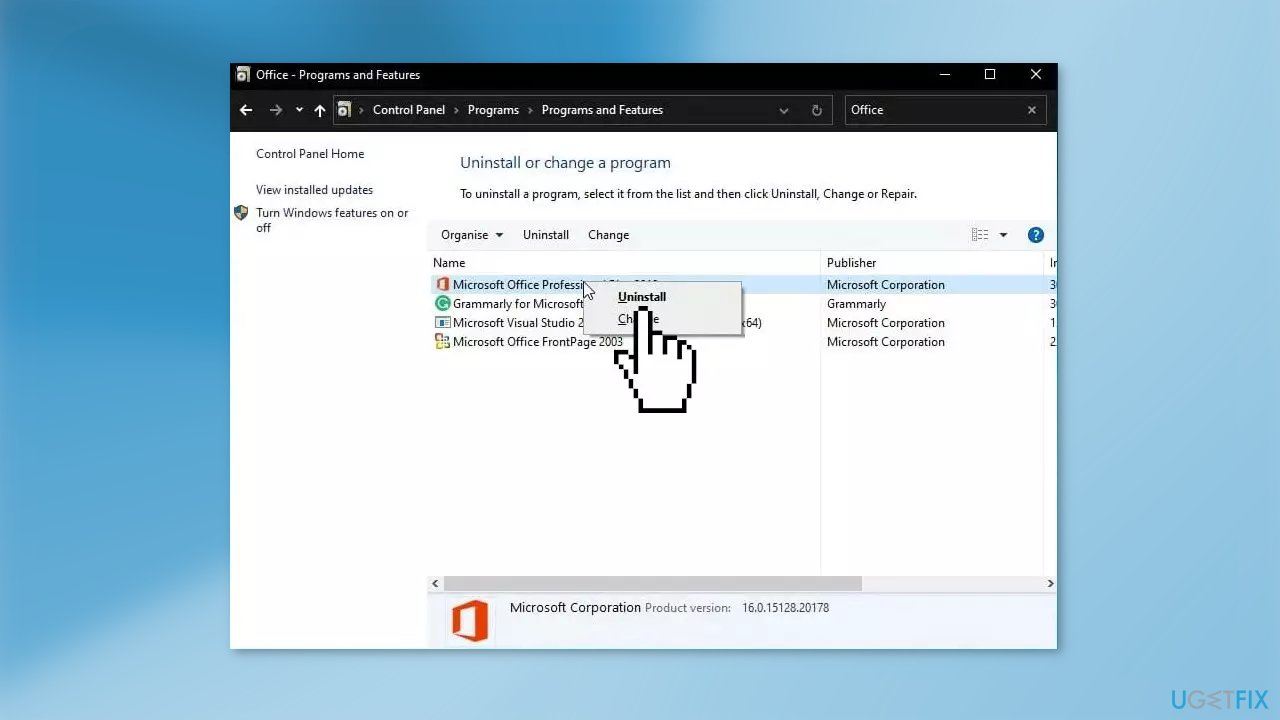
- Follow the on-screen prompts to uninstall the program
- Once the program has been uninstalled, press the Windows key + F4 on your keyboard to open the Windows Shut Down prompt
- Click on the drop-down menu and select Restart
- Click on OK to restart your computer
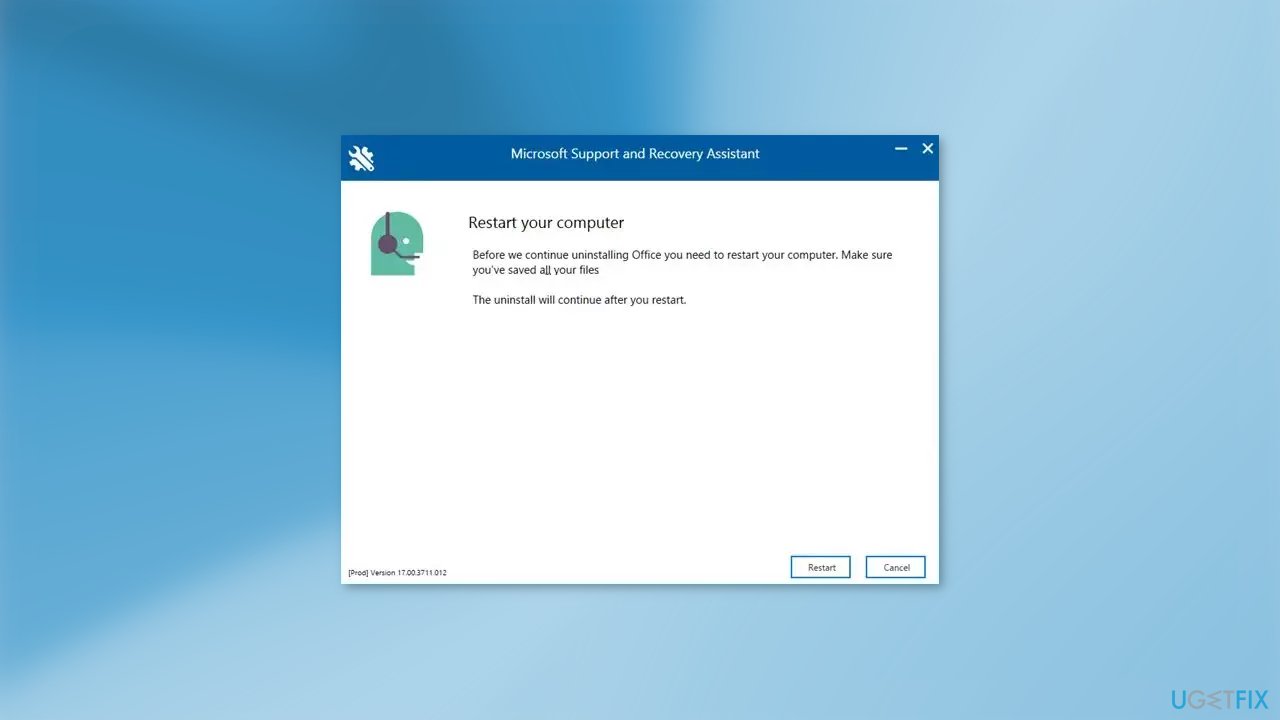
Solution 2. Use Microsoft Support and Recovery Assistant
If you encounter problems with Microsoft's internal offerings like Office 365, Outlook, or OneDrive for Business, you can leverage the Microsoft Support and Recovery Assistant. Running this tool can help diagnose and resolve the issue you're experiencing with MS Office.
Solution 3. Verify the Product Key
If you enter an incorrect product key, you may encounter the error code. Verify the accuracy of the product key and attempt to install Office. Additionally, ensure that the product key is compatible with your Office version.
Solution 4. Activate Office via Command Prompt
- Open Command Prompt as an Administrator.
- Type the following command with your product key in place of <product_key> and hit Enter: %ProgramFiles%\Microsoft Office\Office14\ospp.vbs" /inpkey:<product key>
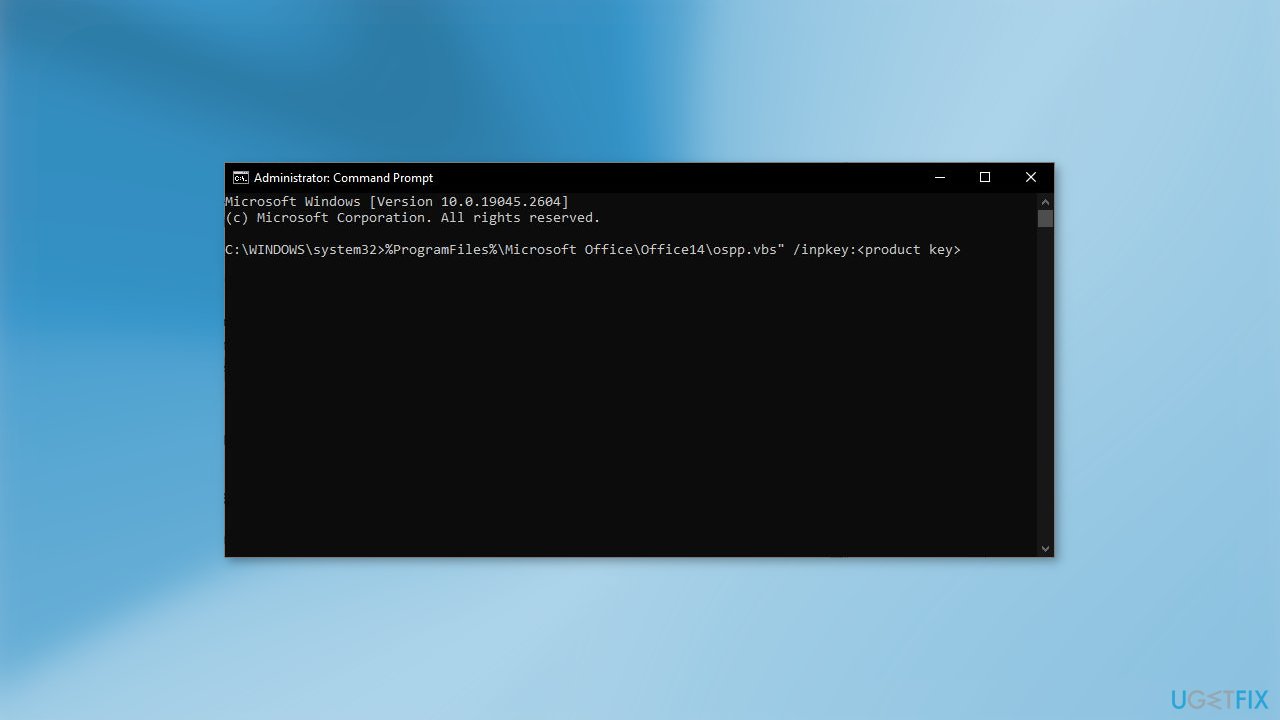
- Wait for the command to execute.
- Restart your device.
- Check if Office is installed.
Solution 5. Use Clean Boot to Install Office
- Click on Start and search for System Configuration.
- Open System Configuration.
- Navigate to the General tab.
- Check the Selective Startup option.
- Check the Load System Services option under Selective Startup.
- Navigate to the Services tab.
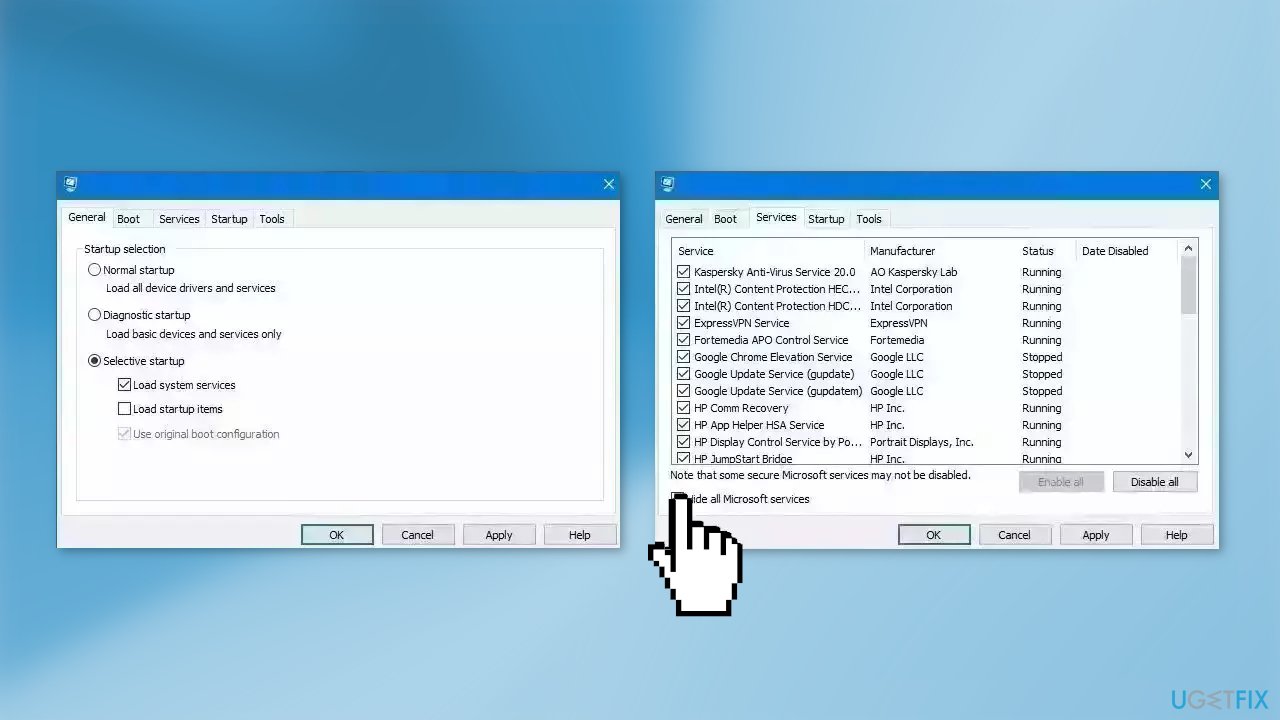
- Check the option to Hide all Microsoft services.
- Click on Disable all at the bottom right corner.
- Hit Apply and Ok to save changes.
- Try to install MS Office in Clean Boot state
Bottom line
To fix error 0xC004C032 when installing MS Office, you can check your internet connection, ensure your system meets the minimum requirements, verify your product key, and update Windows. If these solutions do not resolve the issue, consider using a maintenance tool to address potential system errors.
Frequently asked questions
Error 0xC004C032 usually indicates that your Microsoft Office product key is invalid or that the Office installation is not activated properly on your Windows system.
To resolve this error on Windows 11, ensure that you enter a valid product key or try reactivating your Office installation using the Microsoft Office Activation Wizard.
Yes, on Windows 10, you can fix this error by running the Office Repair tool from the Control Panel or by reinstalling Microsoft Office to ensure a clean installation.




Report an issue
What's wrong with this guide? We review every report and update or remove content.
Report received — thank you. We'll review and fix it.
You need a free account to submit a report.
Be the first to comment