How to fix
Error 0xC00D3E8E: The property is read only
on Windows
Resolve error 0xC00D3E8E in Windows 10 and 11 effortlessly with proven solutions. Get insights and fixes that are expert-tested. Fixed in minutes!

What causes How to fix error 0xC00D3E8E: The property is read only in Windows?
- Corrupted system files
- Failed or incorrectly installed Windows update
- Wrong permission settings for the file
- Corrupted metadata of the file
Repairs Windows system files, removes malware, and restores a clean OS state — without reinstalling.
Hello. I was trying to delete some unnecessary files from my hard drive and was unable to due to the 0xC00D3E8E error. I clicked the Try Again button, only to receive the same message. I am not sure why these files can't be deleted as they are simple mp3 files I don't need anymore. Any ideas?
Several users have reported[ref en-2] the 0xC00D3E8E error while modifying files on their Windows computers. It occurs while trying to remove, cut, rename or apply other modifications to multimedia file types[ref en-1] such as MOV or MP4. The error typically shows up after the confirmation prompt that users see soon after the action they are trying to conduct.
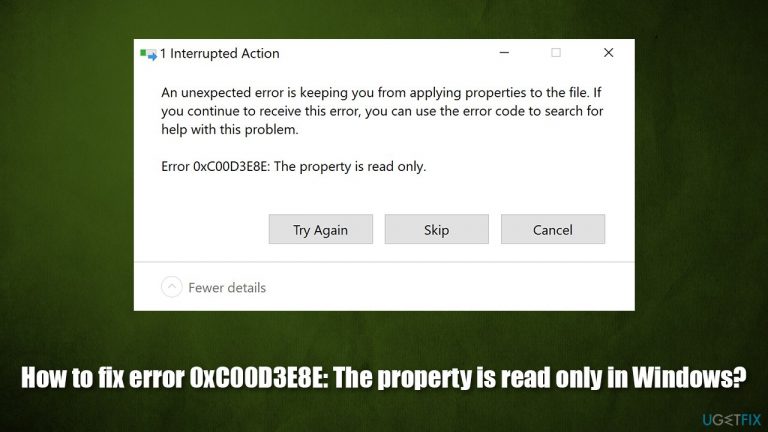
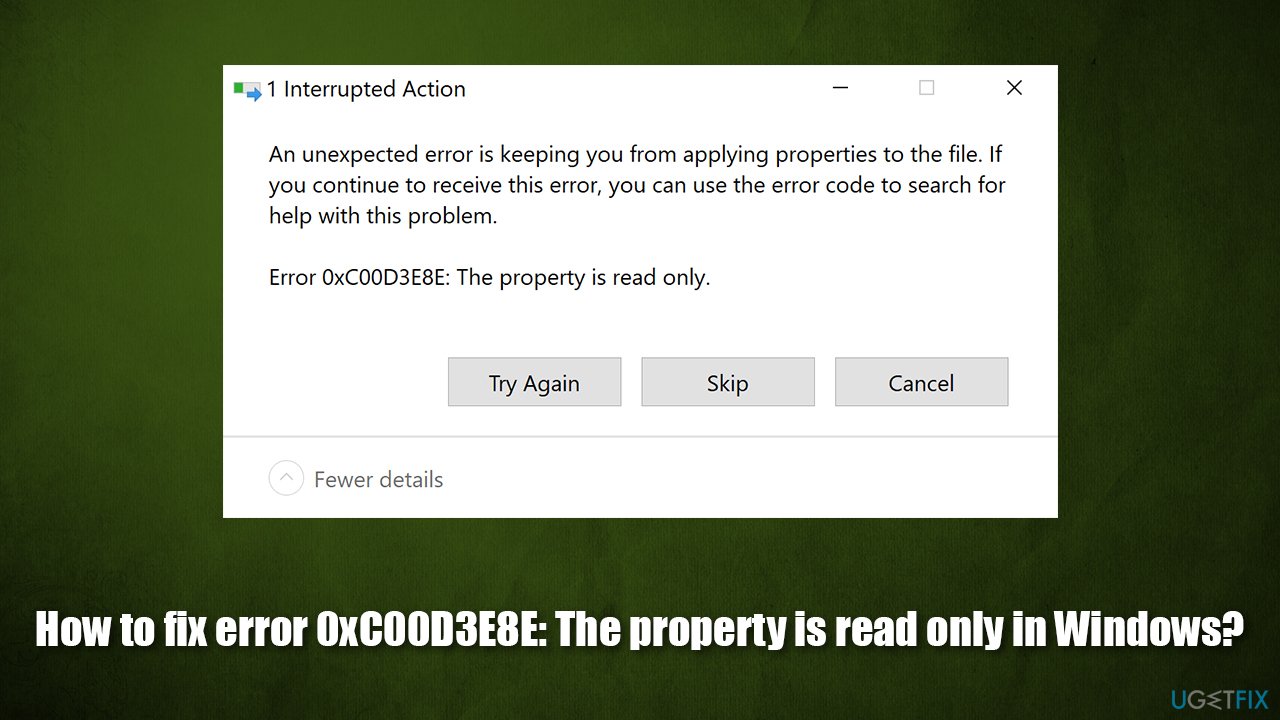
When trying to modify the file, users reported receiving the following message:
An unexpected error is keeping you from applying properties to the file. If you continue to receive this error, you can use the error code to search for help with this problem.
Error 0xC00D3E8E: The property is read only.
Moving files from one place to another, deleting them, or changing their name is a standard process that most Windows users are accustomed to. Unfortunately, errors such as 0x80007005, "The action cannot be completed because the file is open in another program", "Could not find this item," and others, can prevent them from doing so - which can be extremely frustrating, especially when the root cause of the problem is difficult to determine.
0xC00D3E8E is not an exception in this case, as there could be numerous reasons for it to occur. Unfortunately, the error message does not provide any insight on why the file can't be deleted or what is causing the issue. There have been several reasons for the error identified, which include:
- Corrupted system files (one of the most common problems that cause multiple errors on Windows computers)
- Failed or incorrectly installed Windows update
- The file in question has wrong permission settings
- Corrupted metadata of the file.
Therefore, in order to fix the 0xC00D3E8E error, you might have to apply several solutions that we provide below before you find the one that works for you. Before you do, we strongly recommend you try [d1] repair software that can repair many underlying Windows issues automatically (registry[ref en-3] errors, corrupted system files, BSODs, etc.), saving you a lot of time in the process. It is excellent for those who lack experience on how Windows systems work and why certain errors occur due to one reason or another.
Fix 1. Run File and folder troubleshooter
There are several built-in troubleshooters available Windows systems. However, not all of them are available, and some need to be downloaded.
- Visit the official Microsoft download website
- Click Download and wait till it is complete
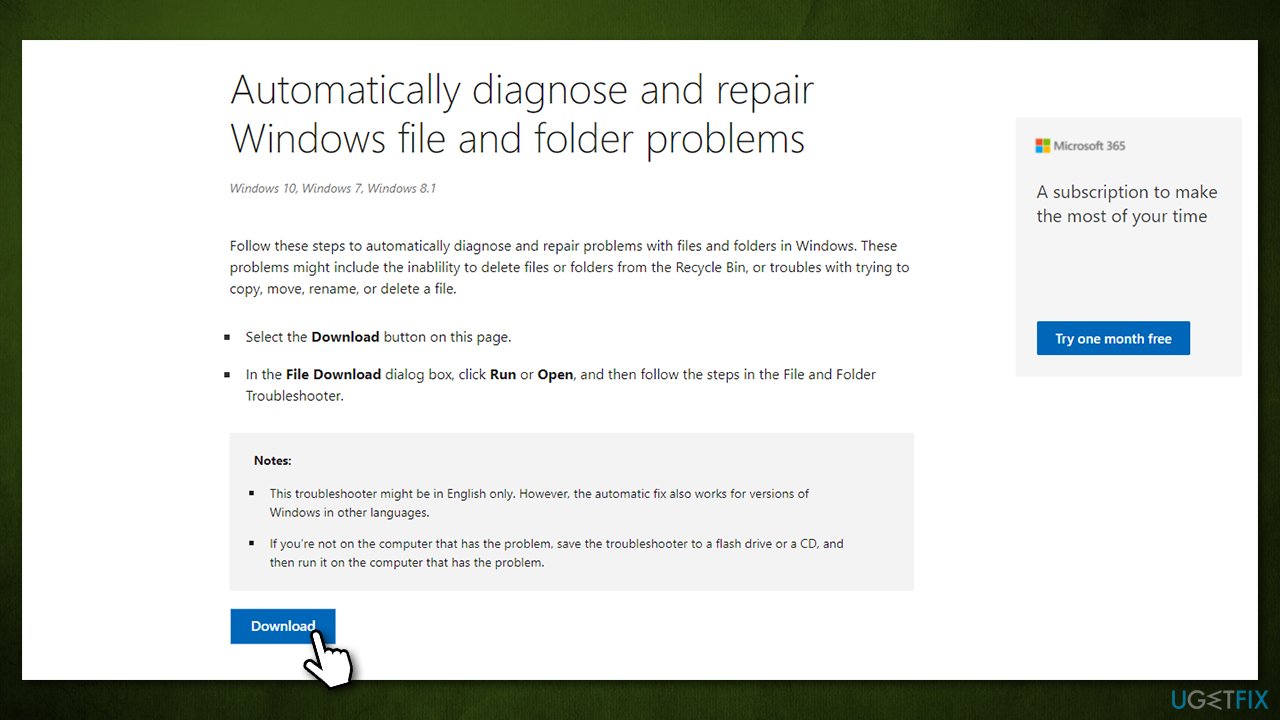
How to fix error 0xc00d3e8e the property is read only in windows run file and folder troubleshooter - Locate and double-click the downloaded file winfilefolder.DiagCab (or click once from the browser)
- Click Next, select the issue which applies to you and pick Next again
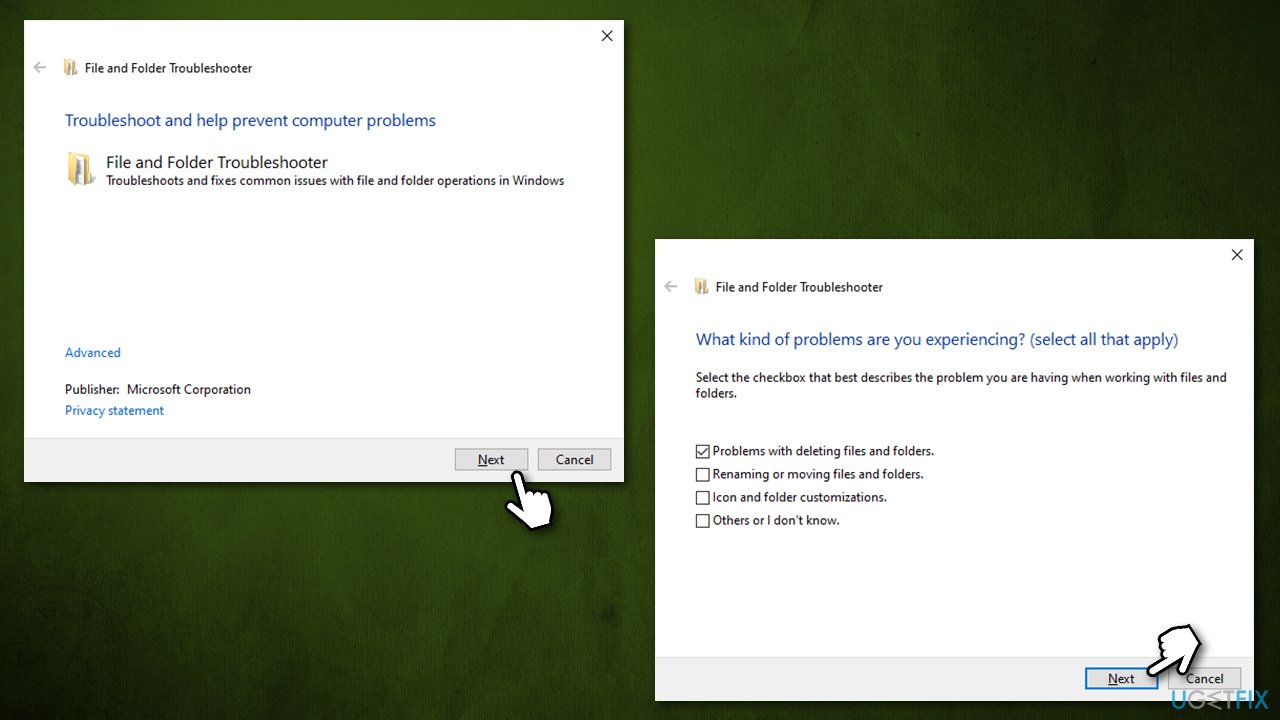
How to fix error 0xc00d3e8e the property is read only in windows run file and folder troubleshooter2 - Wait till the process is complete and see if the issue has been resolved.
Fix 2. Install all the available Windows updates
- Type Updates in Windows search bar and press Enter
- Here, if you see Optional quality updates available, click Download and install
- Otherwise, click Check for updates
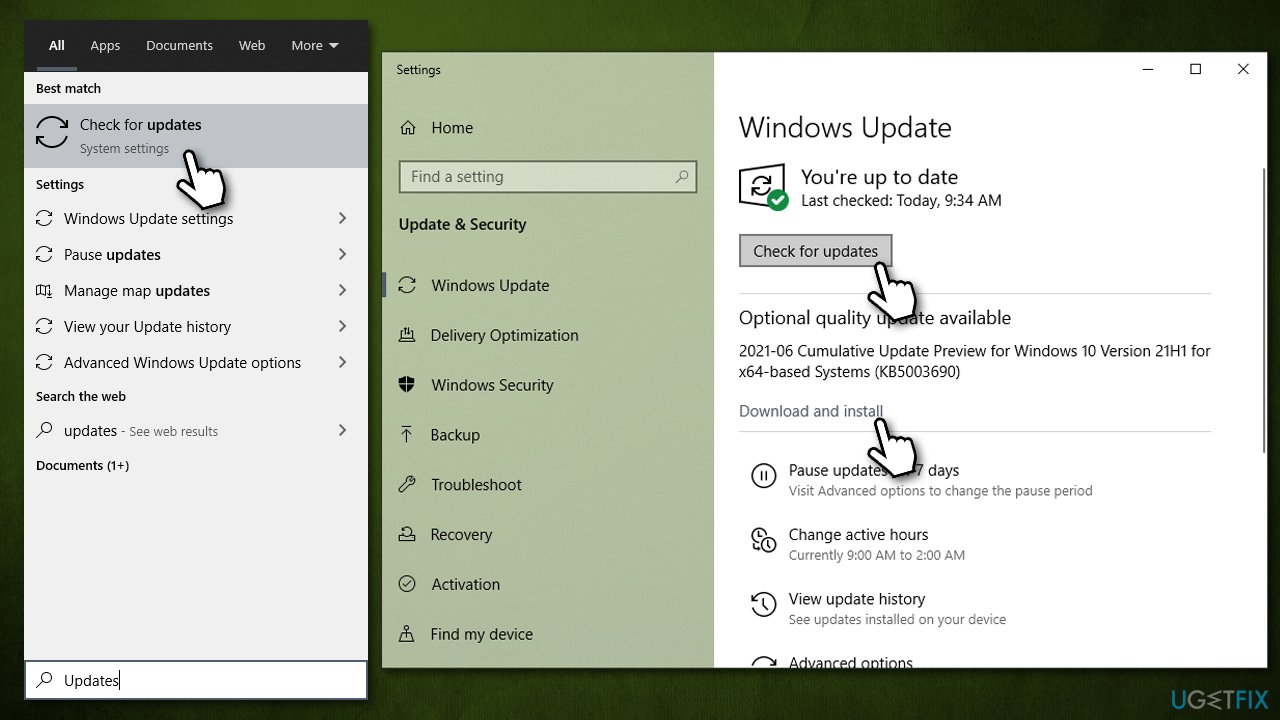
How to fix error 0xc00d3e8e the property is read only in windows run install all windows updates - Once the new updates are apply, restart your computer.
Fix 3. Run SFC and DISM
If system files are corrupted, you might encounter this error. Here's how to fix that:
- Type cmd in Windows search
- Right-click on Command Prompt and select Run as administrator
- Type sfc /scannow and hit Enter
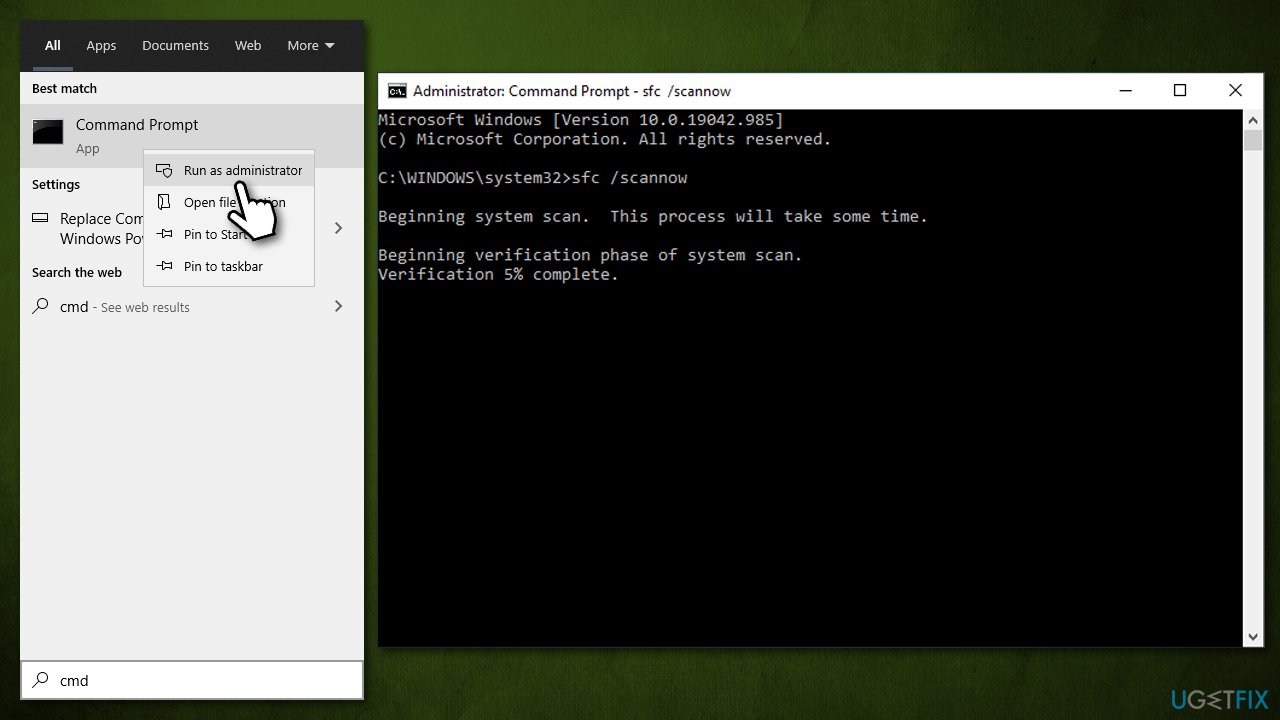
How to fix error 0xc00d3e8e the property is read only in windows run sfcand dism - Wait till the scan is complete
- If damaged files were repaired, restart the computer. If the scan could not repair the found issues, use the following command:
DISM /Online /Cleanup-Image /RestoreHealth
Fix 4. Take ownership of the file
- Right-click on the file in question and select Properties
- Go to Security tab and click Advanced at the bottom
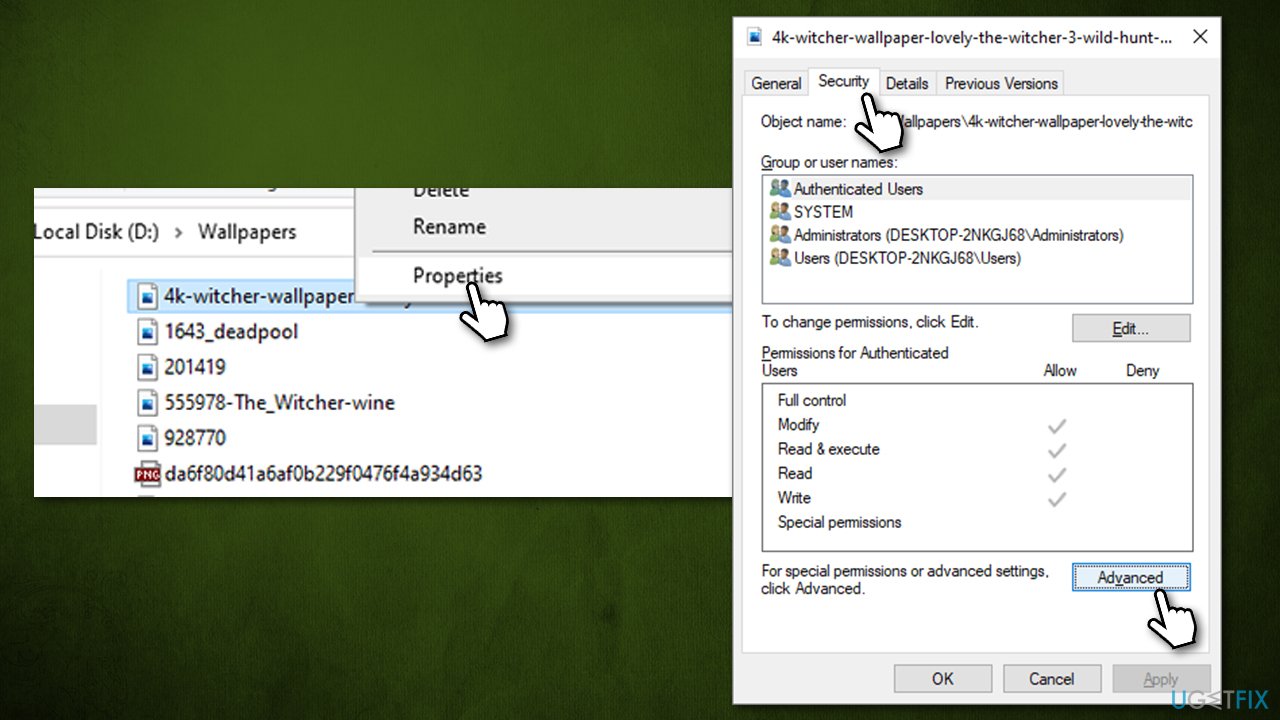
How to fix error 0xc00d3e8e the property is read only in windows take ownership - If the owner is not you, click on Change
- Here, you should type in your username or Administrator if you are using an administrator account
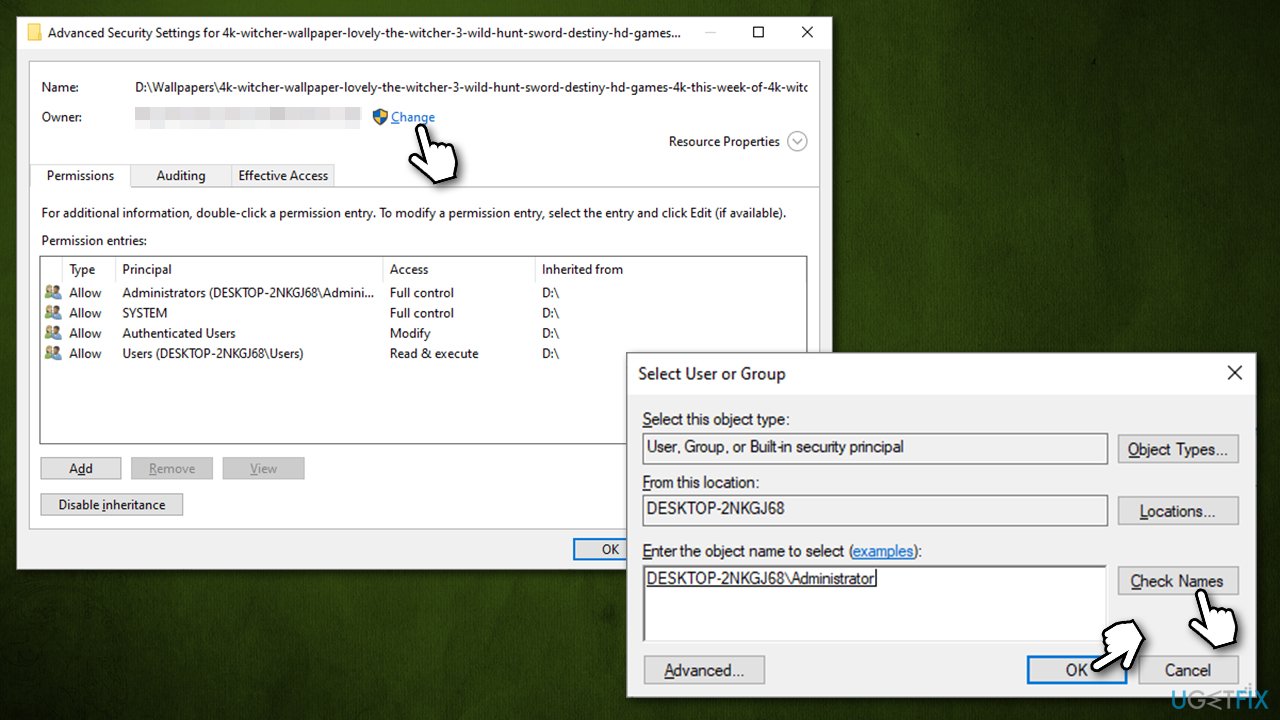
How to fix error 0xc00d3e8e the property is read only in windows take ownership2 - Click Check names and click OK.
Fix 5. Modify the file in Safe Mode
Safe Mode is Windows mode which allows actions which are otherwise restricted.
- Right-click on Start button and select Settings
- Go to Update & Security section
- Click Recovery on the left side of the window
- On the right side, find Advanced startup section and click Restart now
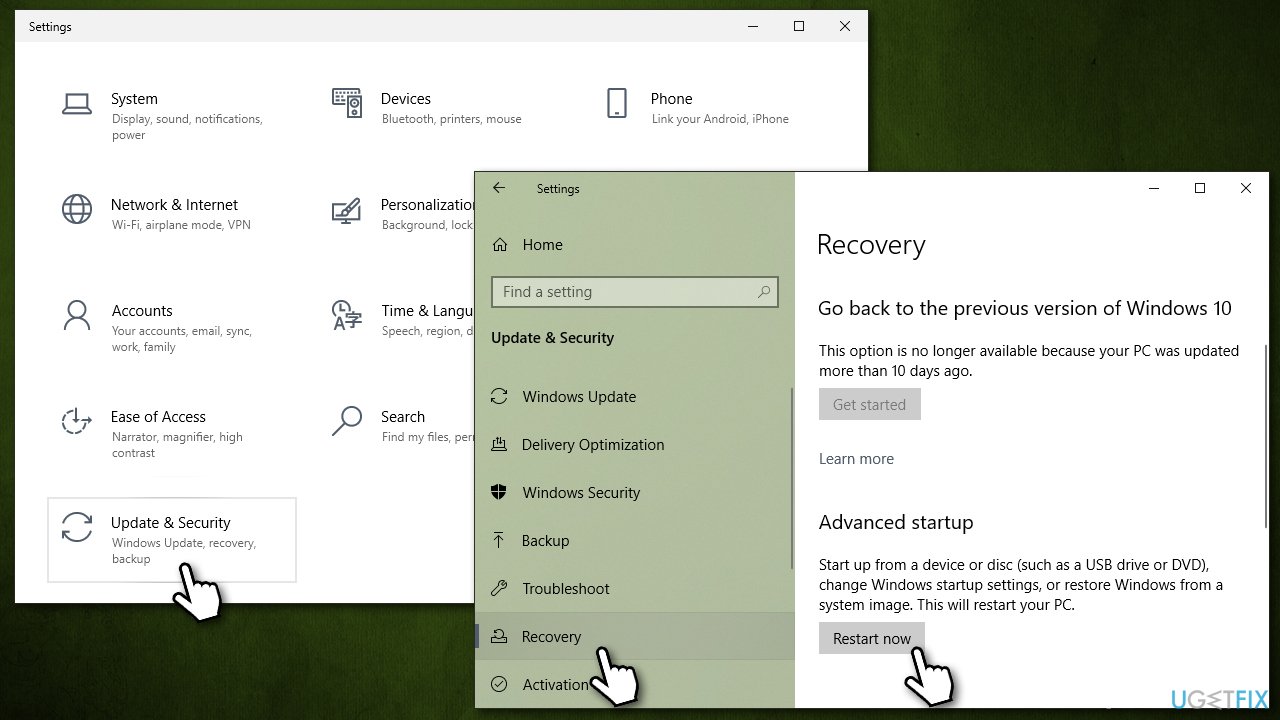
How to fix error 0xc00d3e8e the property is read only in windows access safe mode - Once restarted, choose Troubleshoot > Advanced options > Startup Settings and Restart
- Next, select 5/F5 option to access Safe Mode with Networking
- After you get in, try to modify the file in question.
Bottom line
To fix the 0xC00D3E8E error, you may need to check for corrupted system files, ensure that Windows updates are properly installed, adjust the file's permission settings, and repair any corrupted metadata. If none of these solutions work, consider seeking further assistance or searching for additional troubleshooting steps.
Frequently asked questions
The error 0xC00D3E8E typically occurs when trying to access or modify a media file that is marked as read-only or when there are permission issues in your file system.
To resolve this error, right-click the file, select 'Properties', and uncheck the 'Read-only' box under the 'General' tab before applying the changes.
Yes, ensure that your user account has the necessary permissions to access the folder where the file is located, and consider running the media application as an administrator.




Report an issue
What's wrong with this guide? We review every report and update or remove content.
Report received — thank you. We'll review and fix it.
You need a free account to submit a report.
Be the first to comment