How to fix
Error 0xc1900223 when installing Feature update to Windows 10
on Windows
Resolve error 0xc1900223 when updating to Windows 10 with our expert-tested solutions. Fix issues quickly and enjoy seamless updates! Updated 2025.


What causes How to fix error 0xc1900223 when installing Feature update to Windows 10?
- Corrupted files
- Software incompatibility (especially AV tools)
- Corrupted Windows Update files
- Inconsistent or compromised system files
- Inaccessibility of certain update locations
Repairs Windows system files, removes malware, and restores a clean OS state — without reinstalling.
Hello. The question is simple - what should I do with an error code 0xc1900223, which is triggered by the installation of Windows 10 feature update, version 1903. Thanks for any help.
0xc1900223 is one of the codes that emerge on the database of Windows 10 errors. By category, it fits the Windows update error group since it's usually triggered by the installation of the Feature updates, such as the 1903 version[ref en-1]. In fact, most of the respondents who reported this error were trying to run the 1903 version, which is one of the latest Feature updates.
Based on the reports[ref en-2], the 0xc1900223 error shows up at the end of the updating process, i.e. when the progress jumps over 90% and over. There may be various reasons why this error can occur, including but not limited to:
- corrupted files;
- software incompatibility (especially AV tools);
- corrupted Windows Update files;
One of the most common reasons why this particular update error occurred on Windows - Pi-Hole[ref en-3] software. It's a VPN-like DNS based ad-blocker. Although it's widely used by Windows users to prevent websites from loading malicious content, and similar advertising/malwaretising activities, it may infringe the update processes and trigger errors like 0xc1900223
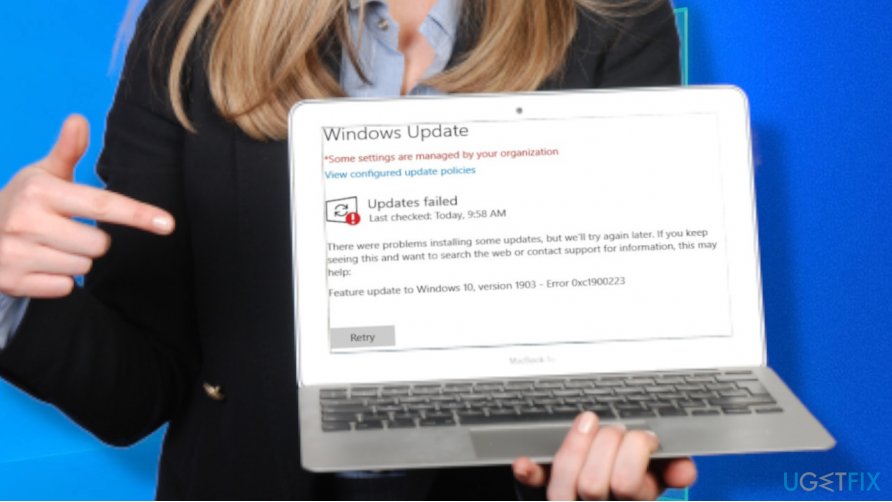
Feature update to Windows 10, version 1903 - Error 0xc1900223
Nevertheless, that's not the only known reason for this kind of problem. Experts point out that the error may emerge because of inconsistent of compromised system files, inaccessibility of certain update locations, and similar. Thus, one of the possible 0xc1900223 error fixes would be the installation of the error via the $GetCurrent folder.
Last, but not least, the Windows update process can fail if the virus or malicious virus remnants are running in the background of the system. Thus, we recommend scanning the system with reliable security software to check the system for malware and temporarily disable the security software. Since there may be many different reasons why this problem may occur, we'll provide all possible ways to fix 0xc1900223 error when installing Windows feature update.
Disable/remove Pi-Hole
If you are or have been using the software known as Pi-Hole, we strongly recommend you to try installing the feature update when the Pi-Hole is disabled. If that doesn't help, then try to remove it, flush the DNS[ref en-4] service, and then restart the update. We'll explain everything in details:
- Press the Windows key and type cmd in the search box.
- Right-click on the Command Prompt option and select Run as Administrator.
- Click Yes on the User Account Control pop-up.
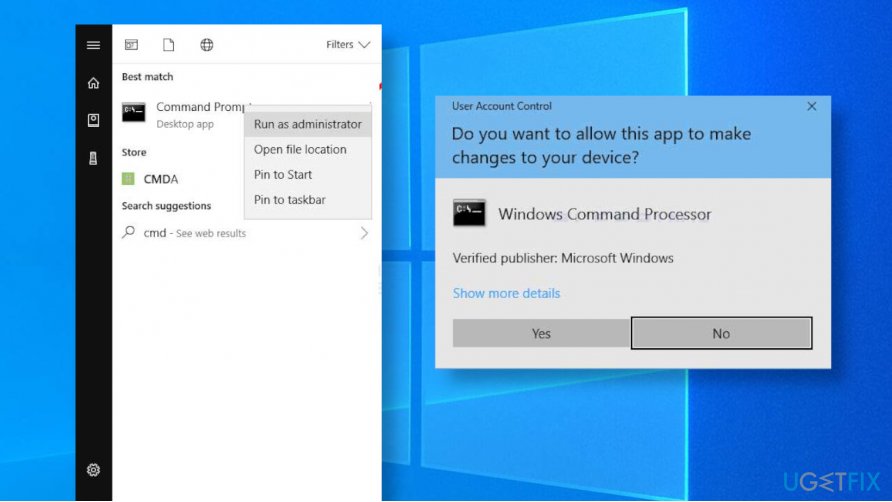
Command prompt opening - Then enter the following command and press Enter to run it:
pihole
- After that, enter the next command and hit Enter:
pihole disable
- If the command has successfully been activated, try to install Windows update. If the process was successful and the 0xc1900223 error did not shoe, you can re-enable Pi-Hole. Open the Command Prompt as explained above and enter the following command:
pihole enable
If disabling the application failed to solve the problem and you still received the error during the update install, we recommend uninstalling Pi-Hole and flushing the DNS service:
- Open the Command Prompt as explained above.
Command prompt opening - Type the following command in the command prompt window and press Enter to activate it:
pihole uninstall
- After that, restart your computer and flush the DNS. For this purpose, you should open the elevated Command Prompt again.
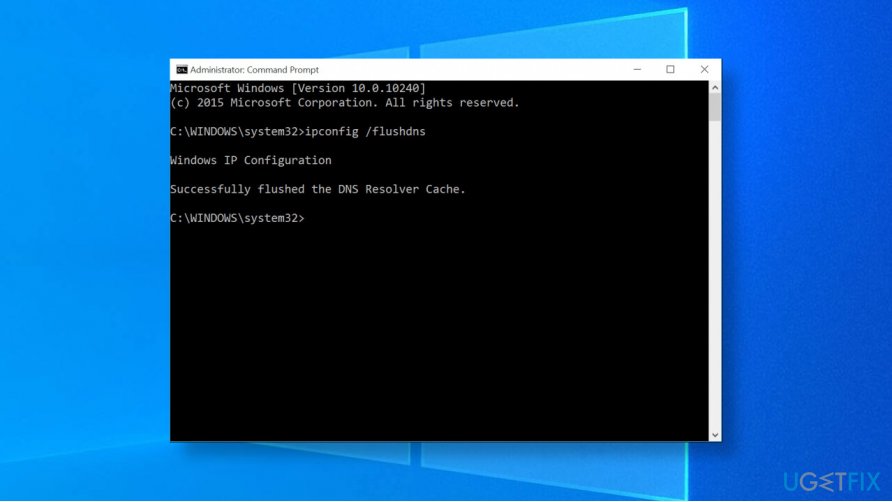
Flush dns - Once opened, enter the following commands one-by-one and press Enter after each:
ipconfig /flushdns
ipconfig /registerdns
ipconfig /release
ipconfig /renew
Enable the $GetCurrent and $SysReset folders in the C:/ drive
The $GetCurrent and $SysReset Reset folders may contain some crucial files related to the Windows Update processes. Windows experts claim that force installing the update by accessing the subfolders of the mentioned domains might help. However, the $GetCurrent folder is hidden by default, so you should either unhide it or access directly via the address bar:
- Open the File Explorer. Paste the C:/$getcurrent to the navigation bar and press Enter (C:/ stands for the letter corresponding to the OS type, so change it if needed).
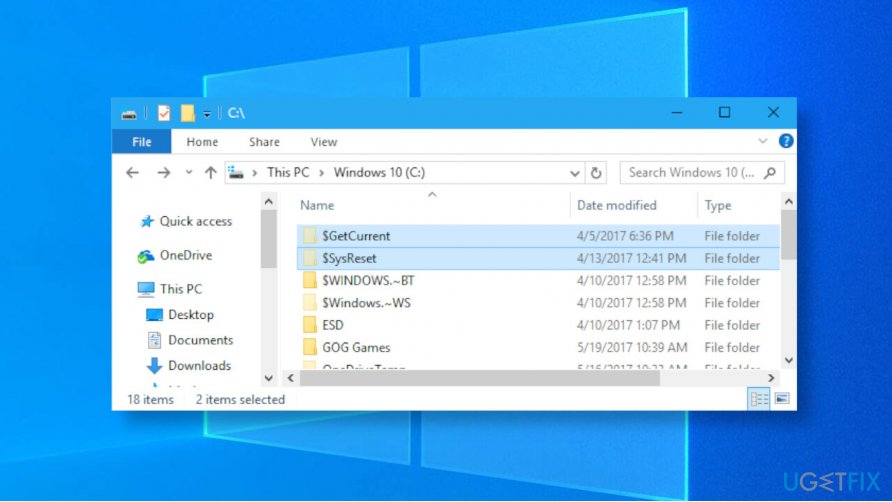
Firce update - If you cannot find the $GetCurrent folder this way, then open File Explorer, open View tab, and select Hidden items.
- Now open the Media folder and double-click on the Start executable file.
- Now the update should be launched successfully.
Reset the Windows Update
In case of the error code 0xc1900223 on Windows 10 occurs because some missing, stopped or corrupt Windows Update components, we recommend you to reset Windows Update components as explained below:
- Press the Windows key and type cmd in the search box.
- Right-click on the Command Prompt option and select Run as Administrator.
- Click Yes on the User Account Control pop-up.
Command prompt opening - Once the elevated Command Prompt opens, enter the following commands one-by-one, and press Enter after each one:
net stop wuauserv
net stop cryptSvc
net stop bits
net stop msiserver - Now press Windows key + E keys to open File Explorer.
- Open the Windows folder and right-click on the SoftwareDistribution folder.
- Select the Rename option and name it as SoftwareDistribution.old.
- Now open the System32 subfolder and right-click the catroot2 to rename it into Catroot2.old.
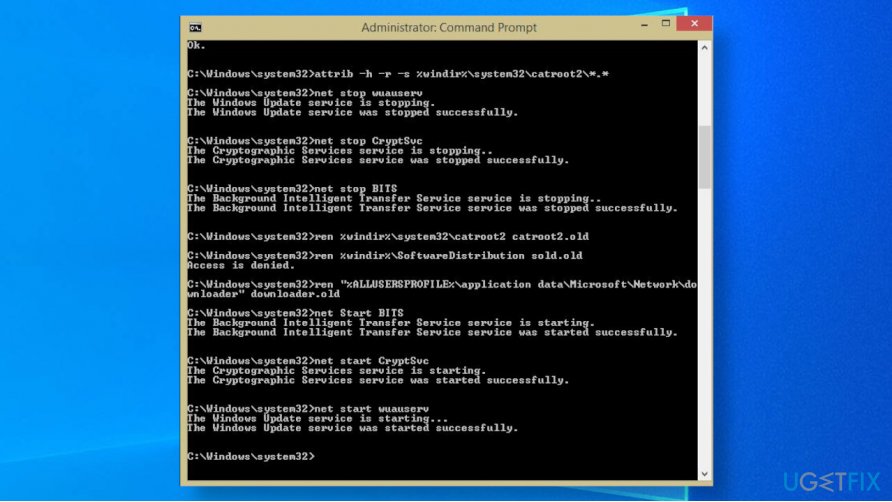
Reset update components - After that, restart the machine, re-open the Command Prompt and type the following commands in the command run:
net start wuauserv
net start cryptSvc
net start bits
net start msiserver
Upgrade Windows manually using Media Creation Tool
If the previous methods did not help to fix 0xc1900223 error, we would strongly recommend trying a manual installation of the Windows feature update. Here's what you should do: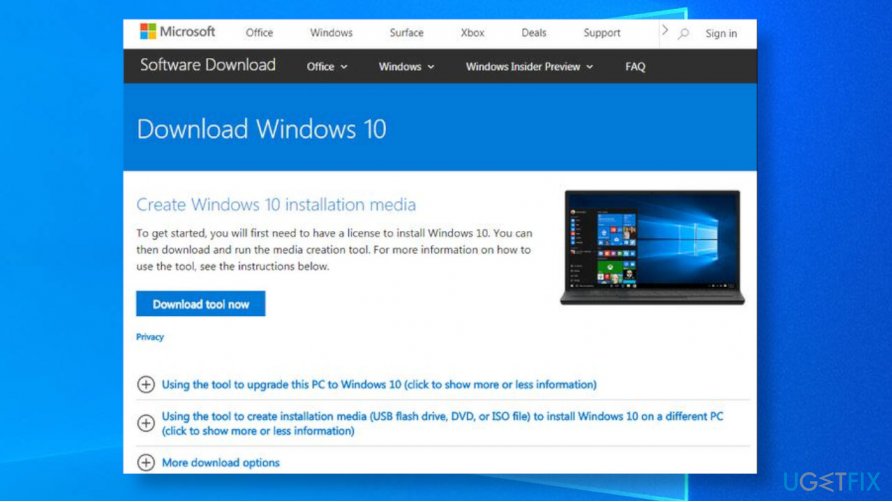
- Open to the official Microsoft's website where you can download the official Media Creation Tool.
- Click on the Download Tool Now button.
- After that, select Upgrade This PC Now. The update now should automatically be installed.
Bottom line
To fix the 0xc1900223 error, you can disable or remove Pi-Hole, scan your system for malware, and temporarily disable security software. If these solutions do not resolve the issue, consider installing the update via the $GetCurrent folder.
Frequently asked questions
The error 0xc1900223 typically occurs due to issues with the Windows Update components or corrupted system files that prevent the feature update from being installed properly.
To fix error 0xc1900223, you can try running the Windows Update Troubleshooter and ensuring that your internet connection is stable during the update process.
Yes, you can manually download the Windows 10 Update Assistant from Microsoft's website to install the feature update, which may help bypass error 0xc1900223.




Report an issue
What's wrong with this guide? We review every report and update or remove content.
Report received — thank you. We'll review and fix it.
You need a free account to submit a report.
Be the first to comment