How to fix
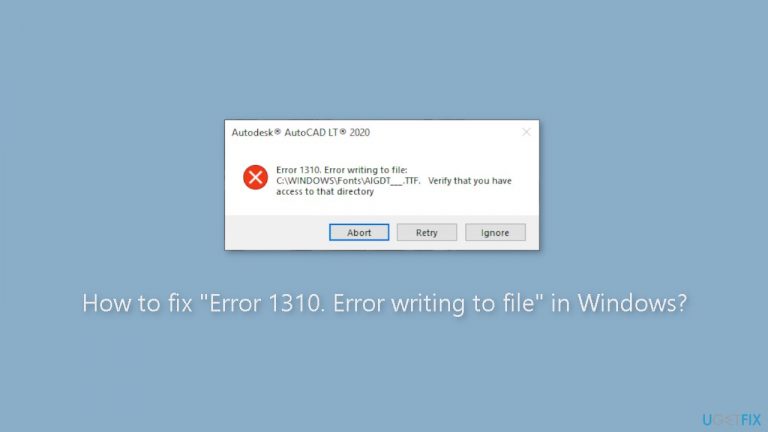
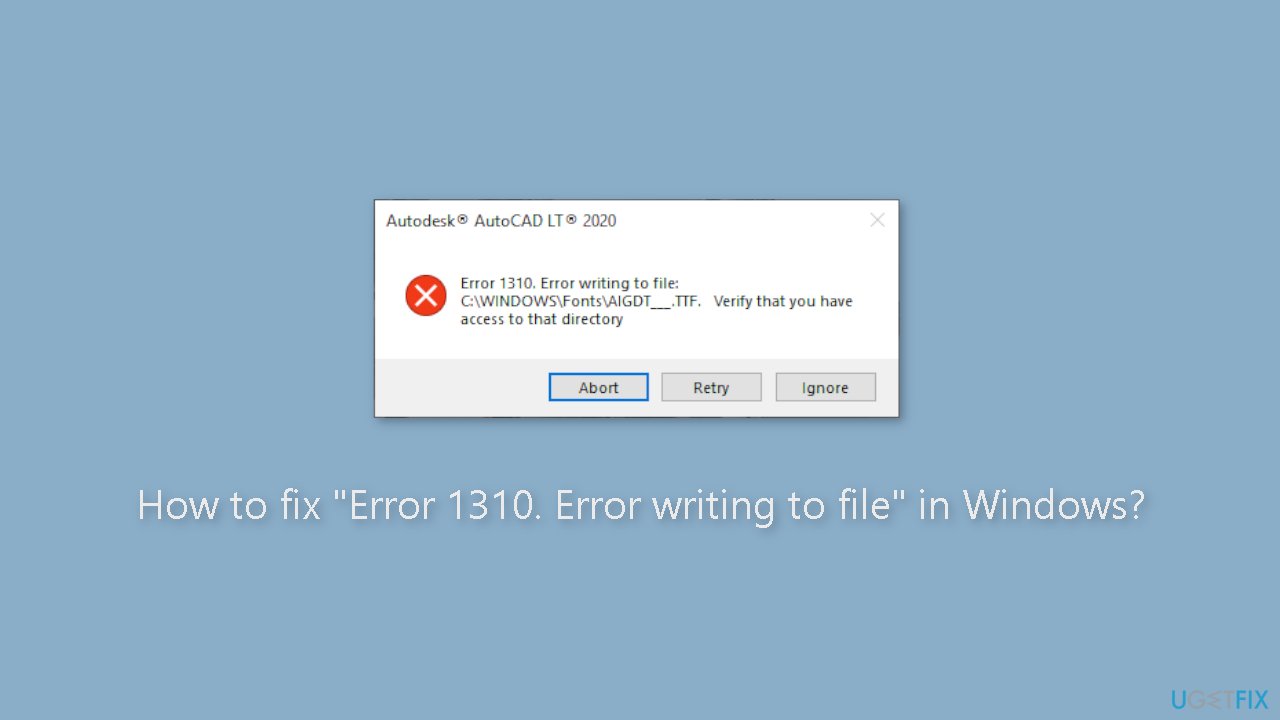
“Error 1310. Error writing to file”
on Windows
Resolve "Error 1310" on Windows 10 and 11 quickly with effective solutions. Follow our expert-tested tips to fix the issue in minutes and get back on tr…

What causes How to fix “Error 1310. Error writing to file” in Windows?
- Lack of permissions to write to a specific file or directory
- File system errors
- User account problems
- Issues with the installation package
- Malware or other types of system issues
Repairs Windows system files, removes malware, and restores a clean OS state — without reinstalling.
Hello. I tried to install a program on my Windows PC but I received the "Error 1310. Error writing to file" message. How can I fix it?
Error 1310 is a commonly encountered Windows error that occurs when users attempt to install or update software on their computer. The error message usually says "Error 1310. Error writing to file" and may include more information about the file path and the specific file that is causing the problem.
When Windows is unable to write to a specific file or directory due to a lack of permissions, this error usually appears. This can happen for a number of reasons, including file system errors, user account problems, or issues with the installation package itself. Malware[ref en-1] or other types of system issues may also cause the error in some cases.
The severity of this error varies depending on the software or system component that is affected. In some cases, the error may prevent users from installing or updating critical software, affecting productivity and workflow. Furthermore, if the error is caused by malware or other types of system issues, the user's computer may be compromised in terms of security.
This error can be fixed by checking file permissions, disabling antivirus software, repairing the installation package, or running a system scan to detect and remove malware. The specific solution, however, will be determined by the underlying cause of the error.
In this guide, you will find 6 steps that should help you fix "Error 1310. Error writing to file" in Windows. You can also try using a system repair tool like [d1] that can fix most system errors, BSODs,[ref en-2] corrupted files, and registry[ref en-3] issues. Otherwise, follow the step-by-step instructions below.
Solution 1. Fix Corrupted System Files
Use Command Prompt commands to repair system file corruption:
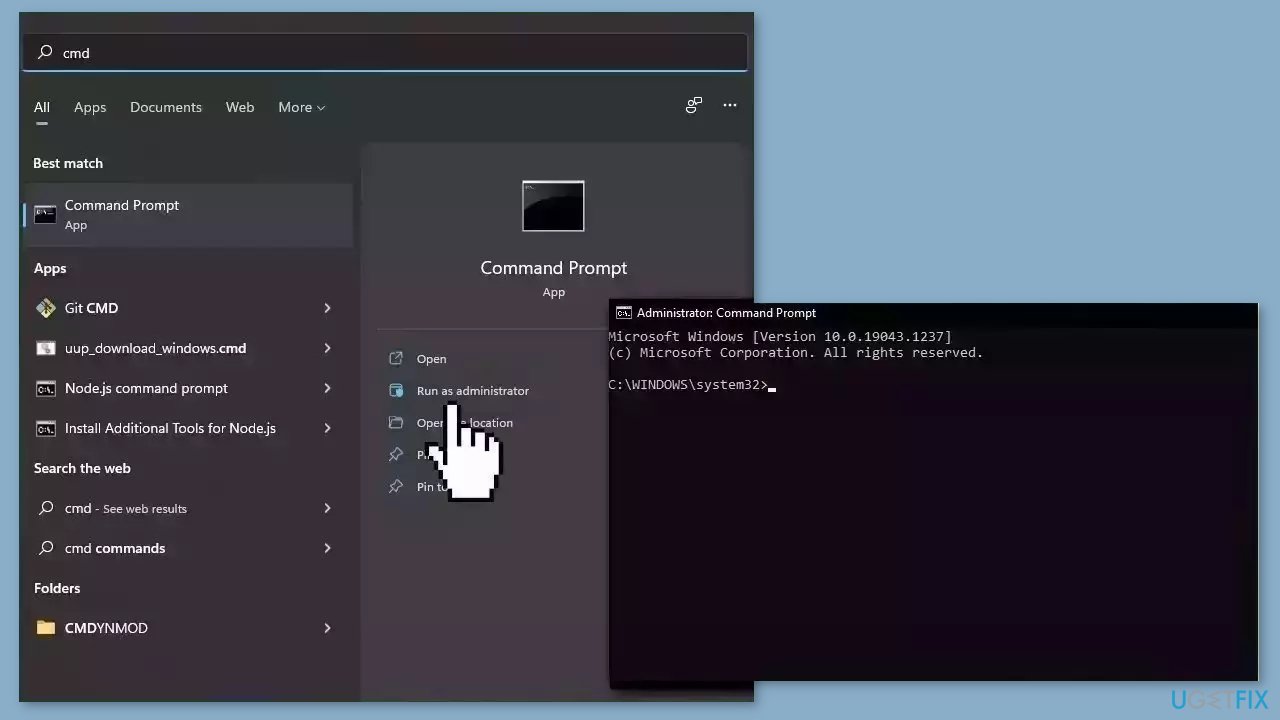
- Open Command Prompt as administrator
- Use the following command and press Enter:
sfc /scannow
- Reboot your system
- If SFC returned an error, then use the following command lines, pressing Enter after each:
DISM /Online /Cleanup-Image /CheckHealth
DISM /Online /Cleanup-Image /ScanHealth
DISM /Online /Cleanup-Image /RestoreHealth
Solution 2. Remove App Duplicates
- Press the Windows key + R on your keyboard.
- Type appwiz.cpl in the Run dialog box that appears.
- Click on OK or press Enter to open the Programs and Features window.
- Look for the program that's giving you the error and check if there are multiple instances of it.
- If there are multiple instances, right-click on each of them one by one.
- Select Uninstall from the context menu that appears.
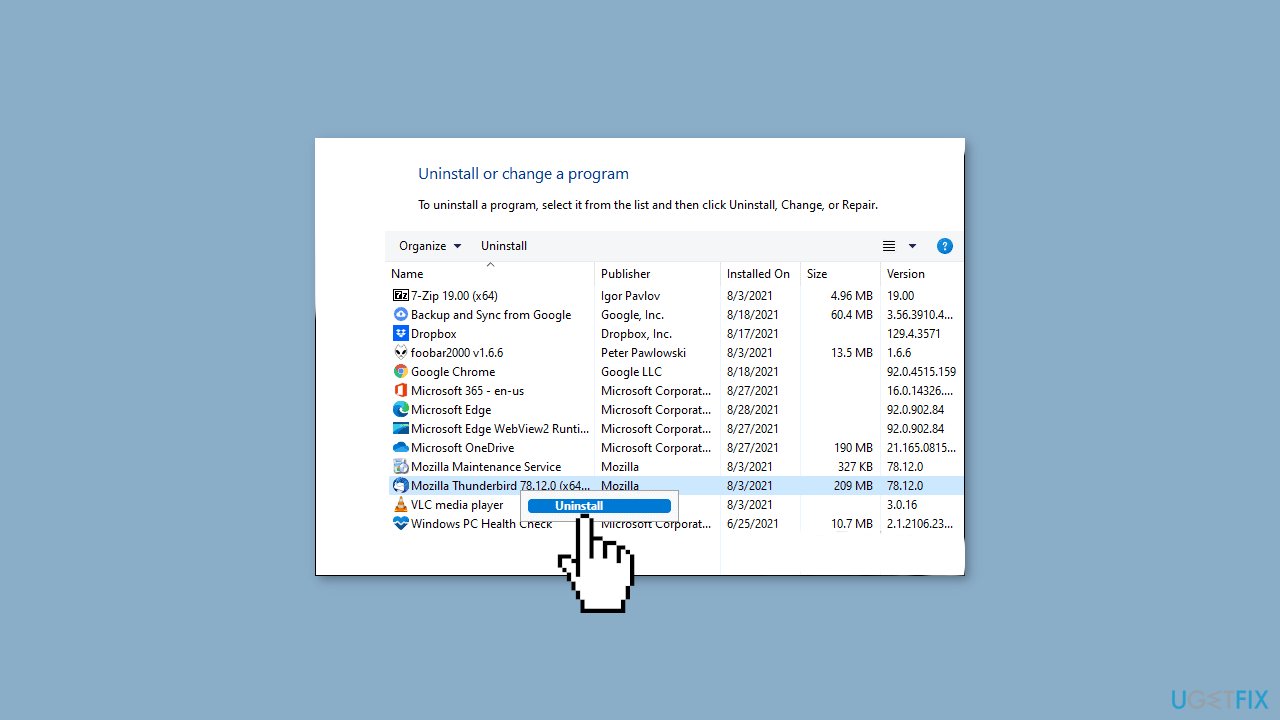
- Follow the on-screen instructions to complete the uninstallation process.
- Repeat steps for all the instances of the program giving the error.
- Once you have uninstalled all the instances of the program, restart your computer.
- Try reinstalling the program again to see if the issue is resolved.
Solution 3. Re-register the Windows Installer
- Press the Windows key + R on your keyboard.
- Type msiexec /unregister in the Run dialog box that appears.
- Click on OK or press Enter to unregister the installer.
- Press the Windows key + R again.
- Type msiexec /regserver in the Run dialog box that appears.
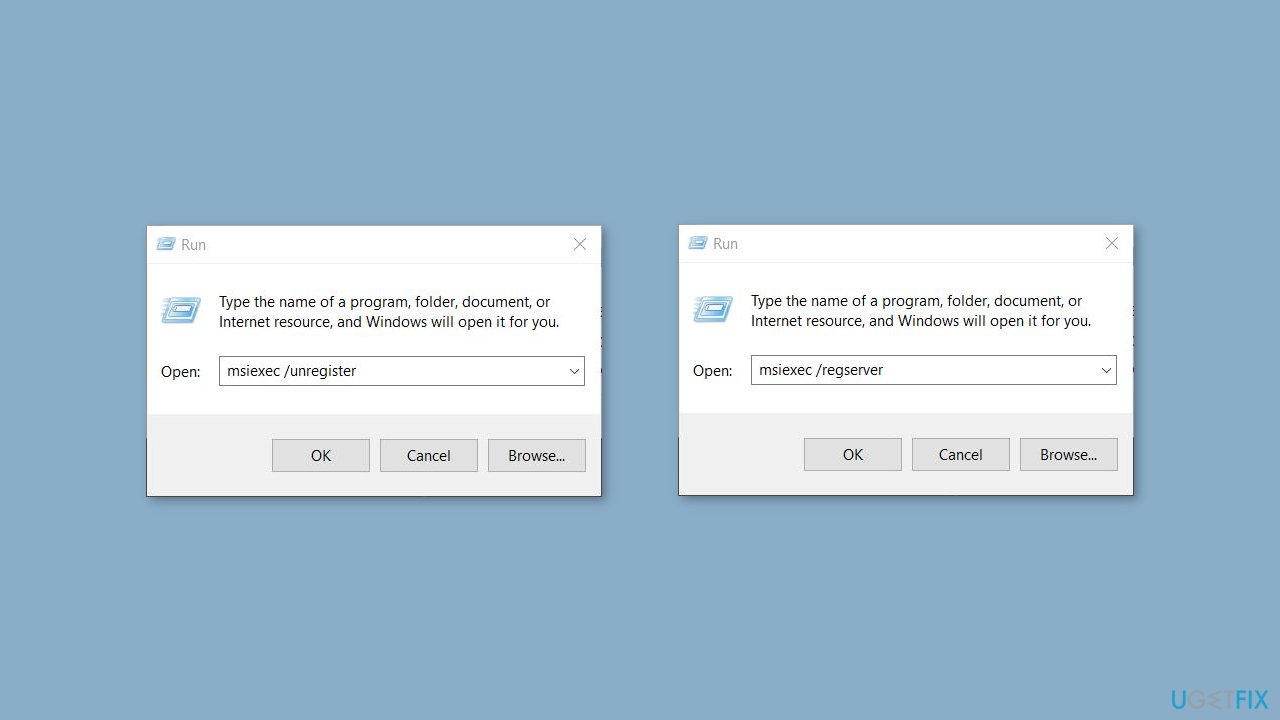
- Click on OK or press Enter to re-register the installer service.
- Once the process is complete, restart your PC.
- After your PC has restarted, check if the issue you were experiencing has been resolved.
Solution 4. Disable Controlled Folder Access
- Open the Windows search box by clicking on the Start menu or pressing the Windows key on your keyboard.
- Type Controlled folder access in the search box and click on the result.
- In the Controlled folder access window that opens, locate the Protected folders section.
- Click on the Manage Controlled folder access link.
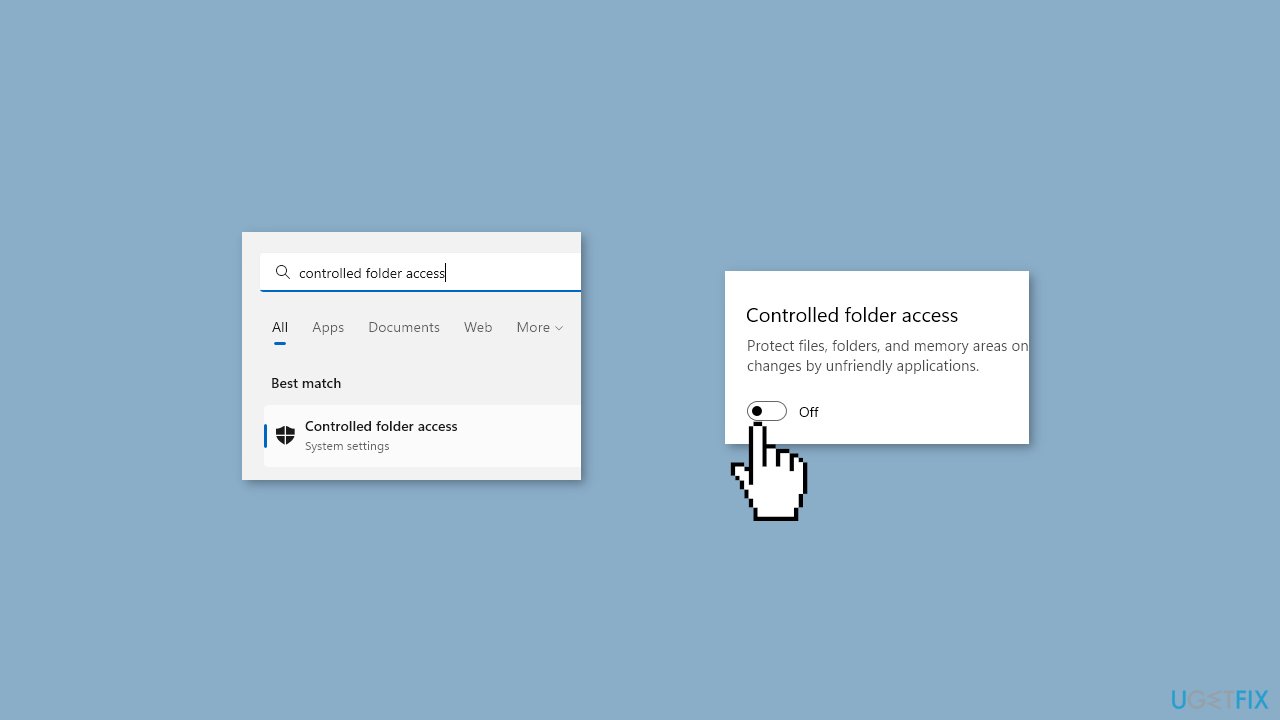
- Toggle the switch next to Controlled folder access to the Off position.
- Close the Controlled folder access window.
Solution 5. Change Folder Permissions
- Right-click on the app or folder that is giving you issues and select Properties from the context menu.
- Click on the Security tab at the top of the Properties window.
- Click on the Edit button located below the Group or user names section.
- In the Permissions for [app/folder] window that appears, click on the Administrators group.
- Check the box next to Full Control under the Allow column.
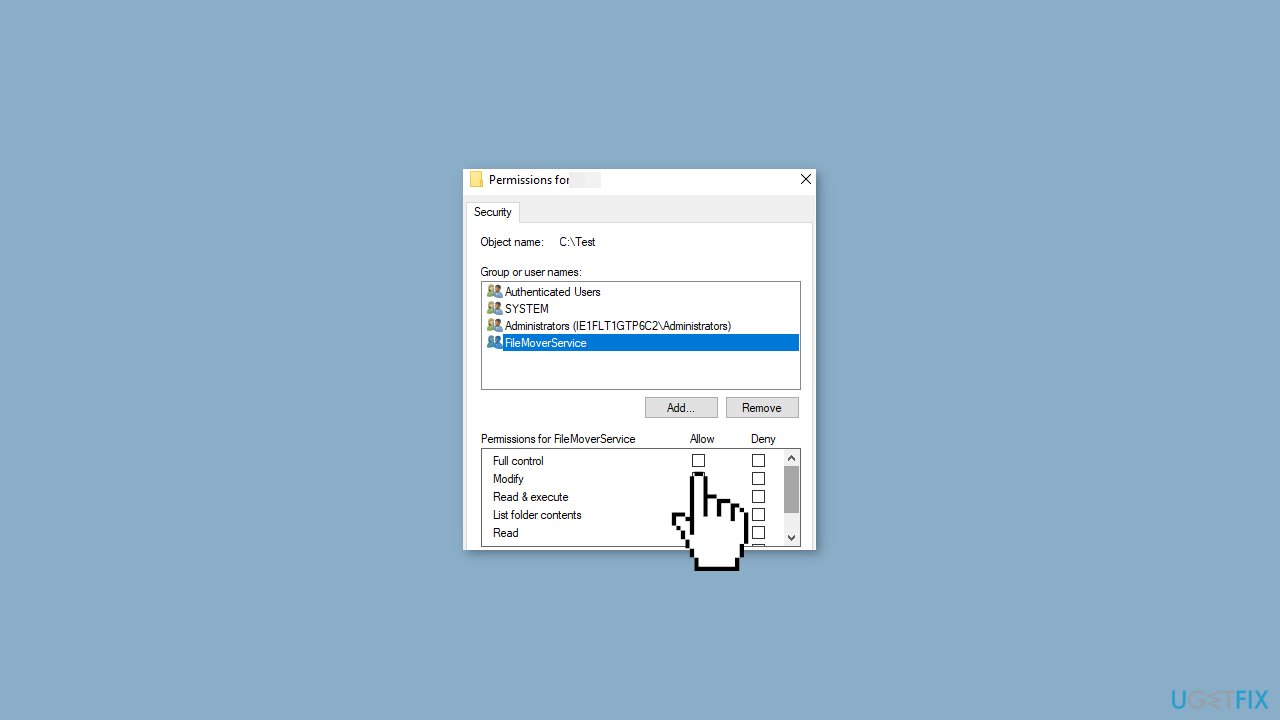
- Click on the Apply button and then click on OK to save the changes.
- Close the Properties window.
- Restart your PC.
Solution 6. Try Clean Boot
- Press the Windows key + R on your keyboard.
- Type msconfig in the Run dialog box that appears.
- Click on OK or press Enter to open the System Configuration window.
- Select the Services tab at the top of the window.
- Check the box next to Hide all Microsoft services.
- Click on the Disable all button.
- Select the Startup tab at the top of the window.
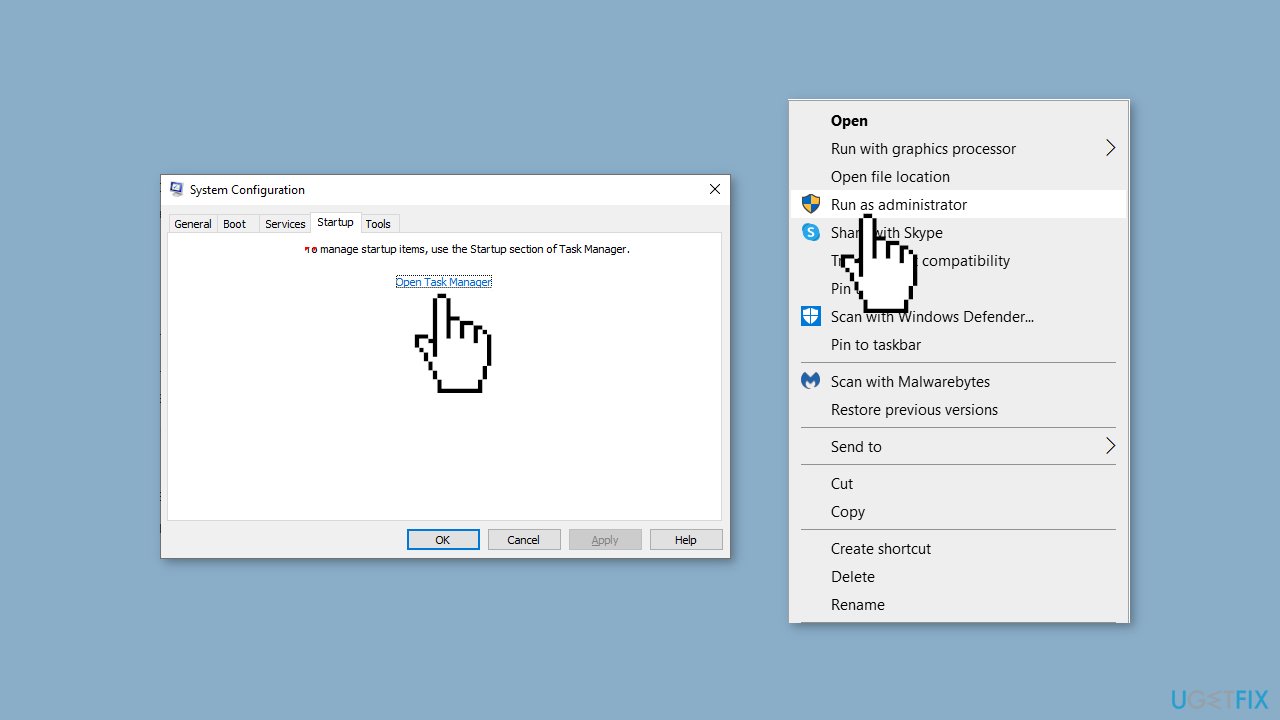
- Click on the Open Task Manager link.
- In the Task Manager window that appears, right-click on each app listed under the Startup tab.
- Select Disable from the context menu for each app.
- Close the Task Manager window and go back to the System Configuration window.
- Click on the Apply button and then click on OK to save the changes.
- Restart your PC.
- Once your PC has restarted, uninstall the faulty app.
- Download the app from official sources.
- Right-click on the installer and select Run as administrator.
- Follow the on-screen instructions to install the app.
Bottom line
This error can be fixed by checking file permissions, disabling antivirus software, repairing the installation package, or running a system scan to detect and remove malware. If these solutions do not resolve the issue, consider using a system repair tool to address underlying system errors.
Frequently asked questions
This error typically occurs due to permission issues or when the installation file is corrupted. It can also happen if the target folder is set to read-only.
To fix this, ensure you have the necessary permissions for the installation directory and try running the installer as an administrator. Additionally, check if the file path is correct and not too long.
You can prevent this error by ensuring your Windows 10 system is up to date and by temporarily disabling any security software that might block the installation process. Also, consider using a different installation location that is not restricted.




Report an issue
What's wrong with this guide? We review every report and update or remove content.
Report received — thank you. We'll review and fix it.
You need a free account to submit a report.
Be the first to comment