How to fix
Error 137 ERR_NAME_RESOLUTION_FAILED on Google Chrome
on Windows
Resolve the error 137 ERR_NAME_RESOLUTION_FAILED on Windows 10 and 11 with easy fixes. Get expert-tested solutions for a seamless browsing experience.

What causes How to fix error 137 ERR_NAME_RESOLUTION_FAILED on Google Chrome?
- Corrupted DNS settings
- Overloaded browser data
- Incorrect internet configuration settings
- System or hardware bugs
- Malware infections
Repairs Windows system files, removes malware, and restores a clean OS state — without reinstalling.
Dear team. Could you please help me to fix browser error 137? It shows both on Chrome and Firefox. The error says net:: ERR_NAME_RESOLUTION_FAILED Unknown error.
However, I can use Explorer from Start menu. I have no idea what does that mean and what should I do? Please help!
The ERR_NAME_RESOLUTION_FAILED is a browser-related error, which most frequently strikes Google Chrome.[ref en-1] None of the web browsers currently available on the market are immune to this issue, although Internet Explorer, Mozilla Firefox, Microsoft Edge, Opera, and other web browsers are less likely to be affected by it.
Users might encounter ERR_NAME_RESOLUTION_FAILED error when trying to access a website they usually had no problem connecting to (that includes the most popular websites).[ref en-2] In the meantime, other sites can be working just fine. Therefore, users are often frustrated because they can't enter a website that needs at the given moment and start looking for ERR_NAME_RESOLUTION_FAILED fix.
The good news is you that you can fix ERR_NAME_RESOLUTION_FAILED error by checking out our tips below. Beware that not all methods will work for everybody, so simply try them one-by-one.
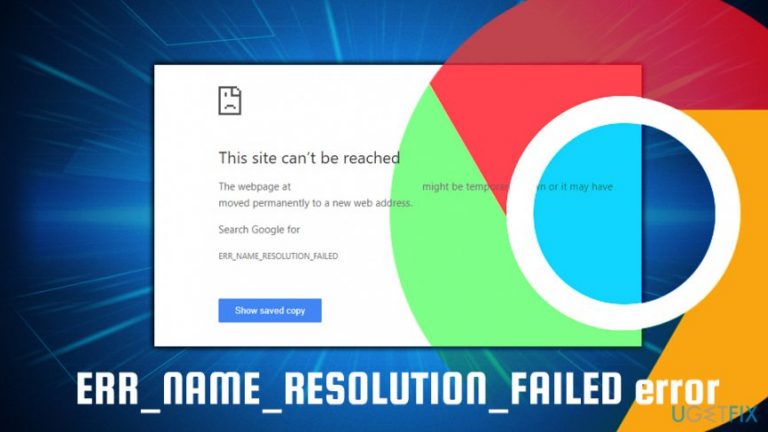
The ERR_NAME_RESOLUTION_FAILED error states the following:
“This website is not available: The webpage at [redacted] might be temporarily down or it may have moved permanently to a new web address. Error code: ERR_NAME_RESOLUTION_FAILED [Error code 137].”
There are several reasons why ERR_NAME_RESOLUTION_FAILED can occur, including corrupted DNS[ref en-5] settings, overloaded browser data, incorrect internet configuration settings, system or hardware bugs, malware infections,[ref en-3] etc. First of all, you should address Internet configuration settings, renew DNS or reset Google Chrome.
Fix 1. Clear browsing data
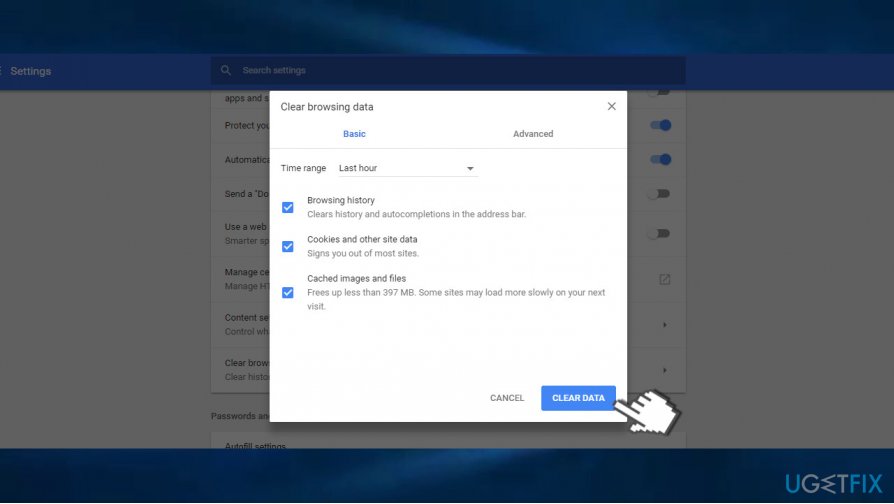
First of all, to fix ERR_NAME_RESOLUTION_FAILED error try to reopen your web browser and clear browsing data. To remove browsing data that may trigger errors, make sure to mark clear cookies, plug-in data, cached images and files options before removing:
- Open Google Chrome and click on Menu icon (three vertical dots at the top-right corner of the website).
- Open Settings and scroll down to the bottom.
- Expand the Advanced settings section.
- Locate the Clear browsing data option and click on it.
- Here you’ll see Basic and Advanced tabs at the top. If you are afraid of losing passwords, autofill data, and other customized settings, stick to the Basic data clearance. There you’ll see Browsing history, Cookies and other site data, and Cached images and files options marked by default. Leave them as they are.
- Click Clear data and wait for the process to be finished.
- Finally, restart Chrome and check if that helped.
Fix 2. Use Netsh Winstock Reset to fix ERR_NAME_RESOLUTION_FAILED
- Type in Command Prompt or cmd into Cortana's box.
- Right-click on the search results and pick Run as administrator
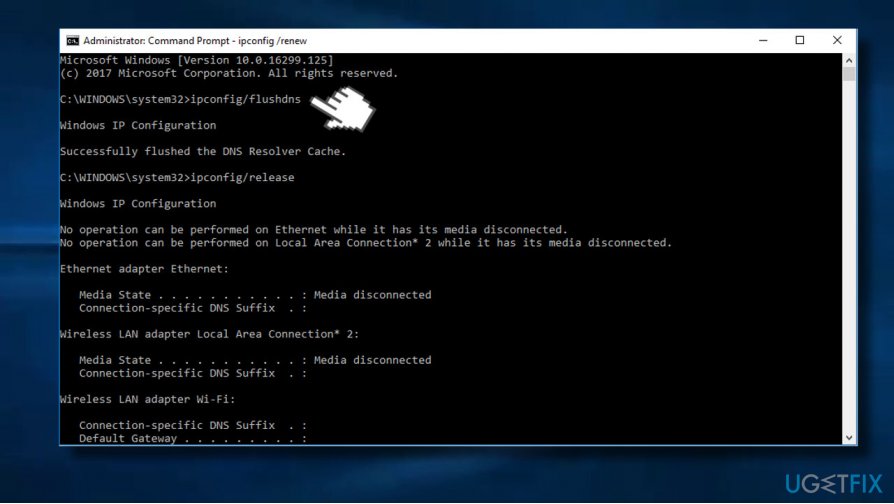
- Copy and paste the following commands one-by-one. Press Enter after each and wait for the command to be executed.
ipconfig/release
ipconfig/all
ipconfig/flushdns
ipconfig/renew
netsh int ip set dns
netsh winsock reset
Fix 3. Reset Google Chrome settings to default
If none of the methods listed above helped, try to reset Google Chrome. For this purpose, you should:
- Open Google Chrome and click on Menu icon (three vertical dots at the top-right corner of the website).
- Open Settings and scroll down to the bottom.
- Expand the Advanced settings section.
- Find the Restore Settings box and click Reset.
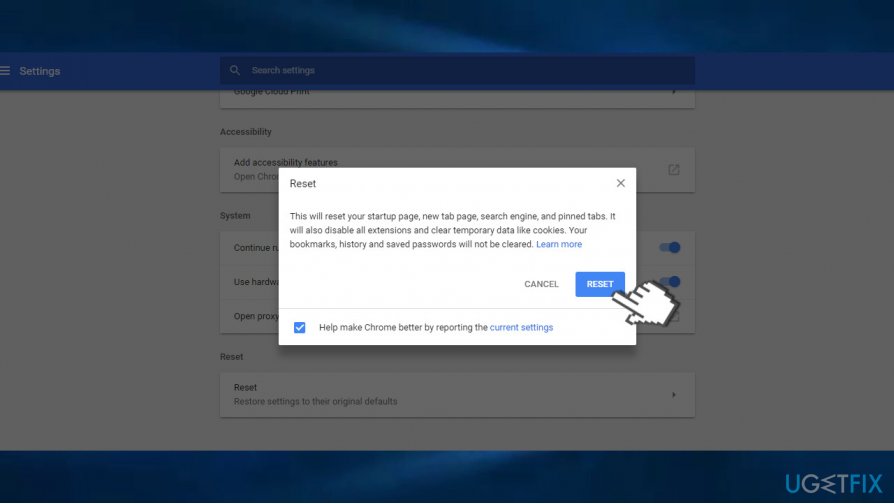
- Once done, restart Chrome and check if these steps helped to fix ERR_NAME_RESOLUTION_FAILED error.
Fix 4. Use open DNS or Google’s DNS
- Press Windows key + R, type ncpa.cpl, and hit Enter.
- Right-click on the Ethernet or Wi-Fi connection depending on which you are currently using.
- Select Properties and select the Internet Protocol Version 4 (TCP/IPv4).
- Click Properties.
- At the bottom of the window, click the Use the following DNS server addresses.
- Now enter 8.8.8.8 as Preferred DNS server and 8.8.4.4 as Alternate DNS server.
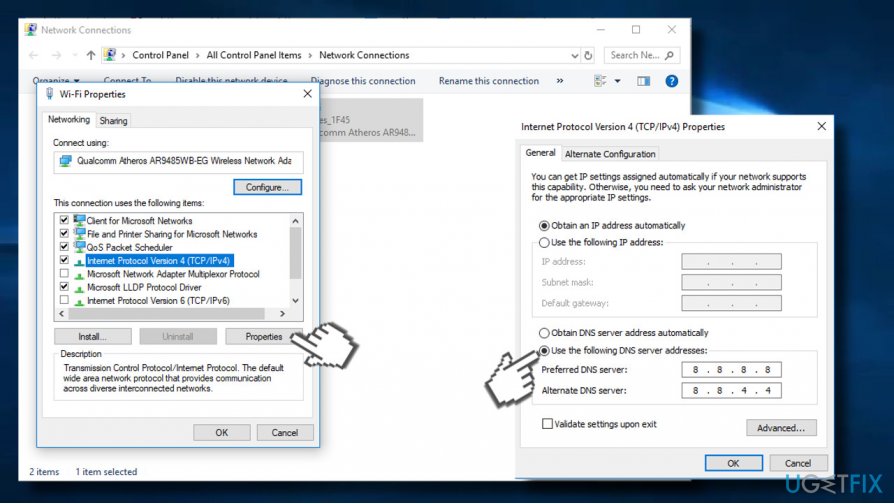
- Finally, click OK to save the changes and check if the DNS problems have been resolved.
Fix 5. Check the system for malware/virus
If none of the methods provided above helped to fix ERR_NAME_RESOLUTION_FAILED error, we would strongly recommend scanning the system with malware with a security application like [d1]. Hackers often misuse the design of legitimate error message and transform them into Tech-Support-Scam alerts. In this case, the ERR_NAME_RESOLUTION_FAILED pop-up would contain a mobile phone number.

Bonus: other tips
There are several other things you can do if the above-mentioned solutions did not help you fix ERR_NAME_RESOLUTION_FAILED error. First of all, you should try to reset your router. In some cases, hardware can bug out, and a reset often fixes the problem (note that you should not press Reset as it can roll you back to factory settings, which could cause problems. Simple plug out the cable and wait 30 seconds, then plug it back in).
There are many potentially unwanted programs that can alter DNS settings or affect browsers in a way that could prevent users from accessing sites cause ERR_NAME_RESOLUTION_FAILED error. Therefore, you should check your Control Panel\\Programs\\Programs and Features directory and remove all the questionable and unknown programs.
Finally, you can make use of VPN[ref en-4] (virtual private network) which can be used to create a safe tunnel between two devices, anonymously connecting you to the internet and bypassing your ISP connection.
Bottom line
To fix the ERR_NAME_RESOLUTION_FAILED error, you can try clearing browsing data, addressing internet configuration settings, renewing DNS, or resetting Google Chrome. If none of these methods work, consider seeking further assistance or checking for additional solutions.
Frequently asked questions
You can try clearing your DNS cache by opening Command Prompt and typing 'ipconfig /flushdns', then press Enter. Additionally, check your network settings to ensure your DNS server is properly configured.
Go to Settings, then Network & Internet, select your connection, and click on Properties. From there, change the DNS settings to use a public DNS like Google's (8.8.8.8 and 8.8.4.4).
Yes, you can try disabling any VPNs or proxies that might be interfering, and also reset your Chrome settings by navigating to Settings > Advanced > Reset and clean up.




Report an issue
What's wrong with this guide? We review every report and update or remove content.
Report received — thank you. We'll review and fix it.
You need a free account to submit a report.
Be the first to comment