How to fix
Error 195 – AMD Installer cannot continue
on Windows
Resolve Error 195 for AMD Installer in Windows 10 and 11 effortlessly. Get expert-tested solutions that ensure quick fixes with zero traces left.

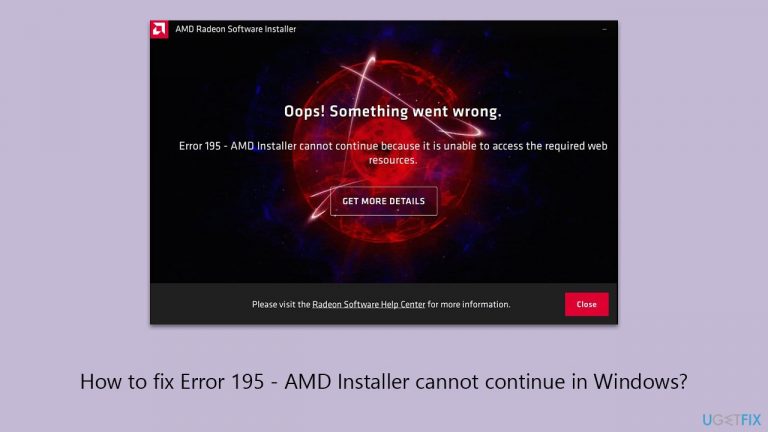
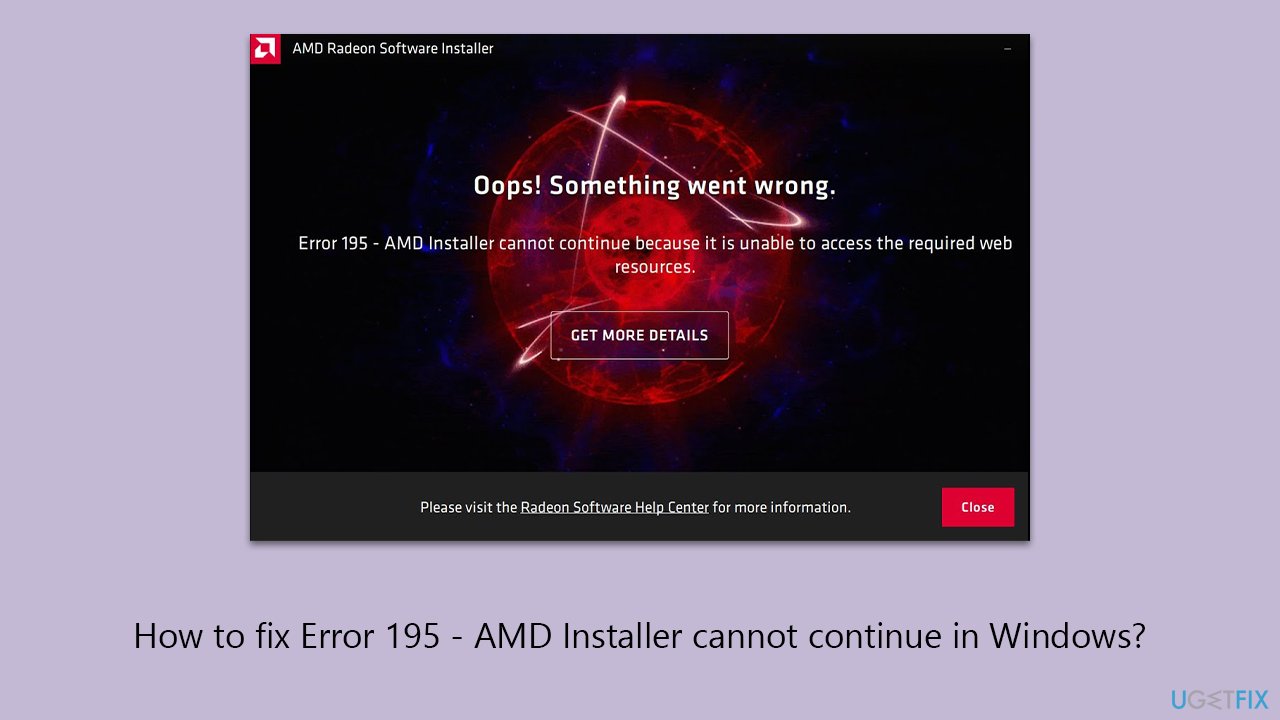
What causes How to fix Error 195 – AMD Installer cannot continue in Windows?
- Failed to connect to AMD servers
- Antivirus software blocking the installation
- Unstable internet connection
- Issues with the user's system
- AMD servers being down
Repairs Windows system files, removes malware, and restores a clean OS state — without reinstalling.
Recently, my games kept crashing so I decided to update GPU drivers. However, I keep getting error 195 - AMD installer cannot continue to access the required web resources when I attempt to install them. How do I fix this?
AMD is one of the market's leading computer processors and graphics card developers. While it is behind in sales of Nvidia when it comes to GPUs, a large number of people still choose AMD graphics cards to avoid compatibility issues, especially those who use its CPUs.
Along with hardware, there are always drivers that need to go alongside it, and AMD parts are not an exception. Unfortunately, users who use these components sometimes run into issues when installing the latest drivers, and "Error 195 - AMD Installer cannot continue" is one such issue.
This typically means that your machine failed to connect to AMD servers, which is a necessary step during the driver installation procedure. The "Error 195 - AMD Installer cannot continue" can occur due to the servers of the vendor being down or due to connectivity issues on your machine. In the former scenario, there is not much you can do apart from waiting - usually, servers come back on pretty quickly, although this is not a rule.
If the error occurs due to issues with your own system, there are several things you can do to fix AMD Error 195. Security software, such as antivirus programs, is designed to protect against threats but can sometimes block legitimate processes like driver installations. This can be resolved by adjusting your antivirus settings to permit the AMD installation.
You should also check whether your internet connection is stable or opt to download the drivers in alternative ways, which we describe below. Before proceeding, we recommend checking an automatic PC repair solution [d1], which can often find underlying Windows issues and repair them quickly for you.
Fix 1. Temporarily disable your antivirus software
Antivirus software can sometimes interfere with the installation of new drivers by mistakenly identifying them as a threat. Temporarily disabling your antivirus can help determine if it's the cause of the installation issue. Remember to enable it again after the installation to keep your system protected.
- Open your antivirus application.
- Look for a settings section.
- Find the option to temporarily disable the antivirus.
- Choose the duration to disable it.
- Proceed with the AMD driver installation.
- Once done, re-enable your antivirus software.
Fix 2. Temporarily disable Firewall
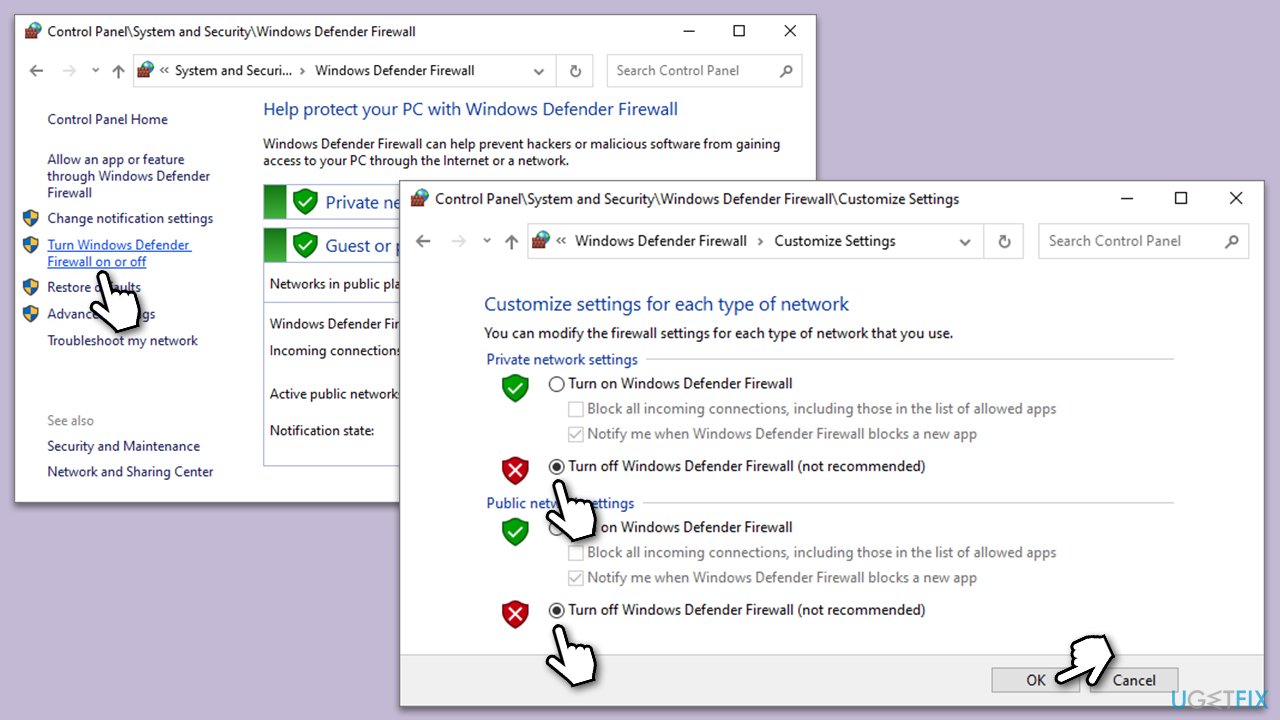
Like antivirus software, Windows Firewall can block certain network-related activities, including driver installations. Disabling it temporarily can help if it's preventing the AMD driver installation.
- Type Control Panel into the search box on the taskbar and select the matching result.
- Navigate to System and Security.
- Choose Windows Defender Firewall.
- Select Turn Windows Defender Firewall on or off on the left-hand panel.
- Choose the option to Turn off Windows Defender Firewall under both private and public network settings.
- Press OK to apply the changes. Don't forget to turn the Firewall back on later.
Fix 3. Try Clean Boot
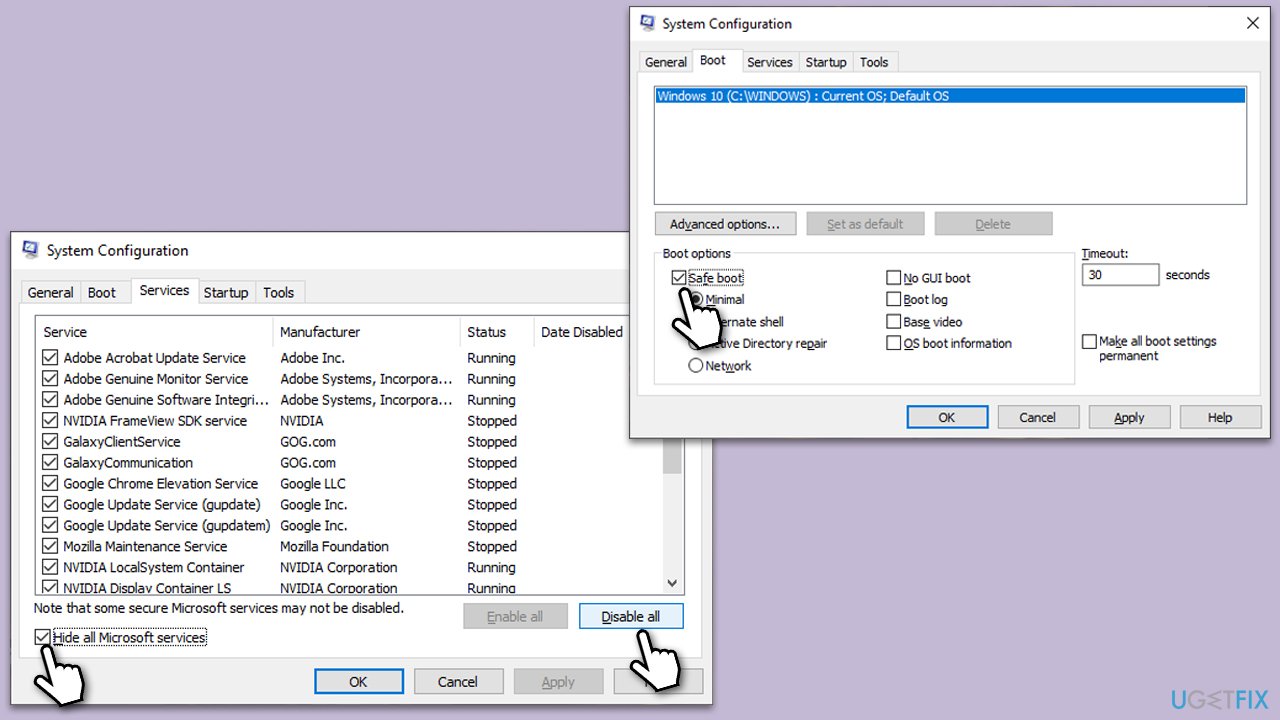
Performing a clean boot starts Windows with a minimal set of drivers and startup programs. This can help identify if background programs are interfering with the AMD driver installation.
- Type msconfig in Windows search and press Enter.
- Pick the Services tab.
- Mark Hide all Microsoft services and select Disable all.
- Select the Startup tab and click Open Task Manager.
- In the Task Manager, right-click on each of the items and select Disable, then close the Task Manager.
- Go to the Boot tab, tick Safe Boot, then click Apply and OK.
- Restart your computer.
Fix 4. Install drivers manually
If automatic installation fails, downloading and installing the drivers manually from the AMD website can be a workaround.
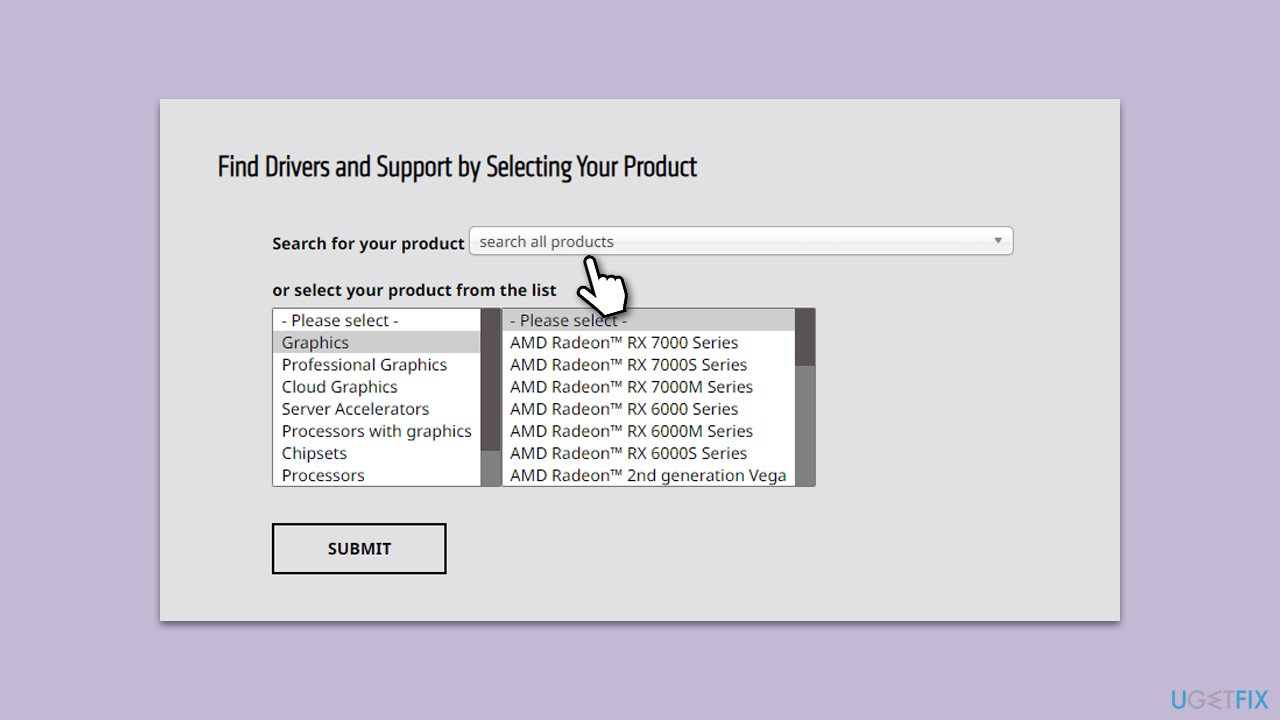
- Visit the AMD Drivers and Support page.
- Select your product from the drop-down menu.
- Download the driver package.
- Open the downloaded file and follow the on-screen instructions to install the driver.
- Restart your computer after the installation.
Fix 5. Use automatic driver updater
Automatic driver updater tools can help install the latest drivers without the need for manual searching and installation.
- Download and install a reputable automatic driver updater tool, such as [rev id="DriverFix"].
- Run the tool to scan for outdated or missing drivers.
- The app will identify the required AMD driver.
- Follow the prompts to download and install the recommended driver update.
- Restart your computer after the update is installed.
Bottom line
To fix Error 195, you can temporarily disable your antivirus software, check your internet connection, or use an automatic PC repair solution. If these steps do not resolve the issue, consider waiting for AMD servers to come back online or exploring alternative download methods for the drivers.
Frequently asked questions
Error 195 typically occurs due to corrupted installation files or compatibility issues with the AMD graphics drivers on Windows 10 or Windows 11.
To fix Error 195, try using the Display Driver Uninstaller (DDU) to completely remove existing AMD drivers, then reinstall the latest version from the official AMD website.
To prevent Error 195, ensure your Windows system is updated and always download the latest compatible drivers directly from AMD's website.




Report an issue
What's wrong with this guide? We review every report and update or remove content.
Report received — thank you. We'll review and fix it.
You need a free account to submit a report.
Be the first to comment