How to fix
Error # 268D3
on Windows
Resolve Error #268D3 on Windows 10 and 11 effortlessly. Follow our expert-tested tips for a seamless experience, fixed in minutes!

What causes How to Fix Error # 268D3?
- Adware infection
- Potentially unwanted program (PUP)
- Installation of free software without caution
- Display of pop-up ads while browsing
- Misleading technical support scams
Repairs Windows system files, removes malware, and restores a clean OS state — without reinstalling.
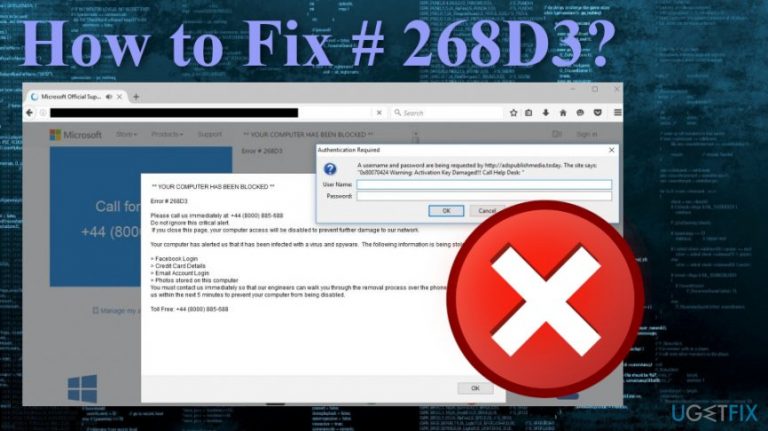
Hello, ugetfix team. I need your help ASAP. I suppose that someone’s trying to trick me, but I’m not sure. Yesterday I received a pop-up window, which scared me a lot. I was informed that my PC had been blocked to save personal information that is stored on it.
A remote support number (+44 (8000) 885-688) is provided, and I’m supposed to call for it so that my FB login, credit card details, email account login and similar information would be saved from theft. The message also indicates Error # 268D3. How should I react to this message??
No matter how convincing YOUR COMPUTER HAS BEEN BLOCKED Error # 268D3 may seem, don’t believe a word that is written on it. That’s a total scam, which is used to trick gullible PC users into purchasing remote technical service.
It goes without saying that the offered remote technical support service is just a scam either.[ref en-1] If you call the given number, you might be misled by scammers who seem professional and well-knowing about computers, which is just a pretend. Therefore, DO NOT call the number provided on the Error # 268D3 pop-up alert.
Why does Error # 268D3 support scam show up on computers?
Although it is stated on the Error # 268D3 message that “Your computer has alerted us that it has been infected with a virus and spyware,” it’s a real nonsense.
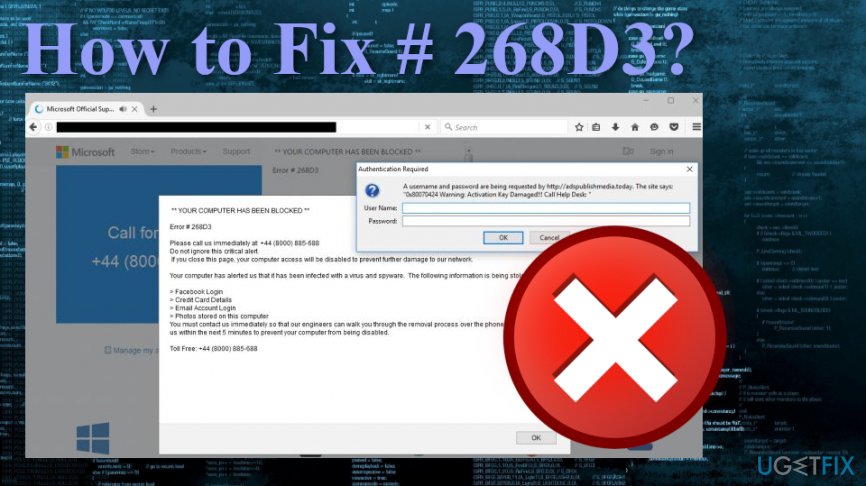
Have you ever heard a computer itself would contact remote servers about virus infection? Probably not. Error # 268D3 scam means that you have caught an adware, which is a potentially unwanted program (PUP) rather than a virus.[ref en-2]
It’s not malicious in itself, what means that it can hardly affect your PC. However, it is programmed to display pop-up ads while browsing on the Internet and spread technical support scam like Error # 268D3, which may cause problems.
Adware-type programs are distributed via software packages. Thus, if you treat installation of free software not seriously enough, you might easily install an unwanted program without even realizing that.[ref en-3]
If you want to keep your PC away from issues like Error # 268D3, you have to select download sources carefully and install programs opting for Advanced or Custom installation. As soon as the PC gets infected, the following notification stars chasing its user:
YOUR COMPUTER HAS BEEN BLOCKED
Error # 268D3
Please call us immediately at: +44 (8000) 885-688
Do not ignore this critical alert.
If you close this page, your computer access will be disabled to prevent further damage to our network.
Your computer has alerted us that it has been infected with a virus and spyware.
The following information is being stolen
Facebook Login
Credit Card Details
Email Account Login
Photos stored on this computer
You must contact us immediately so that our engineers can walk you through the removal process over the phone.
Please call us within the next 5 minutes to prevent your computer from being disabled
Toll Free: +44 (8000) 885-688
As we have already mentioned, do not believe anything that is said here because that’s just a rogue technical support scam. By calling the given number, none of the personal data stored on your machine will become safer that it was before.
Contrary, scammers may trick you into disclosing personal information by yourself, or you may notice that your telephone bill has increased as you have dialed a high-charged number.
Luckily, it’s not difficult to fix Error # 268D3. For this purpose, you have to root out the adware that causes continuous support scam pop-ups. You can find out how to get rid of Error # 268D3 alerts, follow the instructions provided in the next paragraph.
Ways to Fix Error # 268D3
In case you have a minute of spare time, you can try to fix Error # 268D3 manually. The following instructions will help you to do so. Nevertheless, keep in mind that the adware that causes this fake technical support pop-ups may be not the only one littering your PC. Therefore, we highly recommend checking your PC with a software that would check that and optimize your PC completely. Our recommendation would be [d1].
Manual fix
Instructions for PC users:
- Go to Start → Control Panel → Programs and Features. (Windows 7 or Vista)
- Go to Start → Control Panel → Add/Remove Programs (Windows XP)
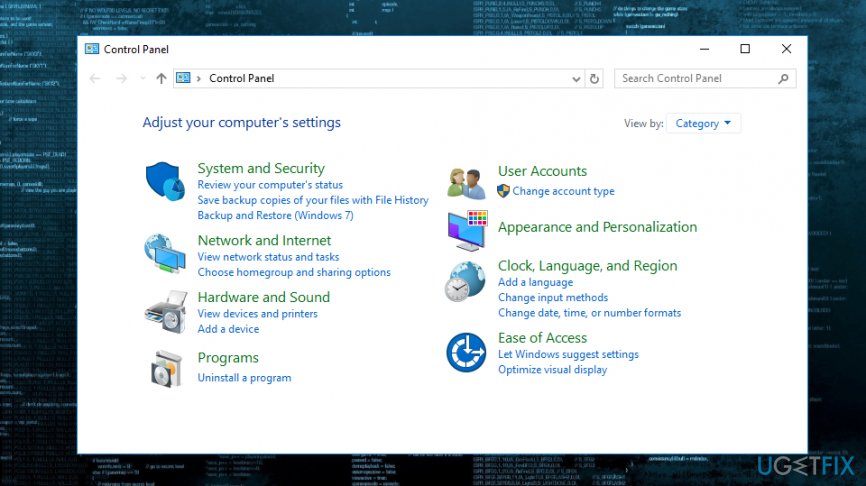
Error control panel - Right-click in the lower-left corner of the screen and wait until Quick Access Menu appears. Then go to Control Panel → Uninstall a Program. (Windows 8/10)
- Look through a list of programs that are installed on your computer and find the ones that look suspicious to you.
- Uninstall these programs and click OK.
- Find Mozilla Firefox shortcut on your computer, right-click on it and open its Properties.
- Open Shortcut tab, and find Target Field. You should see a suspicious URL in it - delete it, and click OK.
- Repeat 6-7 steps with Google Chrome and Internet Explorer shortcuts, too.
Instructions for Mac users:
- Click Go → Applications.
- Find all questionable programs, right-click on them and move them to Trash.
- Now, you need to clean each web browser from Error # 268D3 components.
Mozilla Firefox:
- Launch Mozilla Firefox, open its menu (click on three bars in the top right corner of the window), and then go to Add-ons → Extensions.
- In the Extensions panel, look for suspicious browser extensions that you do not remember installing. Click Remove next to extensions that you do not want to keep.
- Now, check if your homepage wasn’t changed by this computer parasite. Open Mozilla Firefox menu once again, and go to Options → General.
- In the Startup section, click Restore to Default, or just enter another Home Page URL and click OK.
- Reset your browser. Again, open Firefox menu, go to Troubleshooting Information and then click Reset Firefox.
- When a pop-up message asking to confirm your choice appears, click Reset Firefox again.
Internet Explorer:
- Launch IE browser, and then open its menu by clicking on the Gear icon, which is at the top right corner of the browser. Then go to Manage Add-ons.
- When the Manage Add-ons window appears, look through all questionable browser extensions and disable them. For that, right-click each of them and then select Disable.
- Open menu once again and go to Internet Options. In General tab, replace the Homepage address with a URL of your choice. Then hit Apply to save.
- Reset IE. Open its menu, go to Internet Options → Advanced. Click Reset.
- When the Reset Internet Explorer Settings window shows up, put a tick next to option Delete personal settings and hit Reset again.
Google Chrome:
- Launch Google Chrome, click on three-bar button at the top right corner (Menu button) and go to Tools → Extensions.
- Look for suspicious browser extensions and eliminate them by clicking on Trash icons next to them.
- Open menu again, then go to Settings. Find On startup part, and click Set pages next to Open a specific page or a set of pages option.
- Remove suspicious websites by clicking on X next to them, and then enter a URL of the site that you would like to set as your homepage.
- Then go to Menu → Settings → Manage Search engines.
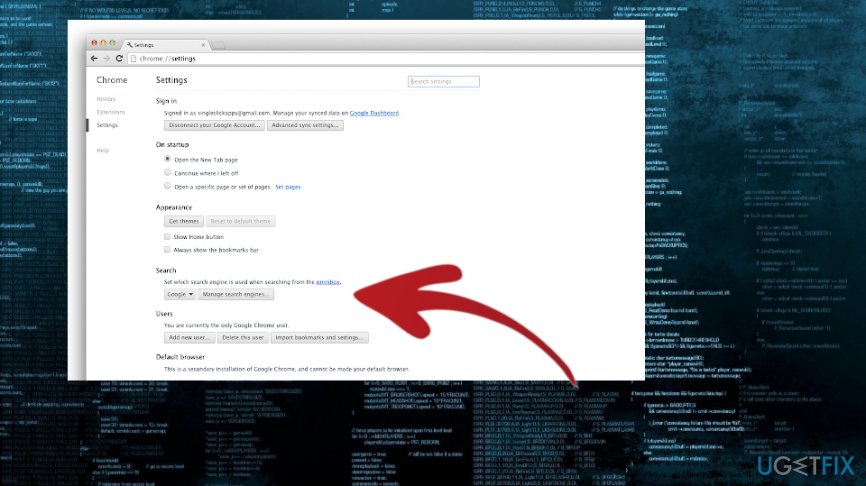
Error fix chrome - When Search engine window shows up, remove all suspicious entries and leave only the search engine that you would like to use on a daily basis.
- Reset Google Chrome. Go to Menu → Settings, then click on Reset Browser Settings button at the bottom of the page.
- Once Reset browser settings window appears, click Reset to confirm your choice.
Safari:
- Launch Safari, and then find and click Safari in the menu bar at the top of the screen. Then go to Preferences.
- Go to Extensions tab and look for suspicious entries. Uninstall each of them.
- Then go to General tab and check what URL is entered into Homepage box. If you see a suspicious link, remove it and replace it with a website that you want to set as a homepage. Remember that you must type in http:// before entering a preferred URL.
- Reset Safari. Click Safari, and click on Reset Safari… option.
- When Reset Safari pop-up appears, check all checkboxes and click Reset.
Bottom line
Error # 268D3 is a scam alert that tricks users into calling a fraudulent support number. To fix this issue, avoid calling the number, remove any adware from your system, and be cautious when installing software. If none of these solutions work, consider seeking professional help.
Frequently asked questions
Error # 268D3 typically occurs due to corrupted game files or issues with the game's server connection on Windows 10 or Windows 11.
To troubleshoot Error # 268D3, verify the integrity of your game files through the game launcher and ensure your Windows 10 is fully updated.
To prevent Error # 268D3 from recurring in Windows 11, regularly check for updates for both the game and your operating system, and consider reinstalling the game if issues persist.




Report an issue
What's wrong with this guide? We review every report and update or remove content.
Report received — thank you. We'll review and fix it.
You need a free account to submit a report.
Be the first to comment