How to fix
Error Code 0x0000007e
on Windows
Resolve the frustrating Error Code 0x0000007e on Windows 10 and 11 with clear steps and quick solutions. Expert-tested for effective fixes!

What causes How to Fix Error Code 0x0000007e on Windows?
- Low space on Hard Disk
- Outdated or corrupted BIOS
- Outdated system or hardware drivers
- Problems with drivers and their compatibility
- Malware infection
Repairs Windows system files, removes malware, and restores a clean OS state — without reinstalling.
Few minutes after I started my computer, it showed a Blue Screen Of Death, and that tells about the 0x0000007e error. How can I fix it?
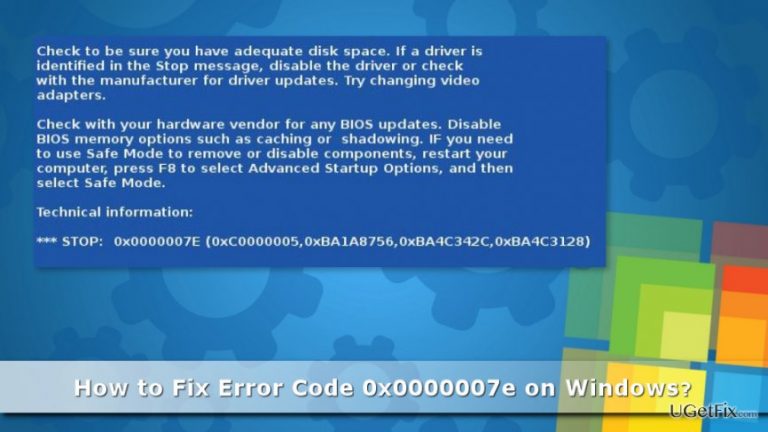
Error Code 0x0000007e is one of many errors that might occur on all versions of Windows operating system. However, most likely it happens on older versions of the operating system, such as Windows 7 or Windows 8. Typically this error is followed by Blue Screen of Death (BSOD) that says:
A problem has been detected, and windows has been shut down to prevent damage to your computer.
If this is the first time you've seen this Stop error screen, restart your computer. If this screen appears again, follow these steps:
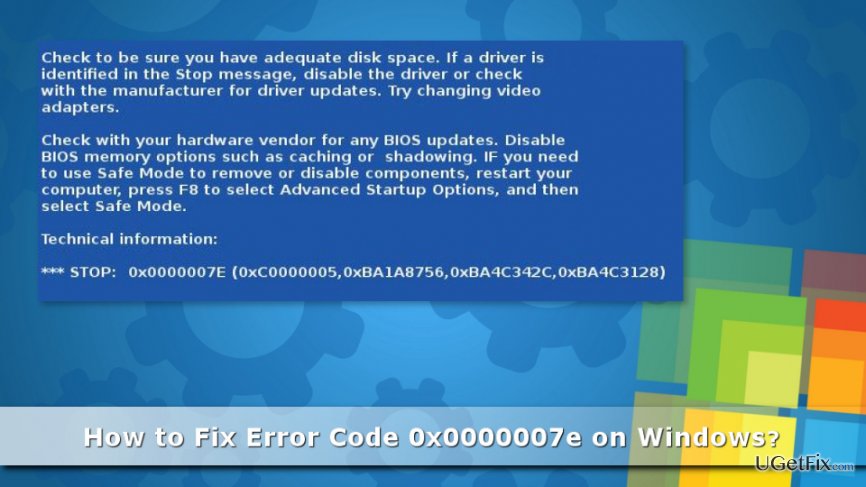
Check to be sure you have adequate disk space. If a driver is identified in the Stop message, disable the driver or check with the manufacturer for driver updates. Try changing video adapters.
Check with your hardware vendor for and BIOS updates. Disable BIOS memory options such as caching or shadowing. If you need to use Safe Mode to remove or disable components, restart your computer, press F8 to select Advanced Startup Options, and then select Safe Mode.
Technical information:
*** STOP: 0x0000007e (0xC0000005, 0x81ED2693, 0x805F0650, 0x805F034C)
There are many reasons why this error might occur. Few of them are mentioned in the BSOD:
1. The low space on Hard Disk.
2. Outdated or corrupted BIOS.
3. Outdated system or hardware drivers.
4. Problems with drivers and their compatibility.
5. Malware infection.
If you suspect that your computer might be infected with malware, you should scan the system with malware removal software, such as [rev id=“Reimage”]. The main signs of the infiltration of the virus are sluggish computer’s performance, increased amount of suspicious ads, unknown programs or processes running on the computer, inability to open or use particular files, etc.
If it seems that any computer virus is responsible for the 0x0000007e error, you should try other solutions that might help to fix you this problem.
Solutions for fixing Error Code 0x0000007e
As you already know, there are five major problems that cause BSOD error 0x0000007e. First of all, you should go from the easiest solution of the problem and check whether you PC is not infected with the virus. If not, then follow other methods to fix the problem.
Method 1. Scan the computer with security program
Malware and computer viruses might modify various Windows OS processes and files. As a result, the 0x0000007e error might occur. To find out if your computer is infected, you should install a reputable malware removal tool, such as [rev id=“Reimage”], and run a full system scan with the help of it. Malware elimination might help to get rid of this problem.
Method 2. Check the Hard Drive space
Most of the time this error is caused by lack of disk space. Thus, you have to check how much free space is left on your device:
1 Open My Computer.
2. Right-click the C drive.
3. From the appeared drop-down menu, choose Properties. Here you will see how much free space has left.
If you find out that there’s no free space left on the PC, you need to remove some of your files or programs to make sure that computer can run smoothly. We suggest transferring files that you do not use on a daily basis to the external storage device. What is more, you should also uninstall programs that you no longer use.
Method 3. Install available updates
Outdated operating system or software might trigger the error. Thus, you need to check updates and install them if necessary.
Windows 10 users can check OS updates by following these steps:
1 Click Start and go to Settings.
2. Choose Update & security.
3. Click Windows Update option on the left.
4. Click Check for updates button and install available updates.
If you use the earlier version of the Windows, you can check available updates by following these steps:
1. Access Control Panel and choose Windows update.
2. Click Check for updates option and click Install updates button.
Once operating system and software are updates, you should get rid of the 0x0000007e error. If not, you have to try other methods presented below.
Method 4. Update the Basic Input and Output System (BIOS)
If the error shows up on the system startup, most likely outdated BIOS is the responsible for this error. You should be careful with this update. Any mistakes may lead to the corrupted BIOS or UEFI firmware. Thus, in the case of the failure, your computer becomes unbootable.
To fix the Error Code 0x0000007e, you should check the version of your BIOS:
1. Open Command Prompt window by typing command or cmd in Windows search bar and clicking enter. Click on the right search result
2. Type this command and click enter:
wmic bios get smbiosbiosversion
3. In the appeared Windows, you will see the version of the BIOS.
Once you know the version of the BIOS, you have to check manufacturer’s website to make sure if it’s the latest version or not. If you find some fixes or updates, or newer version, you should download it. When installing new BIOS, you should be extremely careful and follow installation step attentively.
Method 5. Solving problems with drivers
Outdated, corrupted or third-party drivers might be the reason of 0x0000007e error. First of all, you have to make sure that all the drivers installed on your PC are up-to-date. In order to update drivers follow these steps:
1 Go to Start and type Device Manager to the search bar. Choose it from the search results.
2. You will see the list of installed drivers. Right-click on each of the entry you need to update and click Update Driver option.
3. Then choose Search automatically for updated driver software" option. Once the scan results are over you will be delivered available updates. Choose to install them and follow installation guidelines.
If you cannot install updates, you should uninstall particular drivers and reinstall them again:
1. Open Device Manager.
2. Right-click the name of the device and from the drop-down menu choose Uninstall.
3. Restart your computer.
4. Install these drivers again.
Reinstallation might also help to fix problems with corrupted drivers that might also be the reason of the error.
Bottom line
To fix Error Code 0x0000007e, ensure you have adequate disk space, update or disable problematic drivers, and check for BIOS updates. Additionally, consider scanning for malware if you suspect an infection. If none of these solutions work, further troubleshooting may be necessary.
Frequently asked questions
Error code 0x0000007e typically indicates a problem with a missing or corrupted driver or system file, leading to a blue screen of death (BSOD) issue.
To troubleshoot the 0x0000007e error on Windows 11, start by checking for driver updates, running a system file checker scan, and ensuring that all Windows updates are installed.
Yes, you can often resolve error code 0x0000007e on Windows 10 by using tools like the System Restore feature, performing a clean boot, or updating device drivers.




Report an issue
What's wrong with this guide? We review every report and update or remove content.
Report received — thank you. We'll review and fix it.
You need a free account to submit a report.
Be the first to comment