How to fix
Error Code 0x8007001F
on Windows
Resolve error code 0x8007001F on Windows 10 quickly and easily. Follow expert-tested solutions for a smooth experience, fixed in minutes.

What causes How to Fix Error Code 0x8007001F on Windows 10?
- Installation of Windows 10 Anniversary update
- Recent upgrade from earlier Windows versions
- Issues with in-built Windows Update service
- IDT High Definition Audio Driver problems
- Bluetooth connectivity issues
- Sound issues
Repairs Windows system files, removes malware, and restores a clean OS state — without reinstalling.
Hello. When I set the system to check for updates, it does check and detects pending ones. However, when I try to install them, the installation is terminated by an error code 0x8007001F. Any solutions?
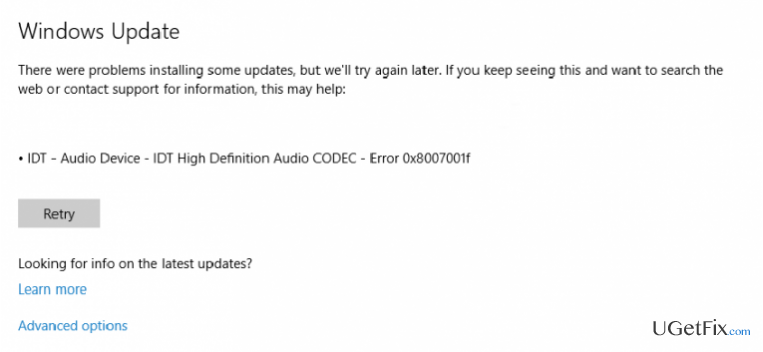
0x8007001F Error Code usually occurs after the installation of Windows 10 Anniversary update. Less often it springs up on Windows 10 OS that has recently been upgraded from the earlier versions or when trying to use an in-built Windows Update service. The full message reads as following:
There were problems installing some updates, but we’ll try again later. If you keep seeing this and want to search the web for more information, this may help:
IDT –Audio Device – IDT High Definition Audio CODEC –Error 0x8007001F
The error message indicates an IDT High Definition Audio Driver as a culprit. Besides, people have also reported Bluetooth connectivity and sound issues accompanying the error message. Thus, of the solutions would be to update or reinstall the driver. In addition, it might be that Windows 10 OS and the hardware have compatibility problems, thus bringing the 0x8007001F bug to the daylight. Since there is no unified 0x8007001F error fix yet, we will provide the methods that people approved to be working. Having in mind that each PC and OS feature different traits, hardware, and software, it’s natural that the trigger of the issue may be different, so try to perform the methods listed below one by one and, hopefully, you will successfully fix 0x8007001F error code.
Fix 1. Run Windows Troubleshooter
- Click Win key and type troubleshooting.
- Click on the search results and then select View all on the left pane.
- Select Windows Update Troubleshooter and wait for the scan to be finished.
Fix 2. Update Audio Drivers
- Click Win key, type Device Manager and select the first option from the search results.
- Expand Sound, video and game controllers on the left side and select IDT High Definition Audio CODEC.
- Click Action tab and select Update Driver Software.
- After that, select Browse my computer for driver software and select High Definition Audio Device driver from the list.
- Click Next and then Yes.
- When the process is finished, restart your PC.
If this method did not help, you should also try to reinstall the driver. For this purpose, repeat the steps indicated above except you have to select Uninstall driver instead of Update Driver Software. After that, go to the manufacturer’s website and download the latest version of the driver manually.
Fix 3. Reinstall Windows 10 using Media Creation Tool
- Navigate to the official Microsoft‘s website and download Media Creation Tool.
- Double-click the MediaCreationTool.exe file to launch it.
- Follow the onscreen instructions until you get to Windows 10 Setup.
- Select Upgrade this PC now and press Enter.
- When the download process is finished, click Accept and select Keep personal files and apps. Otherwise, all data stored on the system will be deleted.
- Finally, click Install.
In addition to these methods, some people also claim that they have disabled the Windows Update Service via Services manager and renamed C:\$WINDOWS.~BT folder to fix 0x8007001F error, so if the previous methods did not help, you may try this as well. When you are done with this bug check, you should install a PC optimization tool, such as [d1], so that it could continuously maintain your PC and prevent it from further errors.
Bottom line
To fix the 0x8007001F error code, you can run the Windows Troubleshooter and update your audio drivers. If these solutions do not resolve the issue, consider exploring additional methods or seeking further assistance.
Frequently asked questions
Error Code 0x8007001F is often caused by issues related to audio drivers, corrupted system files, or problems with Windows updates. It can also occur due to interference from third-party applications.
To fix this error, try updating your audio drivers, running the Windows Troubleshooter, or performing a system file scan using the Command Prompt. Additionally, ensure that Windows updates are functioning correctly.
Yes, Windows 11 users can also encounter Error Code 0x8007001F, and the troubleshooting steps for resolving it are similar to those for Windows 10.




Report an issue
What's wrong with this guide? We review every report and update or remove content.
Report received — thank you. We'll review and fix it.
You need a free account to submit a report.
Be the first to comment