How to fix
Error code 0x8007042C on any web browser
on Windows
Resolve the 0x8007042C error on Windows 10 and 11 browsers quickly and efficiently. Get expert-tested solutions and fix the issue in minutes!


What causes How to fix error code 0x8007042C on any web browser?
- Windows Update error due to clean install or upgrade
- Infection by malware, specifically adware
- Firewall breach detected
- Internal configuration altered
- Internet infection or unauthorized connection
Repairs Windows system files, removes malware, and restores a clean OS state — without reinstalling.
Hello. I‘m in a serious problem. Microsoft has sent me a warning that ransomware activity has been detected on my PC. I received a pop-up notification while web browsing on Chrome. The message indicates Error Code 0x8007042C and prompts me to call for certified technicians. I‘m afraid to lose personal files, but I have some doubts whether should I call for them or not. Could you please tell me what should I do?
There are two types of Error Code 0x8007042C. One referrs to Windows Update error, which emerged a couple of weeks for Windows 10 Insiders who have either clean insalled Windows 10 or upgraded to the latest build. However, recently people started reporting a new type of 0x8007042C error, which emerged on web browsers, including Google Chrome, Mozilla Firefox, Internet Explorer, Microsoft Edge, and others.
Why do I get Error Code 0x8007042C while browsing?
In comparison to Windows Update error 0x8007042C, the same error code shows up while web browsing not because of system‘s malfunction, but its infection. If the alert that you receive claims that „Suspicious Ransomware Activity detected” on your PC and recommend you to call for Microsoft certified technicians, you should immediately scan the system with a professional anti-malware, for example, [d1]. That’s because error code 0x8007042C, which warns people about ransomware activity and risk of losing personal information, your PC is infected with malware, namely adware.
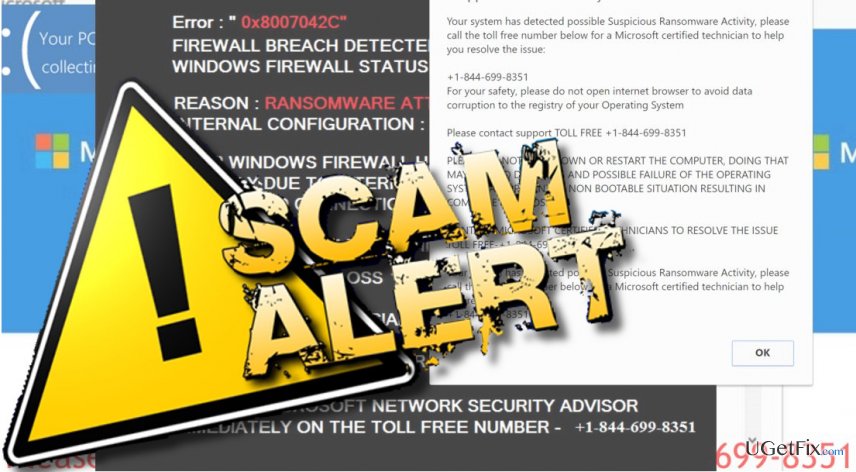
Symptoms of 0x8007042C error
Usually, Error Code 0x8007042C or „Suspicious Ransomware Activity detected” pop-up shows up unexpectedly. It emerges on a web browser, which is set by default. Immediately after that, web browser’s screen gets stuck and can only be closed by force. The full message says:
Error: “0x8007042C“
Firewall Breach Detected
Windows Firewall Status: Disabled
Reason: Ransomware Attack Detected
Internal Configuration: Altered
Your Windows Firewall has been Disabled
Possibly due to Internet Infection or Un-
Authorized Connection Through Your IP Address
It Can Cause:
1) Possible Data Loss
2) Identity Theft
3) Loss of Email / Social Networking / Personal Passwords
4) Credentials Stored or Used on the Computer
Consult Microsoft Network Security Advisor
Immediately on the Toll Free Number: +1 -844-699-8351
The message provided above is dubbed as „Suspicious Ransomware Activity detected” scam. Its purpose is to trick inexperienced PC users into dialing a given number. The scammers on the other side of the handset may try to trick you into disclosing personal details to make you subscribe useless services or make connect to your PC remotely.
Fixing Error Code 0x8007042C Scam
Step 1. Force web browser to close
When the screen gets stuck with the 0x8007042C error, you'll have to close it by force via Task Manager:
- Press Ctrl + Alt + Esc.
- Locate the process of your web browser, click it, and select End Task.
NOTE: do not restore the last browsing session when reopening your web browser.
Step 2. Boot your PC into Safe Mode
- Press Windows key and move your cursor over the Power button.
- Press and hold the Shift key and select Restart.
- When PC restarts, choose Troubleshoot → Advanced Options → Startup Settings.
- Click Restart.
- You will then see a new table with the list of boot settings. Press F5 to enable Safe Mode with Networking mode.
Step 3. Delete Malware
- Right-click on Windows key and Select Control Panel.
- Find suspicious/uknown programs, right-click on them, and select Uninstall.
- Repeat the same steps with each doubtful application.
Step 4. Reset your web browser
How to reset Microsoft Edge?
How to reset Internet Explorer?
How to reset Mozilla Firefox?
How to reset Google Chrome?
Bottom line
To fix error code 0x8007042C, immediately scan your system with a professional anti-malware tool. Ensure your Windows Firewall is enabled and check for any unauthorized connections. If these steps do not resolve the issue, consider seeking help from certified technicians.
Frequently asked questions
Error code 0x8007042C typically indicates that a service required for the web browser is not running, which can lead to connectivity issues.
To fix the error on Windows 11, ensure that the 'Windows Update' service is running by typing 'services.msc' in the Run dialog, then restarting your computer.
Yes, keeping your Windows 10 system updated and regularly checking the services related to web browsers can help prevent this error from recurring.




Report an issue
What's wrong with this guide? We review every report and update or remove content.
Report received — thank you. We'll review and fix it.
You need a free account to submit a report.
Be the first to comment