How to fix
Error Code 0x800b0100
on Windows
Resolve the 0x800b0100 error on Windows 10 effortlessly with our expert-tested solutions. Fix your system and get back on track, with screenshots!

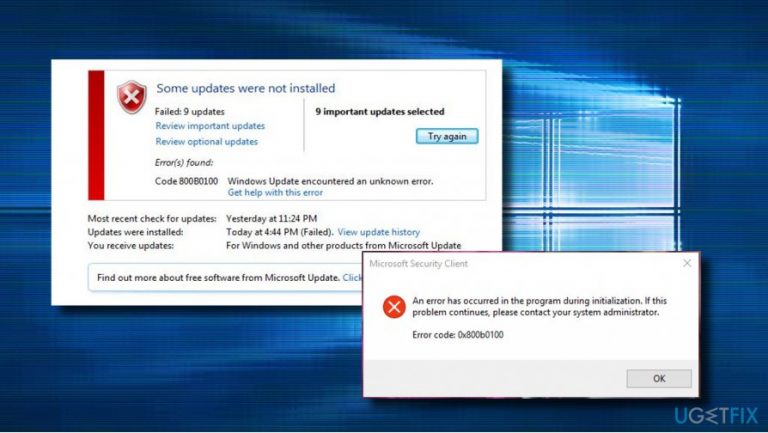
What causes How to Fix Error Code 0x800b0100 on Windows 10?
- Malware blocking Windows Defender
- Issues with Windows Update service
- Proxy service interference
- Corrupted system files
- Improper installation of updates
Repairs Windows system files, removes malware, and restores a clean OS state — without reinstalling.
Hello. I could not install Windows Updates due to the error 0x800b0100 for quite a while. After some time, the error was resolved automatically and I managed to install the all available updates.
The problem is that after the installation of updates, I cannot run a scan with Windows Defender due to the same 0x800b0100 error code. Is there something I could do or should I wait for the bug to be resolved automatically? Would highly appreciate your help!
Initially, the Error Code 0x800b0100 was referred to as Windows Update[ref en-1] error. That’s because the only place it tended to appear was Windows Update service blocking the Check for Updates process and preventing a PC's owner from installing any updates. In this case, specialists recommend restarting Windows Update services or disabling Proxy service temporarily.
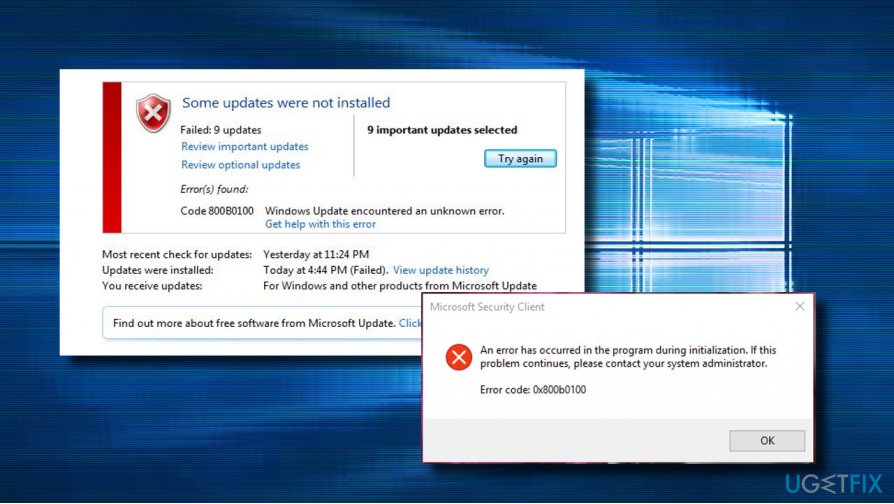
Unfortunately, but currently, the error 0x800b0100 appears under different circumstances. Few Windows 10 users reported that this bug strikes Windows Defender,[ref en-2] which forcefully stays idle all the time. The icon of Defender is greyed out and the program, therefore, cannot be launched. Whenever the PC user is trying to turn it on, the error message 0x800b0100 shows up saying:
An error has occurred in the program during initialization. If this problem continues, please contact your system administrator.
Error code: 0x800b0100
First of all, we would strongly recommend you to check the system for malware.[ref en-3] That’s because malicious software may be blocking Windows Defender to prevent recognition and deletion.
Thus, use a professional anti-malware utility and let it do the trick. To make it easier for you to decide which security tool to use, we would recommend installing [d1]. It’s a powerful PC optimization utility, which has a built-in Avira Antivir engine, so by using it, you will kill two birds with one stone.
A Guide on How to Fix Error Code 0x800b0100 on Windows 10
There are four different methods applicable to the error code 0x800b0100 fix. As we have already mentioned, you should run a scan with a professional anti-malware. If the scan did not report any virus, the start from resetting Windows Update components, then run the System File Checker.
If these options did not help, you should try setting Windows Defender's process as automatic and performing a clean boot. The latter method will let you isolate the problematic application, which may be confronting with Windows Defender.
Method 1. Restart Windows Update components
If you are dealing with the 0x800b0100 error while installing Windows Updates, you should try to restart Windows Update components. However, resetting Windows Update Components requires the modification of some Windows Registry entries. Therefore, it's advisable to make registry backups.
- Right-click on Windows key and select Command Prompt (Admin).
- If a UAC shows up, click OK to proceed.
- By typing the following commands you will stop BITS, Windows Update, Cryptographic, MSI Installer services. Don't forget to press Enter after each of them:
net stop bits
net stop wuauserv
net stop appidsvc
net stop cryptsvc
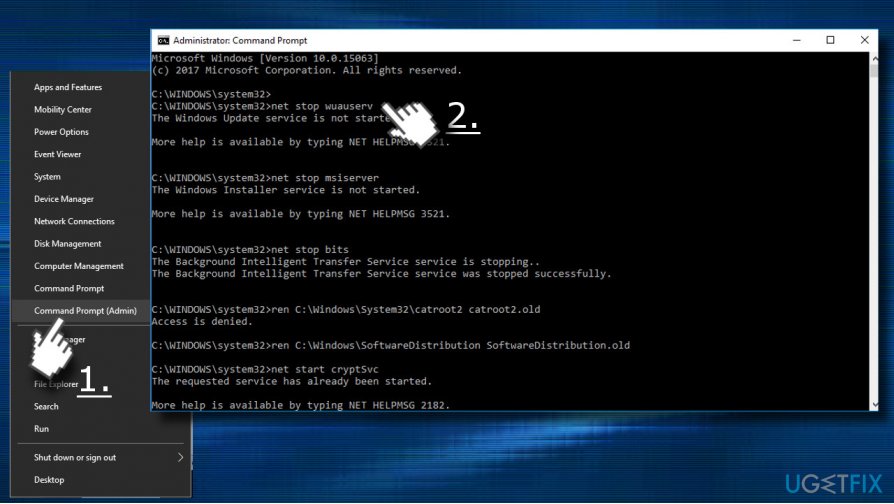
- Then type Del "%ALLUSERSPROFILE%\\Application Data\\Microsoft\\Network\\Downloader\\qmgr*.dat” command to delete qmgr*.dat files.
- Once done, copy and paste cd /d %windir%\\system32 command and press Enter to execute the command.
- To re-register BITS and Windows Update files, you will have to type all the commands (followed by Enter) provided below:
regsvr32.exe atl.dll
regsvr32.exe urlmon.dll
regsvr32.exe mshtml.dll
regsvr32.exe shdocvw.dll
regsvr32.exe browseui.dll
regsvr32.exe jscript.dll
regsvr32.exe vbscript.dll
regsvr32.exe scrrun.dll
regsvr32.exe msxml.dll
regsvr32.exe msxml3.dll
regsvr32.exe msxml6.dll
regsvr32.exe actxprxy.dll
regsvr32.exe softpub.dll
regsvr32.exe wintrust.dll
regsvr32.exe dssenh.dll
regsvr32.exe rsaenh.dll
regsvr32.exe gpkcsp.dll
regsvr32.exe sccbase.dll
regsvr32.exe slbcsp.dll
regsvr32.exe cryptdlg.dll
regsvr32.exe oleaut32.dll
regsvr32.exe ole32.dll
regsvr32.exe shell32.dll
regsvr32.exe initpki.dll
regsvr32.exe wuapi.dll
regsvr32.exe wuaueng.dll
regsvr32.exe wuaueng1.dll
regsvr32.exe wucltui.dll
regsvr32.exe wups.dll
regsvr32.exe wups2.dll
regsvr32.exe wuweb.dll
regsvr32.exe qmgr.dll
regsvr32.exe qmgrprxy.dll
regsvr32.exe wucltux.dll
regsvr32.exe muweb.dll
regsvr32.exe wuwebv.dll - To reset Winsock, type netsh winsock reset and netsh winhttp reset proxy commands. Press Enter after each of them as usually.
- Finally, restart BITS, Windows Update, Cryptographic, MSI Installer services by entering the following commands each followed by Enter:
net start bits
net start wuauserv
net start appidsvc
net start cryptsvc
Method 2. Run sfc / scannow and DISM tools
To check and fix corrupted system files, you should perform the following steps:
- Click Windows key + X and select Command Prompt (Admin).
- Type sfc /scannow command and press Enter.
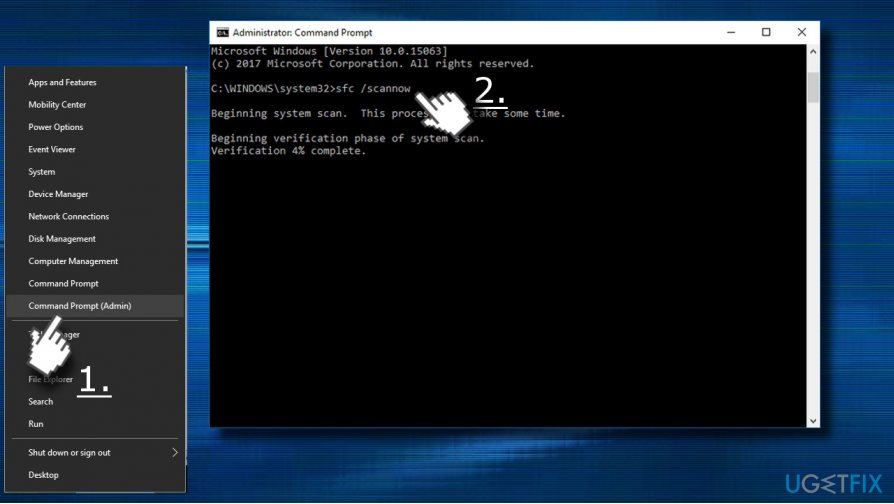
- Then type the following commands and hit Enter after each of them:
DISM.exe /Online /Cleanup-image /Scanhealth
DISM.exe /Online /Cleanup-image /Restorehealth - Close Command Prompt and reboot the system.
Method 3. Perform a Clean Boot
To isolate the culprit of the 0x800b0100 error, we would strongly recommend trying a clean boot. This way, you'll find out if your PC contains incompatible third-party software:
- Press Windows key + R, type msconfig, and press Enter.
- Open Services tab and check the Hide All Microsoft Services box.
- Select Disable all and then open Startup tab.
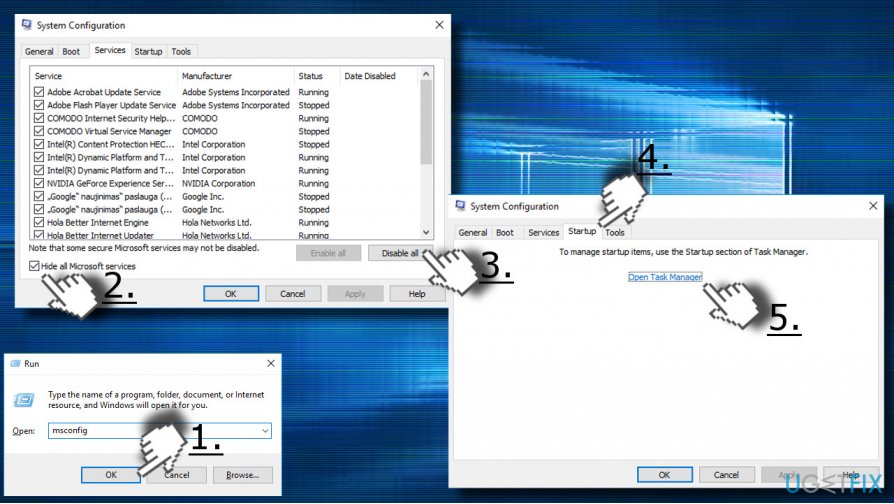
- Select Task Manager and disable all processes on it. For this purpose, right-click on each of them and select Disable.
- Then press OK and reboot your PC.
If this method helped to fix 0x800b0100 error, enable third-party apps one by one and check which one causes Windows Defender’s malfunction. Once you find a particular app, enable other processes. For this purpose, perform the steps indicated above except that you have to uncheck Hide all Microsoft Services box on the Services tab.
Method 4: Set Windows Defender Service to Start Automatically
- Press Windows key + R, type services.msc, and press Enter.
- Find Windows Defender Antivirus Service and double click on it.
- Open Startup Type and set it to Automatic.
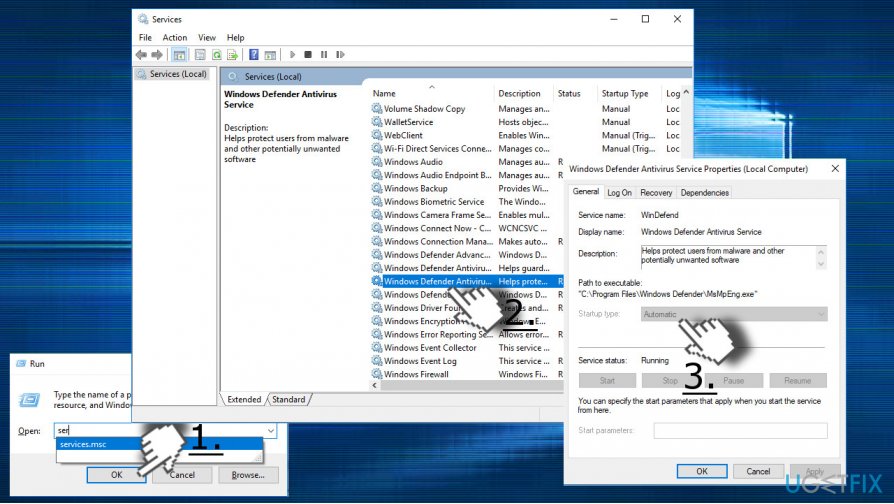
- Click Apply and OK to save the changes.
Bottom line
To fix error code 0x800b0100, you should first check your system for malware using a professional anti-malware utility. If the scan does not report any viruses, consider resetting Windows Update services or temporarily disabling the Proxy service. If none of these solutions work, you may need to wait for an automatic resolution or seek further assistance.
Frequently asked questions
Error code 0x800b0100 indicates that the system is unable to find a required certificate to verify the update or software installation on Windows 10.
To resolve error code 0x800b0100 on Windows 10, you can run the Windows Update Troubleshooter or use the System File Checker tool to repair corrupted files.
While some third-party tools may help fix error code 0x800b0100 on Windows 10, it's advisable to use built-in Windows tools first to avoid potential security risks.




Report an issue
What's wrong with this guide? We review every report and update or remove content.
Report received — thank you. We'll review and fix it.
You need a free account to submit a report.
Be the first to comment