How to fix
Error Code 0x800f0908 While Installing Language Packs
on Windows
Resolve the 0x800f0908 error when installing language packs on Windows 10 with our expert-tested solutions for a seamless experience. Fixed in minutes!

What causes How to Fix Error Code 0x800f0908 While Installing Language Packs on Windows 10?
- Installation failure due to error code 0x800f0908
- Temporary error that may resolve on its own
- Problems related to the Internet connection
- Wi-Fi network set to Metered Connection
- Limited data plan from Internet service provider
- Windows Update troubles
Repairs Windows system files, removes malware, and restores a clean OS state — without reinstalling.
I have upgraded to Windows 10 and wanted to install the Spanish language pack. However, I received an error that informs about installation failure. The message provides the Error Code 0x800f0908. How can I solve this issue?
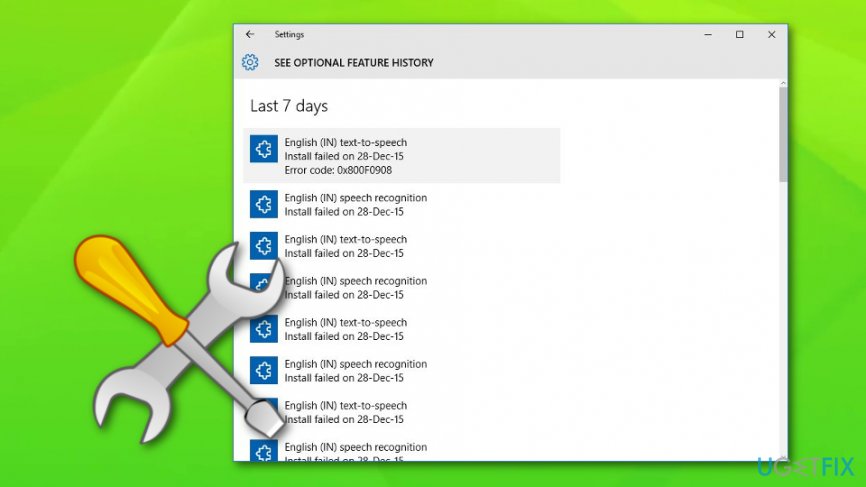
Error Code 0x800f0908 may occur when installing language packs or Speech Recognition in Windows 10. Additional language packs are important and useful for those who are not fluent English speakers because they allow running Windows[ref en-2] in the native language. Therefore, if you want to see all menus, dialog boxes, and other user interface items in Spanish, Russian or French language, you need to install the language pack through Windows Update feature.
However, while installing language packs, users may receive a message saying that Installation failed with error code 0x800F0908. This error might be temporary; hence, if you try to install the language packs later, it might be gone. Also, the error might be related to some Windows Update troubles.
However, the main reason why this error occurs is problems related to the Internet connection. Most of the time fixing some settings of the Internet connection helps to solve this issue. Often users who are connected to the Internet via Wi-Fi receive this error. It may happen because the Wi-Fi network[ref en-1] is set to Metered Connection.[ref en-4] The metered Internet connection means that the user often has a limited data plan.
Hence, the Internet service providers charge the users based on the amount of sent and received data. On Windows metered connection settings allows reducing the usage of data. However, if your Internet service provider[ref en-3] does not charge by the used data, you should set the Wi-Fi network to non-metered settings. Therefore, changing the Internet connection settings should fix Error Code 0x800f0908.
How to Fix Error Code 0x800f0908 While Installing Language Packs on Windows 10?
Fix 1. Turn off Metered Internet Connection
As you already know, issues with the Internet connection may prevent you from installing the language pack on Windows 10. Follow the steps below to turn Metered Internet Connection off:
- Go to the Settings.
- In Settings choose Network.
- Select Wifi and scroll down to Advanced options.
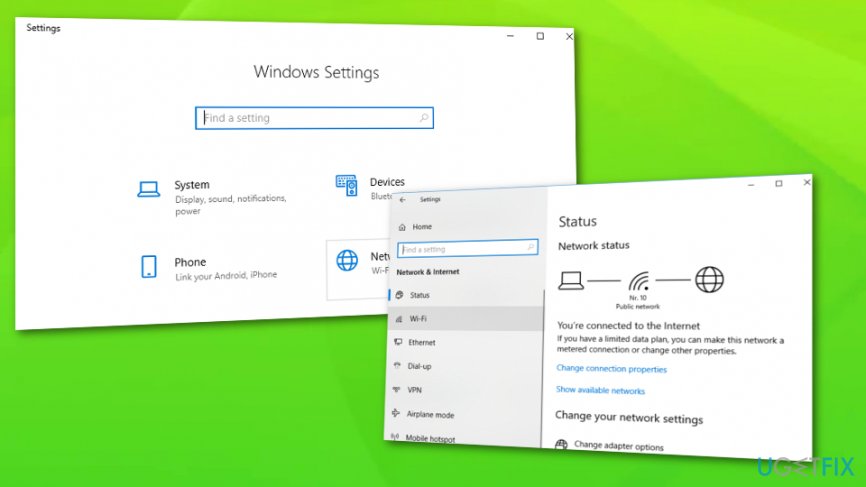
Fix - In Advanced Options section look for Metered Connection and select OFF.
Once you complete these steps, you may need to restart your computer to save these changes. Then, try to install necessary language pack again. Hopefully, the 0x800f0908 error won’t bother you anymore.
Fix 2. Reset Windows Update components
If you are dealing with some Windows Update issue that prevents from installing language packs, you should reset Windows Update components:
1. Download and run the Windows Update Troubleshooter for Windows 10 from here.
NOTE. Before following further instructions, you should back up the registry just in case you make some mistakes or incorrect modifications.
2. Open Command Prompt by pressing and holding (or right-clicking) the Windows button on the taskbar or by typing cmd in the search section.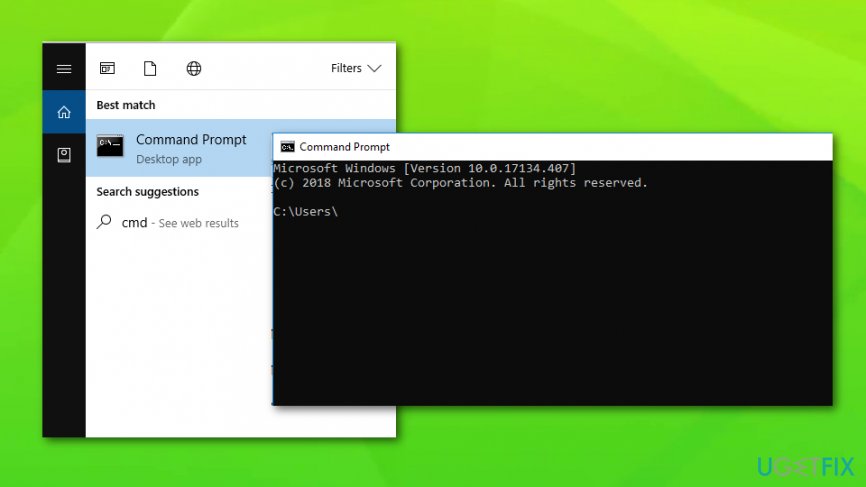
Then select Command Prompt (Admin). In the appeared User Account Control box click Yes.
3. Now you have to stop the BITS, Windows Update, and Cryptographic services by typing these commands at the command prompt. Press Enter after typing each command:
- net stop bits
- net stop wuauserv
- net stop appidsvc
- net stop cryptsvc
4. Delete qmgr*.dat files by typing the command below at the command prompt and pressing Enter:
Del "%ALLUSERSPROFILE%\\Application Data\\Microsoft\\Network\\Downloader\\qmgr*.dat"
5. Then in command prompt type this command and press Enter:
cd /d %windir%\\system32
6. This step requires reregistering the BITS files and the Windows Update files. Type all the following commands at a command prompt and press Enter after typing each command:
- regsvr32.exe atl.dll
- regsvr32.exe urlmon.dll
- regsvr32.exe mshtml.dll
- regsvr32.exe shdocvw.dll
- regsvr32.exe browseui.dll
- regsvr32.exe jscript.dll
- regsvr32.exe vbscript.dll
- regsvr32.exe scrrun.dll
- regsvr32.exe msxml.dll
- regsvr32.exe msxml3.dll
- regsvr32.exe msxml6.dll
- regsvr32.exe actxprxy.dll
- regsvr32.exe softpub.dll
- regsvr32.exe wintrust.dll
- regsvr32.exe dssenh.dll
- regsvr32.exe rsaenh.dll
- regsvr32.exe gpkcsp.dll
- regsvr32.exe sccbase.dll
- regsvr32.exe slbcsp.dll
- regsvr32.exe cryptdlg.dll
- regsvr32.exe oleaut32.dll
- regsvr32.exe ole32.dll
- regsvr32.exe shell32.dll
- regsvr32.exe initpki.dll
- regsvr32.exe wuapi.dll
- regsvr32.exe wuaueng.dll
- regsvr32.exe wuaueng1.dll
- regsvr32.exe wucltui.dll
- regsvr32.exe wups.dll
- regsvr32.exe wups2.dll
- regsvr32.exe wuweb.dll
- regsvr32.exe qmgr.dll
- regsvr32.exe qmgrprxy.dll
- regsvr32.exe wucltux.dll
- regsvr32.exe muweb.dll
- regsvr32.exe wuwebv.dll
8. Reset Winsock by typing this command at a command prompt and pressing Enter:
netsh winsock reset
9. Configure proxy settings by typing this command at a command prompt and pressing Enter:
netsh winhttp reset proxy
10. Now it’s time to restart the BITS service, Windows Update service, and the Cryptographic services by typing following commands at the command prompt and pressing Enter after typing each of them:
- net start bits
- net start wuauserv
- net start appidsvc
- net start cryptsvc
11. Install the latest Windows Update Agent from here.
12. Restart your computer to save all these changes.
Now you should not receive Error Code 0x800f0908 while installing language packs and install them successfully.
Fix 3. Run CMD as Admin
- Type cmd in the search box which you can find in the bottom left of your PC;
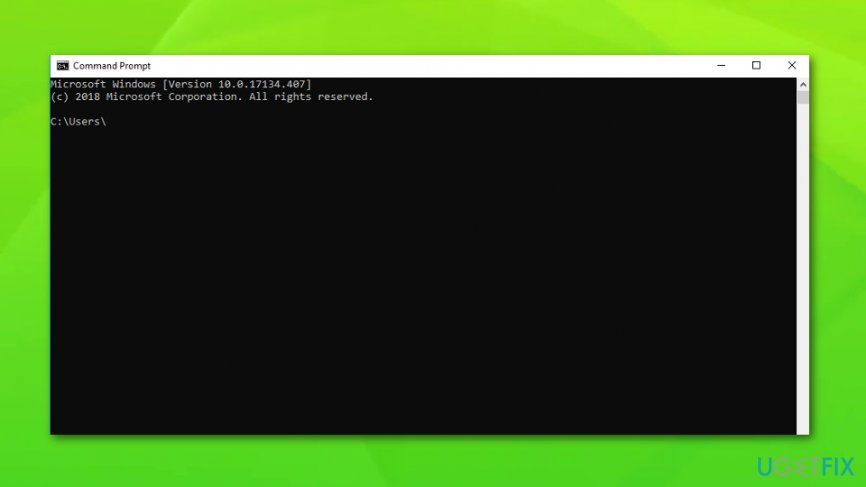
Fix - Click to run CMD as Administrator;
- After that, type these commands: Dism /Online /Cleanup-Image /CheckHealth, Dism /Online /Cleanup-Image /ScanHealth, Dism /Online /Cleanup-Image /RestoreHealth;
- Furthermore, type sfc/scannow;
- Reboot your PC.
Bottom line
To fix Error Code 0x800f0908, you can turn off the Metered Internet Connection and ensure your Wi-Fi settings are configured correctly. If the issue persists, consider checking your Internet connection and trying to install the language pack later.
Frequently asked questions
Error code 0x800f0908 typically indicates that the language pack files are missing or corrupted, preventing Windows 10 from completing the installation.
You can resolve this error by running the Windows Update Troubleshooter, checking your internet connection, or manually downloading the language pack from the Microsoft website.
Yes, resetting Windows Update components can often help fix error code 0x800f0908 by refreshing the update services and clearing any corrupted files.




Report an issue
What's wrong with this guide? We review every report and update or remove content.
Report received — thank you. We'll review and fix it.
You need a free account to submit a report.
Be the first to comment