How to fix
Error Code 0x803F8001 on Sticky Notes
on Windows
Resolve Error Code 0x803F8001 on Sticky Notes for Windows 10 and 11 with simple fixes. Get your notes back in minutes—expert-tested solutions inside!

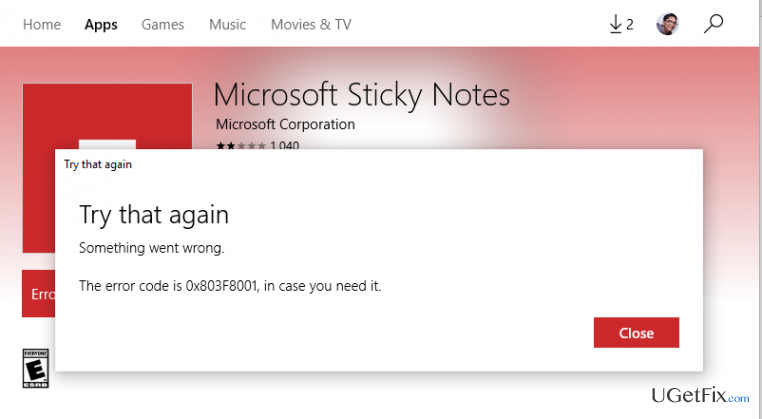
What causes How to Fix Error Code 0x803F8001 on Sticky Notes?
- Recent Windows 10 update
- Corrupted Sticky Notes installation
- Account issues with Microsoft Store
- Temporary system glitches
- Insufficient permissions
Repairs Windows system files, removes malware, and restores a clean OS state — without reinstalling.
I was using Sticky Notes for ages and everything worked fine. I got used to those notes, so it’s more than annoying not being able to use them. Just recently I’ve installed the latest Windows 10 build, so I kind of blame that build on damaging Sticky Notes (though don’t know if the upgrade is the core of the issue). When I try to open Sticky Notes, I’m greeted with a notification “Check your account” and bla bla bla. Then when I try to reinstall it or update via the store, the error code 0x803F8001 shows up. Would you be kind to help me with this issue? Thanks!
Sticky Notes accessory on Windows 10 and older versions is a useful tool that allows posting notes all over the desktop. These notes help people to stay organized or reminds about upcoming events. The information on sticky notes can be colored, highlighted in bold, the font can be enlarged, etc. to emphasize the importance of the information. Indeed, people who are working a lot with their PCs tend to use Sticky Notes every day, so confronting with an error code 0x803F8001 may be a very irritating experience.
What happens? In most of the cases, Sticky Notes bug emerges as if out of the blue, but there are several cases when the installation of Windows 10 update triggered the problem. Anyway, when a computer user attempts to launch Sticky Notes, he or she is greeted with a notification saying:
Check your Account. Sticky Notes is currently not available to you.
The message does not contain a bug check or other potentially useful information, except a link to Windows Store and a Close button. Clicking on the link to Windows Store opens the Sticky Notes app and reports about available updates. However, if the user opts for installing it, the error code 0x803F8001 shows up. We believe that this error is annoying, just like any other system’s malfunction, but this time Microsoft engineers did their best and provided some useful tips on how to solve the bug. Thus, don’t wait any longer and perform the steps given below.
How to Fix Error Code 0x803F8001 on Sticky Notes?
NOTE: to maintain the old notes, you should copy them and paste to a safe location. Old notes are typically placed in these locations:
- %appdata%\Microsoft\Sticky Notes\StickyNotes.snt (Windows 7/8/10, a priori to 1607 update).
- C:\Users\%username%\AppData\Local\Packages\Microsoft.MicrosoftStickyNotes_8wekyb3d8bbwe\LocalState\plum.sqlite (Windows 10 OS running 1607 update or later).
Method 1. Reset Sticky Notes app
- Click Win key + I to open Settings.
- Select System and open Apps & features section.
- Find Sticky Notes, click on it, and select Advanced options.
- Click Reset.
- When a confirmation window shows up, click OK or Yes to proceed.
- Once done, reboot the system.
Method 2. Reinstall Sticky Notes using an elevated PowerShell
- Open Start and type PowerShell.
- Right-click on it and select Run as Administrator.
- Type Get-AppxPackage -name *note* and press Enter.
- This command should bring you a list of apps that contain a word ‘note’ in their name. On the left pane, find PackageFullName and InstallLocation entries. On the right side of these entries, you should see a list of values consisting or various symbols. Make sure you copy both entries and save them in a Notepad file.
- After that, type Remove-AppxPackage [name_of_your_sticky_note_package] and press Enter.
NOTE: Instead of name_of_your_sticky_note_package, insert the value that has been given under PackageFullName entry you’ve just saved in Notepad. - Then go to Windows Store and reinstall Sticky Notes.
Hopefully, you’ve managed to fix 0x803F8001 on Sticky Notes successfully. Finally, we would recommend you to scan the system with [d1], so that it would scan for file remnants on registries. This piece of software will also perform additional tasks, including malware removal, startup improvements, or replacement of damaged Windows files.
Bottom line
To resolve the error code 0x803F8001, you can try reinstalling Sticky Notes, checking your Microsoft account, or ensuring that your Windows is up to date. If these solutions do not work, consider reaching out to Microsoft support for further assistance.
Frequently asked questions
Error code 0x803F8001 on Sticky Notes usually indicates that the application is unable to access necessary files or is not properly registered in the system. This can happen due to a corrupted installation or issues with the Microsoft Store.
To fix the 0x803F8001 error in Windows 11, try resetting the Sticky Notes app from the Settings menu under Apps, then check for any pending updates in the Microsoft Store.
Yes, reinstalling Sticky Notes can resolve the error code 0x803F8001 by ensuring you have the latest version and that all files are correctly installed. You can uninstall it via the Settings menu and then reinstall it from the Microsoft Store.




Report an issue
What's wrong with this guide? We review every report and update or remove content.
Report received — thank you. We'll review and fix it.
You need a free account to submit a report.
Be the first to comment