How to fix
Error code 0x85050041
on Windows
Resolve error code 0x85050041 on Windows 10 quickly with our expert-tested solutions. Get back on track in no time, with screenshots included!

What causes How to fix error code 0x85050041 on Windows 10?
- Mail server issues
- Corrupted system files
- Interference from security software
- Problems with the mail app itself
Repairs Windows system files, removes malware, and restores a clean OS state — without reinstalling.
My mail app on Windows 10 cannot sync due to the error code 0x85050041. How can I fix it?
Error code 0x85050041 typically appears when mailing app on Windows 10 cannot sync with mail service.[ref en-1] Sometimes it’s a temporary problem that is caused by the mail server. However, the issue might be related to the mail app itself.
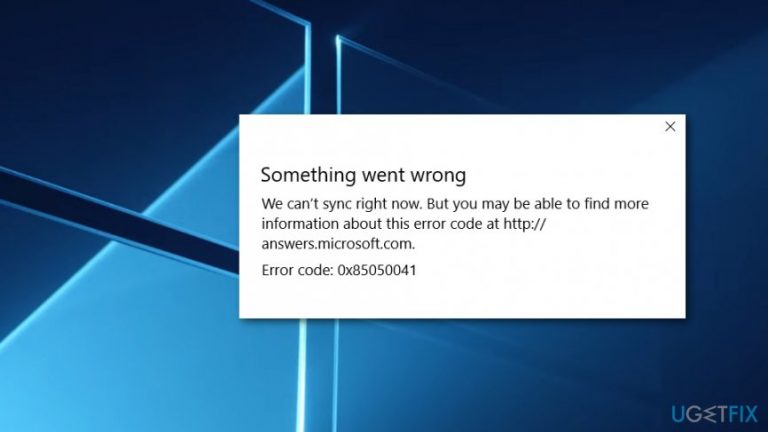
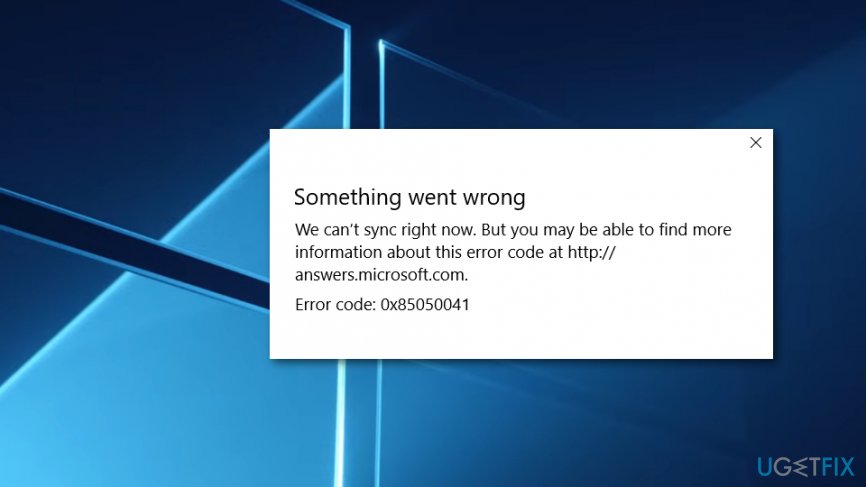
When specific problems occur, and mail app syncing cannot be performed, users receive an error message:
Something went wrong
We can’t sync right now. But you may be able to find more
information about this error code at http://answers.microsoft.com.
Error code: 0x85050041
In order to fix 0x85050041, you should start with the easiest solution and install available Windows or mail app updates.[ref en-2] However, if it does not help you should check other methods presented below, such as running system file checker, disabling computer’s security or reinstalling mail app.
Instructions to fix error code 0x85050041 on Windows 10
If the installation of the available updates did not help to fix the error, try the furthter methods.
Method 1. Run System File Checker
System File Checker[ref en-3] is a built-in tool that allows detecting corrupted system files that might be causing the 0x85050041 error on Windows 10.
- Enter Command Prompt in the Windows search box.
- Right-click Command Prompt in the search results and choose Run as administrator option.
- In the Command prompt type this entry: sfc /scannow
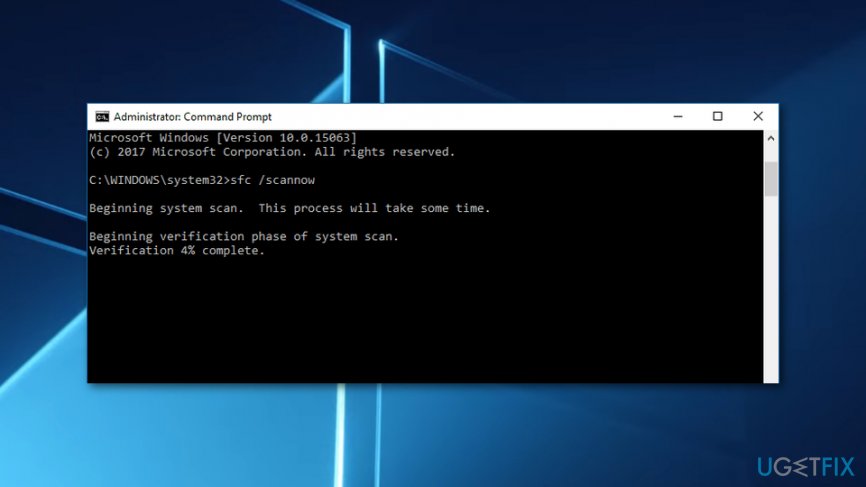
Run system file checker - Wait until Windows finishes scanning the system. If there will be any problems, you will receive the information about the error and how to fix it. However, if you see "Windows Resource Protection did not find any integrity violations" message, you should try the second method.
Method 2. Temporarily disable security software
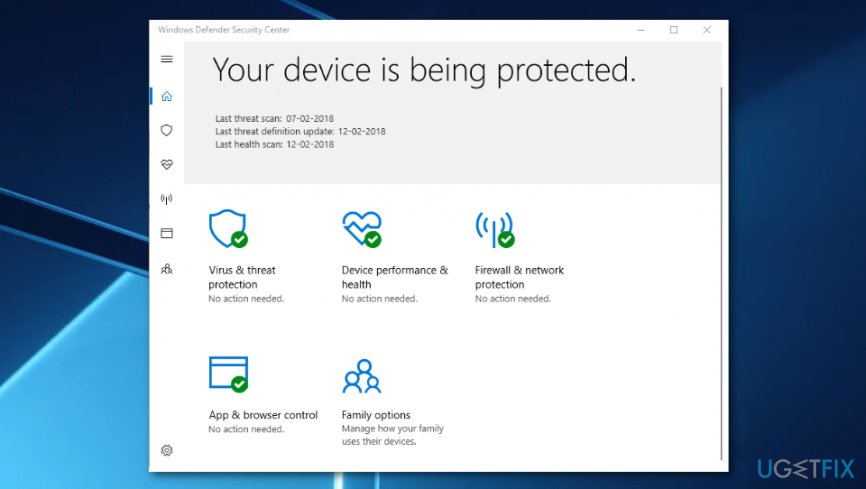
Windows firewall[ref en-4] and antivirus might be causing the error and prevent a mailing app from syncing. Therefore, you should temporarily disable them to see if it’s the source of the error.
Follow these steps to disable antivirus on Windows 10
- Access Windows Defender Security Center by using Windows search box.
- Click on Virus and threat protection entry.
- Find your antivirus program in the list and toggle the setting to off.
- Click Yes in the appeared Allow this app to make changes to your device prompt.
To disable the firewall, follow these steps:
- Open Windows Defender Security Center.
- Click on Firewall and network protection.
- Click on Domain network entry. Here toggle off Windows Defender Firewall option.
- Click Yes in the appeared Allow this app to make changes to your device confirmation window.
- Repeat the same steps for Private network and Public network options.
Once security software and firewall are turned off, restart your mail application and try to re-sync. If error code 0x85050041 shows up again, navigate to the third method.
Method 3. Remove and re-add your email account
- Open mail app and click the Settings icon in the left bottom corner.
- Choose Manage accounts option and click your email account you want to delete.
- In the appeared Account settings window click on Delete account option.
- Confirm deletion in the appeared warning message.
Once your account is removed, follow these steps to add it again:
- Navigate to Manage accounts > Add account > Settings.
- Follow the instructions appeared on the screen.
Once you re-add your account, the error code 0x85050041 should be gone.
Method 4. Uninstall and re-install mail app
If none of the previously mentioned methods helped to fix error code 0x85050041, try uninstalling and reinstalling mail app. To remove it from Windows 10, follow these steps:
- Search for powershell using Windows search box.
- Right-click Windows PowerShell and choose Run as administrator option.
- Click Yes on the appeared User Account Control window asking Do you want to allow this app to make changes to your PC?
- In the PowerShell enter this command and click Enter: Get-AppxPackage-AllUser
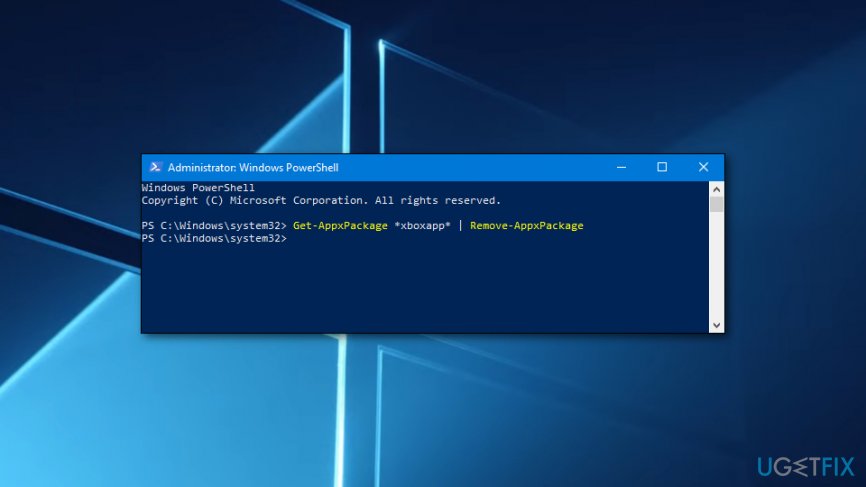
Uninstall mail app - In the appeared list of installed apps, find windowscommunicationapps.
- In the PackageFullName section copy all the contents.
- In the PowerShell type Remove-AppxPackage X where X is the content copied in the previous step.
- Click Enter.
Close PowerShell, restart your computer and reinstall the app from Windows Store:
- Open Windows Store and search for the mail app.
- Select Mail and Calendar from the search suggestions.
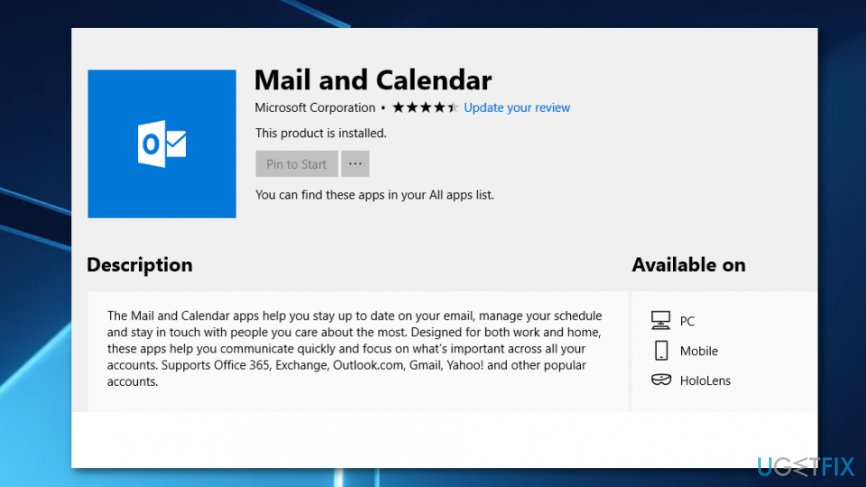
Reinstall mail and callendar app - Open app page and click Install button.
- Restart your computer and check if the 0x85050041 error was fixed.
Bottom line
To fix error code 0x85050041, you can start by installing available Windows or mail app updates. If that doesn't resolve the issue, try running the System File Checker, temporarily disabling security software, or reinstalling the mail app. If none of these methods work, consider seeking further assistance or checking online resources.
Frequently asked questions
The error code 0x85050041 typically occurs due to issues with the Windows Update service or corrupted system files affecting the update process.
To fix the 0x85050041 error on Windows 11, try running the Windows Update Troubleshooter and ensure that your system files are intact using the System File Checker tool.
Yes, make sure that your Windows Update service is running, and check for any pending updates that may be causing the error 0x85050041.




Report an issue
What's wrong with this guide? We review every report and update or remove content.
Report received — thank you. We'll review and fix it.
You need a free account to submit a report.
Be the first to comment