How to fix
Error Code 0x87AF0813
on Windows
Resolve the 0x87AF0813 error on Windows 10 App Store easily with our expert-tested solutions, ensuring a seamless experience in minutes.

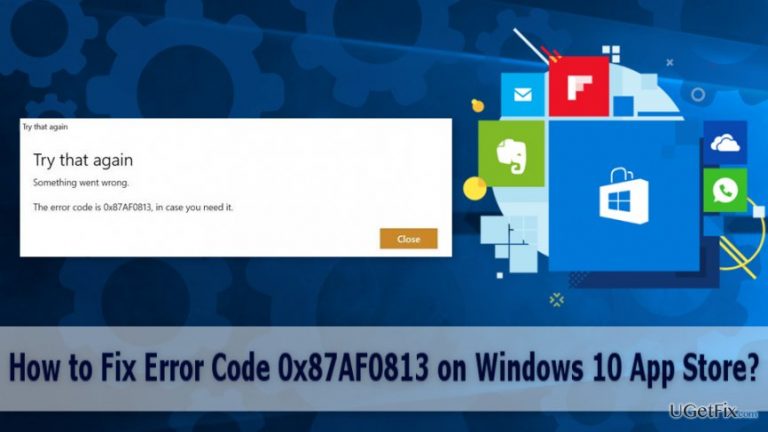
What causes How to Fix Error Code 0x87AF0813 on Windows 10 App Store?
- Problems with the Internet connection
- Available updates
- Lack of disc storage on the computer
Repairs Windows system files, removes malware, and restores a clean OS state — without reinstalling.
When I try to install new apps from Windows app store, I receive error code 0x87AF0813 that prevents from the installation. How can I fix it? I am using Windows 10.
Error Code 0x87AF0813 is on of the common problems on Windows 10. Fortunately, this error does not warn about critical issues. Usually, it notifies about the inability to install desired application. The error message might appear when users try to install a new application from Windows app store.
App store error might occur not only on computers or laptops but on mobile devices as well. However, the main reasons why this problem appears stay the same.
Three main causes of 0x87AF0813 error:
1. Problems with the Internet connection. If your Internet connection is poor, you may not be able to download apps from Windows store.
2. Available updates. Outdated operating system or software might prevent the installation of the new programs.
3. Lack of disc storage on the computer. Unfortunately, devices have limited about of space that can be filled with apps and files. Thus, in order to install an app, you need to have enough space.
Fortunately, there are simple solutions that will help to get rid of the 0x87AF0813 error and install necessary apps.
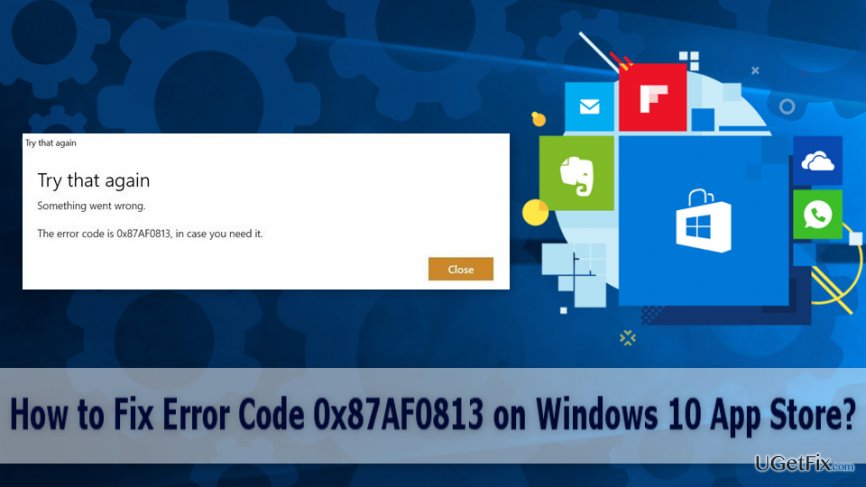
Fixing error code 0x87AF0813 on Windows 10 app store
Below you will find four different methods that should help to fix the 0x87AF0813 error.
Method 1. Check Internet connection
One of the main reasons why this error message occurs is problems with Internet connection. In order to install apps from Windows app store, you need to have a strong connection.
If this error occurs when you use a mobile device, you should connect to Wi-Fi instead of using mobile data.
Method 2. Install available updates
Outdated software might be another reason why you cannot download apps.
In order to check pending updates on computer follow these steps:
1. Access Settings from the Start menu and click Update & security icon.
2. In the appeared window find Windows Update option on the left pane. Click on it.
3. In the right, you will see a button saying “Check for updates.” Click on it.
4. Wait until Windows check for the updates.
5. If any updates are found, Windows will download and install them automatically.
6. Once updates are installed, restart your computer.
In order to check available updates on your phone, follow these steps:
1. Go to Settings.
2. Scroll down until you find the Update and security option. Click on it.
3. Tap on Phone update option. If you see available updates, install them.
Once you update your device, you should go to Windows App store and check if error code 0x87AF0813 was fixed.
Method 3. Make sure that there’s enough space on the device
If your computer or phone lacks free space, there’s not enough room for your desired application. Therefore, you may need to put some files in the external storage device or uninstall programs that you do not use and make more space for new applications.
Method 4. Run Windows Apps troubleshooter
If none of the previous methods haven’t helped you, there might be an issue with missing or corrupted app files or folders. Thus, in order to fix error code 0x87AF0813, you should run Windows Apps troubleshooter. It will find and repair the core of the problem.
Bottom line
To fix the 0x87AF0813 error, check your Internet connection, install available updates, and ensure you have enough disk space. If these solutions do not resolve the issue, consider seeking further assistance or troubleshooting steps.
Frequently asked questions
Error code 0x87AF0813 typically indicates a problem with downloading or updating apps from the Microsoft Store on Windows 10. This may be due to network issues or corrupted store cache.
To clear the Microsoft Store cache, press Win + R, type 'wsreset.exe', and hit Enter. This will reset the cache and may resolve the error.
Yes, ensure that your Windows 10 system date and time settings are correct and that the Microsoft Store is allowed through your firewall, as these can affect app downloads.




Report an issue
What's wrong with this guide? We review every report and update or remove content.
Report received — thank you. We'll review and fix it.
You need a free account to submit a report.
Be the first to comment