How to fix
Error code 0xC0000001
on Windows
Resolve Error code 0xC0000001 on Windows 10 or 11 effortlessly. Follow our expert-tested solutions for a quick fix and get back to smooth performance!

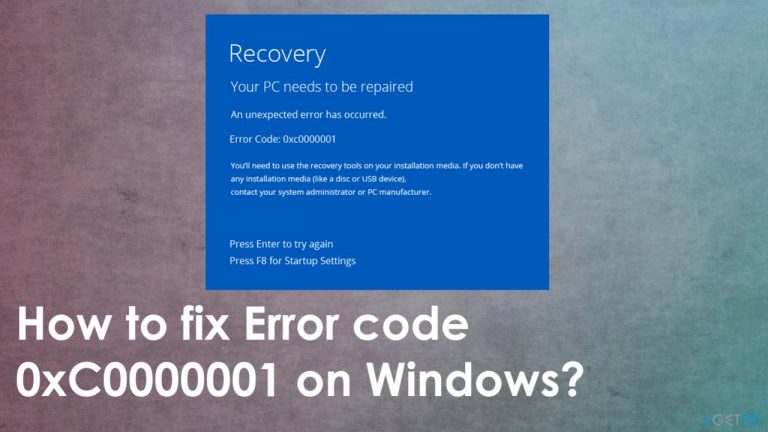
What causes How to fix Error code 0xC0000001 on Windows?
- Affected system files
- Damaged data
- RAM issues
- Security Account Manager damage
- File system integrity compromisation
Repairs Windows system files, removes malware, and restores a clean OS state — without reinstalling.
I can't launch the computer. I get the blue screen and nothing else. I tried a few times, so Error code 0xC0000001 sometimes also occur. I don't know what to do. It seems that I did not install anything recently it must be something with Windows, I think. can you help me fix Error code 0xC0000001?
Error code 0xC0000001 on Windows appears when the computer cannot boot properly. The problem is a Blue Screen of Death[ref en-1] which means some kind of crucial feature of the operating system cannot launch, so the machine is not launching. Users[ref en-2] encounter the problem out of nowhere, and the message scares them since the device is useless and cannot be used.
The issue can also occur when the application couldn't be loaded because of the required file that is not found. Error code 0xC0000001 on Windows can be caused by affected system files, damaged data, RAM, SAM, and other pieces. File system integrity compromisation can lead to whole system damage and issues with reboots or performance.
To fix Error code 0xC0000001 on Windows, you need to determine what is the cause of the issue. RAM can be damaged, so the memory of your device also. System file corruption or Security Account Manager damage can trigger booting errors, so the process is not possible, and these errors occur all the time.
These are not the issues of any malware or the particular Windows OS update.[ref en-3] However, updated applications or newly installed programs can trigger compatibility problems. You should repair any file issues and try to reboot the machine in Safe Mode that allows various changes and provides access to your system. The BSOD appears, but sometimes the machine can still be launched, so make sure to use such an opportunity.
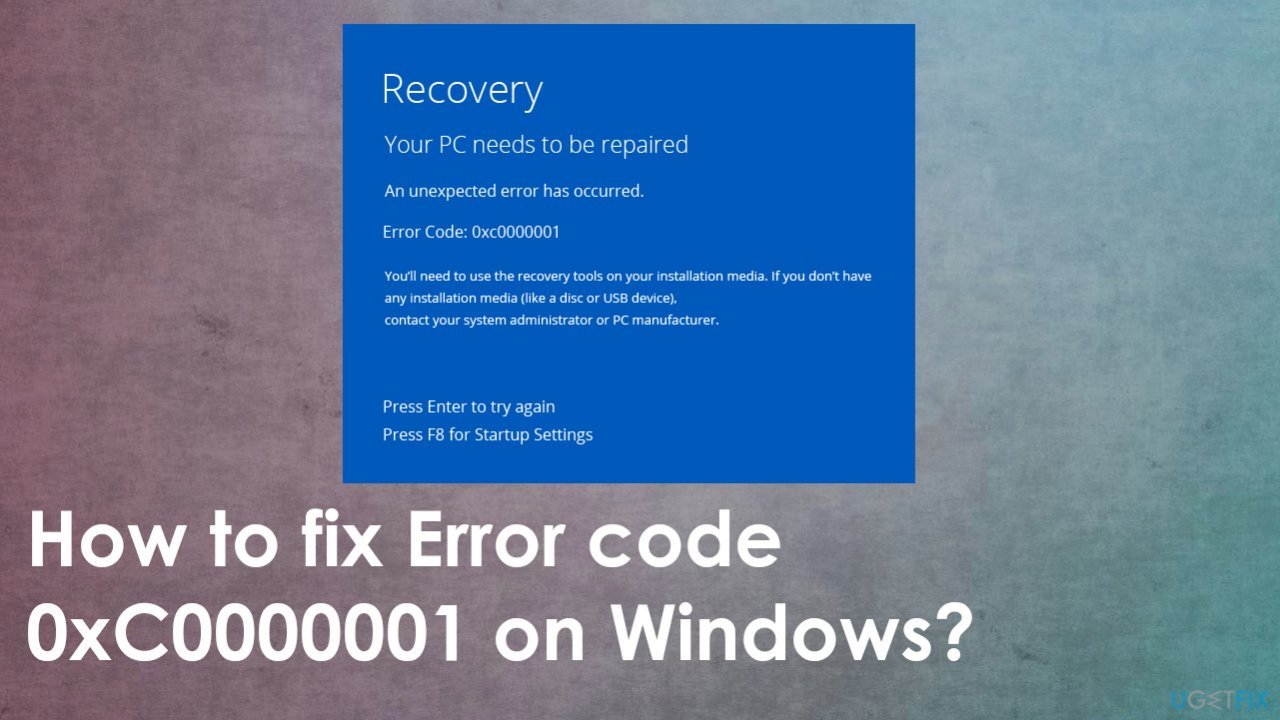
How to fix Error code 0xC0000001 on Windows
There are ways to fix Error code 0xC0000001 on Windows by repairing functions or files. Especially when it is clear what parts of the system got corrupted and need repair. Also, you can do such a file repair procedure using tools like [d1]. This application can indicate system files, registry entries, and other issues with the machine. This is the quick solution for system performance and file alteration that possibly cause issues with the particular BSOD message and similar errors.
If the PC optimizer cannot indicate any issues or particularly fix the problem for you, more manual and difficult methods needed for the solution. You should pay attention and try a few steps to ensure that your chances of fixing the Error code 0xC0000001 are higher. You might need to create an installation disk, bootable media to run these steps.
Remove the problematic software via Safe Mode
- Restart the PC and press Shift + F8 when the screen starts to load.
- Choose the Troubleshoot and then Advanced options.
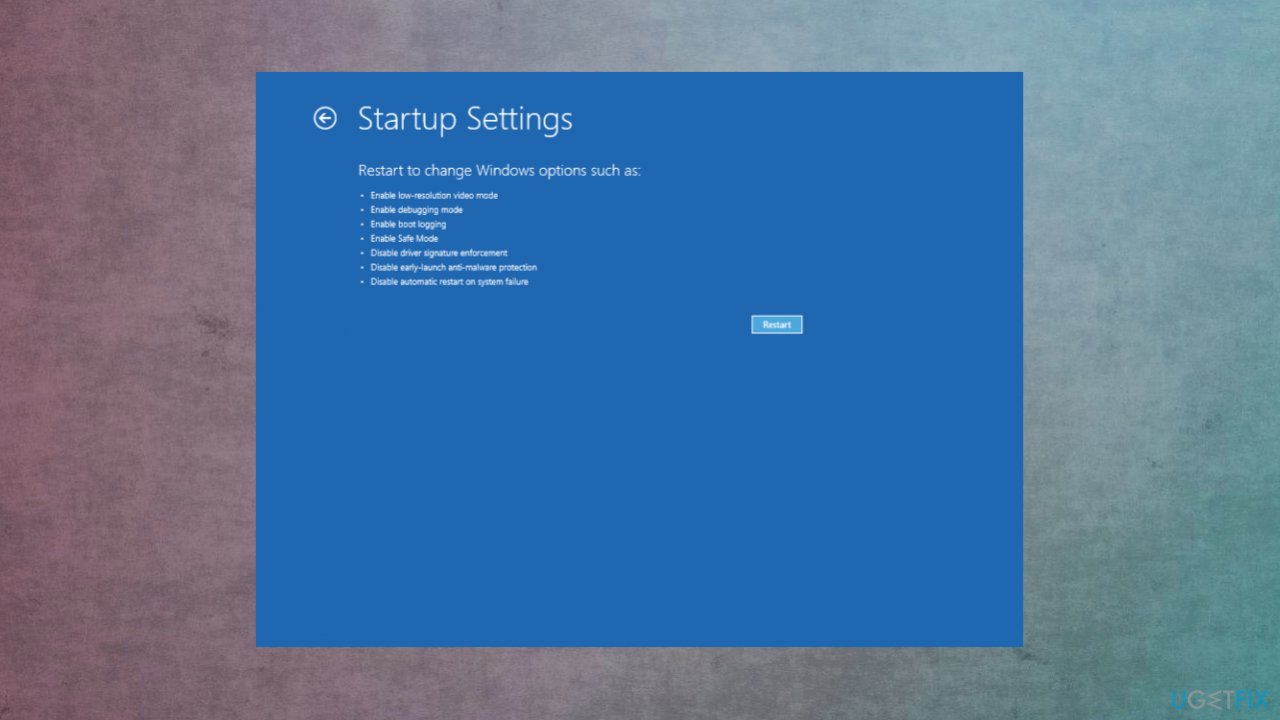
Error code 0xc0000001 windows fix startup settings - Select Startup Settings and choose to Restart.
- Press F4 to enable the Safe Mode when the PC restarts.
- In safe mode, go to Windows Settings and choose Apps to click on Apps & features.
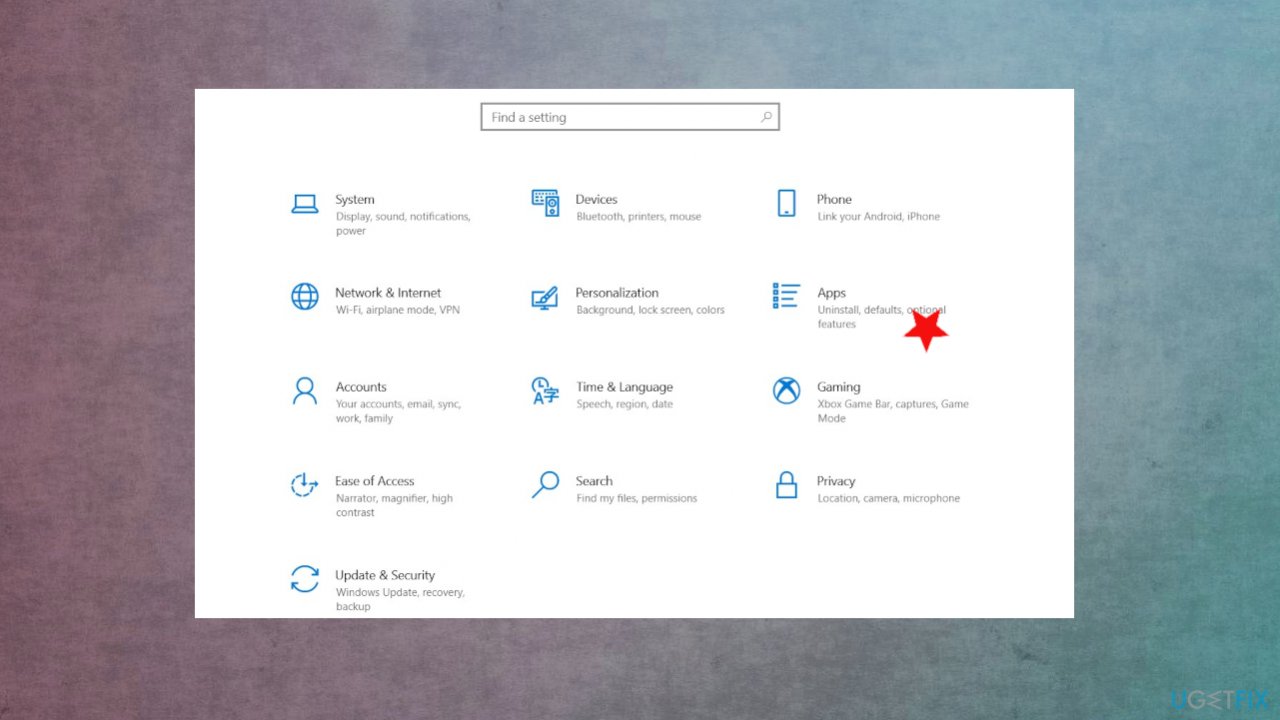
Error code 0xc0000001 windows fix apps - Then find the program that was currently installed and uninstall that.
- Reboot the PC.
Run System file checker
- Go to Command prompt and launch sfc /scannow command.
- Wait for the check and restart the PC.
Check the HDD to fix Error code 0xC0000001 on Windows
- Open Command Prompt.
- type the following and hit Enter:
chkdsk C: /f /r /x - Type Y if the confirmation is needed. Hit Enter to proceed.
- The overall health and performance of the disk will get checked.
- Once that check is completed, Restart the system.
Reset the PC
- Go to Settings.
- Click on Update & Security.
- Click Recovery from the Window.
- Reset the PC and click Get Started.
- Choose to Keep my files or Remove everything.
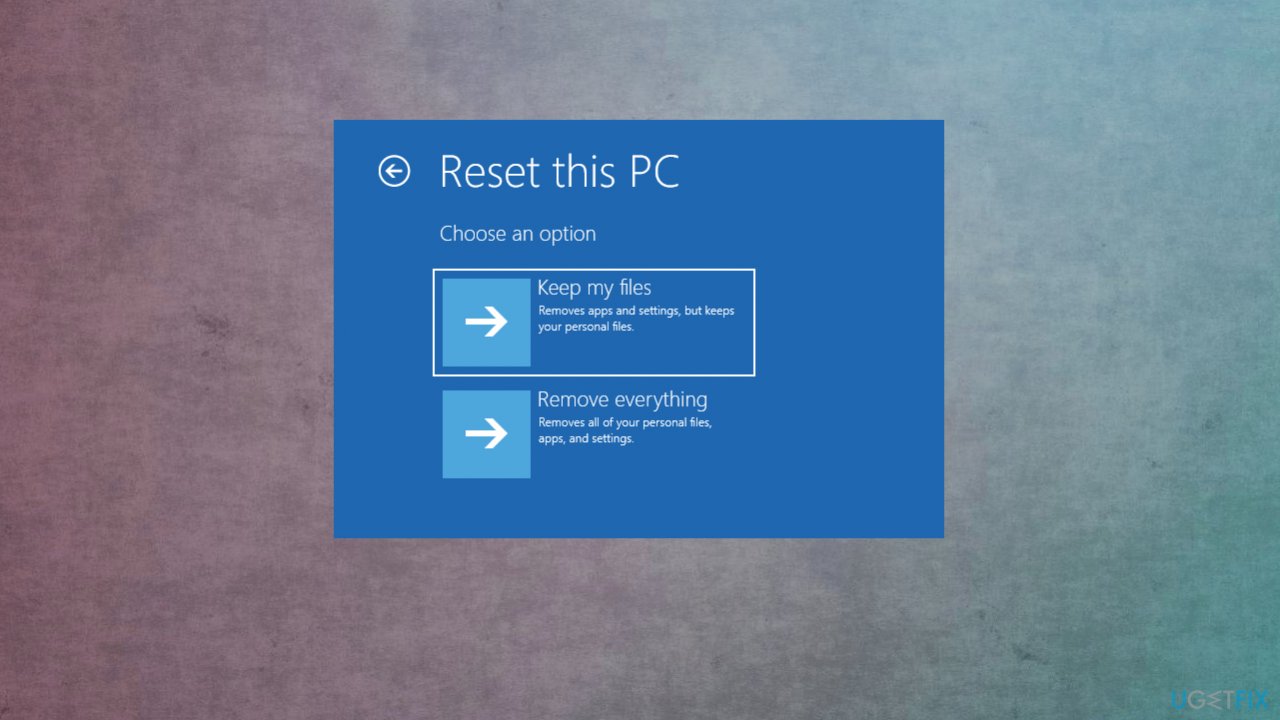
Error code 0xc0000001 windows fix reset - You will get some warnings about your files, so click Next to confirm.
- Click reset and then Continue.
Run System Restore to fix Error code 0xC0000001
- Boot the PC and choose to Repair your computer.
- Click Advanced Options when prompted to Automatic Repair.
- Troubleshoot.
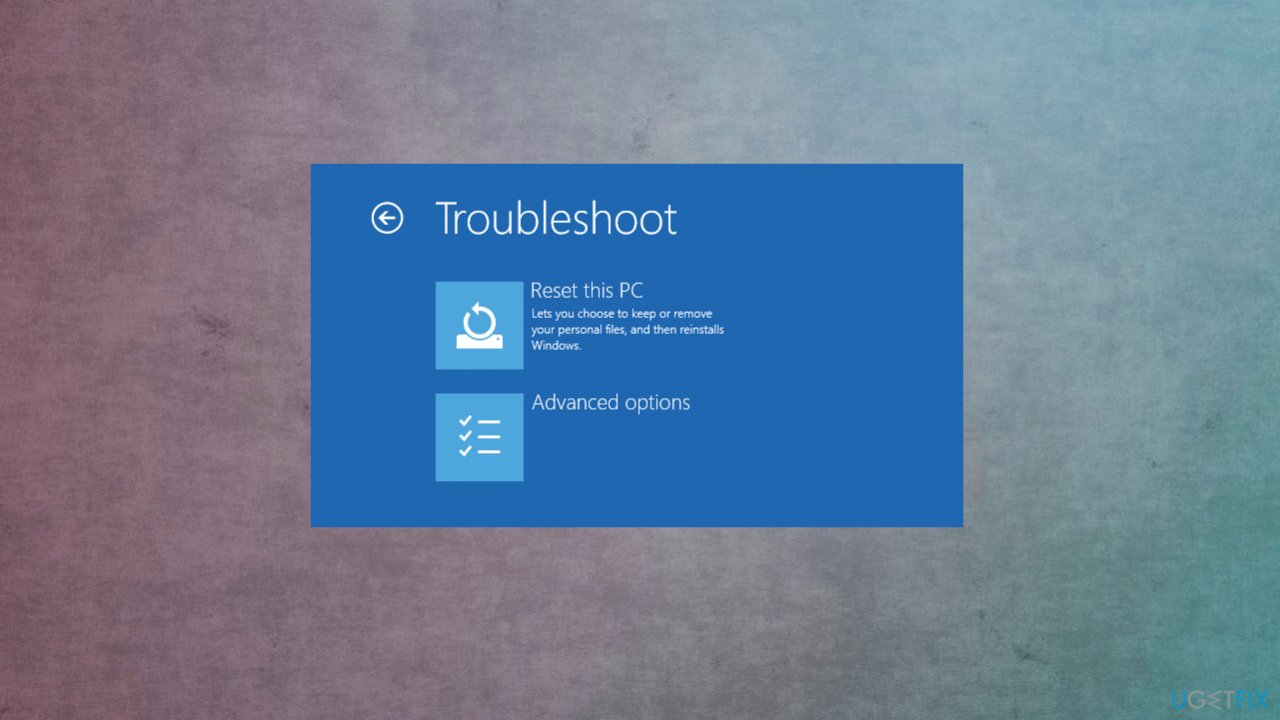
Error code 0xc0000001 windows fix advaced troubleshot - Then Advanced Options.
- Click on System Restore.
- Click Next and choose the point you want to restore the PC.
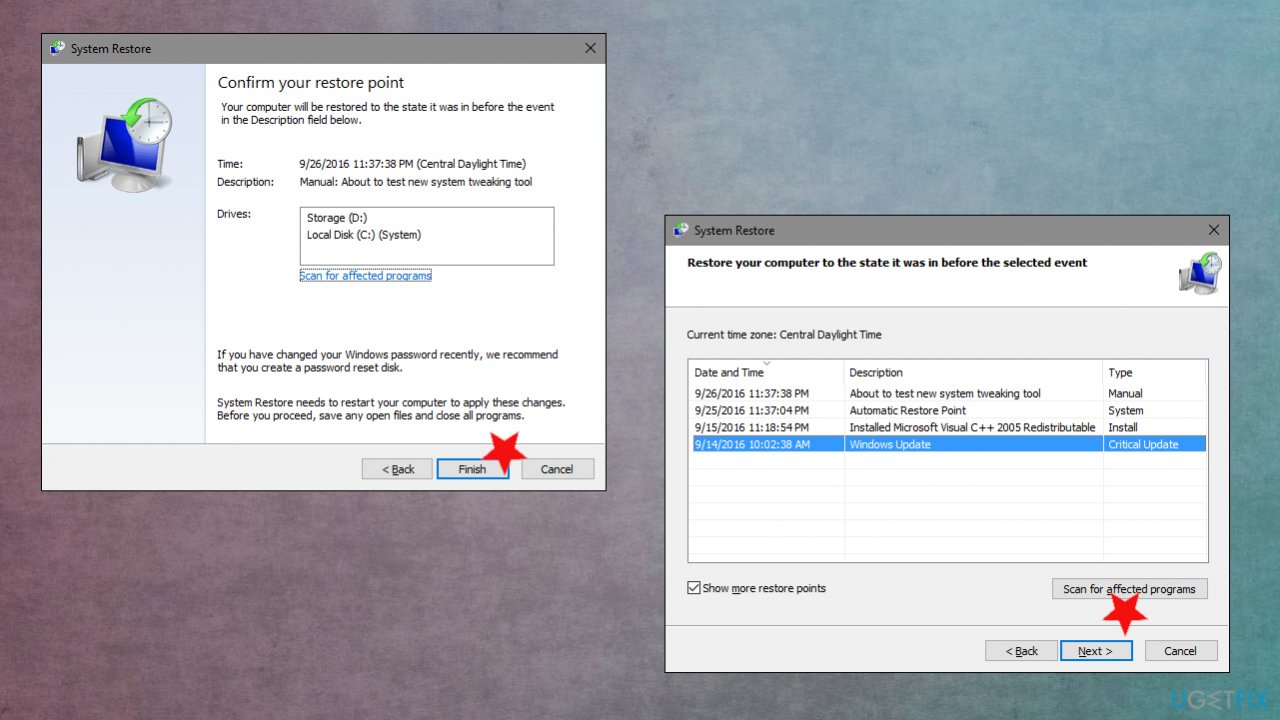
Error code 0xc0000001 windows fix system restore - Scan for affected programs. Some of the apps will no longer be available.
- Click Next and then Finish.
Run startup repair to fix Error code 0xC0000001 on Windows
- Boot your computer from installation media.
- Click Repair your computer and follow the wizard.
- Choose Troubleshoot and find Advanced options.
- Click Startup Repair.
- Start the repair of the computer.
Copy SAM file
- Boot the computer and go to Troubleshoot and Advanced options.
- Then click Command Prompt and type the following:
C:\\Windows\\Repair\\Sam C:\\Windows\\System32\\Config - Hit Enter.
- Confirm with Y if needed.
Bottom line
To fix Error code 0xC0000001 on Windows, you should repair any file issues and reboot the machine in Safe Mode. If the problem persists, consider using repair tools to address corrupted system parts. If none of these solutions work, further investigation into hardware or deeper system issues may be necessary.
Frequently asked questions
Error code 0xC0000001 typically indicates a hardware failure or a corrupted system file that prevents Windows from booting correctly.
You can fix this error by accessing the Windows Recovery Environment and using the Startup Repair option or running the Command Prompt to execute system repair commands.
Yes, you can resolve this error by performing system scans, checking your hard drive for errors, or restoring your system to a previous state without needing to reinstall Windows 11.




Report an issue
What's wrong with this guide? We review every report and update or remove content.
Report received — thank you. We'll review and fix it.
You need a free account to submit a report.
Be the first to comment