How to fix
Error Code 0xc000012f
on Windows
Resolve Error Code 0xc000012f on Windows 10 and 11 effortlessly. Get expert-tested solutions and fix your system issues in minutes.


What causes How to Fix Error Code 0xc000012f on Windows?
- Misconfigured system settings
- Corrupted registry entries
- Excessive startup programs
- Fragmented files
- Precarious applications
- Virus infections
Repairs Windows system files, removes malware, and restores a clean OS state — without reinstalling.
I’ve been trying to solve 0xc000012f error issue for the past two days, but I’m really getting impatient. I’ve installed Windows updates, but the problem remains. Here is the error message:
"C:\\WINDOWS\\SYSTEM32\\MSVCR120.dll is either not designed to run on Windows or it contains an error. Try installing the program again using the original installation media or contact your system administrator or the software vendor for support. Error status 0xc000012f." Could you please tell me what should I do?
The hecademical error code 0xc000012f is an implicit explanation of the problem. People can initiate a research on it and find out which system's components usually trigger the error, when it usually occurs, and how to fix it.
To save your time, we'll provide all available information about this error here. 0xc000012f error is usually caused by misconfigured system settings, corrupted registry entries, excessive startup programs, fragmented[ref en-1] files, and similar major issues. Currently, it's occurence prevails on Windows 8 and 10, but we've noticed several people reporing this issue on Windows 7.[ref en-2]
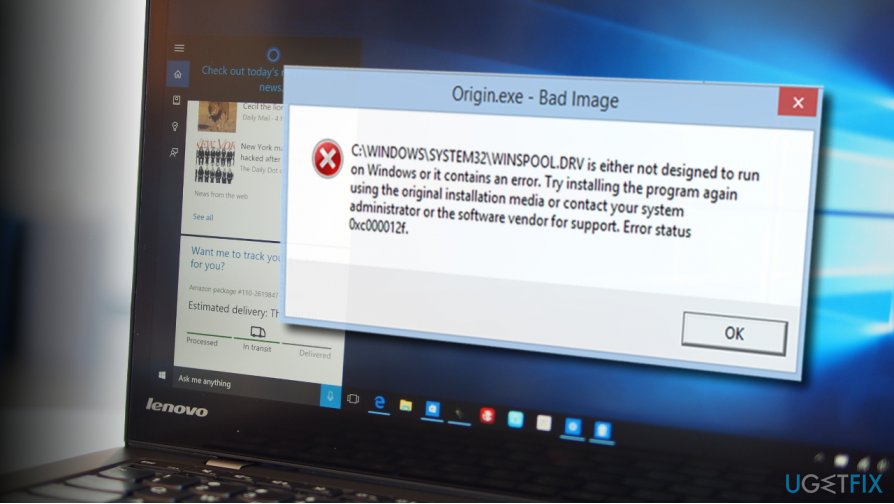
It's important to stress the fact that such and similar error messages are often induced by precarious applications or virus infections.[ref en-3] Therefore, before initiating time-consuming manual fixes, we would strongly recommend running a professional anti-malware utility. We would strongly recommend using [d1] optimization tool due to its multifunctionality and ability to otpmize Windows OS.
Unfortunately, but the pop-up error or BSOD screen indicating an error code 0xc000012f is not the only problem what so ever. This bug is always accompanied by system slowdowns, crashes, unrespnsive and lagging programs.
Instructions on How to Fix 0xc000012f Error on Windows?
If your operating system started delivering an error with the code 0xc000012f, it either requires full optimization or full restore. Or both.
We have already suggested downloading and scanning your PC with [d1]. If you destined to do so, click on the given linke and follow the on-screen instructions. Then set the tool to run a full system scan and see what it detects. Finally, remove all findings and reboot your PC.
Alternatively, there are several methods that you can try to fix 0xc000012f bug manually.
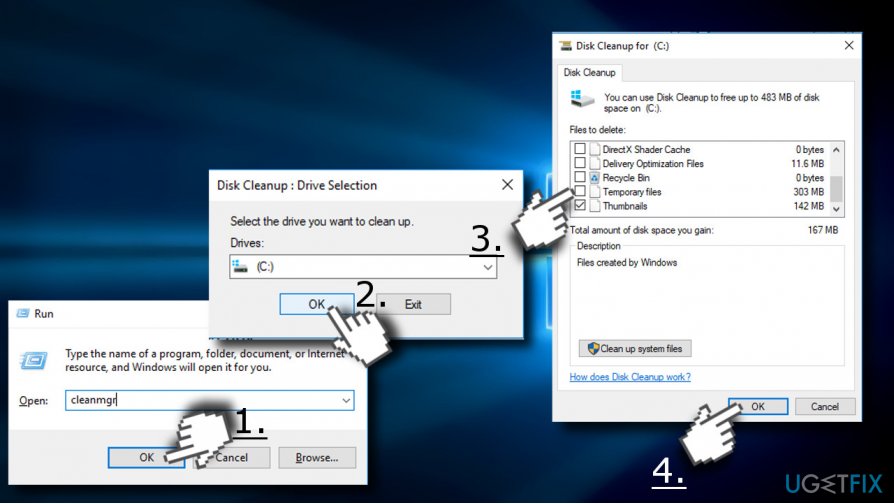
Option 1. Clean up junk files
- Press Windows key + R simultaneously.
- Type cleanmgr and hit Enter.
- Then select OS partition (C:) and press OK.
- Mark the Setup log files, Recycle bin, and Temporary files.
- Finally, select Clean up System Files and wait for the process to finish.
Option2. Run sfc / scannow
- Right-click on Windows key and select Command Prompt (Admin).
- Type sfc /scannow and press Enter.
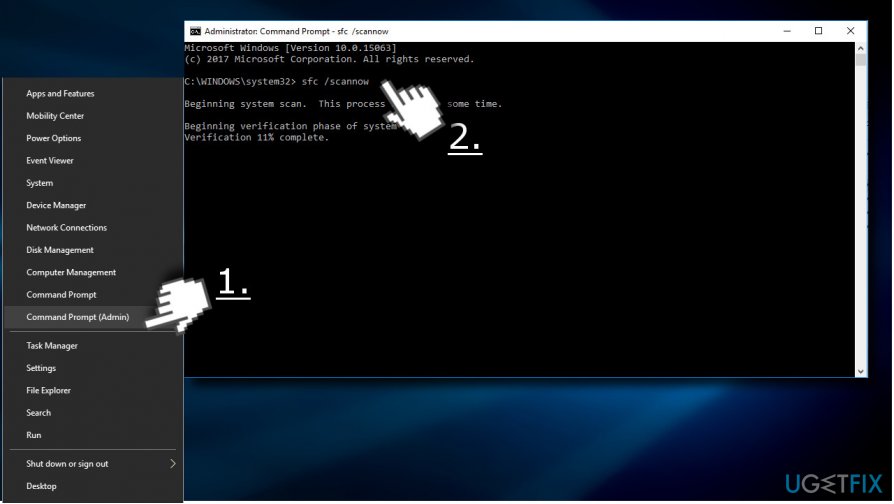
- Let the system perform the repair automatically.
- After that, reboot the system.
Option 3. Uninstall Cumulative Windows 10 update
Some specialists claim that 0xc000012f error code is caused by KB2879017 update. Therefore, if you have recently installed it, you should uninstall it right away.
- Open Settings app. For that, press Windows key + I.
- Navigate to Update & security -> Windows Update.
- Click on Update history link.
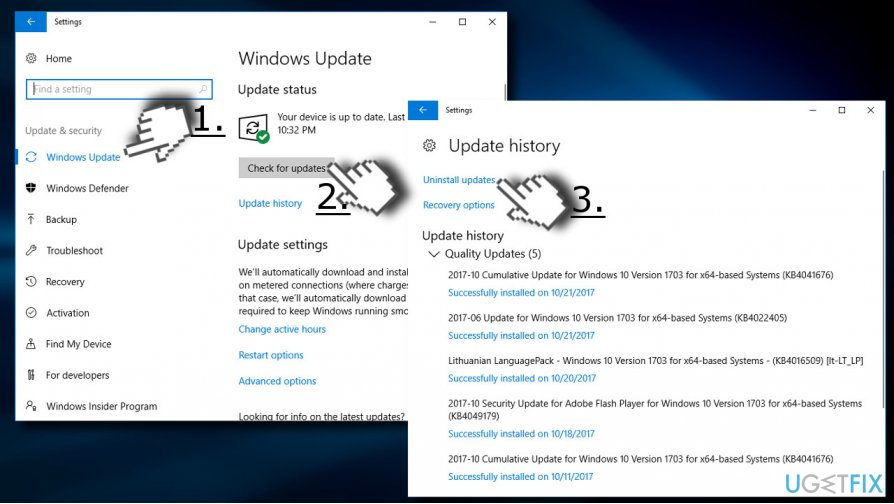
- At the top of the window, select Uninstall updates.
- Then select the update that you opt for remiving, right-click on it, and select Uninstall.
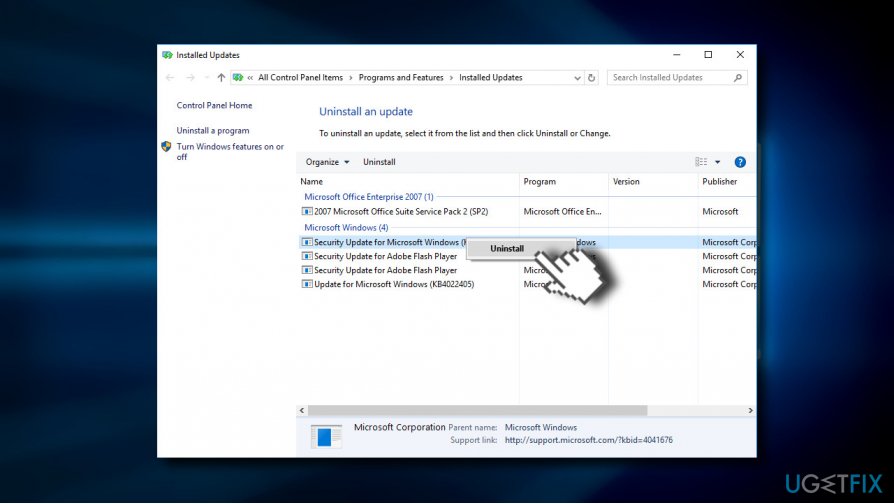
- Reboot your PC to save the changes.
Option 4. Use a System Restore Point
If you can’t uninstall Windows updates for some reason, the other applicable solution would be to enable a System Restore Point. However, this option is possible only if you have created a Restore Point back in time.
- Click on Windows key and type Create a Restore point in the search bar.
- Select System Protection on the new window.
- Select System Restore and then hit Next.
- Select the last Restore point that you have created (before the update was installed) and then click Next.
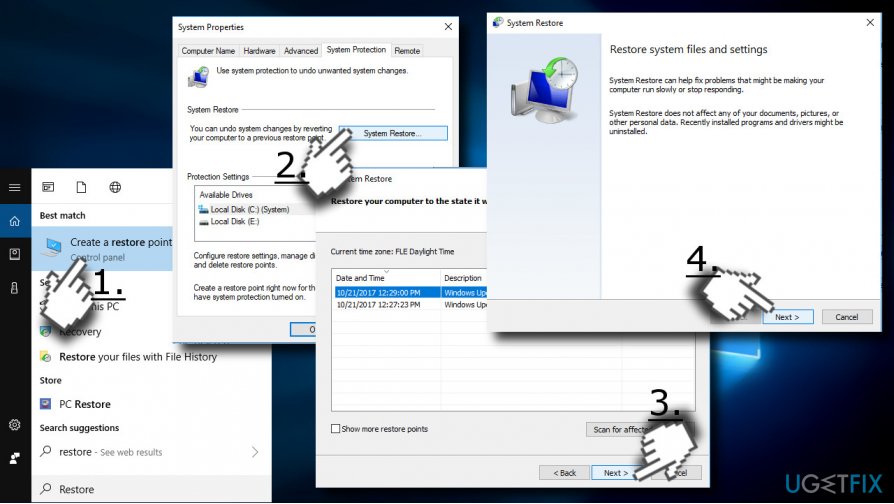
- Click Finish and wait for the system to restore.
- Finally, restart the system.
Bottom line
To fix the 0xc000012f error, you can run a professional anti-malware utility, optimize your system, or perform a full restore. If these methods do not resolve the issue, consider seeking further technical support.
Frequently asked questions
Error code 0xc000012f typically occurs due to corrupted system files or missing application files that Windows relies on to run software properly.
You can use the System File Checker tool by running 'sfc /scannow' in the Command Prompt to detect and repair corrupted system files on Windows 10 or Windows 11.
Yes, this error often occurs with applications like Microsoft Office or games that require specific DLL files, especially if those files are corrupted or missing on Windows 10 or Windows 11.




Report an issue
What's wrong with this guide? We review every report and update or remove content.
Report received — thank you. We'll review and fix it.
You need a free account to submit a report.
Be the first to comment