How to fix
Error code 0xC184C00F in GeForce NOW
on Windows
Resolve error code 0xC184C00F in GeForce NOW on Windows 10 or 11 quickly and easily. Expert-tested solutions included for your convenience.


What causes How to fix error code 0xC184C00F in GeForce NOW?
- System does not meet minimum requirements
- Ongoing server outage or maintenance
- Important NVIDIA service not running properly
- Malfunctioning service causing glitches
Repairs Windows system files, removes malware, and restores a clean OS state — without reinstalling.
Hello. When I try to launch games using GeForce NOW on my Windows PC, I get the 0xC184C00F error. Is there a way to fix this?
NVIDIA's GeForce NOW cloud gaming service allows users to stream and play a variety of games on their devices, including Windows PCs. However, some users have reported receiving the error code 0xC184C00F when trying to launch games on GeForce NOW.
This error can occur for a variety of reasons. To begin, if the user's system does not meet the minimum requirements of the GeForce NOW app, such as a 64-bit version of Windows, 4GB of system memory, and a GPU that supports DirectX 11 or higher, they may encounter this error.
Additionally, users may encounter the error code 0xC184C00F if there is an ongoing server outage or maintenance on the GeForce NOW servers. The service may become temporarily unavailable in such cases, preventing users from accessing and launching their games. Furthermore, if an important NVIDIA service is not running properly or is experiencing glitches, this error may occur. The malfunctioning service may prevent GeForce NOW from running smoothly and cause the error to appear.
The error code 0xC184C00F can have a significant impact on users because it prevents them from starting games or using the GeForce NOW service. It can cause frustration and degrade the overall gaming experience for those who are affected.
To resolve the error, there are several possible solutions available. In this guide, you will find 6 steps that should help you fix the issue. You can also try using a repair tool like [d1]. It can fix most system errors, BSODs,[ref en-1] corrupted files, and registry[ref en-2] issues. Otherwise, follow the step-by-step instructions below.
Solution 1. Check the Minimum System Requirements
Check that your PC meets the system requirements for running GeForce NOW before proceeding with any other troubleshooting steps. Check that your computer is running a 64-bit version of Windows, has at least 4GB of system memory, and has a GPU capable of supporting DirectX 11 or a later version. Additionally, an internet connection with a minimum speed of 15Mbps for 720p at 60fps or 25Mbps for 1080p at 60fps is required.
Solution 2. Check GeForce NOW Server Status
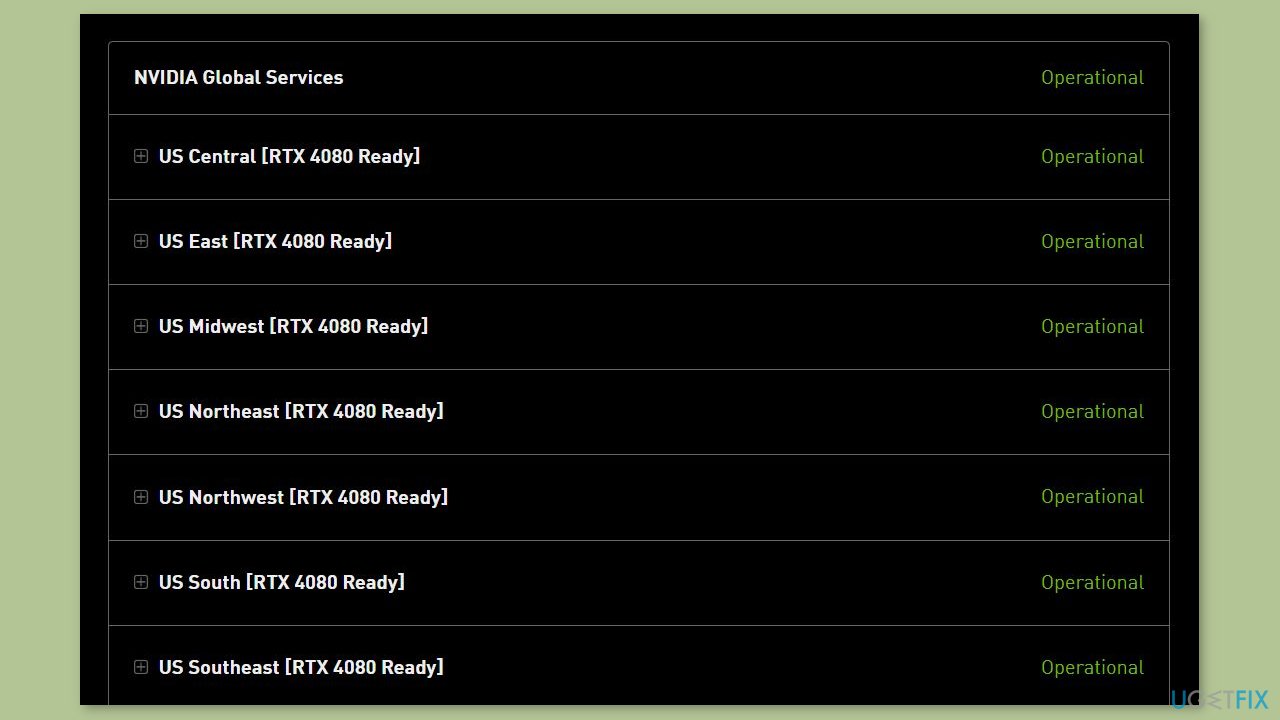
The error you are seeing could be the result of an ongoing server issue on NVIDIA's end. If the GeForce NOW servers are currently down or unavailable, you will most likely receive the error 0xC184C00F when attempting to launch a game. To resolve this, check the server status of GeForce NOW and ensure that its services are currently operational.
To check the current server status of GeForce NOW, use a web browser to navigate to the status.geforcenow.com page. Check to see if the servers are up and running in your area. If they are not, you must wait until the services are restored before you can play games without encountering the error 0xC184C00F.
Solution 3. Update GeForce NOW
Another possible cause of error code 0xC184C00F when using GeForce NOW is that you are using an outdated version of the app. To resolve this issue, make sure you have the most recent version of GeForce NOW installed.
To do so, go to the app's official website and download the most recent version. After downloading, install it on your computer. This will ensure that you have the most recent version of GeForce NOW, potentially resolving the error code 0xC184C00F and allowing you to use the platform more smoothly.
Solution 4. Restart the NVIDIA Services
- Press the Windows key + R to open the Run command box.
- Type services.msc in the Run command box and press Enter. This will open the Services Manager.
- In the Services, locate services related to NVIDIA, such as NVIDIA Display Container LS or NVIDIA LocalSystem Container.
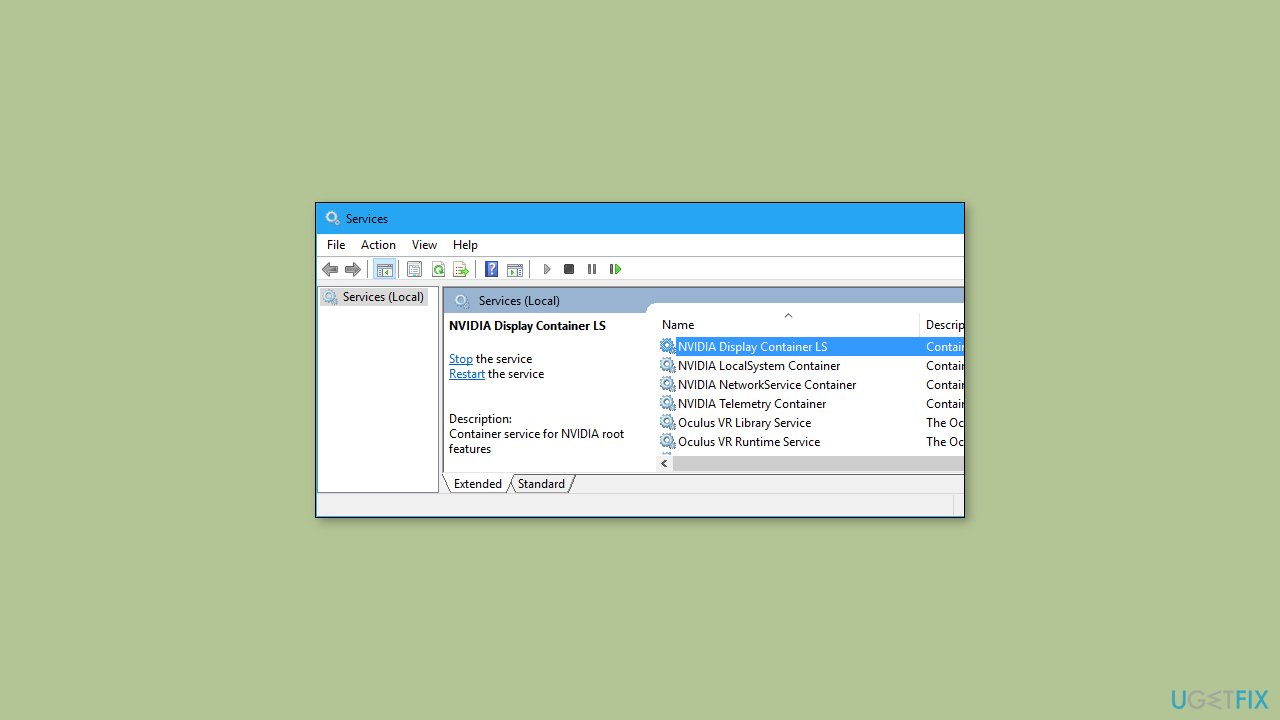
- Select a NVIDIA service and click on the Restart button to start it again.
- Alternatively, you can click on the Stop button and then click on the Start button to restart the service.
- Repeat steps for all NVIDIA services listed in the Services Manager.
- Once you have restarted all NVIDIA services, open GeForce NOW and check if the error is resolved.
Solution 5. Update or Reinstall GeForce Drivers
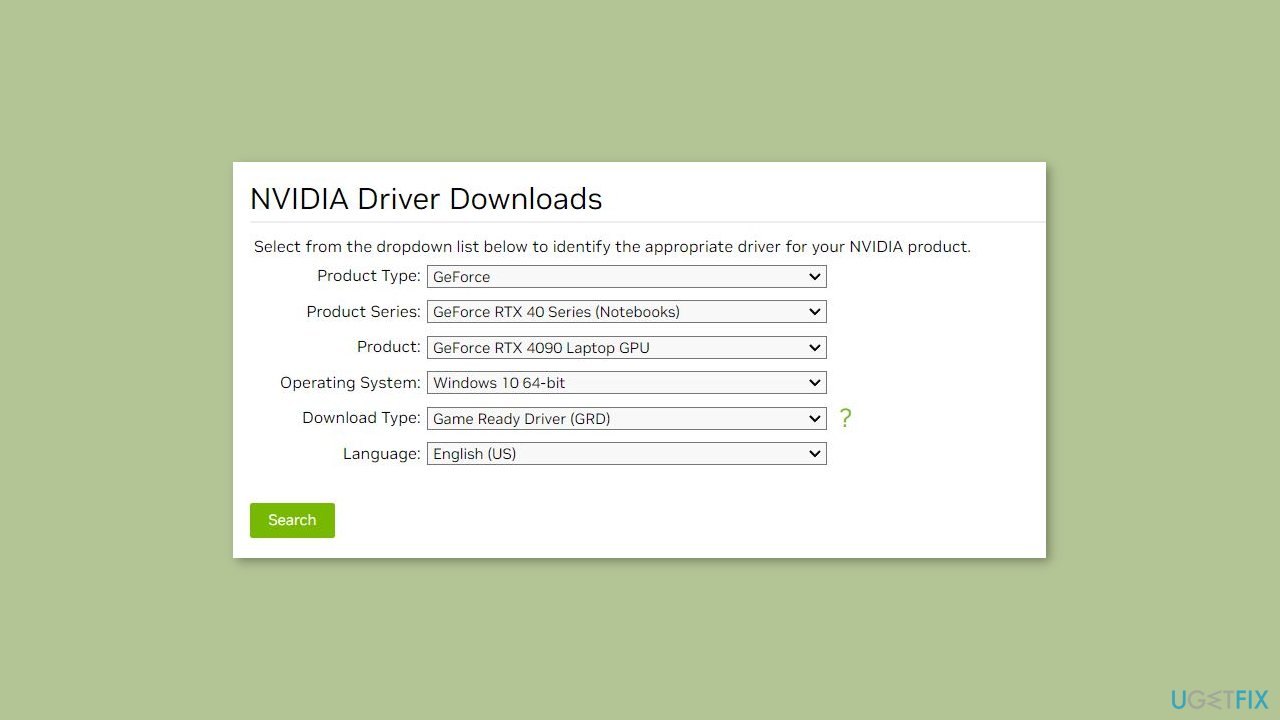
- Download and install NVIDIA drivers manually from their official website.
- Alternatively, you can use the [rev id="DriverFix"] tool to update your graphics driver.
If the error persists even after updating your drivers, you can try uninstalling and then reinstalling the GeForce drivers on your PC.
Solution 6. Reinstall GeForce NOW
- Press the Windows key + I to open the Settings app.
- In the Settings app, navigate to the Apps section and click on Installed apps.
- Scroll through the list of installed apps and locate the NVIDIA GeForce NOW app.
- Select the NVIDIA GeForce NOW app and click on the three-dot menu button next to it.
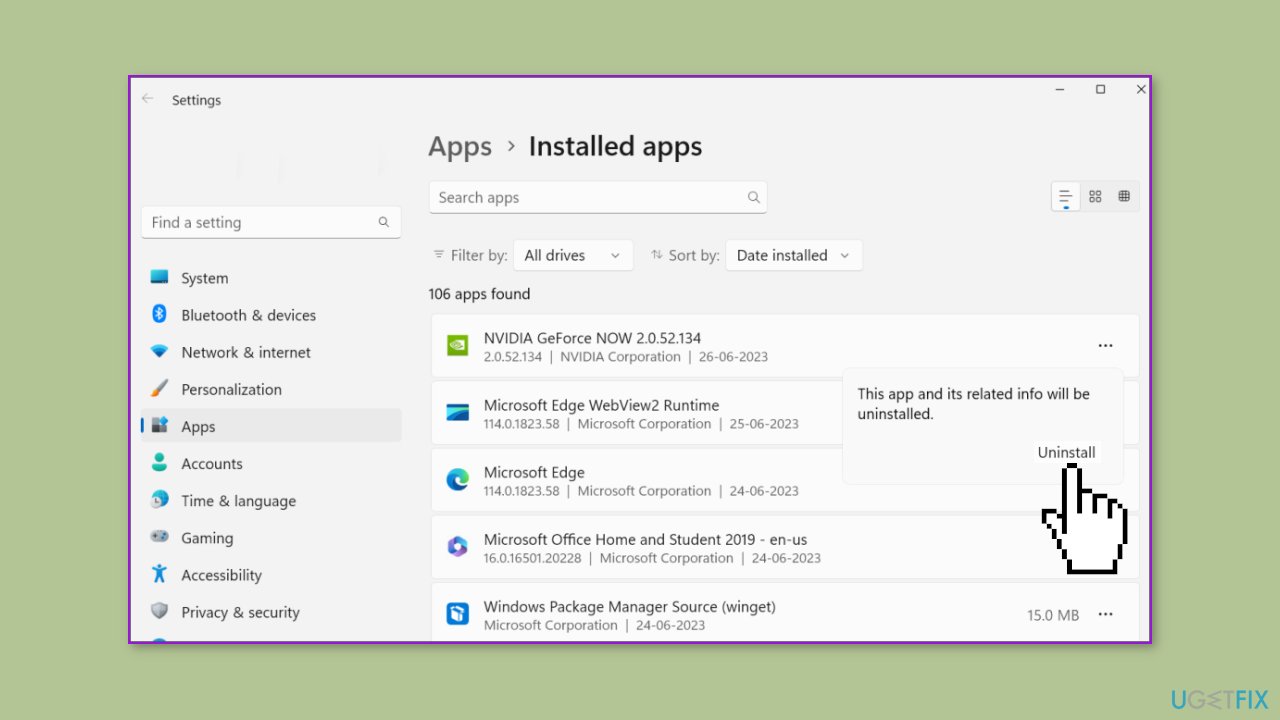
- From the menu that appears, choose Uninstall to initiate the uninstallation process.
- Follow the onscreen instructions to complete the uninstallation of the NVIDIA GeForce NOW app.
- Once the app is uninstalled, visit the official NVIDIA website.
- Download the latest version of GeForce NOW from the website.
- After the download is complete, run the installer and follow the installation instructions to install the latest version of GeForce NOW on your PC.
Bottom line
To resolve the error code 0xC184C00F, check that your PC meets the minimum system requirements, ensure that the GeForce NOW servers are operational, and verify that all necessary NVIDIA services are running correctly. If these steps do not resolve the issue, consider using a repair tool to fix system errors or follow additional troubleshooting steps.
Frequently asked questions
The error code 0xC184C00F typically indicates an issue with the GeForce NOW application or a conflict with your Windows system settings. It can often be resolved by updating your graphics drivers or reinstalling the GeForce NOW app.
To troubleshoot this error on Windows 11, try clearing the GeForce NOW cache and checking your internet connection for stability. If the problem persists, consider resetting the app or checking for Windows updates.
Yes, you can attempt to fix the error by running the app as an administrator and disabling any conflicting software, such as VPNs or firewalls, that might interfere with GeForce NOW.




Report an issue
What's wrong with this guide? We review every report and update or remove content.
Report received — thank you. We'll review and fix it.
You need a free account to submit a report.
Be the first to comment