How to fix
Error code 0xc190020e
on Windows
Resolve error code 0xc190020e on Windows 10 effortlessly. Follow our expert-tested solutions for a fast fix with zero traces left.


What causes How to fix error code 0xc190020e on Windows 10?
- Insufficient PC storage
- Windows Update service problems
- Temporary Windows system files issues
- Third-party antivirus interference
- Compatibility issues during upgrade
Repairs Windows system files, removes malware, and restores a clean OS state — without reinstalling.
Hello. I keep getting the error code 0xc190020e when trying to upgrade to Windows 10 V1709. The upgrade is detected, compatibility checked, but once the installation starts, I get a notification saying that something went wrong with the error code 0xc190020e. How to fix it?
Since 2015 summer, which is the year of Windows 10 OS release people keep reporting an error code 0xc190020e. It’s dubbed as a Windows 10 upgrade or Windows 10 update error depending on the situation it occurs.
In most of the cases, the 0xc190020e error shows up when upgrading Windows 7[ref en-1] to Windows 10, but quite a lot of people came across it when installing Windows 10 Creators Update and Fall Creators Update. Statistically, the bulk of affected PCs were running 32-bit system.[ref en-2]
The error code 0xc190020e may occur in tandem with “Not Enough Space” warning. Insufficient PC’s storage is one of the possible culprits of the unsuccessful Windows 10 installation or update, so you may first of all try to free up some space on your PC.[ref en-3]
If the reason of the 0xc190020e bug is not related to memory, the problem may stem from Windows Update service problems, temporary Windows system files, third-party antivirus and similar.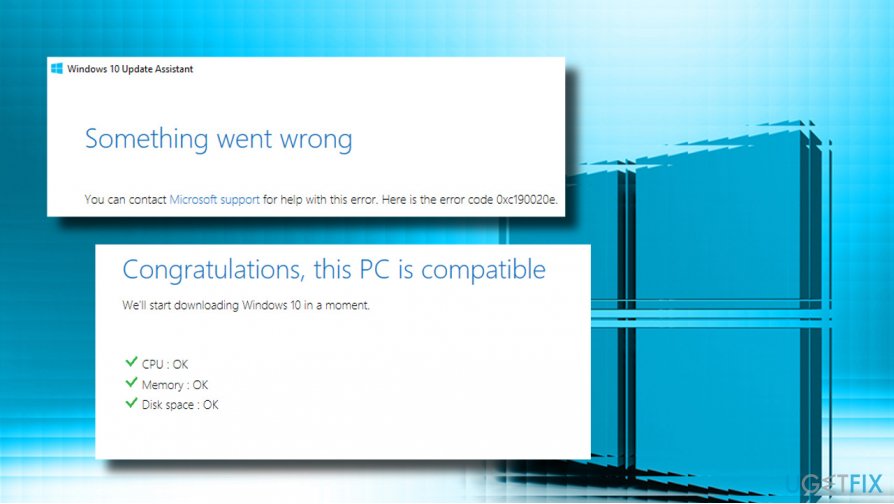
Check Disk Space Usage
- First of all, let’s check how much free space is available on the system volume in Windows Explorer.
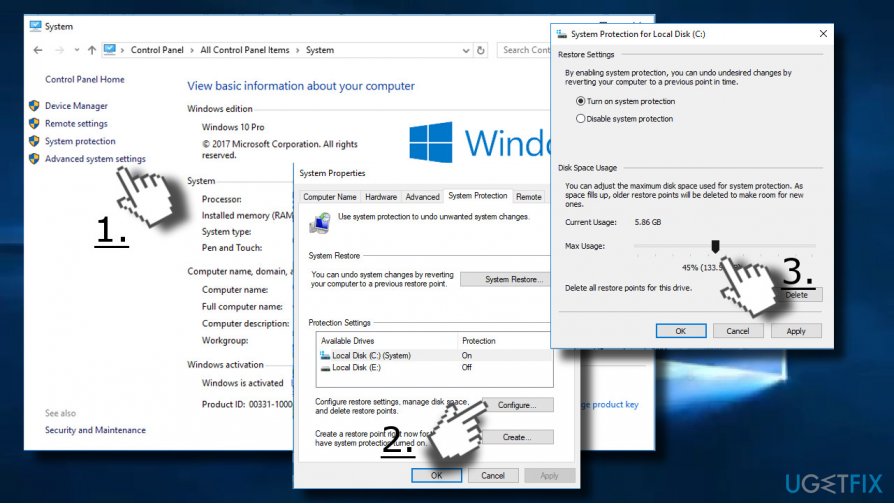
- Open Control Panel and select System.
- Click on Advance System Settings and open System Protection tab.
- Access Protection Settings and select the System Drive (Usually C:).
- Click the Configure button.
- When in the Disk Space Usage section, use the slider to increase the amount of disk space allocated to System Restore.
- Finally, click Apply and OK to save the changes.
Use Disk Cleanup
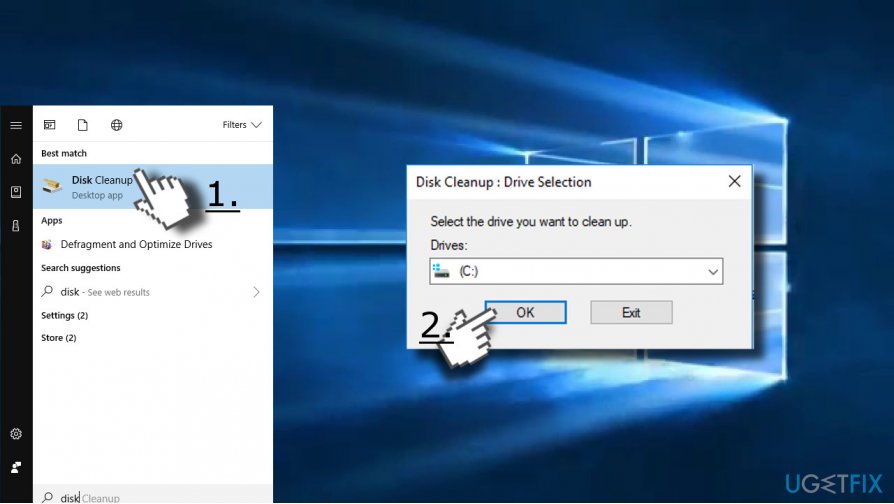
- Press Windows key and type Disk Cleanup.
- Click on the Disk Cleanup tool and select the System drive that you opt for cleaning.
- Click OK to proceed.
Empty the Microsoft’s temp folder
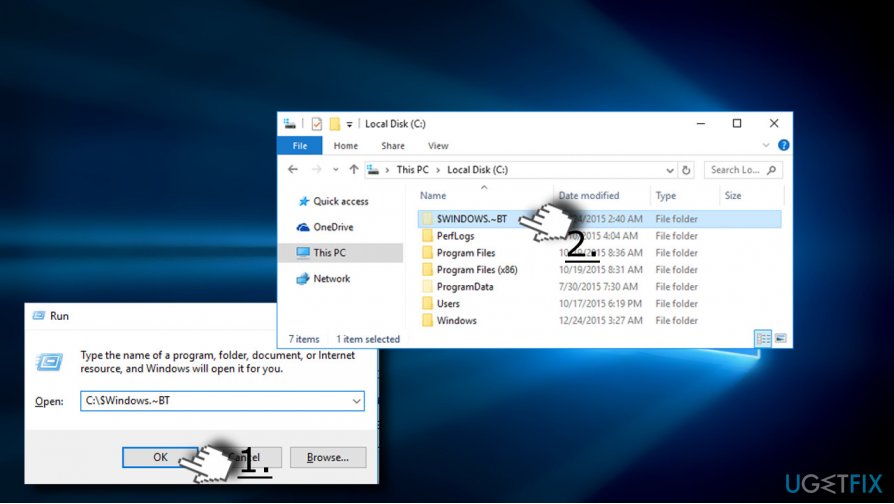
- Press Windows key + R to open Run.
- Copy and paste the C:\\$Windows.~BT and click OK. If C: drive is not the root drive of your OS, change the driver letter to the appropriate one.
- Remove all content of the C:\\%Windows.~BT folder and try to run the Media Creation Tool.
Modify Registry Entries
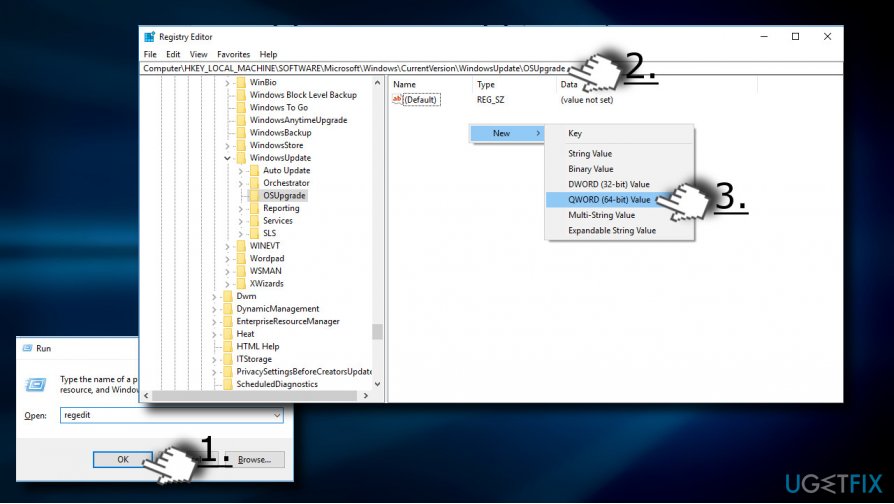
- Press Windows key + R, type regedit and hit Enter.
- Click File at the top of the window and select Export.
- Select the location on the left pane.
- Type the name of the backup in the File Name field and click Export.
- When the backup is ready, navigate to the DHKEY_LOCAL_MACHINE\\SOFTWARE\\Microsoft\\Windows\\Current Version\\WindowsUpdate\\OSUpgrade key using the left pane.
- Right-click on the empty space and select New -> DWORD.
- Name it AllowOSUpgrade and set its value to 1.
- Close Registry Editor and restart the PC.
Upgrade the system using Windows 10 installation media
Create Windows 10 installation media using a USB or DVD. Once you create the bootable Windows installation media, follow these steps:
- Plug-in or insert the Windows 10 installation media and reboot the PC.
- Press any key to boot from the installation media.
- Select language, time, currency, and keyboard/input method and press Next.
- Click Install Now (NOT Repair your computer) and select the type of OS you want to install.
- Finally, follow the on-screen instructions to finish up with the installation.
Bottom line
To fix error code 0xc190020e, first check your disk space and free up some storage if necessary. You can also use Disk Cleanup to remove unnecessary files and empty the Microsoft temp folder. If these solutions do not resolve the issue, further investigation into the Windows Update service or antivirus settings may be required.
Frequently asked questions
Error code 0xc190020e typically indicates that the Windows 10 upgrade process was interrupted due to a compatibility issue or lack of disk space.
To resolve this error, ensure that you have sufficient disk space, remove any incompatible software, and try running the Windows Update Troubleshooter.
To prevent this error in the future, regularly check for Windows updates, maintain adequate disk space, and keep your drivers updated to ensure compatibility.




Report an issue
What's wrong with this guide? We review every report and update or remove content.
Report received — thank you. We'll review and fix it.
You need a free account to submit a report.
Be the first to comment