How to fix
Error code 1962 “No Operating System Found”
on Windows
Resolve the error code 1962 "No Operating System Found" on Windows 10 or 11 swiftly with expert-tested solutions and detailed screenshots. Fixed in minu…

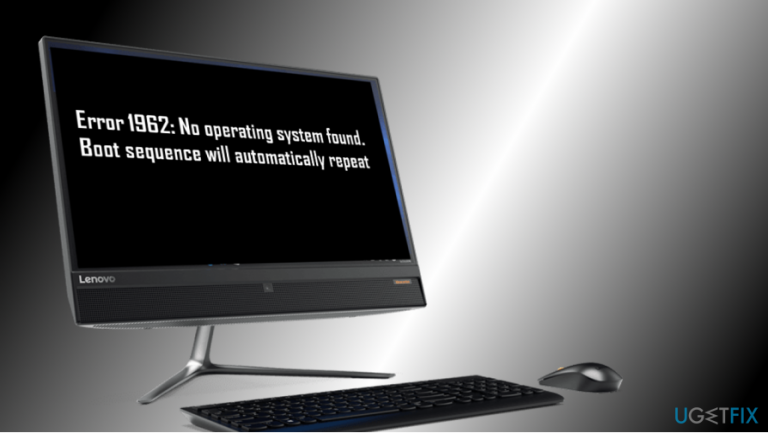
What causes How to fix error code 1962 “No Operating System Found”?
- Faulty HDD
- Malfunctioning SATA cable
- Software installation issues
- Windows updates
- Coincidental occurrence after upgrades
Repairs Windows system files, removes malware, and restores a clean OS state — without reinstalling.
When I downloaded the Windows 10 Fall Creators Update to my PC, the system got stuck at boot with an error code 1962 saying that “No Operating System Found.” I did a hard reboot and the system eventually loaded, but then the next day the same error re-occurred. What can I do?
The PC stuck at boot is a common problem in Windows 10 OS regardless of device model.[ref en-1] However, there’s one common problem which is related to Lenovo computers only – the Error Code 1962. The error indicates "No Operating System Found” which causes immediate panic to many Lenovo users. However, in most cases, Error 1962 fix can be performed relatively easy, and we will explain how to do that in this article.
Typically, Error 1962 – No Operating System Found occurs on Lenovo computers at Windows boot, after the restart. Although experts haven't really found the relation between the error code 1962 and the software installed before the problem occurs, Lenovo users keep posting reports on Microsoft’s official support page judging the free Windows 10 upgrade (earlier), and it’s feature updates (Creators Update, Fall Creators Update) for causing the problem.
Such speculations are somewhat contradictory. If the “No Operating System Found” error with a code 1962 showed up after the installation of Windows 10 or its updates, it’s more likely to be a coincidence. If you are pretty sure that the upgrade or installation of software caused the problem, you can run Windows diagnostics at boot or perform a clean install.
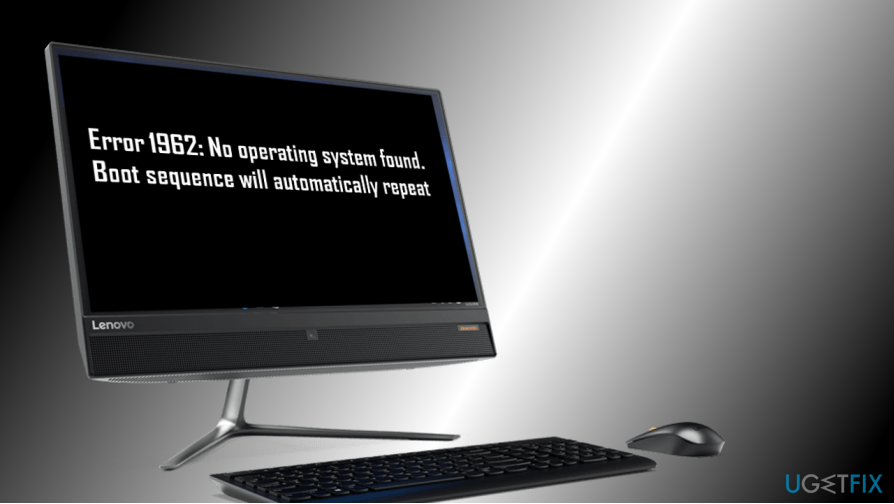
However, in most of the cases the problem comes up from either the faulty HDD[ref en-2] or SATA cable[ref en-3] which is connected to the well functioning HDD and motherboard. Thus, to fix Error 1962: No Operating System found, you should check which one of these two is malfunctioning.
A guide on How to Fix Error 1962: No Operating System found (Lenovo Thinkcentre)
Most people managed to fix Error 1962 No operating system found on Lenovo PCs by performing a hard reboot. However, that’s not a permanent solution, so it’s just a matter of time until the error shows up again. To fix the error permanently, check the condition of the HDD and SATA[ref en-4] cables.
Check the functionality of the HDD drive
To check if a faulty HDD drive is causing error 1962, you have to have another properly working PC. Remove the HDD and connect it to the other computer. If the latter detects and allows accessing the HDD, then the culprit (most probably) is the SATA cable, so you should change it to a new one.
If the full-working PC cannot detect the HDD, you may need to change it. Unfortunately, it means that you are going to lose all the data stored on it. If you saved a lot of personal information on the HDD, try contacting a professional IT technician who may recover at least a part of data.

In case both HDD and SATA cable are working correctly, you may try the following fixes:
IMPORTANT: be careful when performing the following steps because inaccurate move can result in PC’s integrity violation. The guide given below requires altering computer’s basic input/output system (BIOS) which, if not performed according to steps, can lead you to computer-related issues.
Note: you can use automatic system repair tools like [d1] - it can fix most of Windows-related problems without having to reinstall the operating system.
Enter Computer’s BIOS
- Once the system returns the error No Operating System Found error 1962, press and hold Ctrl + Alt + Del buttons. Now the system should reboot. To switch to BIOS setup, press F12 several times.
- When Setup written box occurs, press Enter.
- Now select Startup tab at the top of the window and select CSM.
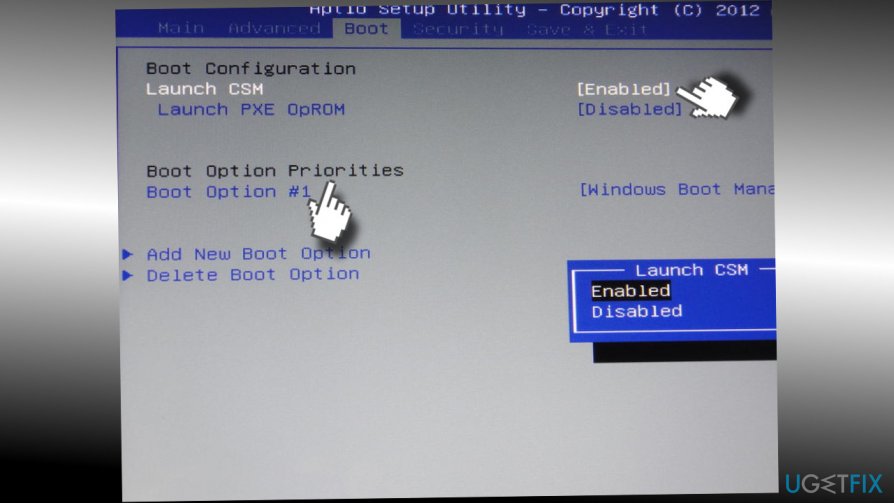
Boot priorities - Click Now select the Enabled option.
- Find Boot Priority and press Enter.
- Now change the Legacy First to UEFI First.
- After that, press F10 key and select Yes.
- Once done, the system should reboot automatically without an error code 1962.
Change Boot Options
- Once your PC loads, press and hold Shift button and click Shut down button from the boot menu at the same time.
- Press and hold the F2 button and click the power button. Do NOT release the F2 button until the BIOS screen emerges.
- Once BIOS opens, you can release the F2 button. Go to Boot section.
- If you cannot boot into Windows, perform 1-3 steps from the previous method. Open Boot section.
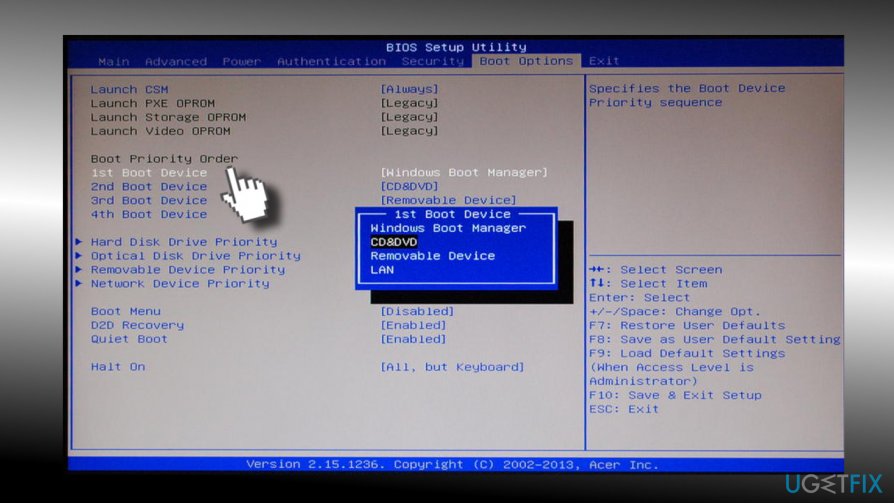
Change boot priorityordr - Check the priority list. If the boot drive (SSD/HDD) is not listed at the top, shift it to the top instead of Windows Boot Manager, USB HDD or DVD Rom.
- Save these changes and close the BIOS.
- Once done, restart the PC.
If these two fixes did not help and you are still facing “Error 1962: No Operating System Found” error, you can run Windows diagnostic tool at boot or perform a clean Windows install. In case you managed to boot into Windows successfully, you can also try to enable a System Restore Point.
Use startup repair on Windows using Media Creation Tool to fix error 1962 on Lenovo computer
If nothing helped you to fix “Error 1962: No Operating System Found,” we suggest you simply repair the startup of Windows operating system. To do that, follow these steps:
- Go to the official Microsoft website and download Media Creation tool.
- Load the tool into a bootable flash drive or a DVD.
- Insert the DVD or connect the USB to the Lenovo computer displaying Error 1962.
- Press any key to boot from CD or DVD
- Once the Windows Setup window loads, select correct options for language, time and currency, keyboard output settings and click Next.
- Then click on Repair your computer > Troubleshoot > Advanced options > Startup repair
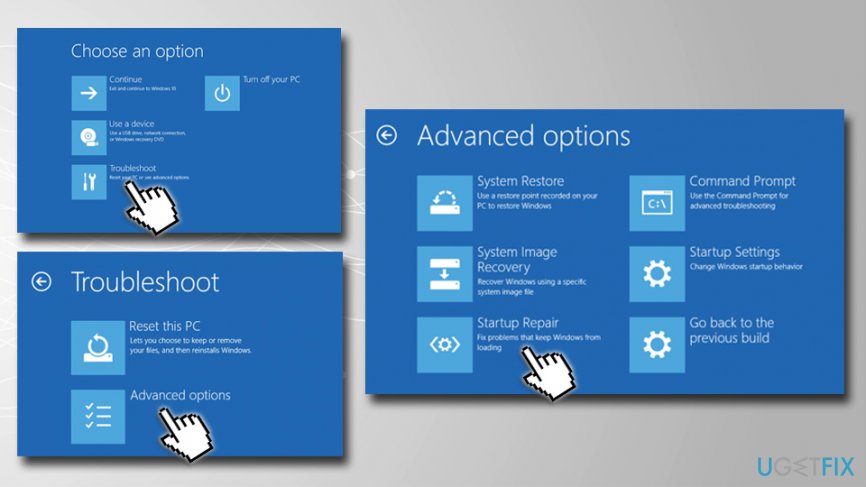
Fix error 1962 on lenovo perform startup repair using windows media creation tool
Bottom line
To fix Error 1962: No Operating System Found, you can perform a hard reboot, run Windows diagnostics at boot, or perform a clean install. If the problem persists, check the HDD and SATA cable for faults.
Frequently asked questions
Error code 1962 indicates that the system is unable to find a valid operating system to boot from, often due to corrupted files or misconfigured BIOS settings.
To troubleshoot error code 1962 on Windows 10, you can check the BIOS settings to ensure the correct boot order is set, or use Windows Recovery Environment to repair startup issues.
Yes, a corrupted hard drive can lead to error code 1962 on Windows 11, so running a disk check using the Command Prompt or accessing the recovery options might be necessary.




Report an issue
What's wrong with this guide? We review every report and update or remove content.
Report received — thank you. We'll review and fix it.
You need a free account to submit a report.
Be the first to comment