How to fix
Error code 2048 in Call of Duty Warzone and Modern Warfare
on Windows
Fix error code 2048 in Call of Duty Warzone and Modern Warfare on Windows 10 or 11 effortlessly. Expert-tested solutions for seamless gameplay.

What causes How to fix error code 2048 in Call of Duty Warzone and Modern Warfare?
- Server overload
- Connection issues to game servers
- Problems during game loading
- Fetching user profile errors
Repairs Windows system files, removes malware, and restores a clean OS state — without reinstalling.
Hello, I was wondering if you could help me. I launched Call of Duty Modern Warfare - it was loading for quite a while, then it got interrupted, and I received an error code 2048. I tried several times again but received the same error. It's been happening for the past day - I would appreciate any tips on this.
The Call of Duty franchise is one of the most popular first-person shooter video game series in the world. Developed by Activision, the series has been around since 2003 and has focused on games set in World War II. Today, it continues to be a best-selling video game franchise with its latest installments, such as Warzone and Modern Warfare.
Warzone is an online battle royale game that was released in 2020, with its sequel Warzone 2, reaching players in 2022. Modern Warfare is a reboot of the original 2007 title and continues to be one of the most successful installments in the franchise. Both games have become incredibly popular among gamers for immersive gameplay and intense action.
Despite their success, COD games saw their fair share of criticisms due to technical issues some are facing regularly. Error code 2048 in Call of Duty Warzone and Modern Warfare is one of these issues that players encounter when playing these games. According to many reports, users receive the error when loading into the game or when the "Fetching user profile" screen is shown.
As such, COD error code 2048 is caused by an issue where there are problems connecting to the game's servers. This on its own could be caused by simple Activision server overload or similar problems, but many people who reported the error were more exclusions rather than the majority.
Therefore, you should try the methods below to fix error code 2048 in Call of Duty Warzone and Modern Warfare. We provide some tips for PC players first and then show how to deal with the issue on consoles.
If you are using Windows, we also recommend scanning the system with powerful PC repair software [d1], which can check whether there are some underlying issues with Windows causing these or any other troubles.
Fix 1. Check the server status
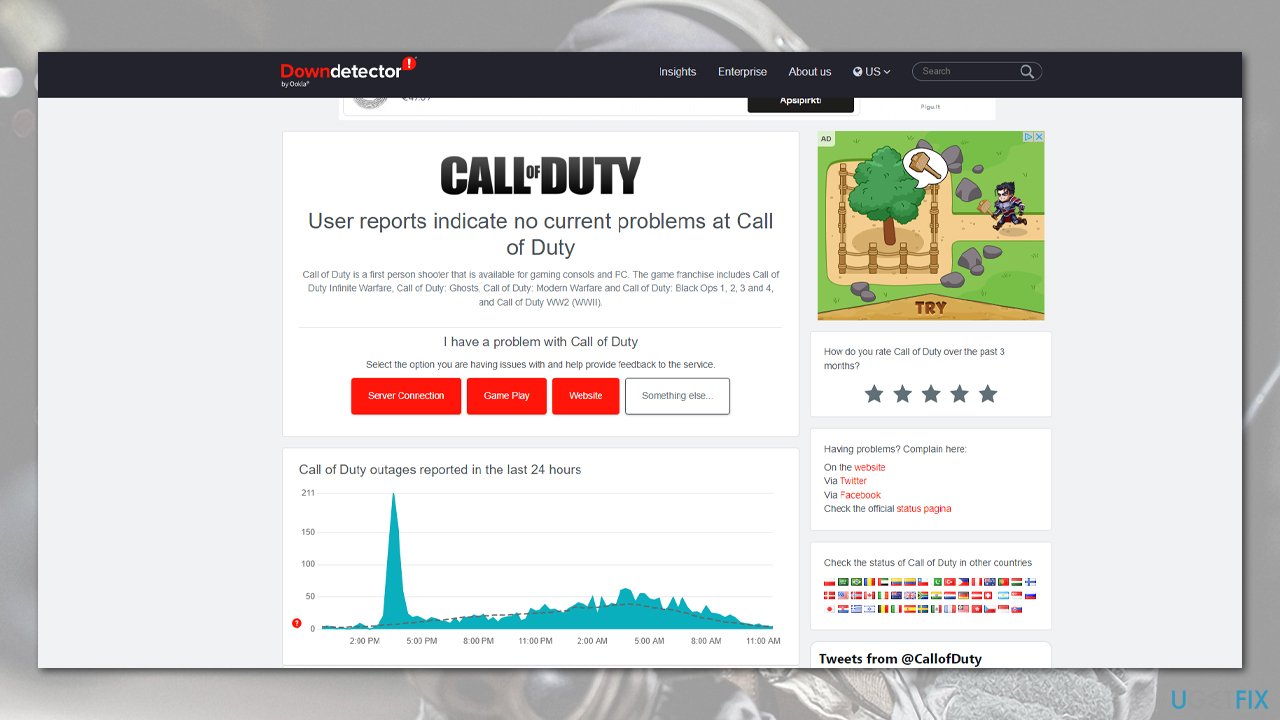
When you encounter login issues while playing Call of Duty, it's important to start the troubleshooting process by verifying the server status. You can check the server status by visiting websites like Down Detector or by following the official Activision Twitter account, which provides immediate updates on server issues. In the event that the servers are offline, unfortunately, there is nothing you can do from your end but wait for Activision to resolve the issue.
Fix 2. Check your internet connection
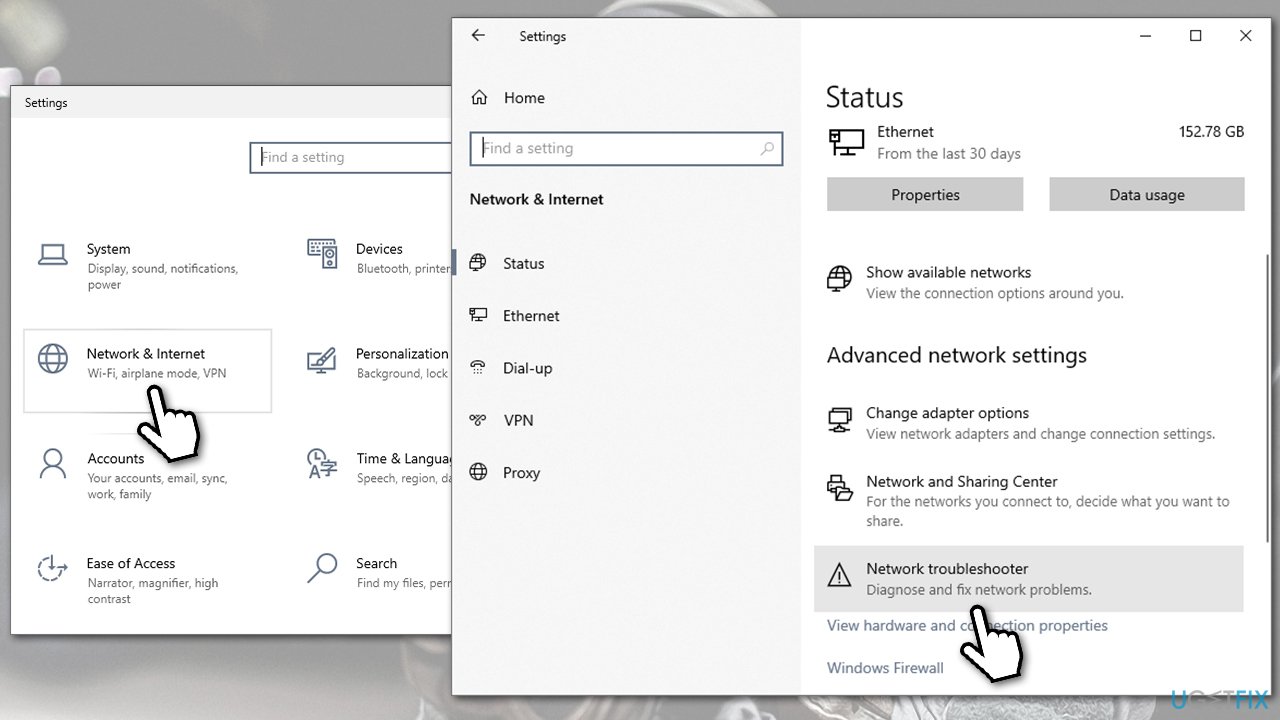
If your internet is unstable, you might get this error. You can troubleshoot it as follows:
- Right-click on the Start button and select Settings.
- Go to Network & Internet section.
- Here, locate the Advanced network settings section.
- Click the Network troubleshooter to run it.
- Wait for the scan to finish, and apply the fixes.
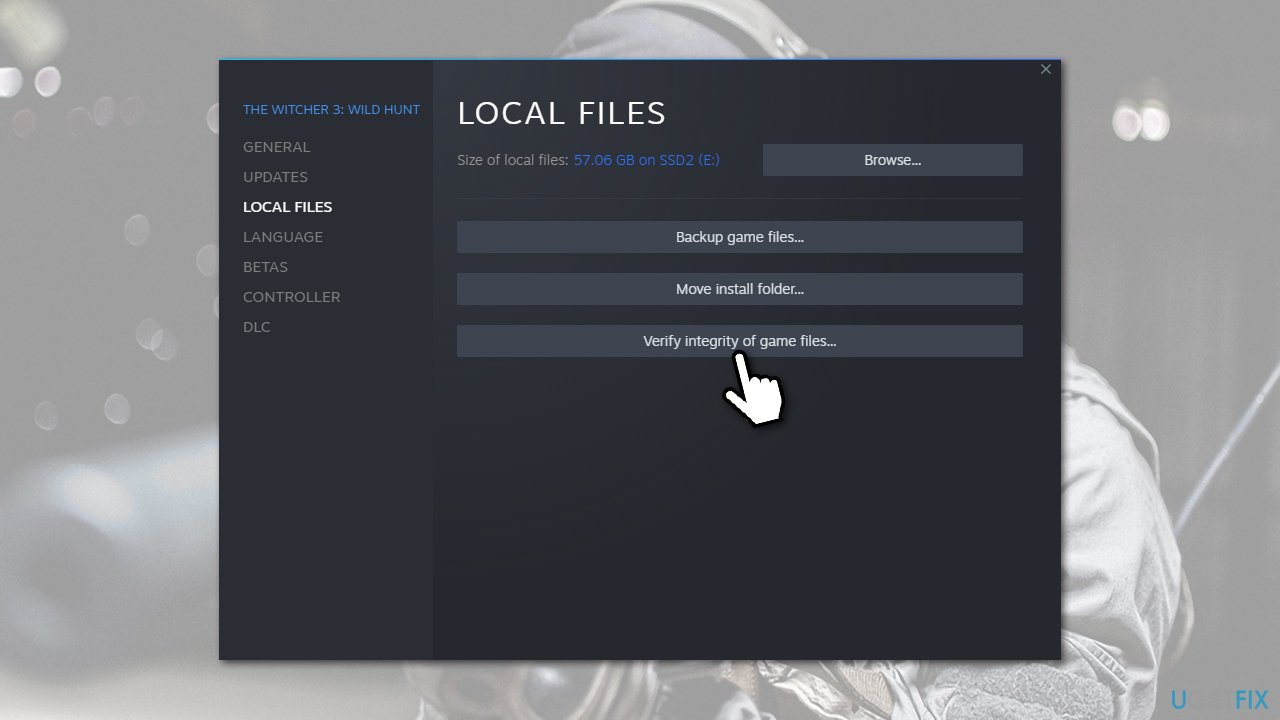
Fix 3. Verify game files
Steam
- Open Steam and pick COD: Warzone 2/MW from your library.
- Right-click and select Properties.
- Go to the Local Files tab.
- Click Verify integrity of game files...
- Wait till the process is finished, and then relaunch the game.
Battle.net
- Open the Battle.net client on your PC.
- Select Call of Duty Warzone 2/MW in the client.
- Click on the gear icon next to the Play button and select Scan and repair from the menu.
- Wait for the scan to finish.
Fix 4. Clear cached files
Bugged caches might cause all sorts of issues, so we recommend clearing them.
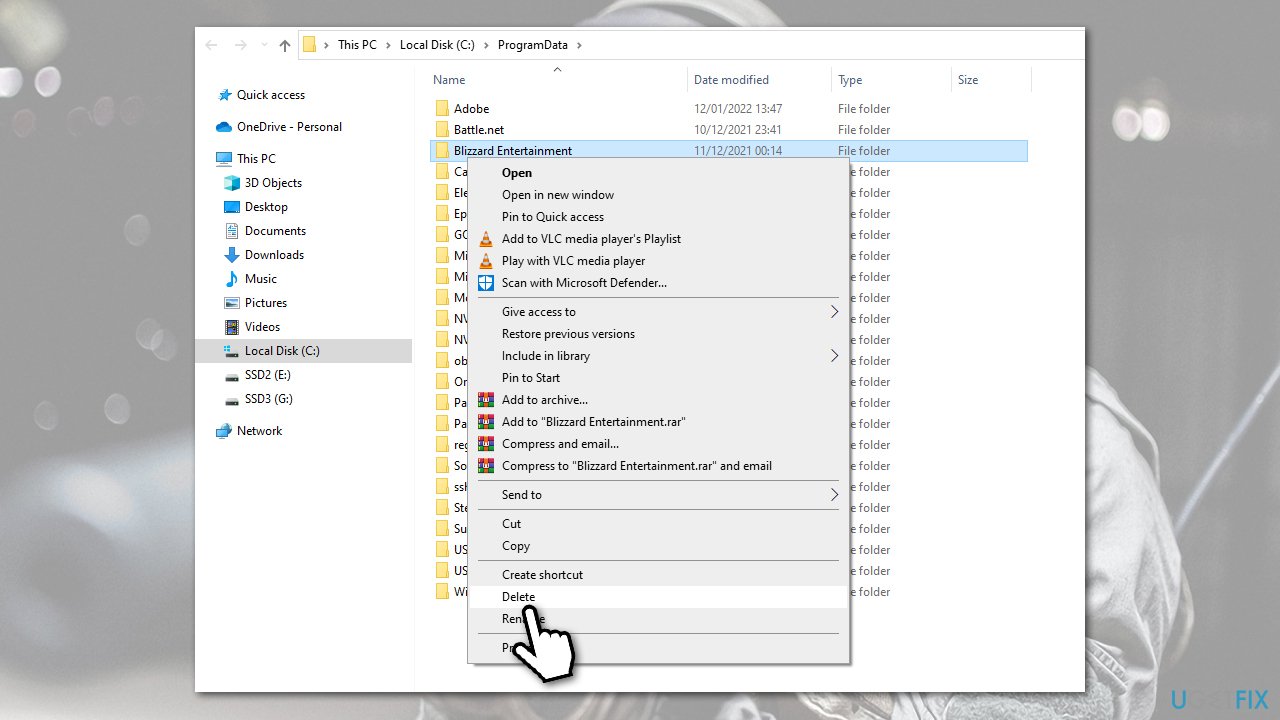
Battle.net
- Pres Ctrl + Shift + Esc to open the Task Manager and shut down any Blizzard-related process.
- In Windows search, type in %ProgramData% and hit Enter.
- Find the Blizzard Entertainment folder.
- Right-click and select Delete.
Fix COD error code 2048 on consoles
- Use the methods shown above to check for COD server status.
- Restart your console if you haven't done so yet.
- Perform a hard reset: on Xbox or PS, press and hold the Power button for at least ten seconds. Once it switches off, wait for a minute or two and then start up the console again. Launch the game and see if the error is gone.
- Reinstall the game.
Bottom line
To fix error code 2048 in Call of Duty Warzone and Modern Warfare, players should try various methods such as checking their internet connection, restarting the game, or using PC repair software. If these solutions do not resolve the issue, players may need to wait for server stability or further updates from Activision.
Frequently asked questions
Error code 2048 typically indicates a connectivity issue or a server problem affecting your ability to play Call of Duty Warzone on Windows 10.
To troubleshoot error code 2048 in Modern Warfare on Windows 11, try resetting your network settings and ensuring your game files are up to date.
Yes, ensure that your firewall and antivirus settings are not blocking Call of Duty, and check your NAT type in the network settings for optimal connectivity.




Report an issue
What's wrong with this guide? We review every report and update or remove content.
Report received — thank you. We'll review and fix it.
You need a free account to submit a report.
Be the first to comment