How to fix
Error code 31 – missing drivers
on Windows
Resolve Error code 31 by installing missing drivers on Windows 10 or 11. Quick solutions ensure stable performance—expert-tested and fixed in minutes!


What causes How to fix Error code 31 – missing drivers?
- Missing drivers
- Outdated drivers
- Corrupt drivers
- Misconfigured files
- Affected files
Repairs Windows system files, removes malware, and restores a clean OS state — without reinstalling.
Hello. I get the "This device is not working properly because Windows cannot load the drivers required for this device. (Code 31)". message and need your help. Can I update my drivers? Do I need something else to fix this? Or do I need help from another specialist?
Error code 31 - missing drivers is the issue related to various adapters and appears on Windows computers running 10, 8, or 7 operating system versions. If the appropriate driver is not found, the program cannot either get installed properly or launch when needed.[ref en-1]
When the error occurs on the device, you can find particular exclamation marks next to the related device in the Device manager. Error code 31 is the issue is related to missing drivers, outdated or corrupt drivers. Also, misconfigured or affected files can trigger this issue on Windows devices.
Since the problem is related to various adapters and drivers like network adapters and other pieces, you need to change particular settings to fix Error code 31 - missing drivers. There are a few quick solutions, but Windows updates[ref en-2] cannot always work for all the issues.
The error prevents your device from loading properly and triggers issues with applications. It can be a temporary problem, but the solutions below should solve the issue permanently. You can fix Error code 31 - missing drivers by restarting Windows first. If that helps, it is a temporary thing with Device Manager. If not - go for the solutions below that show more technical methods.
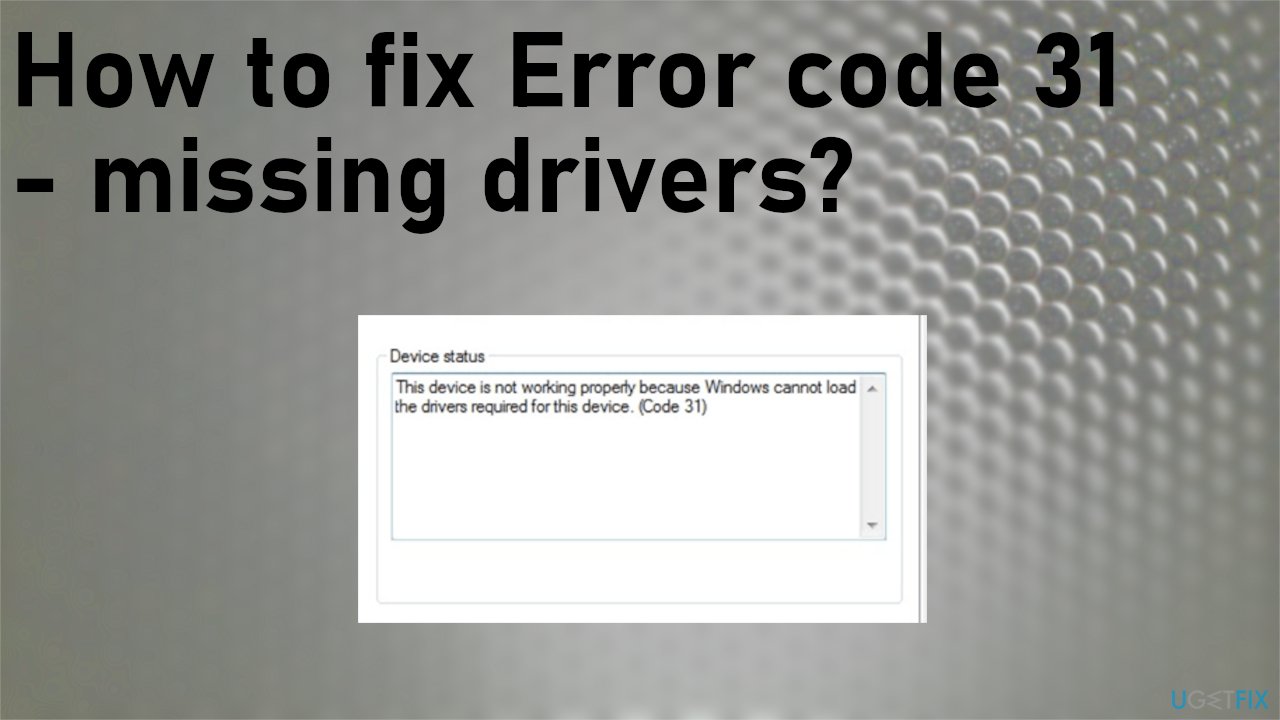
How to Fix error code 31 - missing drivers
Error code 31 - missing drivers sometimes is a one-time thing related to Device Manager or a sudden problem, so quick resetting of the system or full reboot of the Windows OS might form wonders. However, some additional issues with the machine can indicate serious issues with your device that gets caused by either affected files or damaged pieces. You can run a program like [d1] to solve such issues quickly.
If you managed to fix Error code 31 - missing drivers by repairing the system and optimizing issues with system files, folders, and affected pieces, your device was more affected than only the driver problem. Improving the performance can also help solve the corrupt driver problem quicker when additional system issues or malware[ref en-3] infections do not keep you from finding the root cause of this error code 31 problem.
Update drivers with a proper tool
You can automatically update various drivers with the help of [rev id="DriverFix"] that quickly improves the performance. Damage caused by incorrect installations or wrong versions of drivers can lead to various error messages and additional issues like Error code 31 - missing drivers. This application recommends new drivers, updates outdated ones, and helps make a difference with compatibility issues.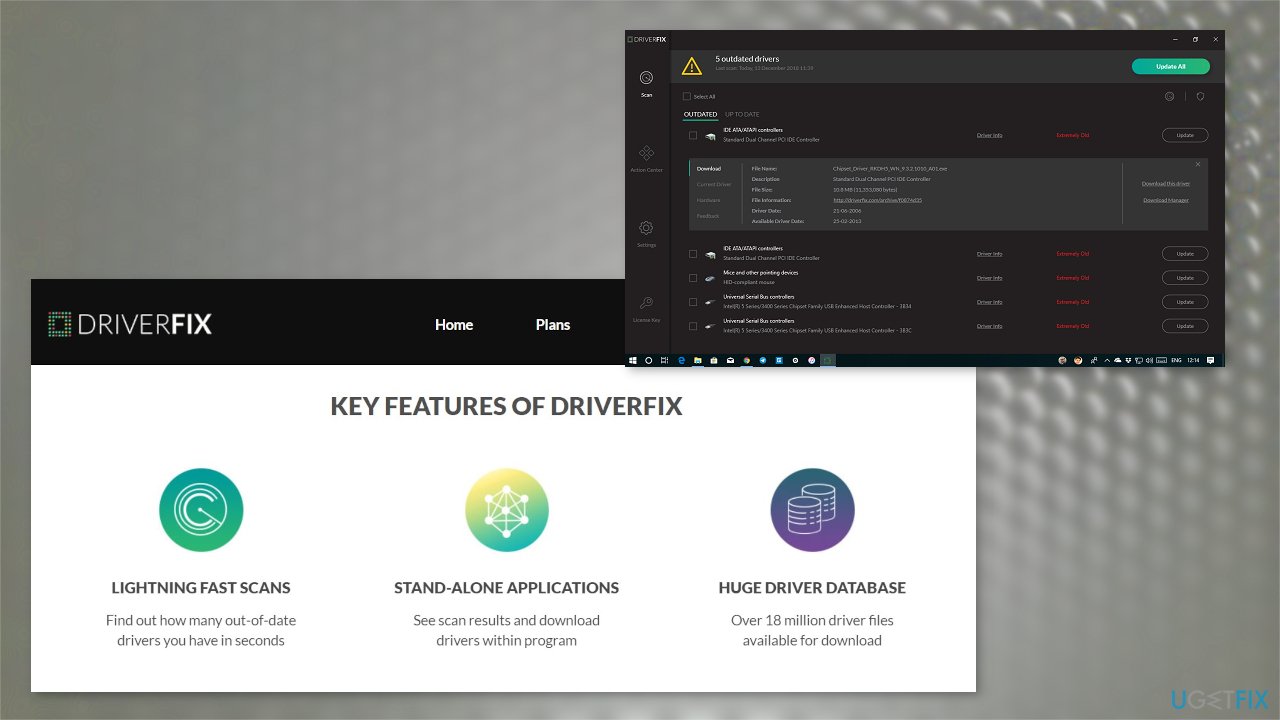
Update drivers manually to fix error code 31 - missing drivers
- Type System info in the search and open the System Information window.
- Click Components under System Summary.
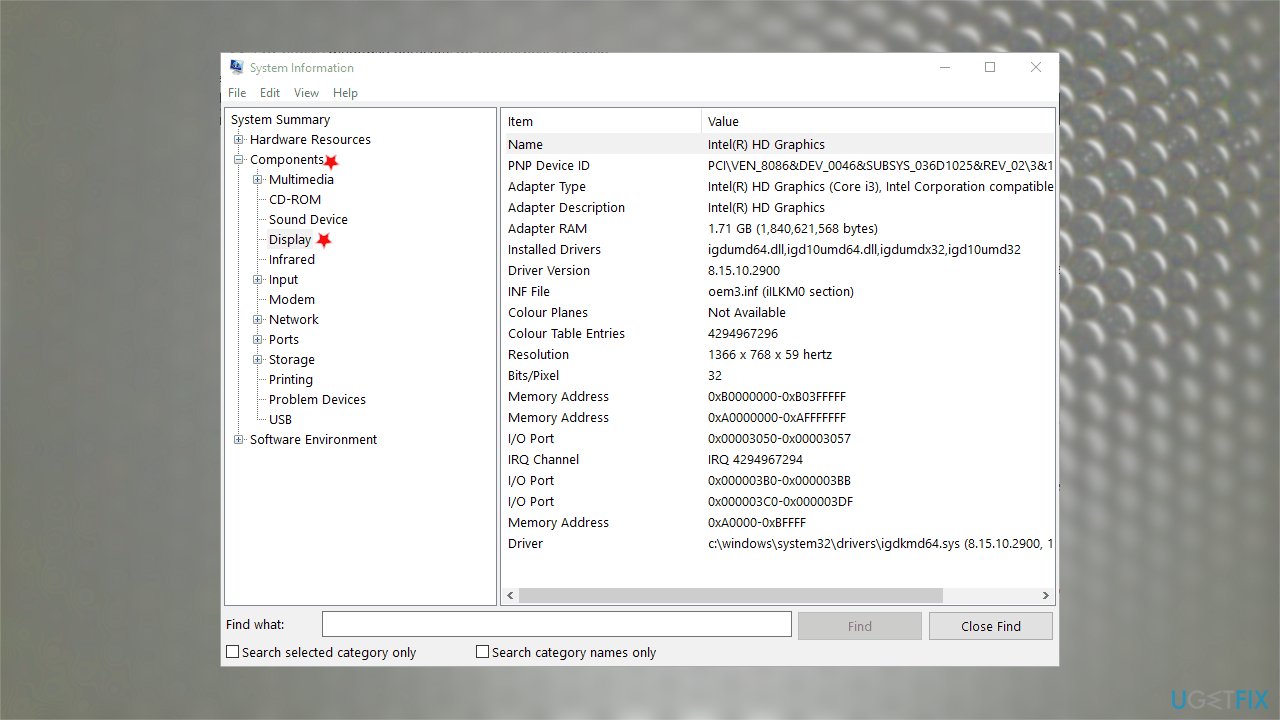
Error code 31 fix system info - Then choose Display to see details.
- You need to download the driver.
- Find drivers on manufacturers' website and make sure to find the correct driver.
- Press the Win and R keys to open the Run window.
- Enter devmgmt.msc.
- Hit Enter and open Device Manager.
- Double-click Display adapters and right-click the display adapter.
- Choose to Update driver.
- Select browse my computer for driver software and choose the location you downloaded the piece.
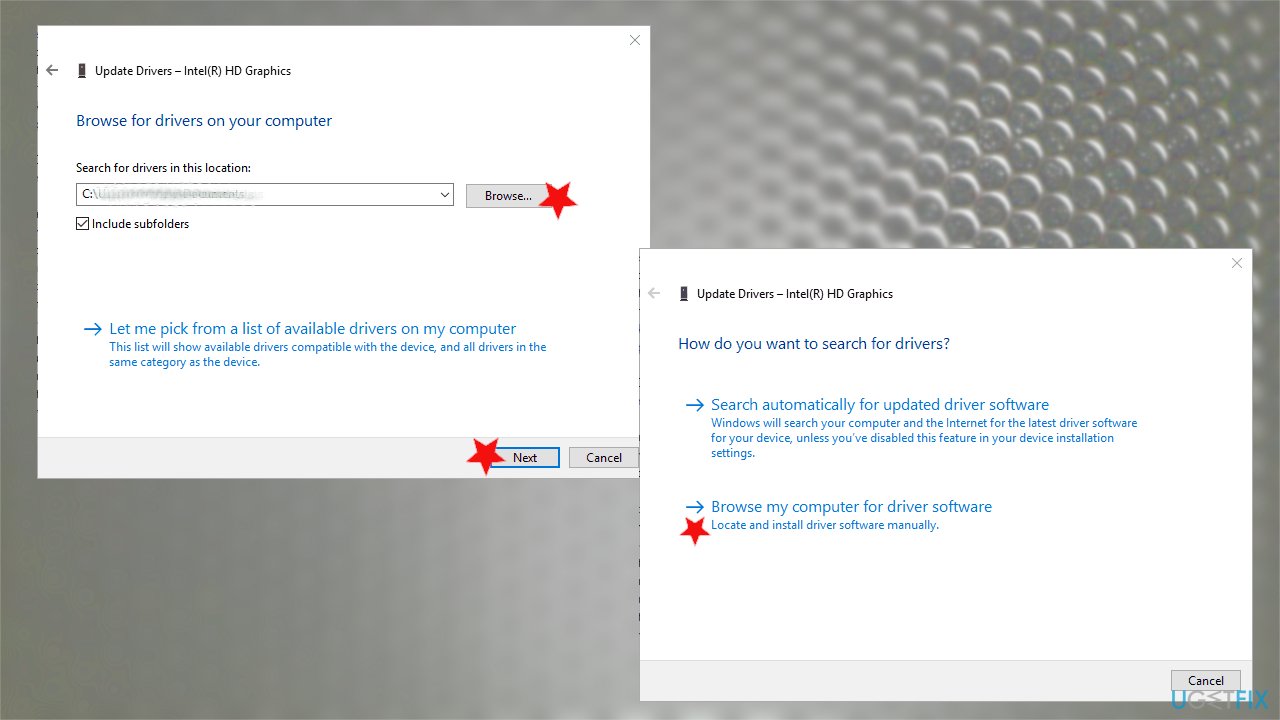
Error code 31 fix driver browse - Press Browse and then Next to install the driver.
Check for updates
- Go to Settings and find Update & Security.
- Click Check for updates to see if there are any new OS updates.
Troubleshoot devices and hardware issues
- Type Troubleshoot in the search bar.
- Open the Troubleshooter.
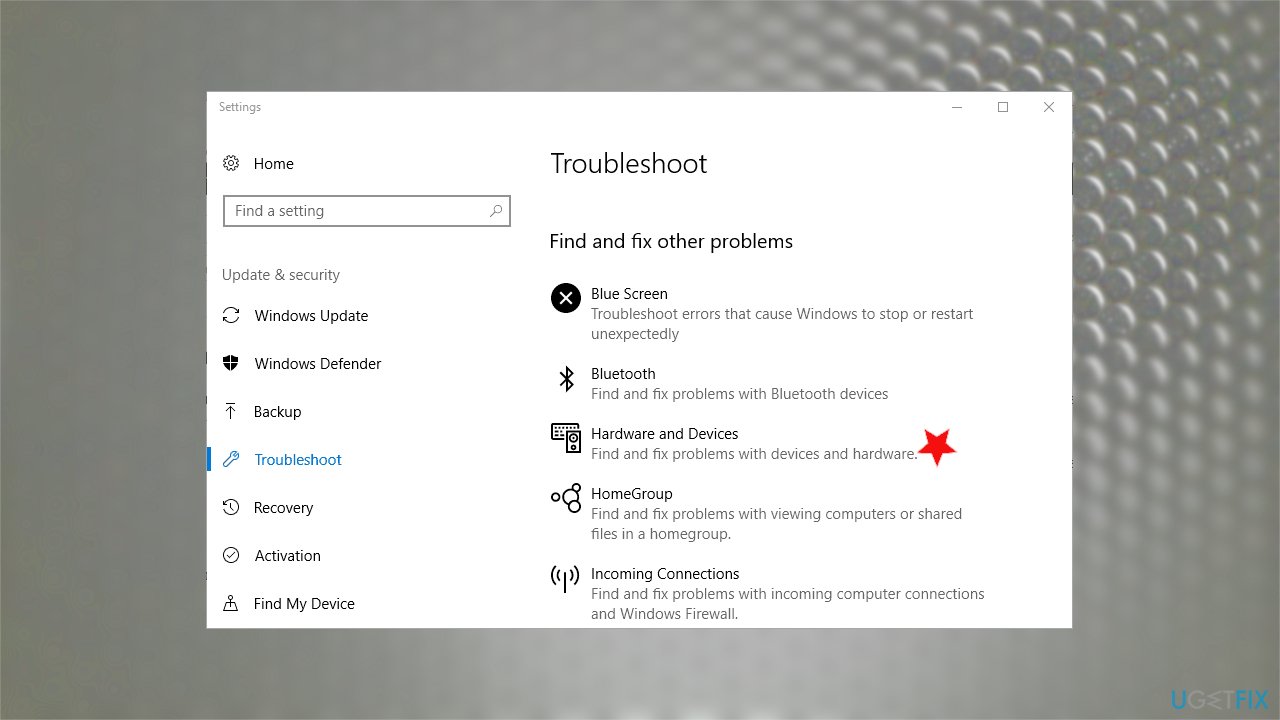
Error code 31 fix troubleshoot - Find the Hardware and Devices option.
- Click on it to get to the Run troubleshooter button.
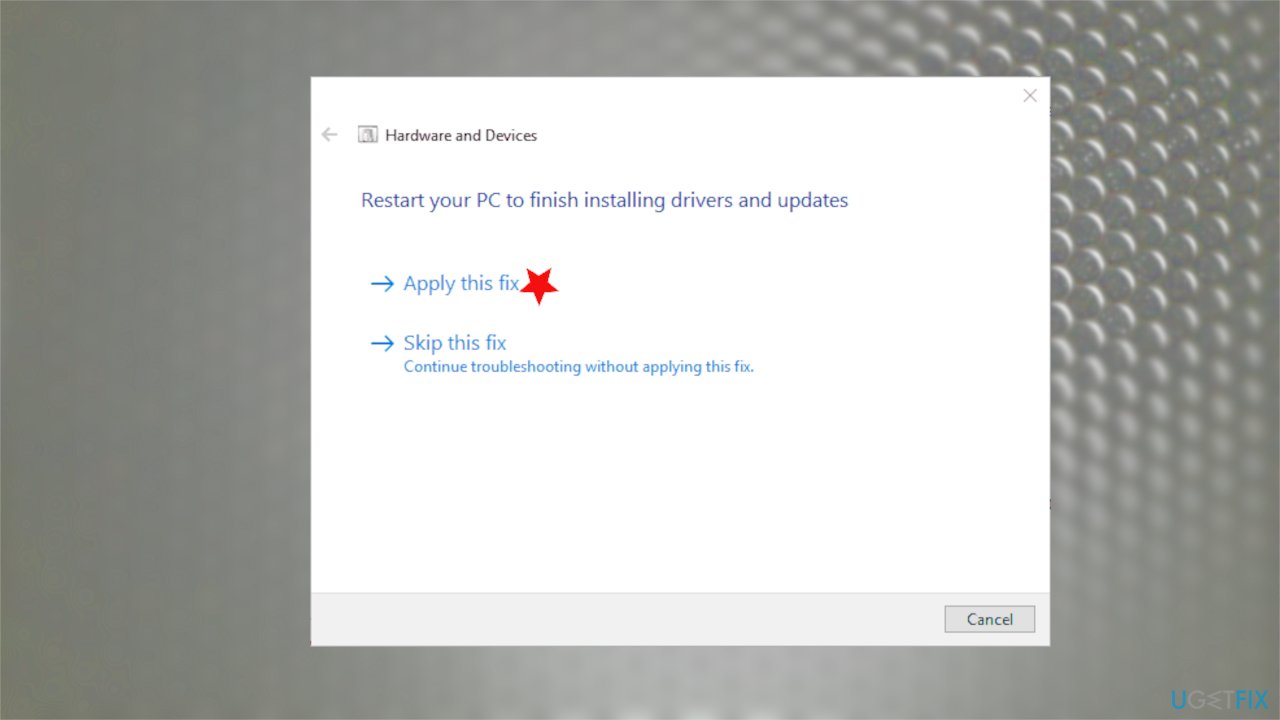
Error code 31 fix troubleshooter fix - You can click the Apply this fix option when it is done.
Use System Restore to fix Error code 31 - missing drivers
- Open the Run box and type rstrui before you hit OK.
- Choose Recommended restore, so recent system changes get canceled.
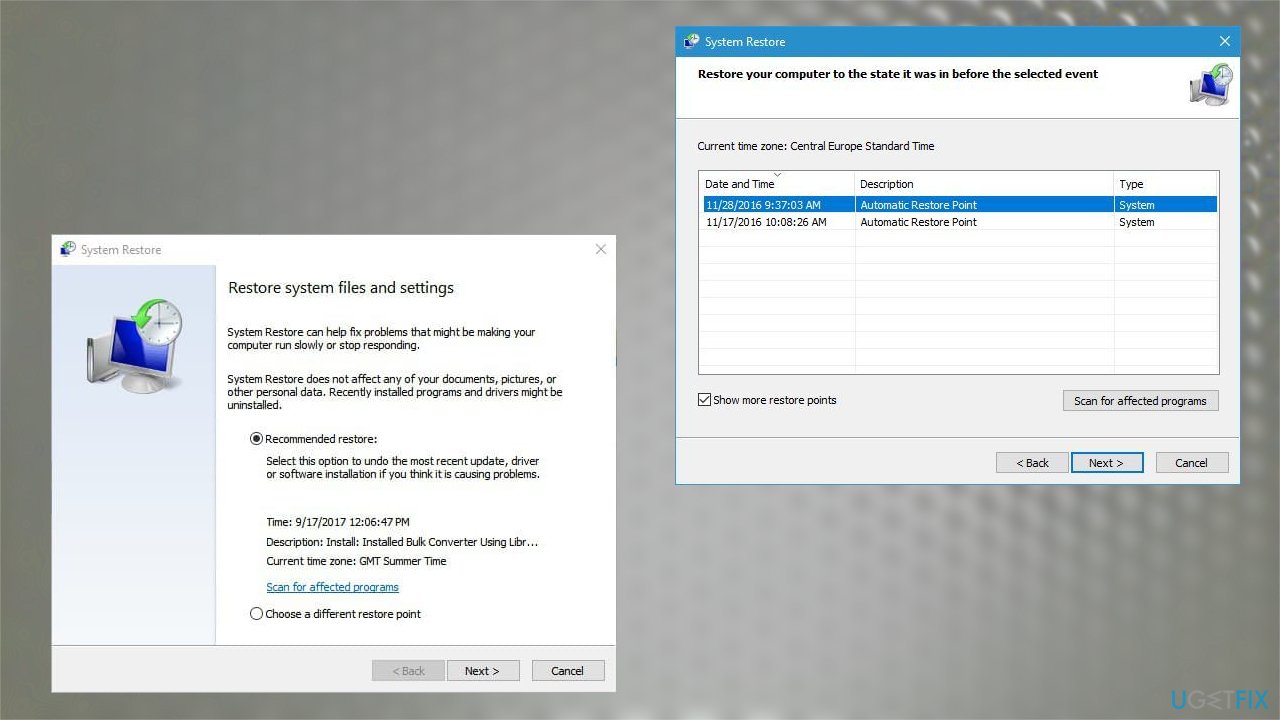
Error code 31 fix system restore - If you want to go to older version go for Choose a different restore point.
- Click Show more restore points option and choose the particular date.
- Click Next/ Finish and Yes to confirm the restore.
Edit the Windows registry to fix error code 31 - missing drivers
- Open the Run box and launch Registry editor by typing regedit and hitting OK.
- Follow the path:
Computer\\HKEY_LOCAL_MACHINE\\SYSTEM\\CurrentControlSet\\Control\\Class\\{4d36e968-e325-11ce-bfc1-08002be10318} - Create the backup for {4d36e967-e325-11ce-bfc1-08002be10318} by clicking File / Export.
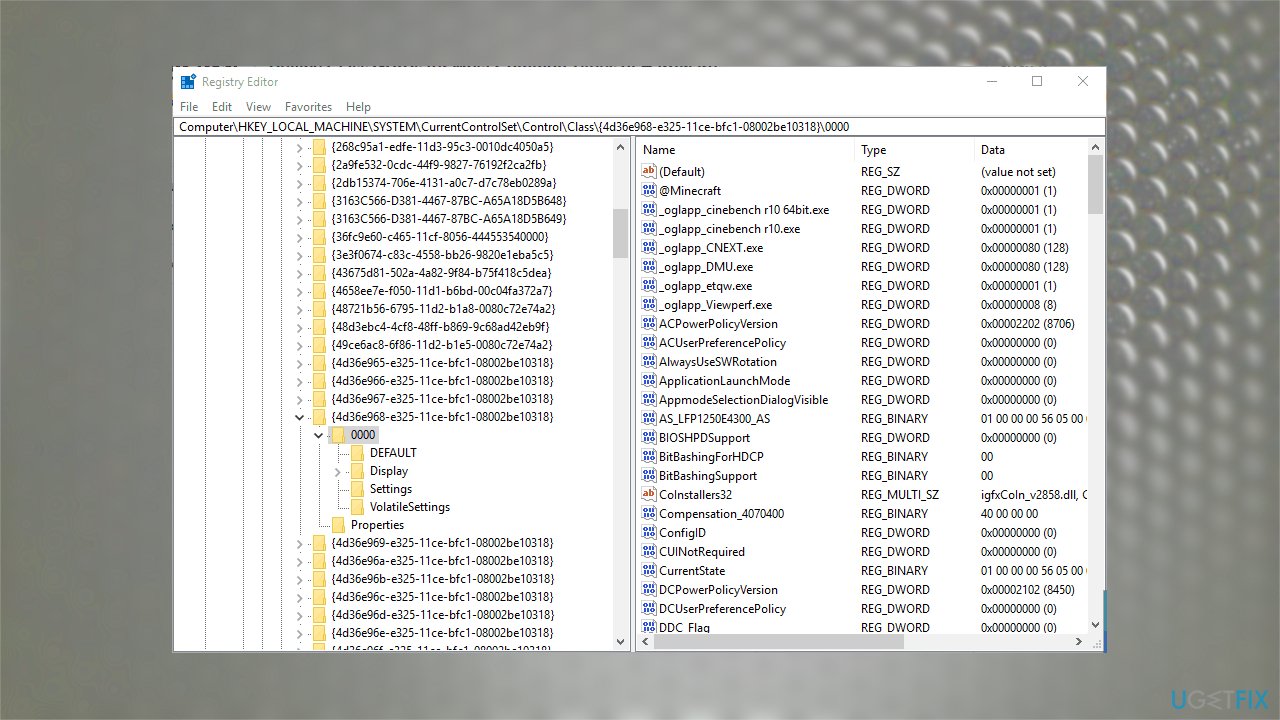
Error code 31 fix regeditor - Enter the title for the backup file and choose the folder, press Save button.
- Right-click UpperFilters on the tight and choose Delete.
- Right-click LowerFilters and choose Delete.
- Close registry editor and restart the device.
Bottom line
To fix Error code 31 - missing drivers, you can start by restarting Windows, which may resolve temporary issues. If the problem persists, consider updating or reinstalling the drivers through Device Manager. If none of these solutions work, further technical assistance may be required.
Frequently asked questions
Error code 31 indicates that a device is not functioning properly due to missing or corrupt drivers in your Windows operating system.
You can open Device Manager, locate the device with the error, right-click it, and select 'Update driver' to search for missing drivers automatically.
Yes, you can download the latest drivers from the manufacturer's website and install them manually to fix Error code 31 on Windows 11.




Report an issue
What's wrong with this guide? We review every report and update or remove content.
Report received — thank you. We'll review and fix it.
You need a free account to submit a report.
Be the first to comment