How to fix
Error Code 8003
on Windows
Resolve Error Code 8003 on Windows 10 or 11 effortlessly. Get expert insights and solutions to fix issues swiftly and regain full functionality. Expert-…

What causes How to Fix Error Code 8003 on Mac?
- Lack of permission to delete files
- Files are locked
- Third-party applications causing conflicts
- Unexpected system errors
Repairs Windows system files, removes malware, and restores a clean OS state — without reinstalling.
I cannot empty the Trash on my Mac. It delivers an error code 8003. What is the problem?
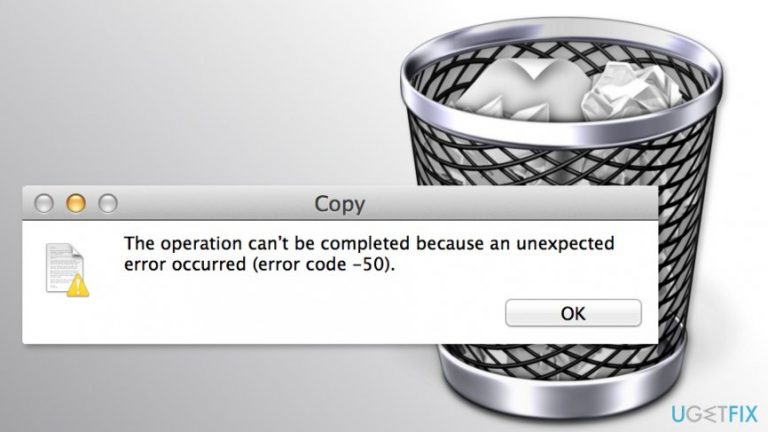
Error Code 8003 is an error message that might pop up on your Mac’s screen when you try to delete entries from the Trash. It’s an annoying error that prevents you from removing unnecessary files or programs that just take place on your device.
The full message of the error says:
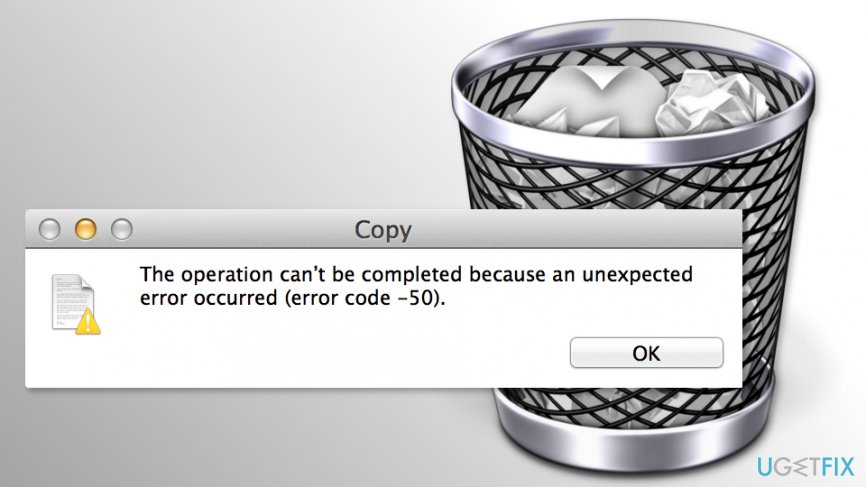
The operation can't be completed because an unexpected error occurred (error code -8003).
Neither hitting “Stop” nor “Continue” buttons help to solve a problem and empty the trash. Sometimes restarting the device helps. However, this simple solution not always works. Though, there’s still a way to fix error code 8003 on Mac.
Usually, the error shows up when users try to delete something from the Trash Can that they do not have permission for or these files are locked. However, other problems might also be responsible for this annoying problem.
Methods to fix Fix Error Code 8003 on Mac
If you ended up on this part of the article, we assume that restarting computer did not help to get rid of the error and remove entries from the Trash. However, there are several more ways to fix 8003 error.
Method 1. Reboot Mac into Safe Mode
If the error is triggered by some third-party applications, you should start your computer in Safe Mode[ref en-1] in order to fix the problem.
- Turn off and then turn on Mac.
- During the startup hold down the Shift key on the keyboard until the Apple logo shows up. Then release the keys.
- In the appeared screen, choose Safe Mode and hit Enter.
Now Mac will run in Safe Mode. Try to empty the Trash. If you still cannot perform this task, try the second method.
Method 2. Hold down Option key when deleting the Trash
It’s one of the easiest ways to fix Error Code 8003 on Mac. When you choose Empty Trash option, you have to hold down the Option key[ref en-2] on the keyboard. Note that these actions have to be performed simultaneously.
Method 3. Use shortcuts
This method might seem like a no-brainer. However, you should still try it. You can empty the trash using your mouse and keyboard. Thus, if none of the solutions above helped you, it’s time to use the keyboard:
- Open the Trash folder.
- Hit Command + Option + Right Arrow on the keyboard.
- Press Command + A.
- Click Command + Option + Right Arrow again.
- Right-click on an empty space and choose Empty Trash option.
Method 4. Execute command with Terminal
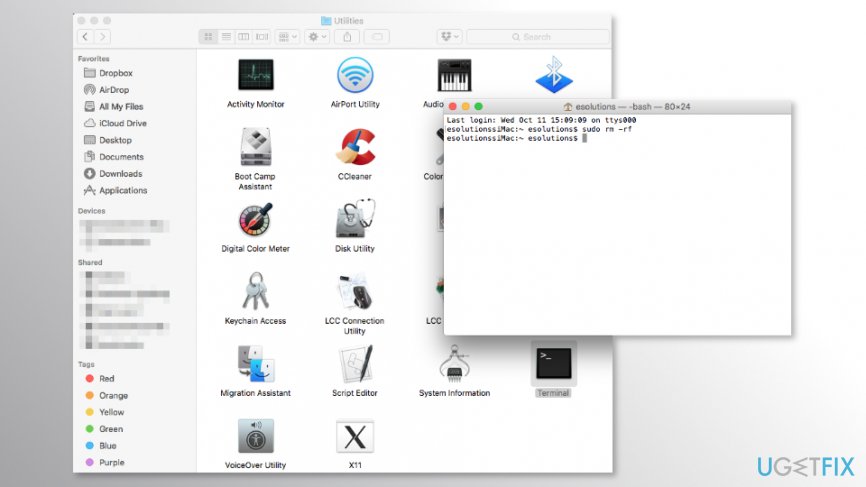
Terminal[ref en-3] is a built-in applications that allows executing various command on Mac OS X. Executing a command might help to fix 8003 error too.
- Go to Applications -> Utilities -> Terminal.
- In the appeared windows type this command: sudo rm -rf
- Hit Enter.
- Type your password if necessary.
- Then drag files in the Trash folder to the Terminal window.
- Click the Key button on the keyboard.
Method 5. Check File Security errors
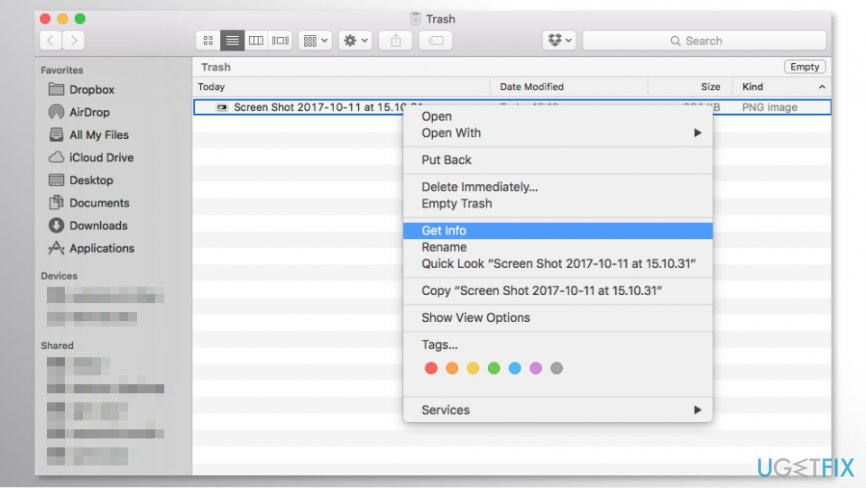
Sometimes the reason behind Error Code 8003 is some file security issues. Therefore, you have to check the files you want to delete:
- Open the Trash folder.
- Right-click a file you want to delete.
- Click File menu and go to Get Info.
- When File info dialog shows up, click the Sharing and Permissions heading.
- Enable Read/ Write Permissions.
Once it’s done, you should be able to empty the trash without Mac error 8003.
Bottom line
To fix Error Code 8003 on Mac, you can reboot your Mac into Safe Mode or hold down the Option key while emptying the Trash. If these methods do not resolve the issue, further troubleshooting may be necessary.
Frequently asked questions
Error Code 8003 is specific to macOS, but similar issues can arise on Windows 10 or Windows 11 with file access or sharing permissions.
Check your file sharing settings and ensure that all necessary permissions are correctly configured on your Windows 10 or Windows 11 system.
Regularly updating your Windows 10 or Windows 11 system and performing disk checks can help prevent file access errors.




Report an issue
What's wrong with this guide? We review every report and update or remove content.
Report received — thank you. We'll review and fix it.
You need a free account to submit a report.
Be the first to comment