How to fix
Error code – Request timeout in Microsoft Teams
on Windows
Resolve the Request timeout error in Microsoft Teams on Windows 10 or 11 effortlessly. Get expert-tested solutions that work, fixed in minutes!

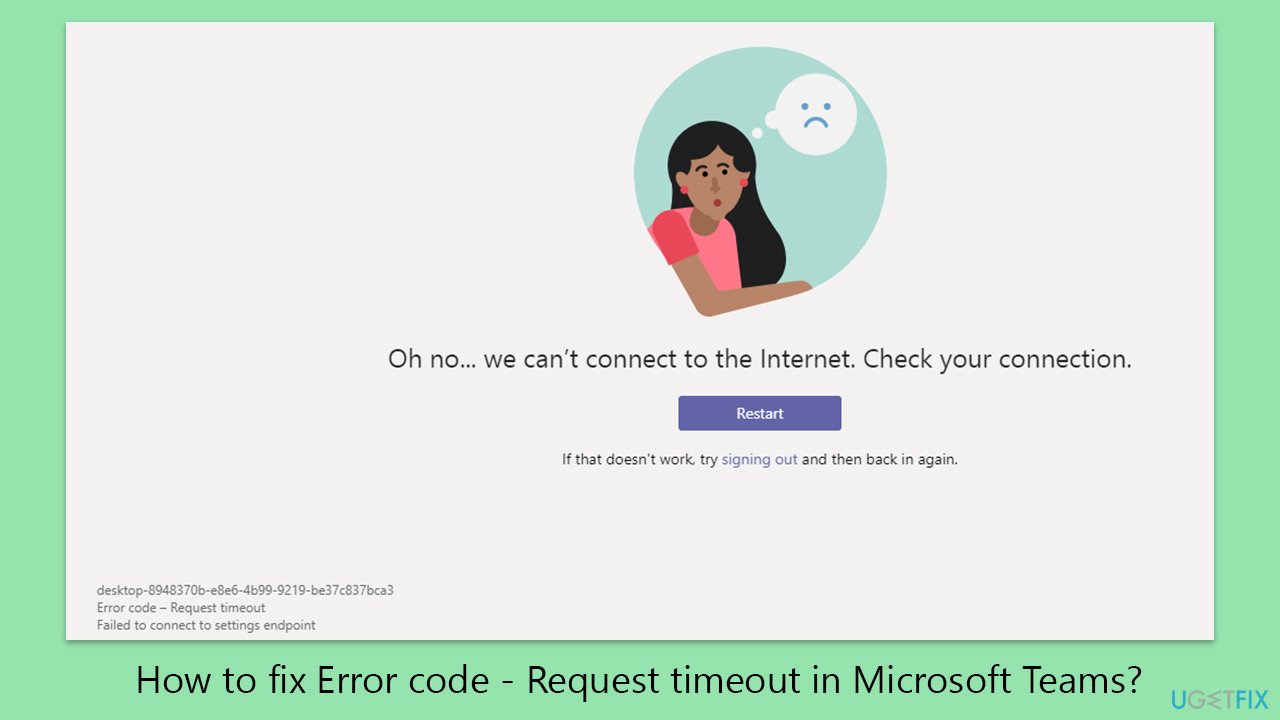
What causes How to fix Error code – Request timeout in Microsoft Teams?
- Connectivity problems
- Network restrictions
- Corrupted application data
- Poor internet connectivity
- Firewall or VPN restrictions
Repairs Windows system files, removes malware, and restores a clean OS state — without reinstalling.
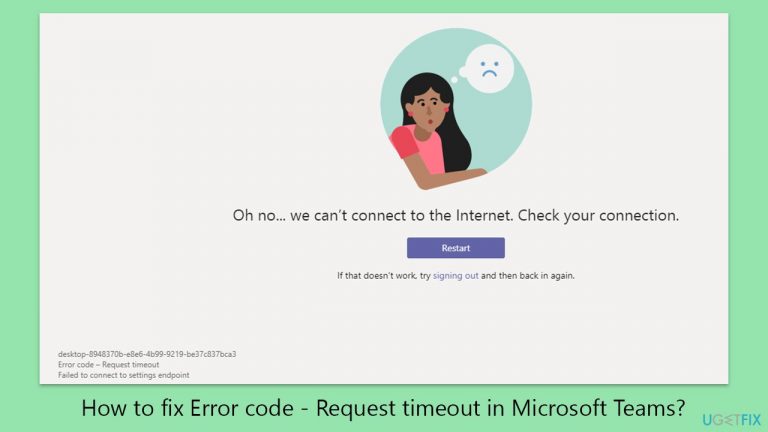
I began working from home a few months ago and everything was going great. I have to use Teams for it, and it was working until yesterday when I started to receive the "Request timeout. Failed to connect to settings endpoint" error when trying to connect. How can I fix this?
Microsoft Teams is essential for communication and collaboration in many professional settings, offering features like chat, video calls, and file sharing. Despite its utility, users may sometimes encounter the "Request timeout" error, which occurs when the application cannot connect to its servers within a specified period. This issue primarily results from connectivity problems, network restrictions, or corrupted application data.
Poor internet connectivity is a common culprit, as it disrupts the flow of data between the user's device and Teams servers. Similarly, firewalls or VPNs might restrict access to necessary network ports or throttle connections, leading to timeouts. Outdated or corrupt Teams application data can also hinder proper communication with the servers.
To mitigate the "Request timeout" error, users should ensure a stable internet connection and check network settings for any restrictions affecting Teams. Clearing the application's cache or updating to the latest version may address corruption issues and improve connectivity.
For those experiencing persistent problems with Microsoft Teams or other Windows applications, employing a PC repair tool like [d1] could provide a solution. This type of software can help resolve underlying system issues that may contribute to connectivity errors, ensuring smoother operation of essential communication tools.
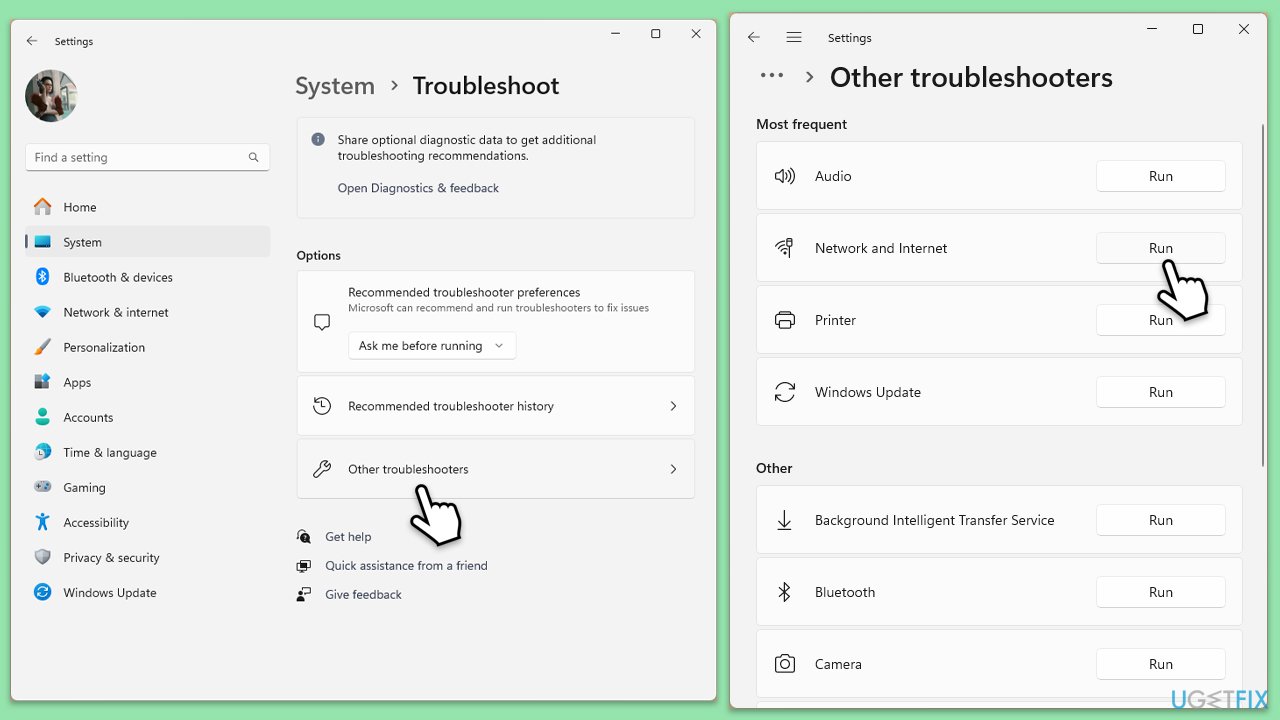
Fix 1. Run Windows Store apps and Network troubleshooters
Windows troubleshooters can identify and resolve issues with Windows Store apps and network connections.
- Type Troubleshoot in Windows search and hit Enter.
- Click Additional troubleshooters/Other troubleshooters.
- Scroll down to find Windows store apps and select it.
- Click Run the troubleshooter/Run.
- Wait till the process is finished and apply the fixes.
- When done, repeat the same steps for the Network & Internet troubleshooter.
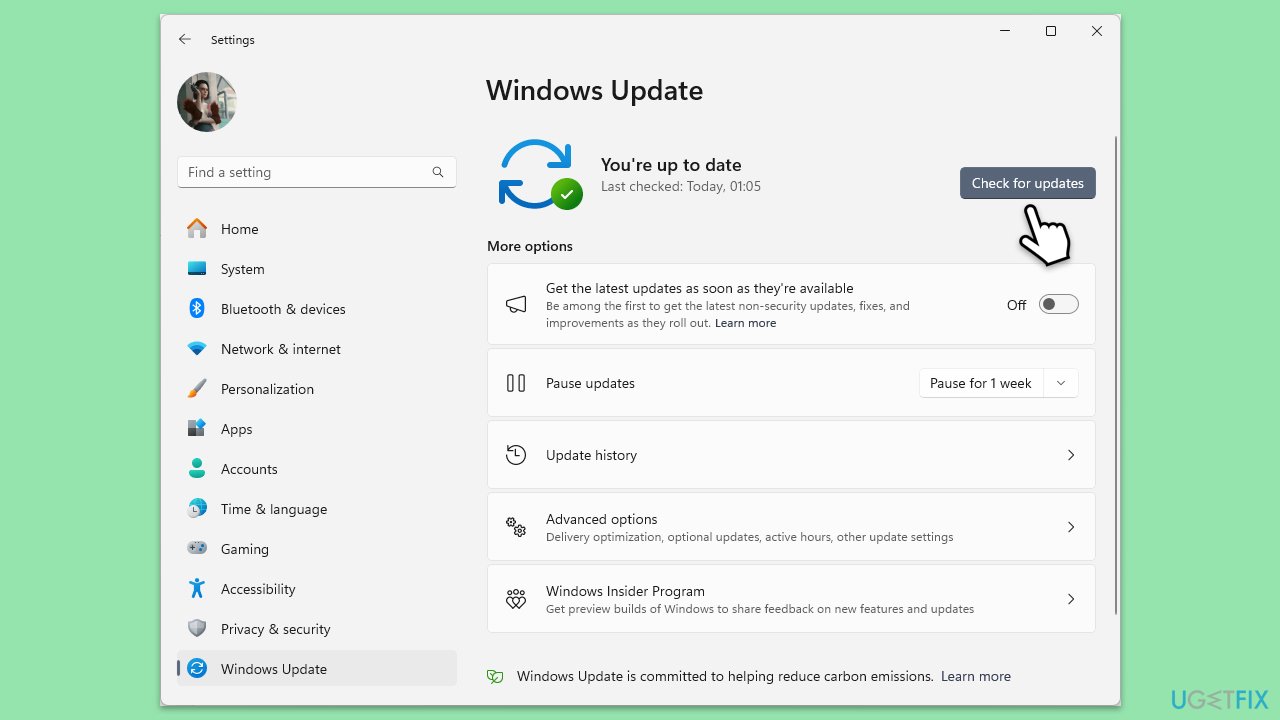
Fix 2. Install all Windows updates
Keeping Windows updated ensures that your system has the latest security patches and performance improvements.
- Type Updates in Windows search and press Enter.
- In this window, click Check for updates.
- If optional updates are available, install them too.
- When everything is installed, restart your system.
Fix 3. Clear Team's cache
Clearing Microsoft Teams cache can resolve issues caused by corrupted temporary files.
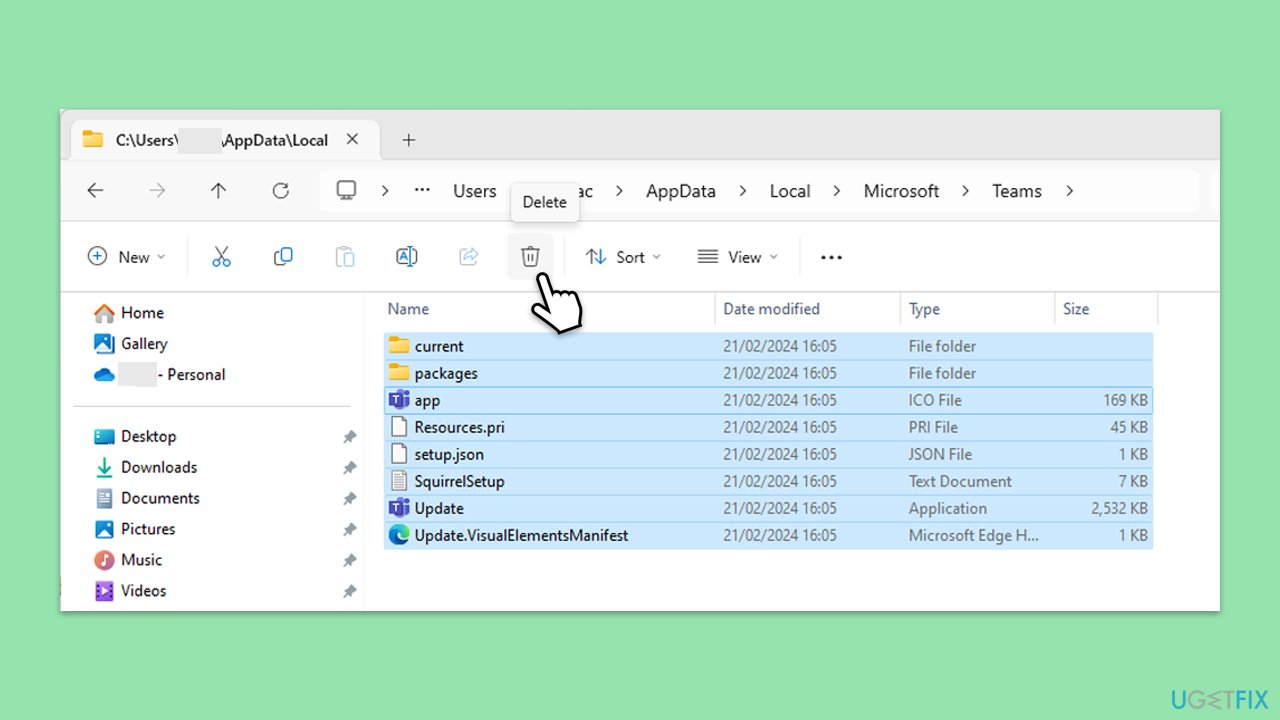
- Make sure Teams is not running (close from the system tray or Task Manager).
- Press Win + R on your keyboard to open the Run dialog.
- Type AppData and press Enter or click OK.
- Go to the following location:
C:\Users\User\AppData\Local\Microsoft - Delete all the files and folders located in the Teams folder.
- Start the app again.
Fix 4. Update Teams
Running the latest version of Microsoft Teams ensures you have all the current fixes and features. Updates can resolve known issues that may be causing connection problems.
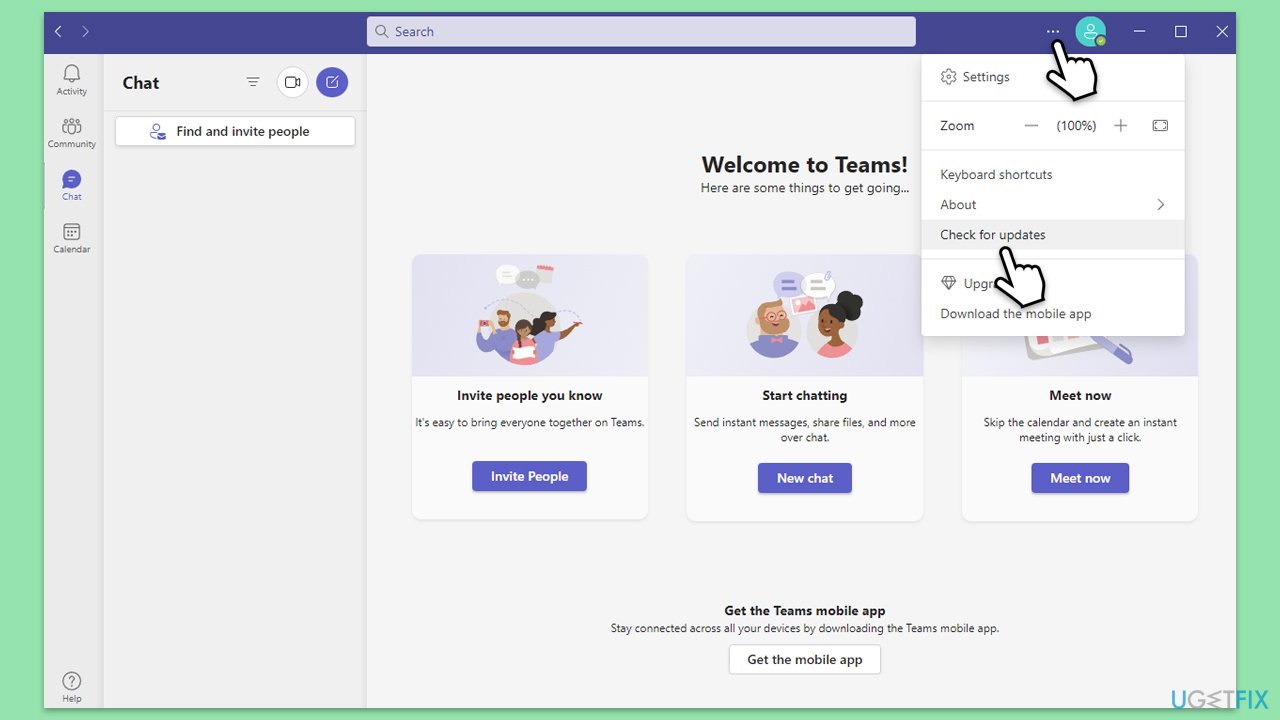
- Open Microsoft Teams.
- Click on the Settings and more button at the top-right corner.
- Select Check for updates.
- Teams will automatically download and install any available updates.
- Restart Teams after the update is completed.
Fix 5. Re-register your device with Azure AD via Command Prompt
Re-registering your device with Azure Active Directory (AD) can resolve issues with identity and access management, potentially fixing "Request timeout" errors related to authentication.
- Type in cmd in Windows search.
- Right-click the Command Prompt result and pick Run as administrator.
- User Account Control will ask whether you want to allow changes - click Yes.
- In the Command Prompt window, type the following command and press Enter:
dsregcmd /leave - Wait for the command to complete.
- Type the following command and press Enter:
dsregcmd /join - Restart your computer.
- Attempt to log in to Microsoft Teams again.
Fix 6. Reset your internet connection
Resetting your internet connection can resolve network issues that are preventing Microsoft Teams from connecting to its servers.
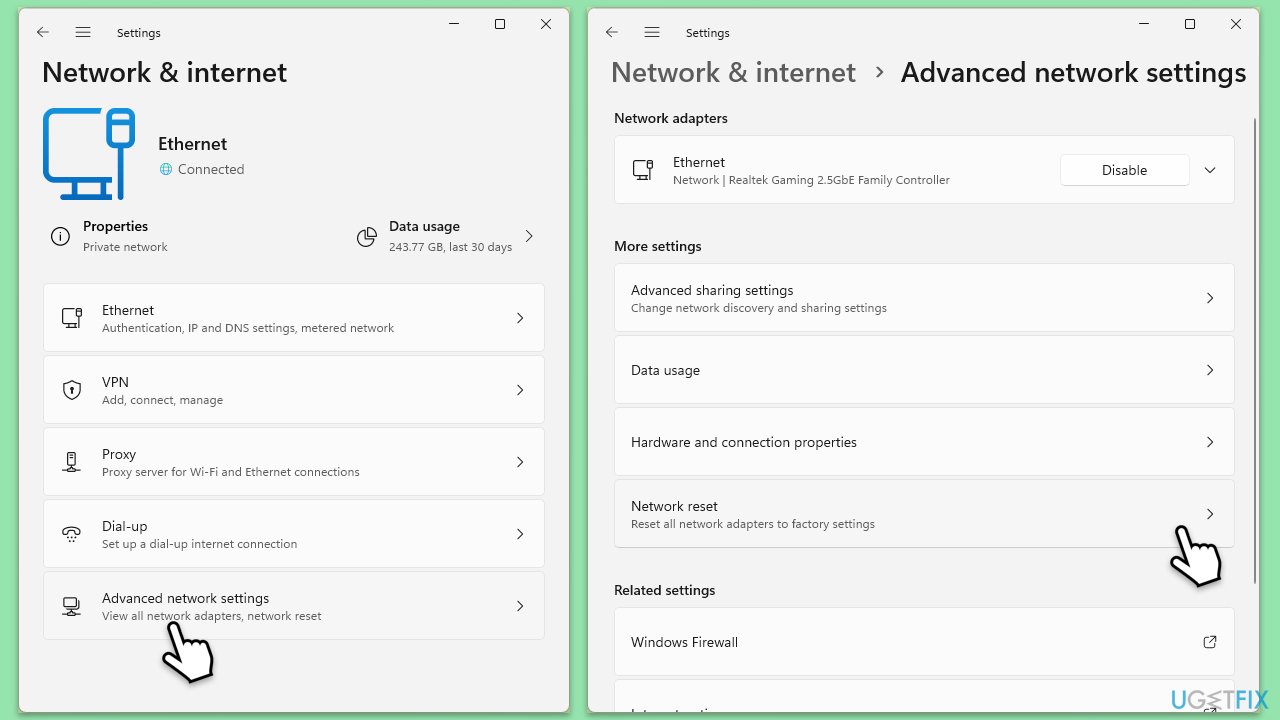
- Right-click on Start and pick Settings.
- Go to Network & Internet.
- Under Advanced network settings, click Network reset.
- Click Reset Now.
- Confirm the action and then restart your system.
Fix 7. Reinstall Microsoft Teams
Reinstalling Microsoft Teams ensures a fresh installation without any corrupted files or configurations that might be causing the "Request timeout" error.
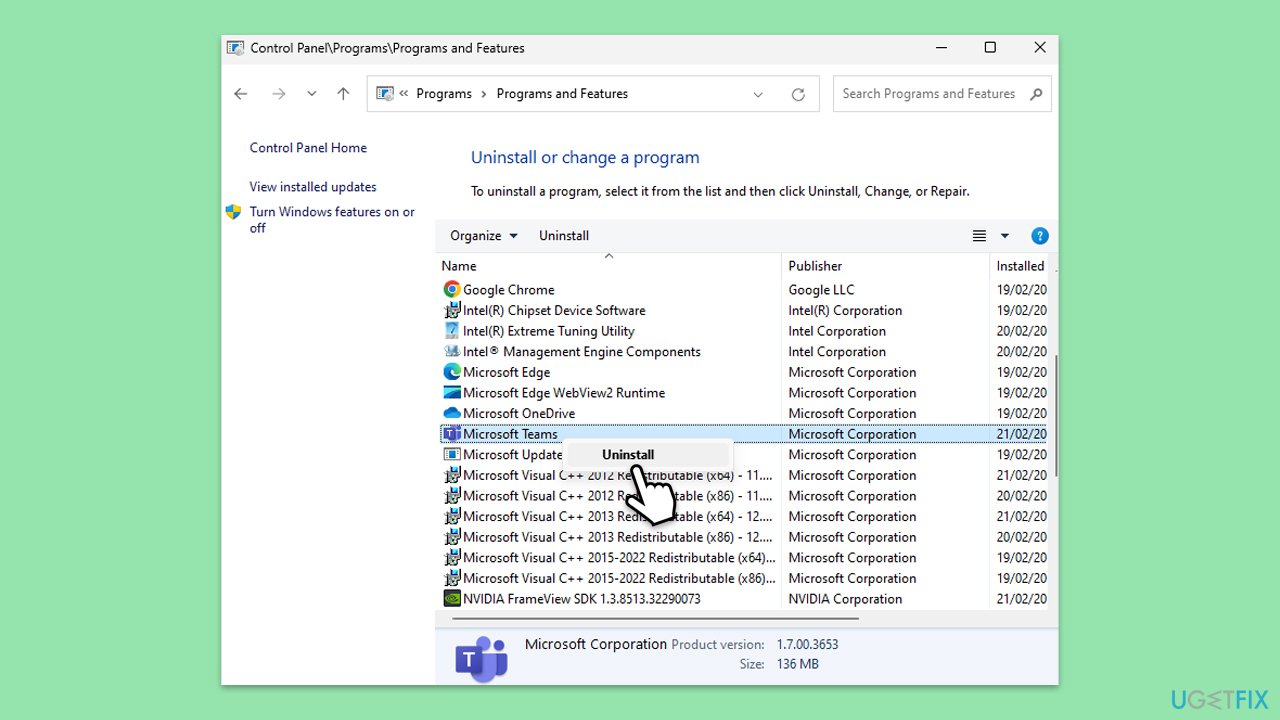
- Open Control Panel.
- Go to Programs > Uninstall a program.
- Find Microsoft Teams, right-click, and select Uninstall.
- Follow the prompts to remove the app.
- Once done, press Win + E to open File Explorer.
- In the View tab at the top of the window, enable Hidden Files.
- Go to C:\Program Files\WindowsApps location.
- Scroll down to find the Microsoft Teams folder and delete it (alternatively, you can rename it).
- Now type %AppData% in Windows search and press Enter.
- Delete the Teams folder.
- Finally, restart your device and reinstall the app.
Bottom line
To fix the 'Request timeout' error in Microsoft Teams, ensure a stable internet connection, check network settings, and clear the application's cache. Running Windows Store apps and Network troubleshooters can also help identify and resolve issues. If these solutions do not work, consider using a PC repair tool to address underlying system issues.
Frequently asked questions
You can try restarting the Teams application or checking your internet connection to ensure it's stable on Windows 10.
Clearing the Teams cache by navigating to %appdata%\Microsoft\Teams and deleting the contents of the Cache folder can help fix the Request timeout error on Windows 11.
Yes, running the Windows Network Troubleshooter can help identify and resolve network-related issues causing the Request timeout error in Microsoft Teams.




Report an issue
What's wrong with this guide? We review every report and update or remove content.
Report received — thank you. We'll review and fix it.
You need a free account to submit a report.
Be the first to comment