How to fix
“Error – printing” print status
on Windows
Resolve the "Error - printing" status in Windows 10 or 11 effortlessly. Get expert-tested solutions and start printing again in minutes.

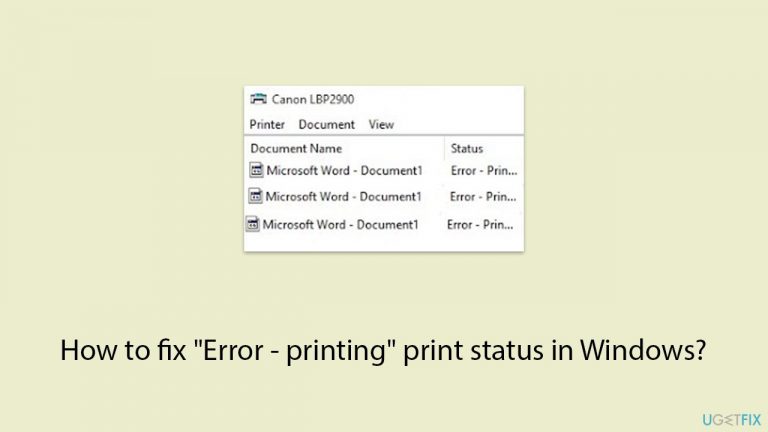
What causes How to fix “Error – printing” print status in Windows?
- Loose USB cable
- Network connectivity issues
- Outdated printer drivers
- Corrupt printer drivers
- Print spooler issues
Repairs Windows system files, removes malware, and restores a clean OS state — without reinstalling.
So I tried to print something with my new HP printer and it simply wouldn't do it. I checked the queue and it simply said "Error - printing." What does that mean? The printer seems to work fine, the light is green and it has the ink.
Addressing the "Error - printing" error in Windows is crucial for anyone relying on printers for business or personal use. It has the potential to interrupt workflow and cause annoying delays, so knowing its causes and solutions is critical. The error is displayed in the print queue and indicates that there may be issues with printer connections, outdated drivers, or the print spooler service.
- Printer connections
When you get the "Error - printing" issue, one of the first things to look into is your printer's physical or network connection. Errors may arise from a loose USB cable or a problem with network connectivity that prevents the printer and computer from communicating. - Outdated or corrupt printer drivers
The communication between your computer and the printer is made possible by printer drivers. Printing issues may result from these drivers failing completely or functioning improperly with updated operating systems if they are out-of-date or corrupted. - Print Spooler issues
The print spooler manages the print jobs sent to the printer. If there’s an issue with the spooler, it can cause jobs to get stuck in the queue, leading to the "Error - printing" status. Problems with the print spooler are common and can often be resolved by restarting the service or clearing old print jobs that are stuck.
Below you will find a detailed guide on how to fix the "Error - printing" print status. Be aware that you might have to try several methods before you find the solution that works for you. For a simpler way to fix various Windows issues related to corrupted DLL or registry files, BSODs, and similar issues, try using a powerful repair app [d1].

Fix 1. Restart the printer and computer
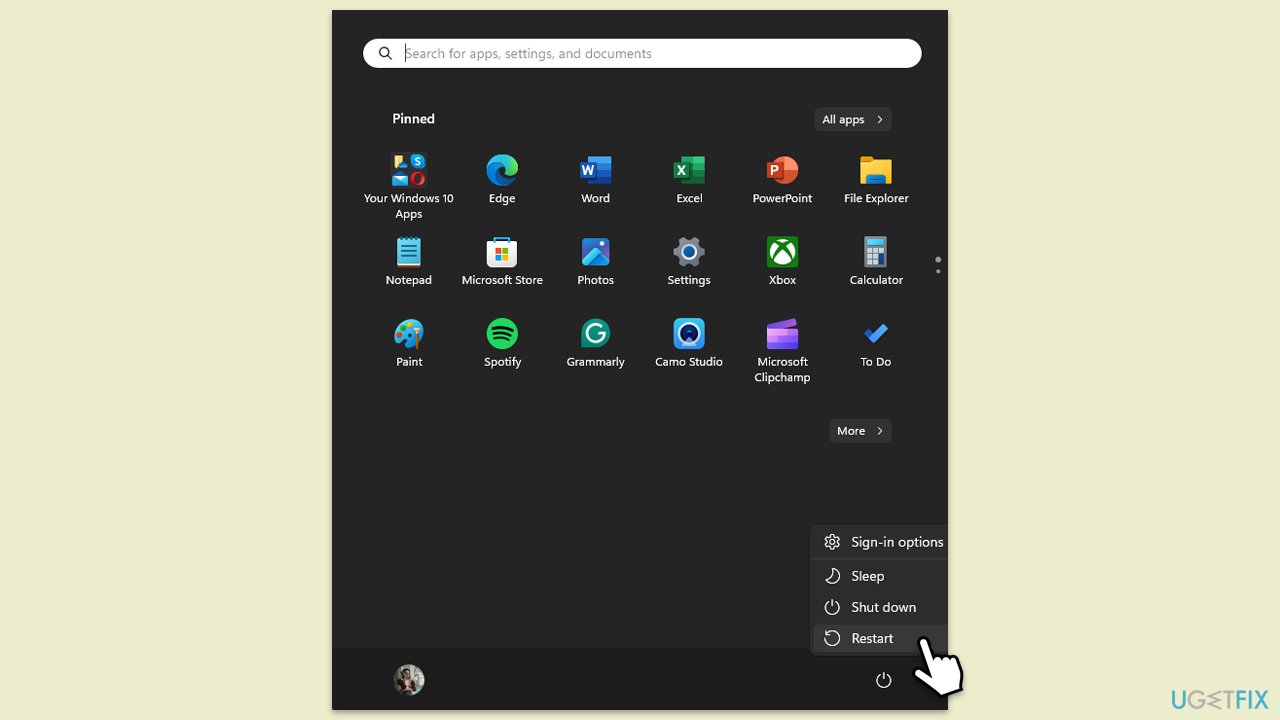
Restarting both the printer and computer can often resolve minor communication errors and clear temporary software glitches that could be causing the Error - printing status.
- Turn off the printer.
- Restart your computer.
- Turn the printer back on after the computer has fully rebooted.
- Attempt to print again to see if the error persists.
Fix 2. Check the printer connection
Ensuring the printer is properly connected can help eliminate issues that prevent your computer and printer from communicating effectively.
- Check the USB cable for any damage and ensure it is securely connected.
- If using a network printer, verify that it is connected to the same network as your computer.
- Try a different USB port or network cable if the problem continues.
Fix 3. Reinstall printer drivers
Outdated or corrupt printer drivers can lead to printing errors. Try reinstalling them as follows:
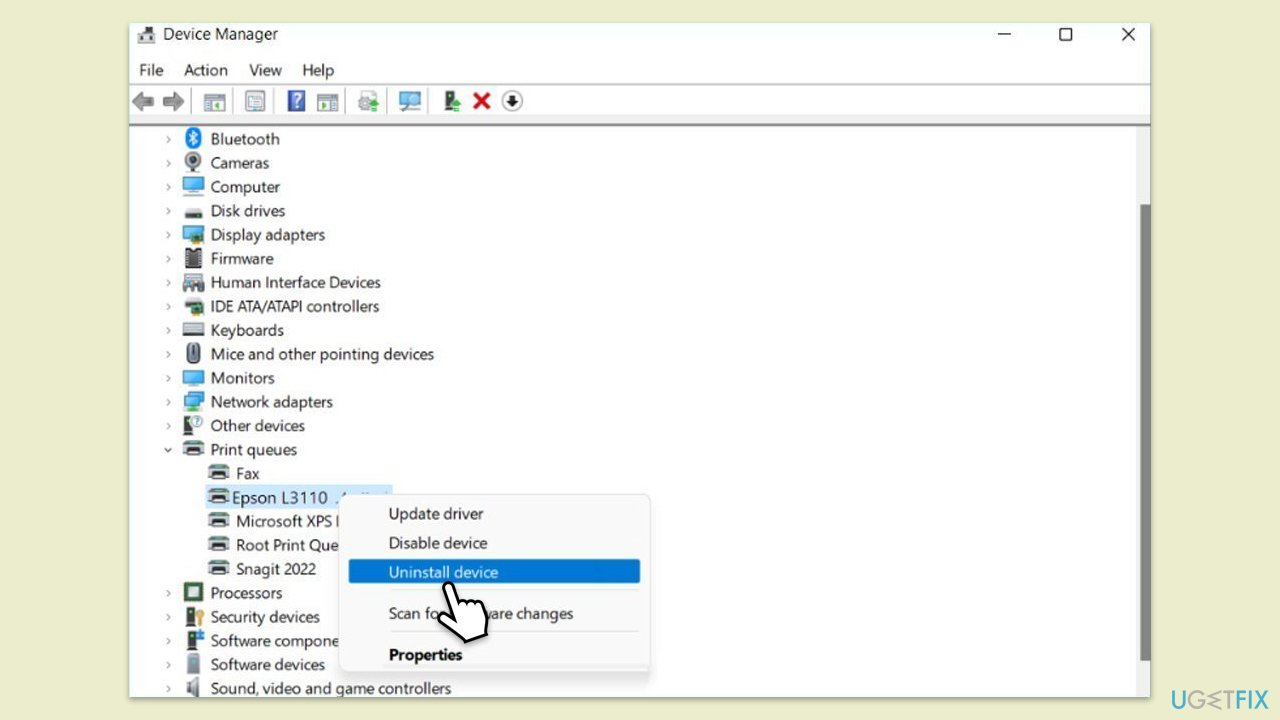
- Type Device Manager in Windows search and hit Enter.
- Expand the Printers section.
- Right-click on your printer and select Uninstall device.
- Mark the Delete the driver software for this device tickbox and click Uninstall.
- Follow the on-screen instructions and restart your computer.
- Alternatively, you can employ automatic software such as [rev id="DriverFix"].
Fix 4. Run the printer troubleshooter
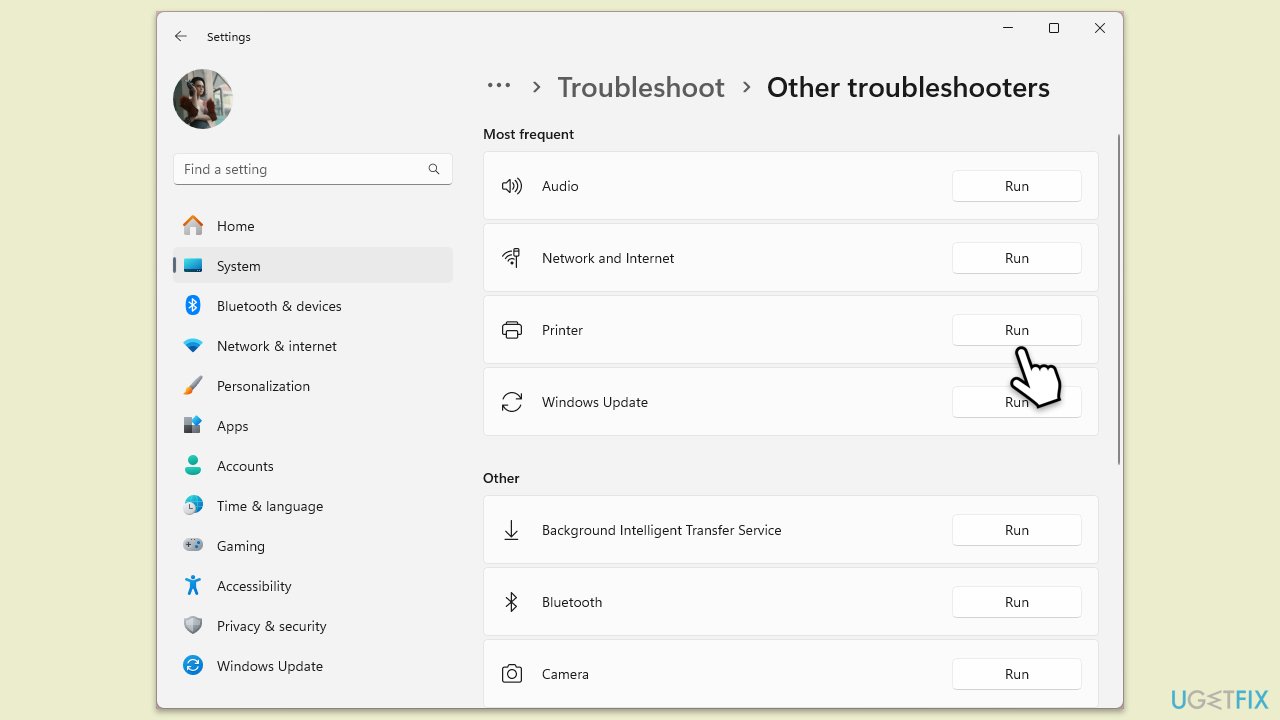
Windows includes a troubleshooting tool that can automatically find and fix issues with printing.
- Type Troubleshoot in Windows search and press Enter.
- On the right side of the window, click Additional troubleshooters/Other troubleshooters.
- Scroll down and select Printer.
- Click Run the troubleshooter/Run.
- Wait for the troubleshooter to finish.
- Restart your computer once done.
Fix 5. Clear the print queue
Sometimes, clearing stuck print jobs from the queue can resolve the Error - printing issue.
- Open the Control Panel and select Devices and Printers.
- Right-click on your printer and choose See whats printing.
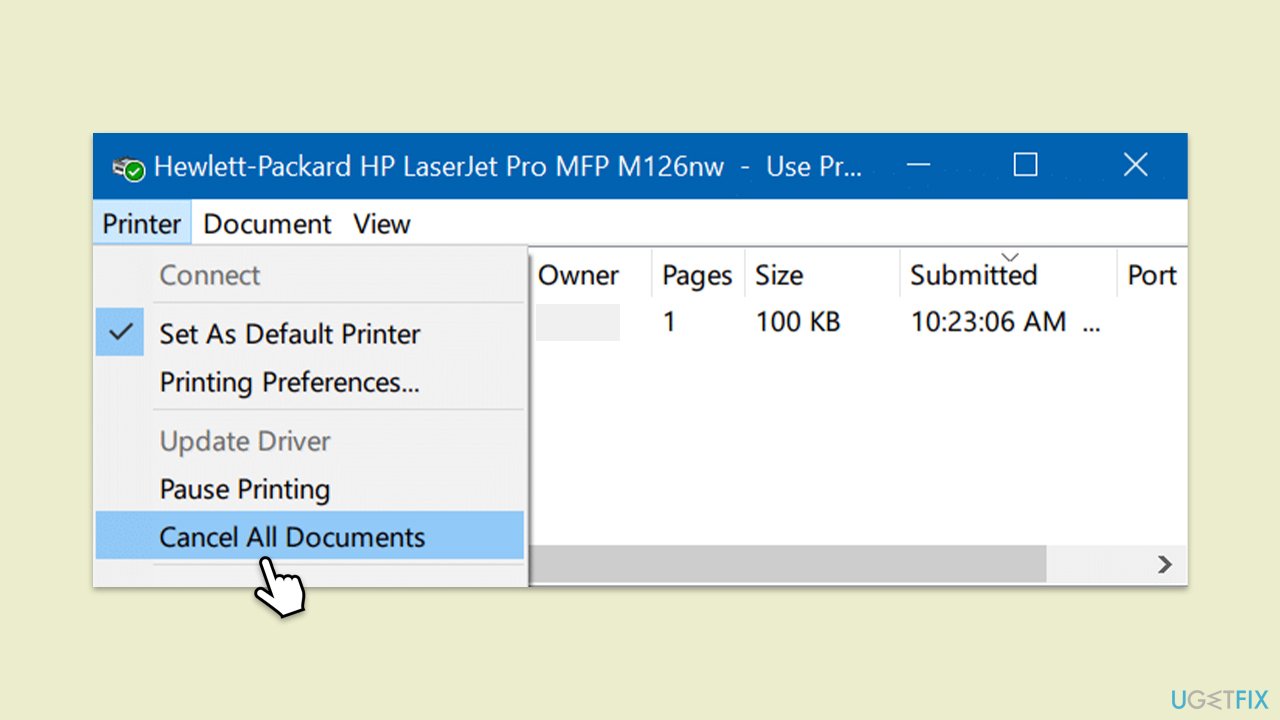
- Select Printer from the top menu and then Cancel all documents.
- Attempt to print again
Fix 6. Restart the Print Spooler Service
The print spooler manages print jobs sent to the printer. Restarting this service can clear errors and stuck print jobs.
- Type cmd in Windows search.
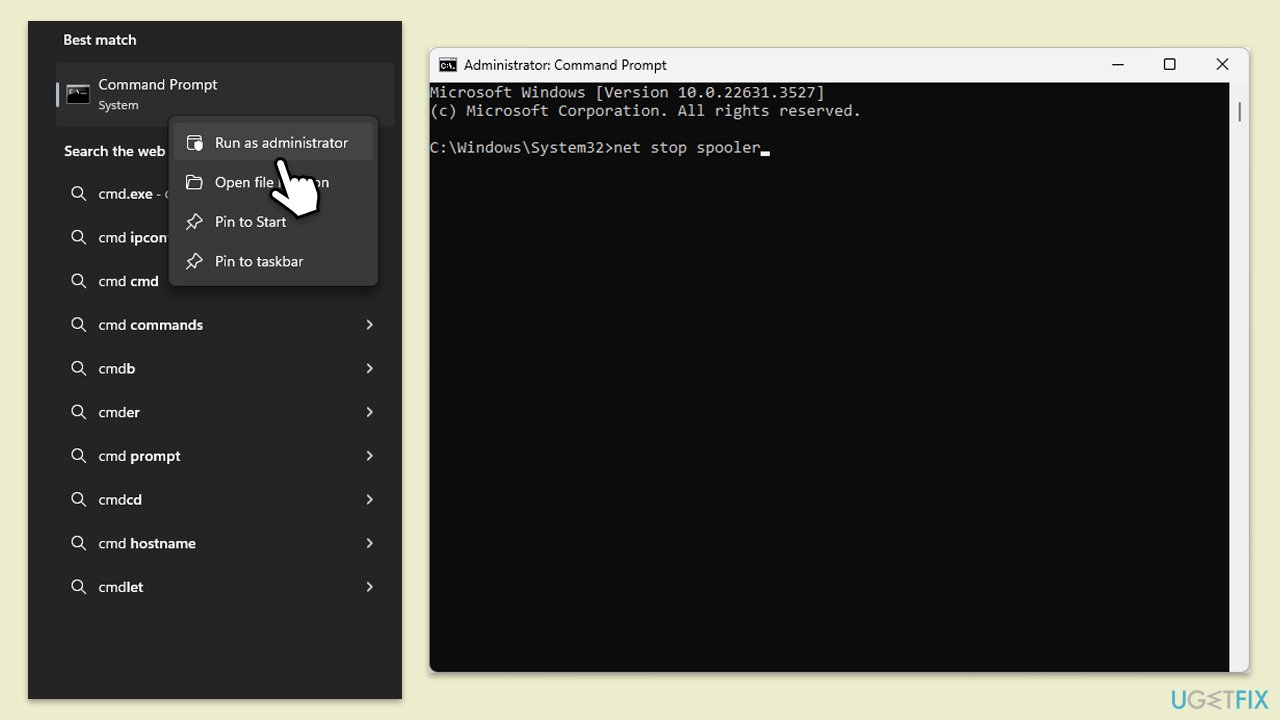
- Right-click on the Command Prompt result and pick Run as administrator.
- When User Account Control shows up, click Yes.
- Type in the following command, and press Enter after each:
net stop spooler
del %systemroot%\System32\spool\printers* /Q”
net start spooler - Close down the Command Prompt and restart your system.
Fix 7. Set the printer as default
Setting your printer as the default can sometimes resolve printing issues by ensuring all print jobs are sent to the correct printer.
- Type Control Panel in Windows search and press Enter.
- Select Devices and Printers.
- Right-click your printer and choose Set as default printer.
- Confirm any prompts that appear.
Fix 8. Clear Printer folder
- Type Services in Windows search and press Enter.
- Find the Print Spooler service in the list, right-click on it, and select Stop.
- Once the service has stopped, press the Win + R.
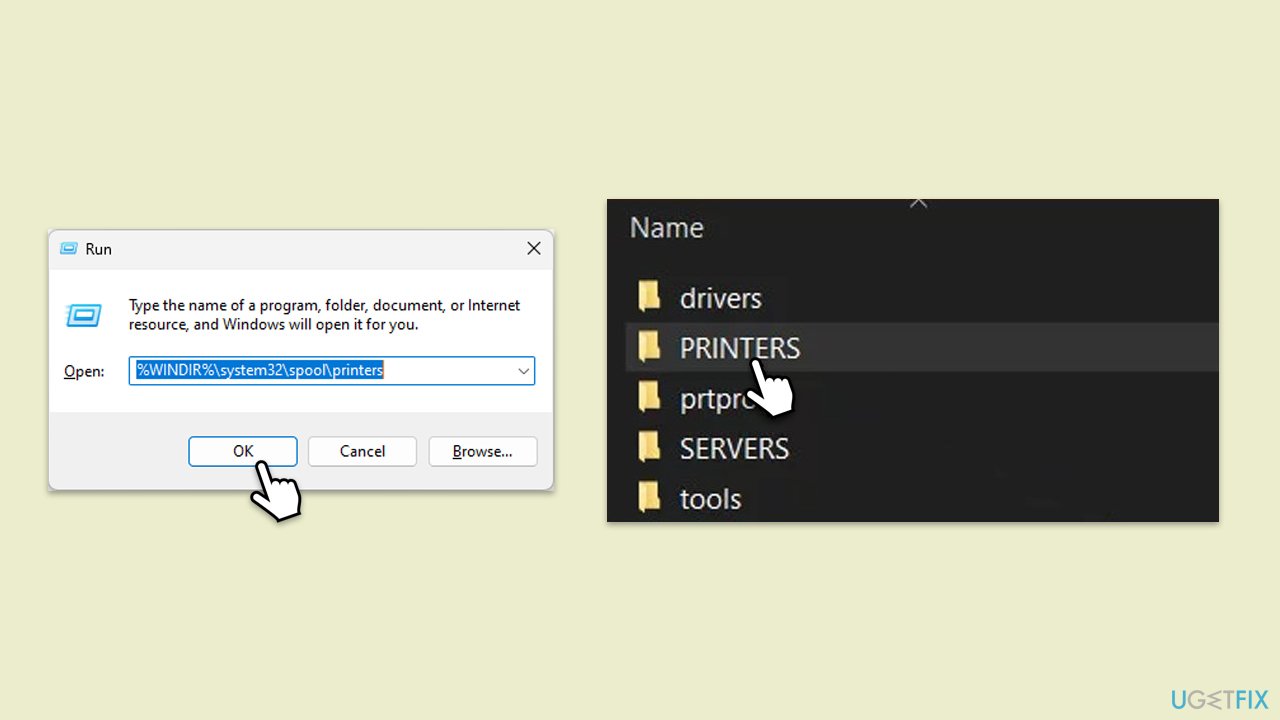
- Type %WINDIR%\system32\spool\printers and hit Enter. This should open the Printers folder.
- Delete all files within this folder.
- After clearing it, go back to the services window, find the Print Spooler service, right-click, and select Start.
- Close the services window and attempt to print your document again.
Bottom line
To fix the 'Error - printing' status, you can restart both the printer and computer, check the printer connections, update or reinstall the printer drivers, and address any issues with the print spooler. If none of these solutions work, consider using a repair app for further assistance.
Frequently asked questions
Common causes include outdated printer drivers, connection issues, or problems with the print queue. Ensuring that your printer is properly connected and drivers are updated can help resolve the issue.
To clear the print queue, go to Settings > Devices > Printers & Scanners, select your printer, and click on 'Open queue'. From there, you can cancel any stuck print jobs.
Yes, restarting the Print Spooler service can often resolve the 'Error - printing' status. You can do this by typing 'services.msc' in the Run dialog, locating 'Print Spooler', and selecting 'Restart'.




Report an issue
What's wrong with this guide? We review every report and update or remove content.
Report received — thank you. We'll review and fix it.
You need a free account to submit a report.
Be the first to comment