How to fix
Error “The Application Was Unable To Start Correctly 0xc0000018“
on Windows
Resolve the 0xc0000018 error on Windows 10 and 11 with quick, easy fixes. Expert-tested solutions to get your application running smoothly again. Fixed …

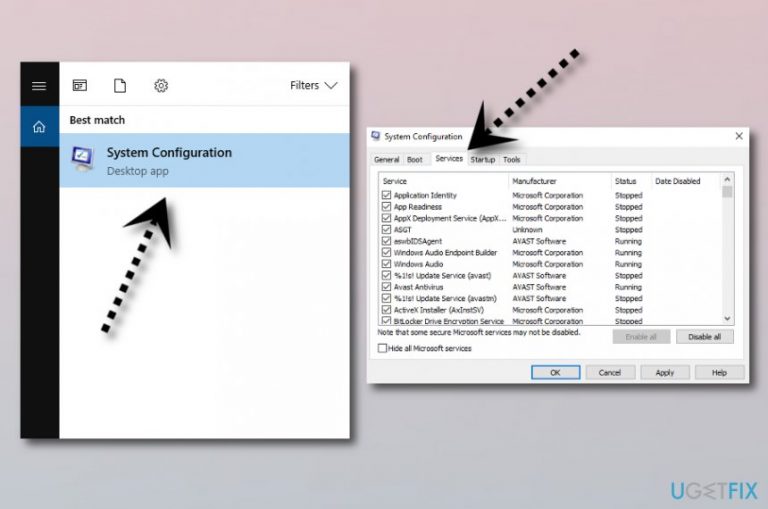
What causes How to Fix Error “The Application Was Unable To Start Correctly 0xc0000018“ on Windows?
- Corrupted system files
- Malware
- Software incompatibility
- Recent system changes
- High CPU usage
Repairs Windows system files, removes malware, and restores a clean OS state — without reinstalling.
Hello. I have an issue with Microsoft Office. I‘m running Windows 10, which I have upgraded a couple of months ago from version 7. When I try to launch or configure any of Microsoft Office apps, the error saying “The Application Was Unable To Start Correctly 0xc0000018. Click Ok To Close The Application“ shows up on my screen. Due to this purpose, I can use neither Word, nor Outlook, nor PowerPoint and others. Could you please help me with this problem?
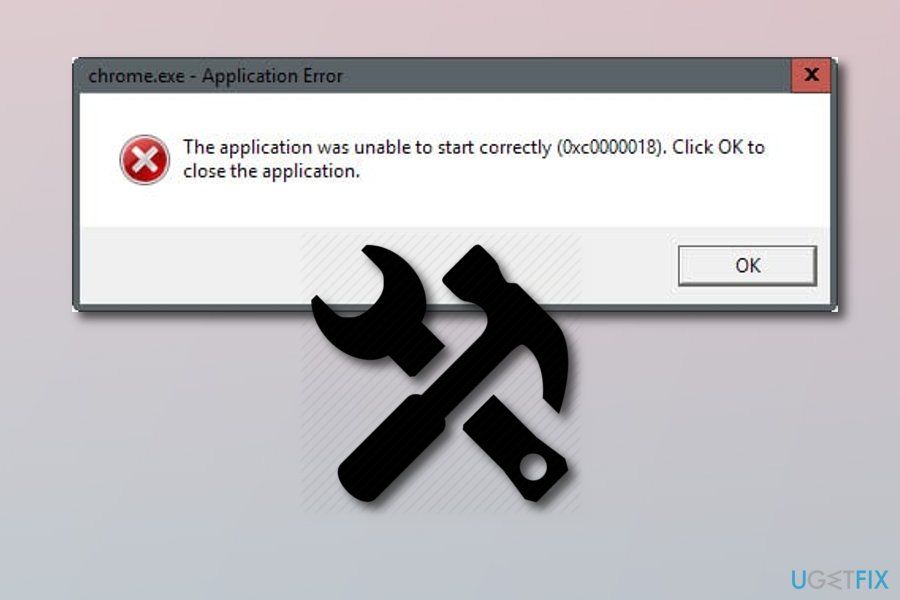
“The Application Was Unable To Start Correctly 0xc0000018“ is known as Microsoft Office[ref en-1] error, which can appear on Windows 8, 7, 10, and all other versions. It is assumed that this bug might be triggered by corrupted system files, malware or software incompatibility. However, recent studies have revealed that this error message occurs when trying to launch other apps on Windows, including Chrome, VLC player, and many others.
Sometimes “The Application Was Unable To Start Correctly 0xc0000018“ pop-up may start showing when you perform some system changes. In this case, to get rid of the pop-up message and be able to use Microsoft Office applications, you should try to recall what was the last modification that you have performed and revert the system to the previous state.
However, in most of the cases, people start noticing an increased high CPU[ref en-3] usage via Task Manager[ref en-2] and the receive 0xc0000018 error when trying to start one of Microsoft Office applications or other software. We have no doubts that people who are encountering this issue feel frustrated since Microsoft Office apps, including Excel, Word, PowerPoint, Outlook, and others are used on a daily basis.
Luckily, there are some methods several things that can help to fix “The Application Was Unable To Start Correctly 0xc0000018“ error. Read the below-given steps and follow them carefully. If you have tried all of them and you are still facing the same result, try installing [rev id="Reimage] and performing a full system scan with this anti-malware tool[ref en-4]. It might be able to find the problem that is causing such error.
Method 1. Open Registry Editor
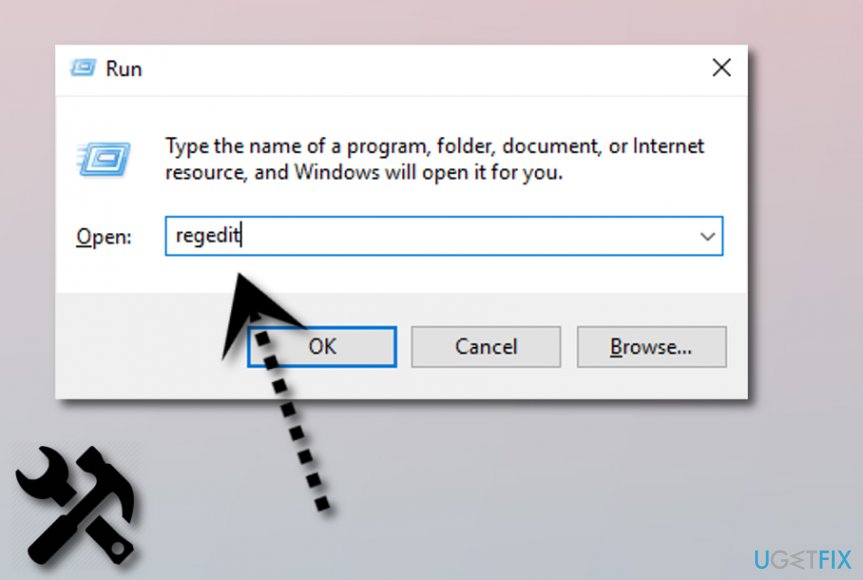
- Click Win key + R, type regedit, and press Enter.
- If a User Account Confirmation window shows up, click Yes or type in your password.
- Using the left pane, navigate to the following location: HKEY_LOCAL_MACHINE\\SOFTWARE\\Wow6432Node\\ Microsoft\\WindowsNT\\CurrentVersion\\Windows.
- Once you are on this location, find APPINIT_DLLS file, delete it by double-clicking on it and removing all characters from Value Data.
- Close Registry Editor and restart the system.
Method 2. Try Clean Boot the system
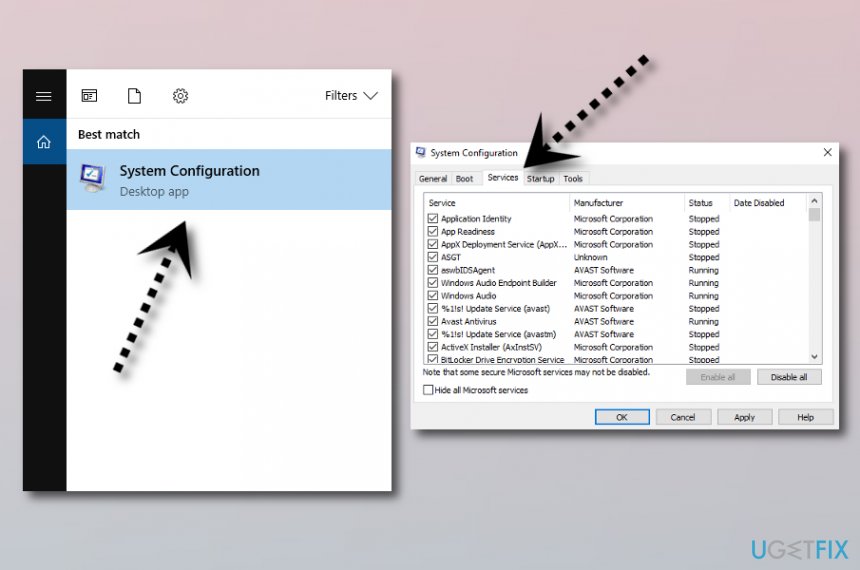
- Open search, type System Configuration, and press Enter.
- Go to the Services, select Hide all Microsoft services and then Disable all.
- Open the Startup tab and select Task Manager.
- Mark all items and click Disable.
- Once done, exit Task Manager.
- On the System Configuration dialogue box, click OK.
- To finish, restart the system.
Method 3. The error might be caused by some antivirus programs
Note that, “The Application Was Unable To Start Correctly 0xc0000018“ pop-up might appear on your computer screen if you have installed anti-malware tools such as Malwarebytes or McAfee on your computer. Technology researchers found out that these computer security tools can cause such type of error. Perform all needed updates for these programs or uninstall them and download another security tool for your computer.
Bottom line
To fix the error 'The Application Was Unable To Start Correctly 0xc0000018', you can try reverting recent system changes, checking for malware, and monitoring CPU usage. If these methods do not resolve the issue, consider installing Reimage and performing a full system scan.
Frequently asked questions
The error code 0xc0000018 typically occurs due to corrupted system files, issues with the application itself, or problems with the Windows registry.
To troubleshoot the 0xc0000018 error on Windows 11, you can start by running the System File Checker tool and performing a clean boot to identify conflicting applications.
Yes, you can fix the 0xc0000018 error without reinstalling Windows by using the Startup Repair feature or restoring your system to a previous restore point.




Report an issue
What's wrong with this guide? We review every report and update or remove content.
Report received — thank you. We'll review and fix it.
You need a free account to submit a report.
Be the first to comment