How to fix
ERROR_DLL_INIT_FAILED
on Windows
Resolve the ERROR_DLL_INIT_FAILED issue on Windows 10 quickly and easily. Follow our expert-tested solutions for a hassle-free fix! Fixed in minutes.

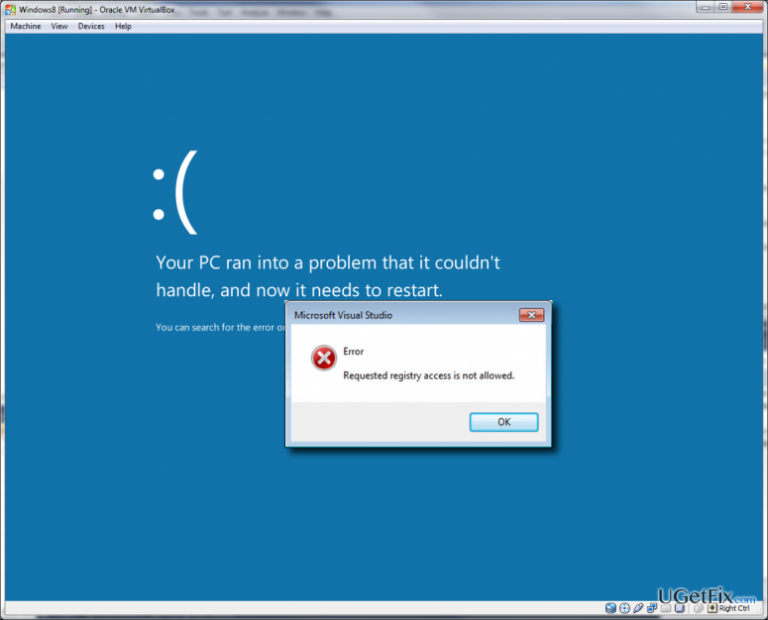
What causes How to fix ERROR_DLL_INIT_FAILED on Windows 10?
- Misconfiguration of system files
- Inappropriately upgraded Windows 10
- Corrupted or damaged PC drivers
- Insufficient hard drive storage
- Corrupted msxml.dll file
Repairs Windows system files, removes malware, and restores a clean OS state — without reinstalling.
ERROR_DLL_INIT_FAILED pop-up error on Windows 10. The reason and causes, please!
We are sorry to hear that Windows 10 users are encountering another error. ERROR_DLL_INIT_FAILED is yet another issue that may ruin your day by popping a notification on the screen while browsing or doing other daily activities on your PC. Moreover, this error may bring system’s slowdowns and crashes alongside. Therefore, if you’ve just received ERROR_DLL_INIT_FAILED alert, don’t wait until it shows up again because your machine may start running really abnormally.
In fact, DLL INIT FAILED error is a common Windows 10 error. It is closely associated with msxml.dll file, which is used by XML apps primarily. This file, just like other dll files, is very important as it is used by Windows updates for transmitting information back and forth to the servers. Therefore, if this file gets damaged, corrupted or misplaced, Windows 10 system may become ‘pettish’ and the following error messages may occur:
Error_dll_init_failed.
Cannot find [PATH]\Error_dll_init_failed.
Windows could not search for new updates.
Run-time Error XXX, Abnormal program termination.
A fatal exception has occurred.
Although it is assumed that the most common DLL INIT FAILED error reason is misconfiguration of system files, inappropriately upgraded Windows 10, corrupted/damaged PC drivers, insufficient hard drive’s storage may also trigger the emergency of this error.
If you are still facing this issue, don’t worry. We have initiated a research related to ERROR_DLL_INIT_FAILED and found out two fixes that basically helped all people that suffered this irritating dll file error. Thus, scroll down and find ERROR_DLL_INIT_FAILED fixes right now.
How to fix ERROR_DLL_INIT_FAILED on Windows 10?
In fact, there are two methods that can help you to fix dlll Init Failed error. First of all, you should check if msxml.dll file hasn’t been corrupted or re-register the dll file that is problematic.
Scan Windows for Corrupted DLL files
As we have already pointed out, ERROR_DLL_INIT_FAILED is usually caused by corrupted, damaged or misplaced dll files. Luckily, Windows developers have thought about dll file errors and developed an automatic scanner/fixer of the registries. To run sfc, you have to:
- Hold Windows Key and press X.
- Find and select Command Prompt (Admin).
- In the opened window type sfc/scannow and press Enter.
- The process might take a couple of minutes. Don’t abort the process and let it finish automatically.
- If the results are empty, it means that there are no damaged/corrupted system files.
- In case several registry issues are found, fix them by using this command: Dism /Online /Cleanup-Image /RestoreHealth
Re-register DLL files
To fix ERROR_DLL_INIT_FAILED, you should deal with DLL files that may be damaged or corrupted. For this purpose, you should copy msxml3a.dll, msxml3r.dll, msxml6.dll, msxml3.dll and msxml6r.dll files from C:\Windows\System32 directory and save. After that, copy them to the same directory. Finally, type regsvr C:\Windows\System32\msxml3.dll command for each dll.
Scan the PC with a professional optimization tool
It is always recommended to fix errors like DLL_INIT_FAILED using software specially designed for registry errors, software/hardware incompatibilities, and so on. In this particular case we would recommend using [rev id=”Reimage”].
Bottom line
To fix the ERROR_DLL_INIT_FAILED error, you should check if the msxml.dll file is corrupted or re-register the problematic DLL file. Additionally, running a system file checker (sfc) can help identify and repair corrupted DLL files. If these methods do not resolve the issue, further troubleshooting may be necessary.
Frequently asked questions
The ERROR_DLL_INIT_FAILED error typically occurs due to issues with system files, incompatible software, or corrupted DLL files in Windows 10.
To fix this error, you can run the System File Checker tool, update your drivers, or perform a clean boot to identify conflicting applications.
Yes, you can often resolve the ERROR_DLL_INIT_FAILED error by using built-in tools like DISM or System Restore, without needing to reinstall Windows 10.




Report an issue
What's wrong with this guide? We review every report and update or remove content.
Report received — thank you. We'll review and fix it.
You need a free account to submit a report.
Be the first to comment