How to fix
Ethernet disconnecting
on Windows
Fix Ethernet disconnections on Windows 10 and 11 quickly with expert-tested solutions. Get your connection stable again in minutes!

What causes How to fix Ethernet disconnecting in Windows?
- Hardware issues
- Driver problems
- System settings
- Power management settings
- Interference from third-party software
Repairs Windows system files, removes malware, and restores a clean OS state — without reinstalling.
Hello. My ethernet connection keeps disconnecting on Windows. What should I do? There are no problems with my Internet.
When compared to Wi-Fi, Ethernet connections function better on the network and are more reliable, giving users faster and more reliable internet speeds. However, a bothersome problem that some Windows PC users experience is when their Ethernet connection keeps disconnecting. Users' productivity, online activities, and overall computer experiences may all be negatively impacted by this problem.
Numerous issues can arise when the Ethernet connection repeatedly fails. Online players may endure lag or disconnects, which can be irritating. An abrupt disconnect when taking part in a video conference or online meeting might impair communication, cause information to be missed, and hamper business dealings. Additionally, it may be an inconvenience for people who work remotely because it may delay projects and result in data loss.
Those who depend on streaming services for entertainment may also be impacted by the problem. Regular Ethernet disconnects might result in buffering or disconnections from streaming services, interrupting live broadcasts, TV shows, and movies. For tasks that require a stable internet connection, such as large file downloads or software updates, an Ethernet disconnection can lead to incomplete downloads and installation failures. This may involve starting over with downloads or installations, wasting time and bandwidth.
There are many potential causes of Ethernet disconnections on Windows PCs, including hardware issues, driver[ref en-1] problems, and even system settings. In order to fix this issue, it is frequently necessary to identify the root cause and take the appropriate action.
Solutions may include inspecting the Ethernet cable for damage, verifying that network drivers are up-to-date, adjusting power management settings, or checking for interference from third-party software. In this guide, you will find 8 steps that should help you fix Ethernet disconnecting in Windows.
You can also run a system repair tool like [d1] that can fix most system errors, BSODs,[ref en-2] corrupted files, and registry[ref en-3] issues. Otherwise, follow the step-by-step instructions below.

Method 1. Reconnect the Ethernet Cable
One of the most prevalent causes of this problem is a loose or impaired Ethernet cable. Therefore, begin by disconnecting and then reconnecting the Ethernet cable. During this process, carefully examine the cable for any signs of cuts or damage. If the cable or the connector seems to be compromised, consider using a different one.
You should also take the step of cleaning the Ethernet port on both your computer and router to guarantee a snug connection for the cable. If there are multiple ports available, attempt to connect the cable to an alternate port to check if it resolves the problem.
Method 2. Restart your Router or Modem
This is another fundamental solution you should attempt to address any internet problems. Restarting your router or modem should effectively clear any memory and resolve performance-related issues.
Method 3. Run the Network Adapter Troubleshooter
- Press the Windows key + I to open the Settings app.
- In the System tab, click on Troubleshoot.
- Select Other troubleshooters.
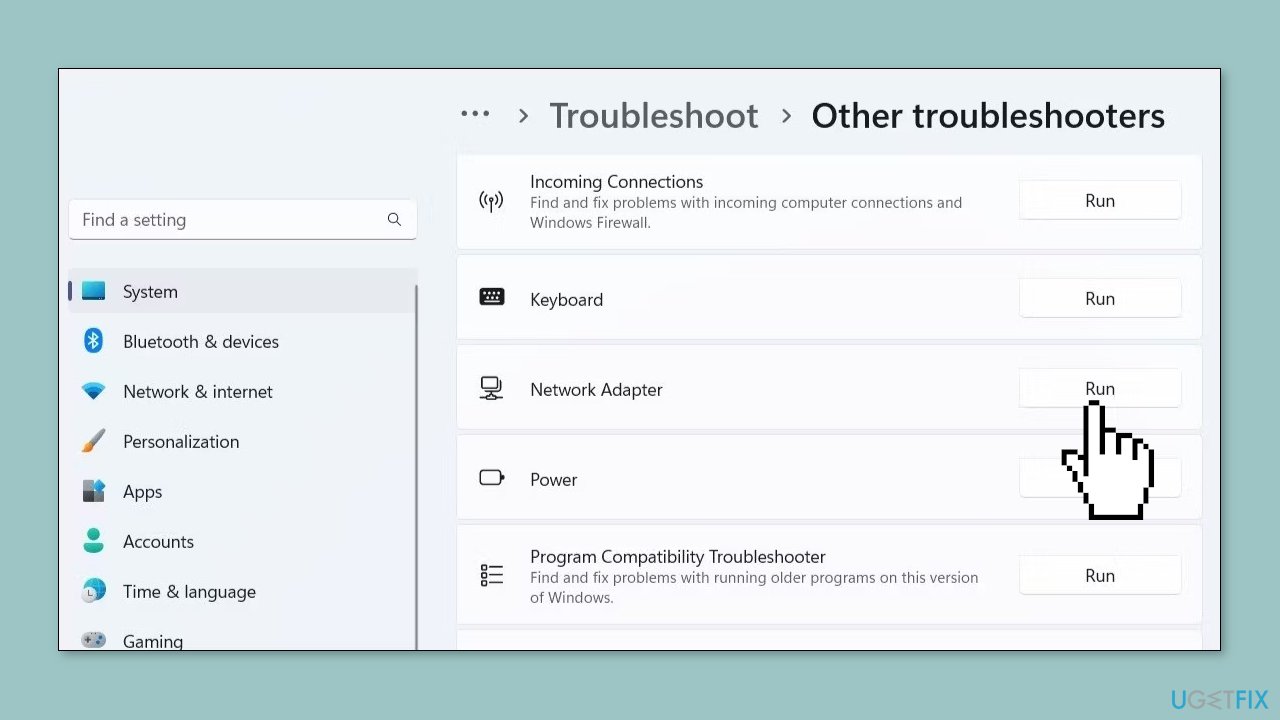
- Click the Run button next to the Network Adapter.
- Follow the on-screen prompts to finish running the troubleshooter.
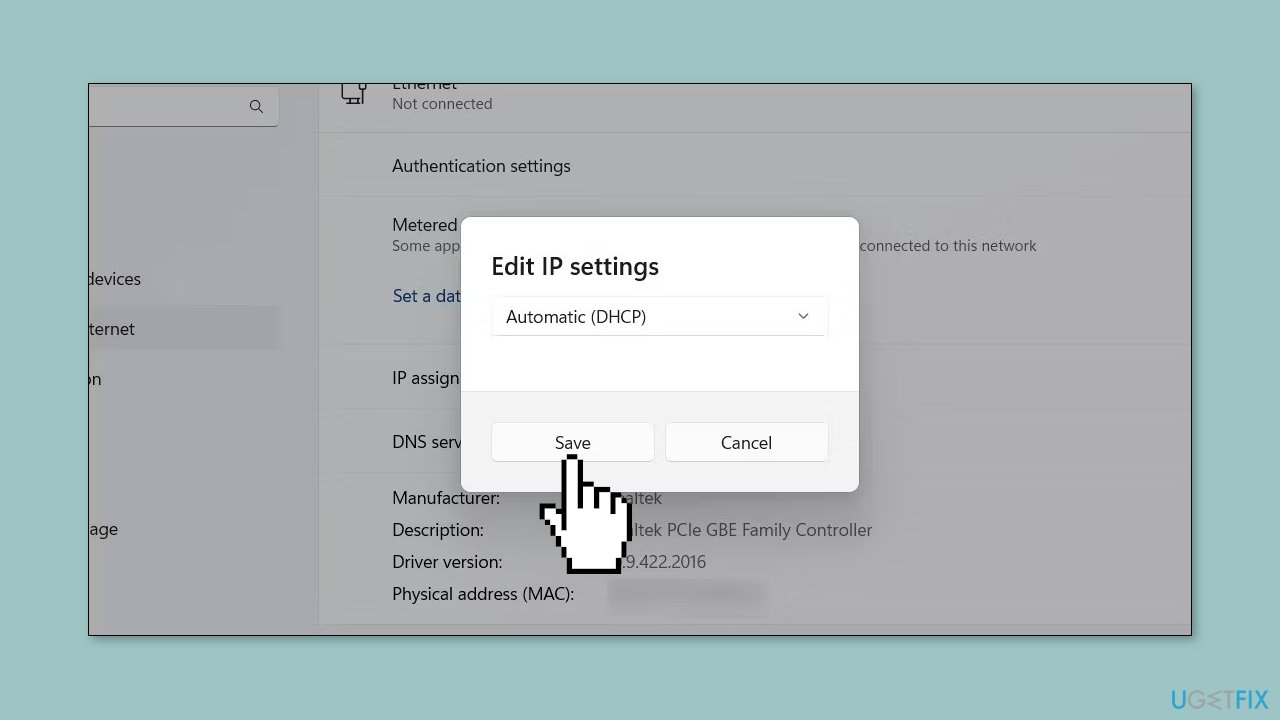
Method 4. Enable Automatic DHCP
- Press the Windows key + I to open the Settings app.
- Head to Network & internet > Ethernet.
- Click the Edit button next to the IP assignment.
- Use the drop-down menu to select Automatic (DHCP) and click the Save button.
Method 5. Re-enable the Ethernet Adapter Driver
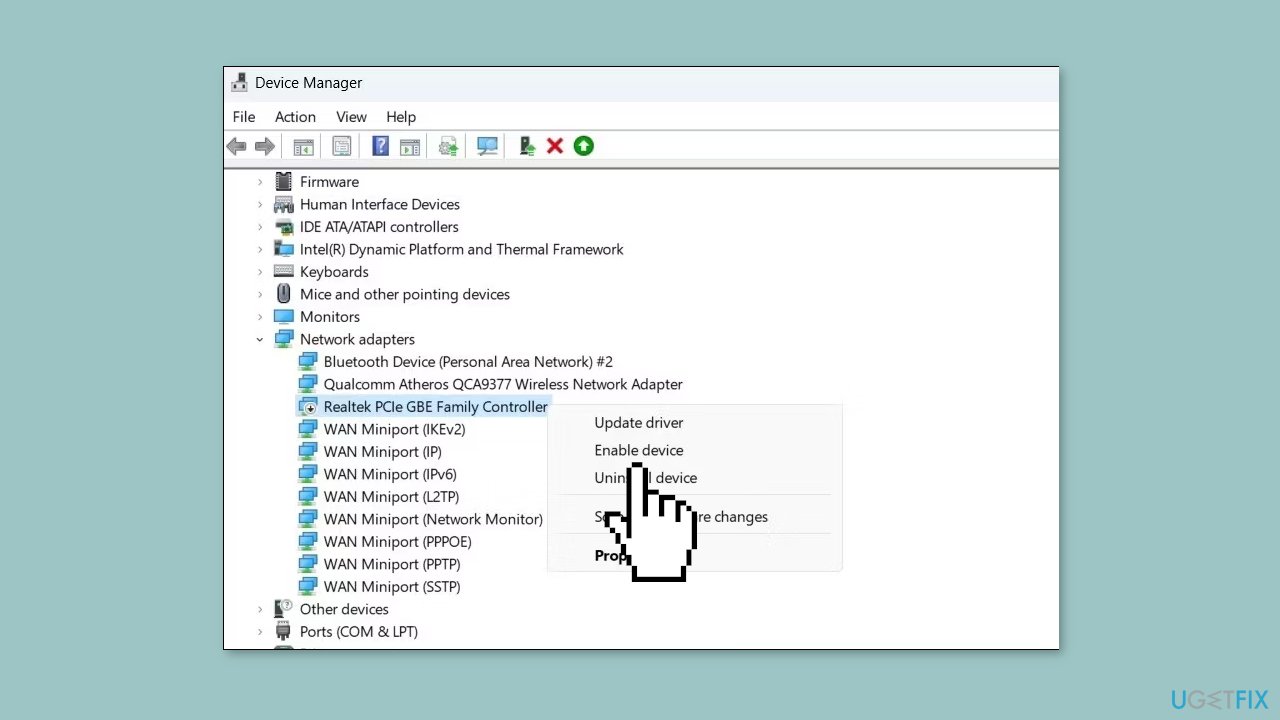
- Right-click on the Start icon and select Device Manager from the list.
- Double-click Network adapters to expand it.
- Right-click the Ethernet driver and select Disable device from the resulting menu.
- Select Yes to confirm.
- Right-click the Ethernet driver again and select Enable device.
Method 6. Prevent Windows from Turning off the Ethernet Driver
- Press the Windows key + S to access the search menu.
- Type device manager in the text box and select the first result that appears.
- Expand Network adapters.
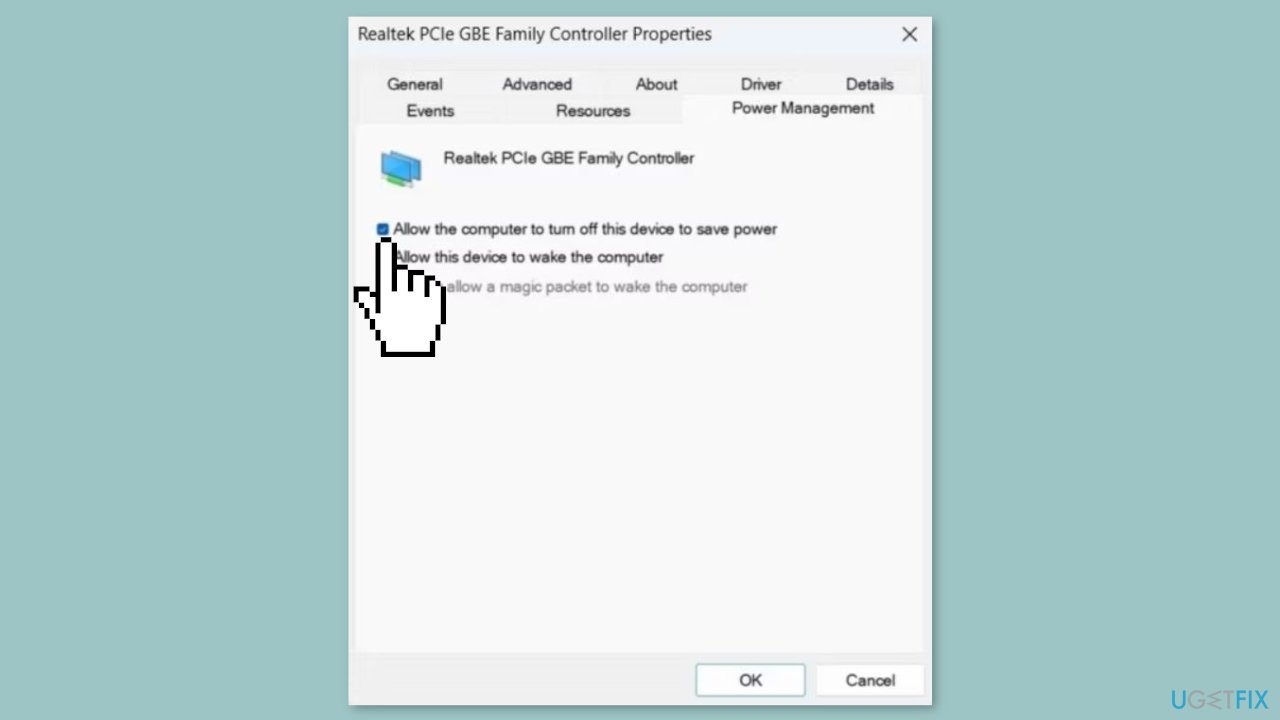
- Double-click on your Ethernet driver to open its properties.
- Switch to the Power Management tab.
- Clear the Allow the computer to turn off this device to save power checkbox.
- Hit OK.
Method 7. Update the Ethernet Driver
- Press the Windows key + R to open the Run dialog box.
- Type devmgmt.msc in the box and press Enter.
- In the Device Manager window, expand Network adapters.
- Right-click on the problematic driver and select Update driver.
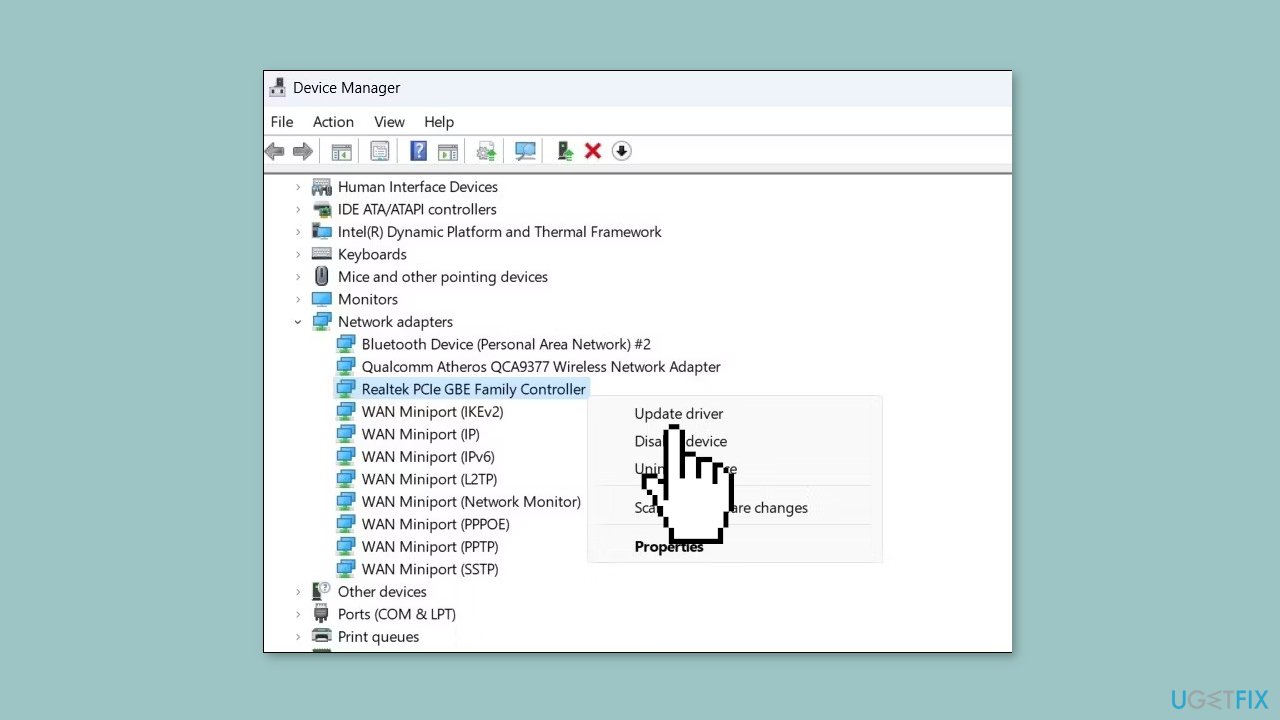
- Select the Search automatically for drivers option.
- Click on Search for updated drivers on Windows Update.
You can also use a dedicated utility like [rev id="DriverFix"] that can find the best drivers for your machine and install them automatically.
Method 8. Reset Network Settings
- Press the Windows key + I to open the Settings app.
- Navigate to the Network & Internet tab on the left.
- Scroll down and click on Advanced network settings.
- Under the More settings section, select Network reset.
- Click the Reset now button.
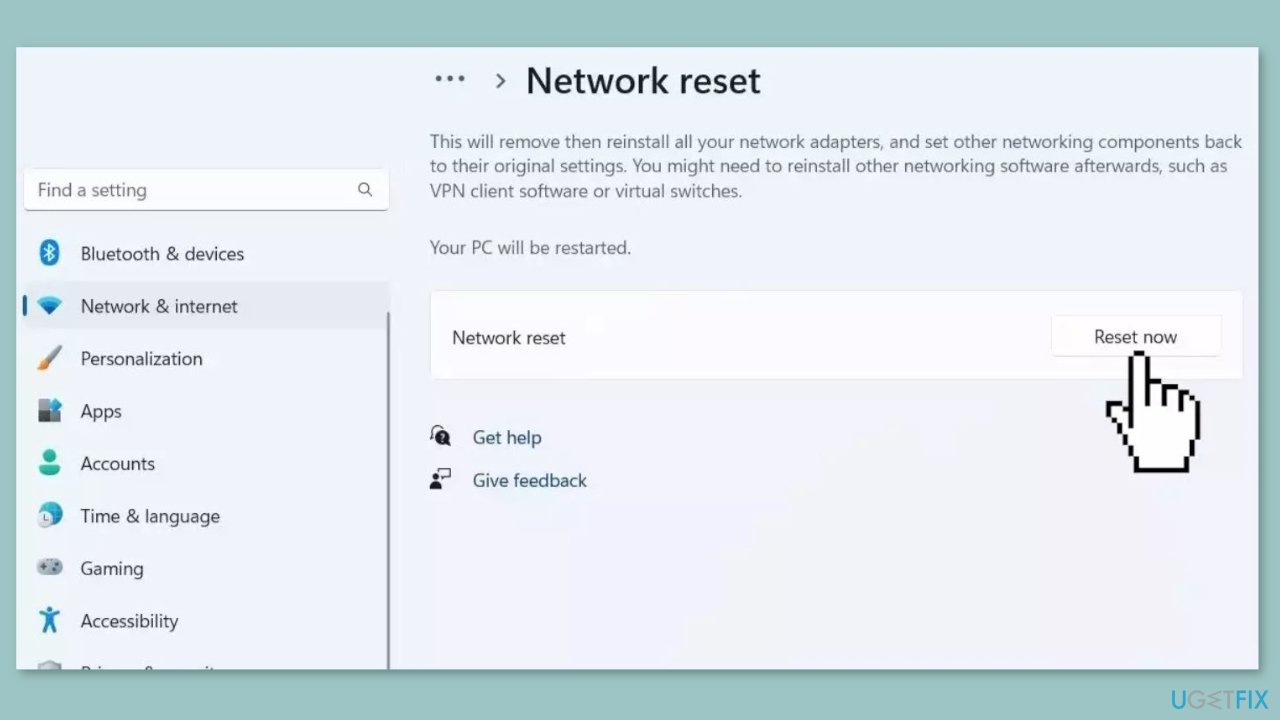
- Select Yes to confirm.
- Wait for the network reset process to complete.
- Once the process has completed, set up your network connection again and check to see if the issue has been resolved.
Bottom line
To fix Ethernet disconnecting issues, you can inspect the Ethernet cable for damage, verify that network drivers are up-to-date, and adjust power management settings. If these solutions do not resolve the problem, consider running a system repair tool or following additional step-by-step instructions provided in the guide.
Frequently asked questions
Common causes include faulty cables, outdated network drivers, or incorrect network settings. Additionally, power management settings may also lead to Ethernet disconnections.
You can update your network drivers by going to Device Manager, expanding the Network adapters section, right-clicking your Ethernet adapter, and selecting 'Update driver'. Windows 10 and 11 will search for the latest driver automatically.
Check your Ethernet adapter settings by navigating to Network & Internet settings, selecting Status, and then Network reset. You should also ensure that the 'Allow the computer to turn off this device to save power' option is unchecked in the adapter properties.




Report an issue
What's wrong with this guide? We review every report and update or remove content.
Report received — thank you. We'll review and fix it.
You need a free account to submit a report.
Be the first to comment