How to fix
Event ID 1000 application error
on Windows
Resolve Event ID 1000 application errors on Windows 10 and Windows 11 effectively. Get expert-tested solutions for quick fixes that last.


What causes How to fix Event ID 1000 application error in Windows?
- Conflicts within the application
- Faults within the operating system
- Corrupted system files
- Missing crucial updates
- Incompatibilities introduced by recent Windows updates
Repairs Windows system files, removes malware, and restores a clean OS state — without reinstalling.
My apps have been crashing - especially before I shut down Windows - so I checked the Event Viewer, which revealed that the Event ID 1000 Application error is causing this. Is there anything I can do?
Event Viewer in Windows serves as a vital tool for monitoring and diagnosing system issues. As a centralized logging system, it records a wide array of events that occur in the computer, including system, security, and application events. These logs are instrumental for both system administrators and users in understanding the inner workings of their Windows environment. By reviewing the Event logs, one can gain insights into the health and performance of their system, as well as troubleshoot potential issues.
Within the Event Viewer, a variety of events can be encountered. While many of these might be benign or routine, some can indicate significant system issues. A notable example of this is the Event ID 1000 application error, which often manifests in the form of applications freezing or crashing. In more severe cases, it may even lead to a Blue Screen of Death (BSOD), causing the entire system to halt and restart.
The causes of an Event ID 1000 error can vary, but they typically involve conflicts or faults within the application or the operating system. Corrupted or missing system files are common culprits, as they prevent applications from functioning correctly. Additionally, recent Windows updates may sometimes introduce incompatibilities with existing software, leading to such issues. Contrarily, missing crucial updates can also be a factor, as they may contain essential fixes and improvements.
To address the Event ID 1000 application error, you can consider several approaches. Repairing corrupted system files can often resolve conflicts. Similarly, evaluating recent Windows updates to identify and rectify any problematic changes can be beneficial.
Running a Clean Boot, which starts Windows with a minimal set of drivers and startup programs, can help in isolating the cause of the issue by eliminating background interference. Sometimes, reinstalling Visual C++ Redistributables can help.
For a more comprehensive solution, try employing PC repair software [d1], which is designed to automatically identify and fix underlying issues within the Windows operating system, systemizing the troubleshooting process and enhancing the overall stability and performance of your system.

Fix 1. Install all Windows updates
Windows updates often include patches for security vulnerabilities, bug fixes, and improvements to the system's stability. By keeping Windows up to date, you can ensure that your system is equipped with the latest fixes that might resolve the Event ID 1000 application error.
- Open the Start menu and go to Settings.
- Click on Update & Security.
- Select Windows Update.
- Click on Check for updates.
- If updates are available, click Install now (make sure you also install optional updates).
- After installation, restart your computer.

Fix 2. Repair corrupted files
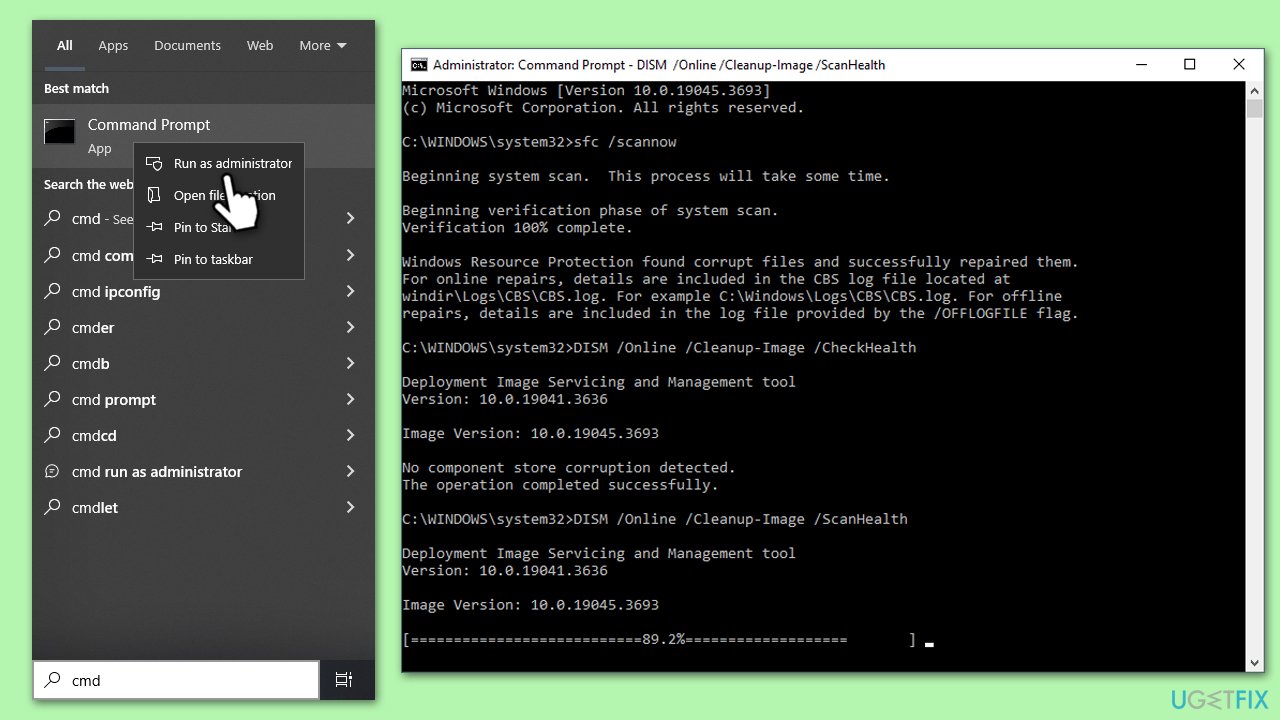
System File Checker and Deployment Image Servicing and Management are tools that repair Windows system files. Running these scans can fix corrupted files that might be causing the Event ID 1000 error.
- Type in cmd in Windows search.
- Right-click on Command Prompt and select Run as administrator.
- In the User Account Control window, click Yes.
- In the Command Prompt window, paste the following command and hit Enter:
sfc /scannow - Next, use the following commands, pressing Enter each time:
Dism /Online /Cleanup-Image /CheckHealth
Dism /Online /Cleanup-Image /ScanHealth
Dism /Online /Cleanup-Image /RestoreHealth
(Note: if you get an error executing this last command, add /Source:C:\RepairSource\Windows /LimitAccess to it and try again). - Reboot your system.
Fix 3. Perform a Clean Boot
A Clean Boot starts Windows with a minimal set of drivers and startup programs. This can help identify if background programs are causing the issue. After performing a Clean Boot, you should manually enable programs and services to determine the cause of the error.
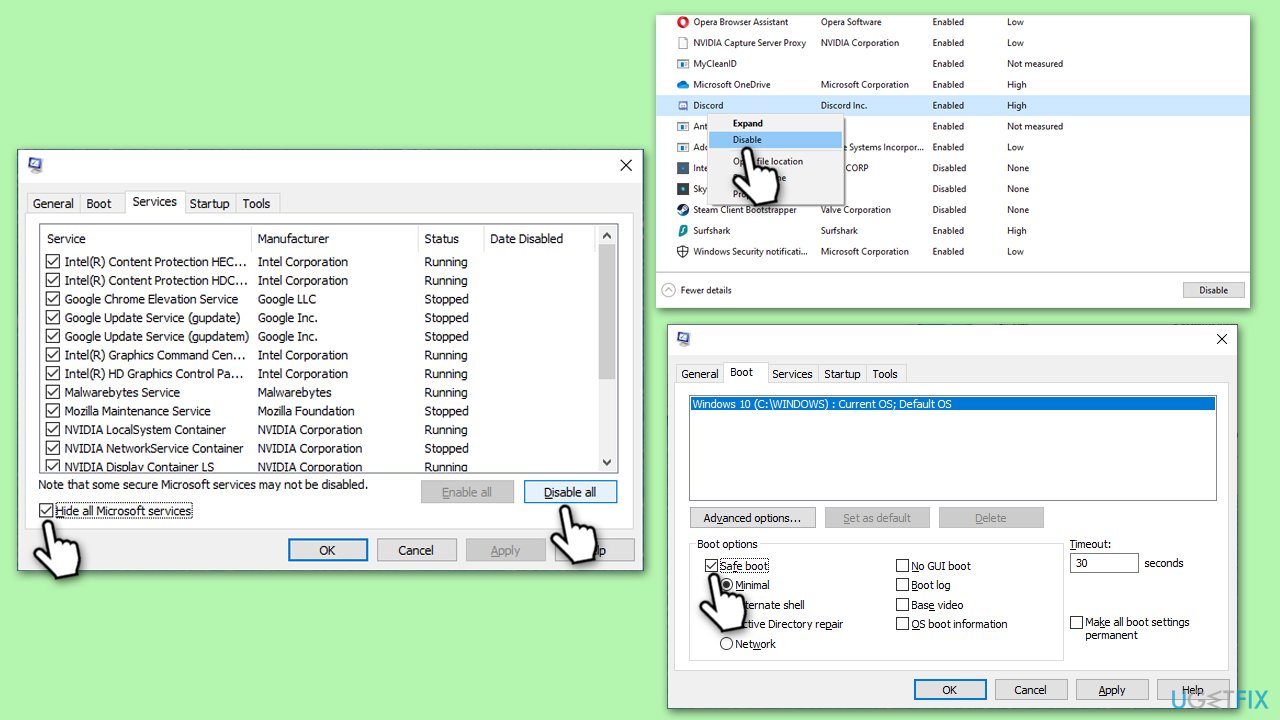
- Type msconfig in Windows search and press Enter.
- Pick the Services tab.
- Mark Hide all Microsoft services and select Disable all.
- Select the Startup tab and click Open Task Manager.
- In the Task Manager, right-click on each of the items and select Disable, then close the Task Manager.
- Go to the Boot tab, mark the Safe Boot option, then click Apply and OK.
- Restart your computer. After booting, re-enable services and startup items one by one to pinpoint the faulty app(s). Once you know the culprit either uninstall or update it.
Fix 4. Uninstall the most recent Windows update
Sometimes, a recent Windows update can introduce problems. Uninstalling the latest update can help if the error started occurring after an update. Note that this might not be possible due to time since installation (it can vary between 10 to 30 days, depending on your Windows version and organization restrictions, if applicable).
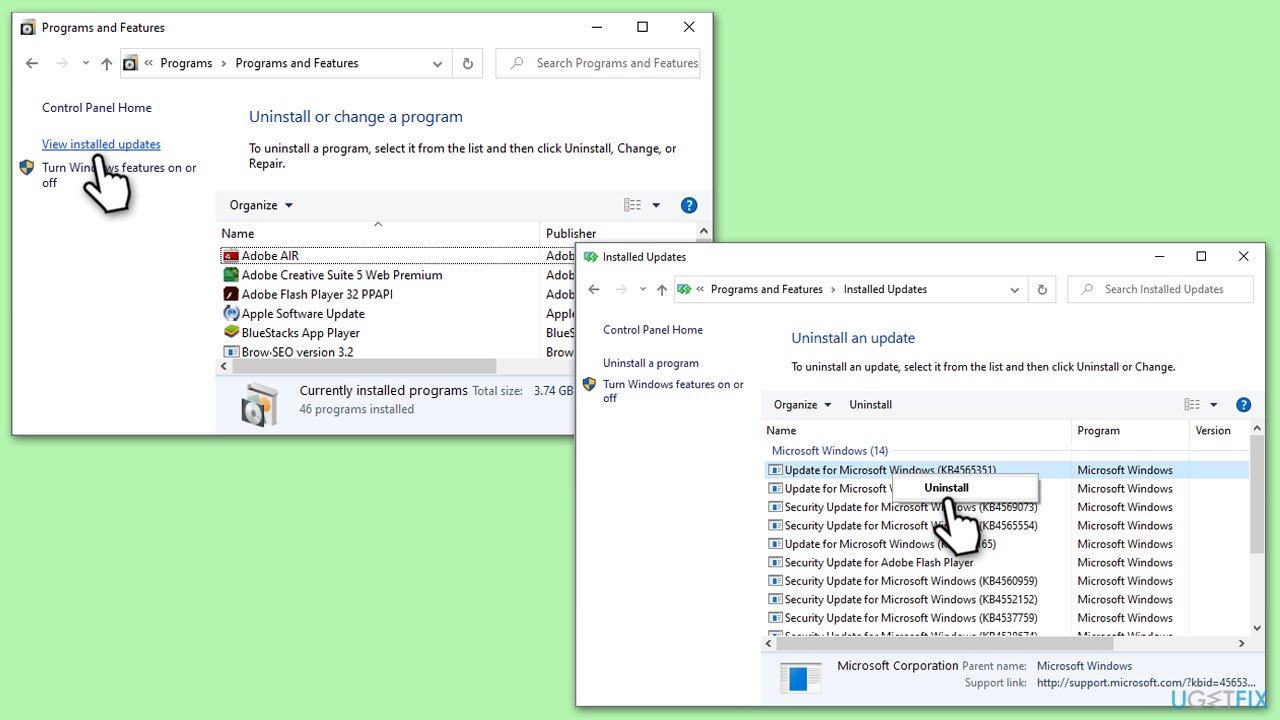
- Type Control Panel in Windows search and press Enter.
- Select Programs > Uninstall a program.
- Click on View installed updates on the left side of the window.
- Sort all the updates by date.
- Right-click on the most recent update and select Uninstall.
- Proceed with on-screen instructions.
- Then, type Updates in Windows search and press Enter.
- Click Pause the updates for 7 days (in Windows 11, you can pick a different time period).
Fix 5. Reinstall Microsoft Visual C++
Microsoft Visual C++ Redistributable packages are components that help run third-party applications. Reinstalling them can resolve issues related to corrupted or missing files.
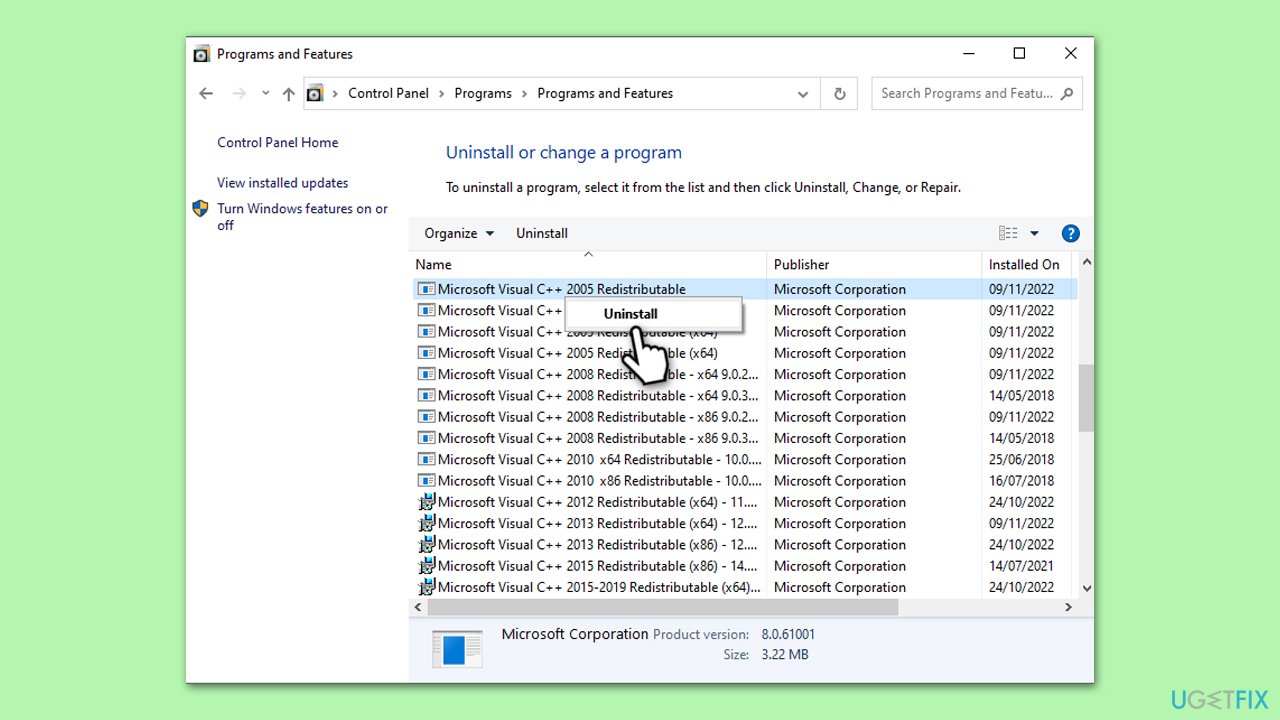
- Type Control Panel in Windows search and press Enter.
- Select Programs > Uninstall a program.
- Scroll down to find the installed Microsoft Visual C++ Redistributable packages.
- Right-click on each of these and select Uninstall, following the instructions to finish the process.
- When done, restart your computer.
- Now open your browser and navigate to the official Microsoft website for Visual C++.
- Here, you will find all the versions available - install both x86 and x64 versions of the offered files.
- When done, restart your PC and see if the issue persists.
Fix 6. Perform in-place Windows upgrade
An in-place upgrade reinstalls Windows without removing personal files or installed applications. This can help resolve deeper system issues causing the Event ID 1000 error.
- Visit the official Microsoft website and download Windows 10 installation media (Windows 11 version).
- Double-click the installer, select Yes when UAC shows up, and agree to the terms.
- Select Upgrade this PC now and click Next.
- Windows will start downloading the needed files.
- Agree to the terms once again and click Next.
- Before installing, ensure you are happy with your choices (otherwise, you can click the Change what to keep option).
- Finally, click Install to begin the upgrade process.

Bottom line
To address the Event ID 1000 application error, you can repair corrupted system files, evaluate recent Windows updates, and run a Clean Boot to isolate the issue. Reinstalling Visual C++ Redistributables and using PC repair software may also provide solutions. If none of these methods work, further investigation into system logs or professional assistance may be necessary.
Frequently asked questions
Event ID 1000 typically indicates that an application has crashed, providing insight into the application's faulting module and error code. This error can affect system stability and performance.
To troubleshoot Event ID 1000 errors on Windows 11, check the Event Viewer for detailed error logs, update the problematic application, or reinstall it if necessary. Additionally, running the System File Checker tool may help repair corrupted system files.
Yes, applications like Microsoft Office, web browsers, and third-party security software frequently trigger Event ID 1000 errors in Windows 10. Keeping these applications updated can reduce the occurrence of such errors.




Report an issue
What's wrong with this guide? We review every report and update or remove content.
Report received — thank you. We'll review and fix it.
You need a free account to submit a report.
Be the first to comment