How to fix
Event ID 4101: amdwddmg, amdkmdag, and OEM errors
on Windows
Resolve Event ID 4101 errors in Windows 10 and 11 effortlessly with expert-tested solutions and detailed screenshots. Fix your system in minutes!

What causes How to fix Event ID 4101: amdwddmg, amdkmdag, and OEM errors?
- GPU issues
- Chipset problems
- RAM malfunctions
- Damaged hardware components
Repairs Windows system files, removes malware, and restores a clean OS state — without reinstalling.
Hello. My computer started crashing and displaying errors constantly. I experience Event ID 4101: amdwddmg, amdkmdag, and OEM errors. Can anyone help me fix this?
Windows is one of the most popular operating systems in the world. It relies on thousands of processes running in the background to keep it working smoothly. When even one component goes rogue, people can experience bugs, lagging, performance issues, and even crashes.
Unfortunately, recently this happened to a number of users. They report seeing Event ID 4101: amdwddmg, amdkmdag, and OEM errors in the Event Viewer. It is an event log intended for software engineers and technicians, to find information about how the system is running. There are often minor errors that users should not be worried about, however, users can also find major issues with the operating system.
Event ID 4101: amdwddmg, amdkmdag, and OEM errors seem to be related to the GPU,[ref en-1] chipset, or RAM.[ref en-2] There is a possibility that some of the hardware components of your machine are damaged if you experience these crashes. We prepared a 4 step guide to help you fix this.
You can also use a repair tool like [d1] that can fix most system errors, BSODs,[ref en-3] corrupted files, and registry issues if you want to avoid a lengthy troubleshooting process. Otherwise, follow the step-by-step instructions below carefully.
Method 1. Disable the XMP Profile
The steps differ depending on the manufacturer of your motherboard. As an example, we will use Gigabyte.
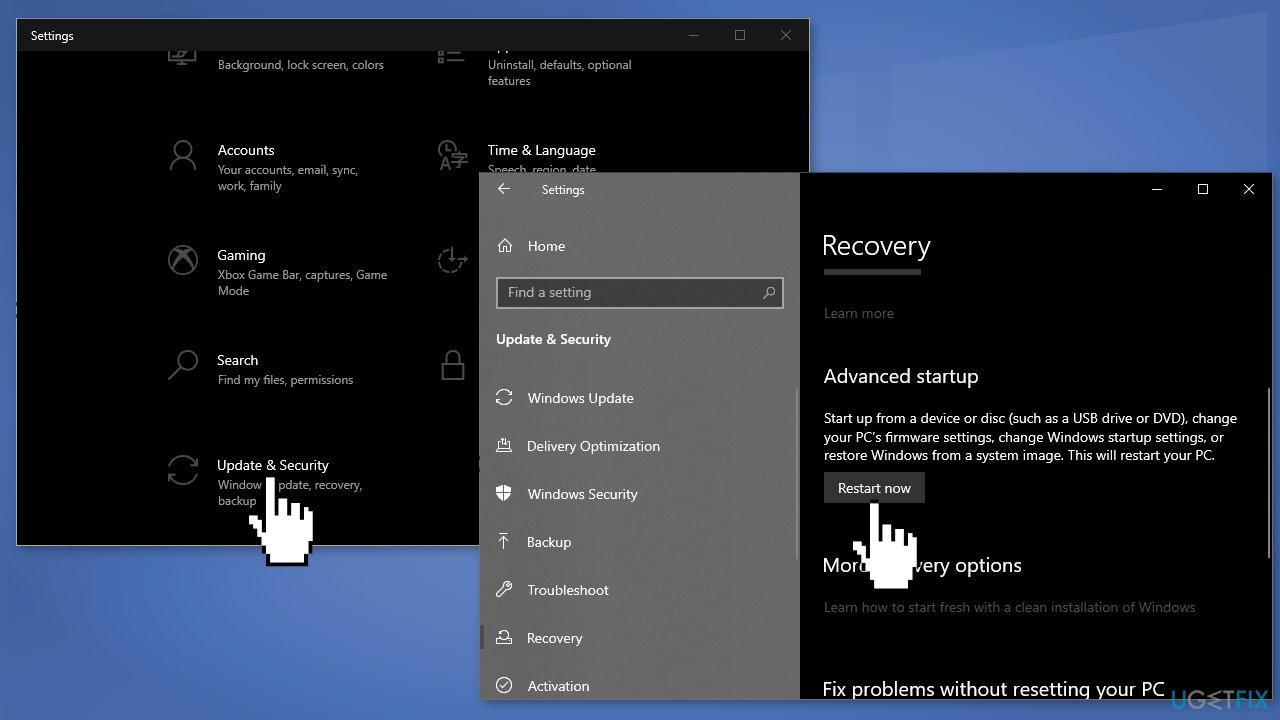
- Navigate to your Windows start menu and select Settings
- Find the Update & Security button
- Select Recovery
- Under Advanced startup you will see a Restart now button
- After your PC boots back up, you will be met with a menu
- Select Troubleshoot then Advanced options and UEFI Firmware Settings
- Confirm your restart
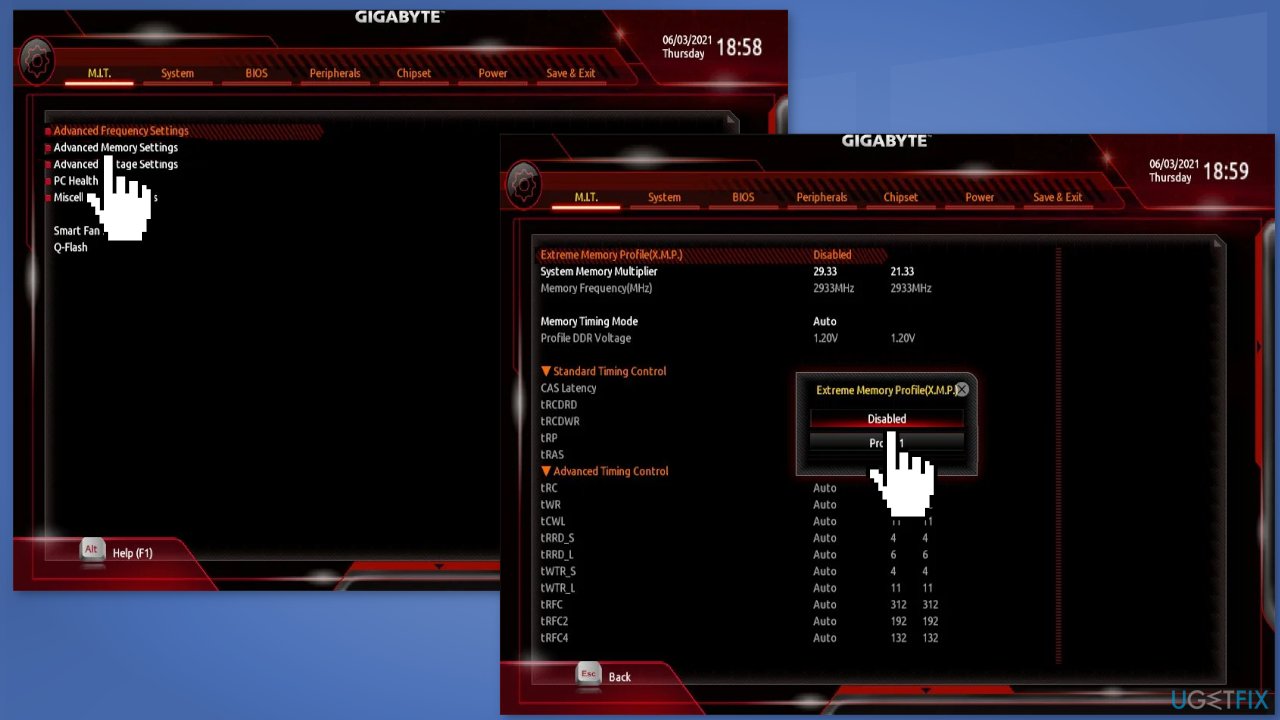
- Head down to Advanced Memory Settings
- Select Extreme Memory Profile and change to Disabled
Method 2. Reinstall the Chipset Drivers
The steps may be different depending on your PC. We will use the AMD Ryzen chipset drivers as an example.
- Open the Control Panel and select Programs and Features
- In Programs and Features, double-click on AMD Chipset Software to launch the AMD Chipset Software Installer
- The AMD Chipset Software Installer will display a list of drivers to be uninstalled
- Click Uninstall to proceed
- Click Finish to exit to the Desktop
- Download AMD Ryzen chipset drivers on the AMD Drivers and Support page
- Choose your AMD chipset, and operating system to see a list of the latest drivers and software for your chipset
- Click the Download button when you are ready
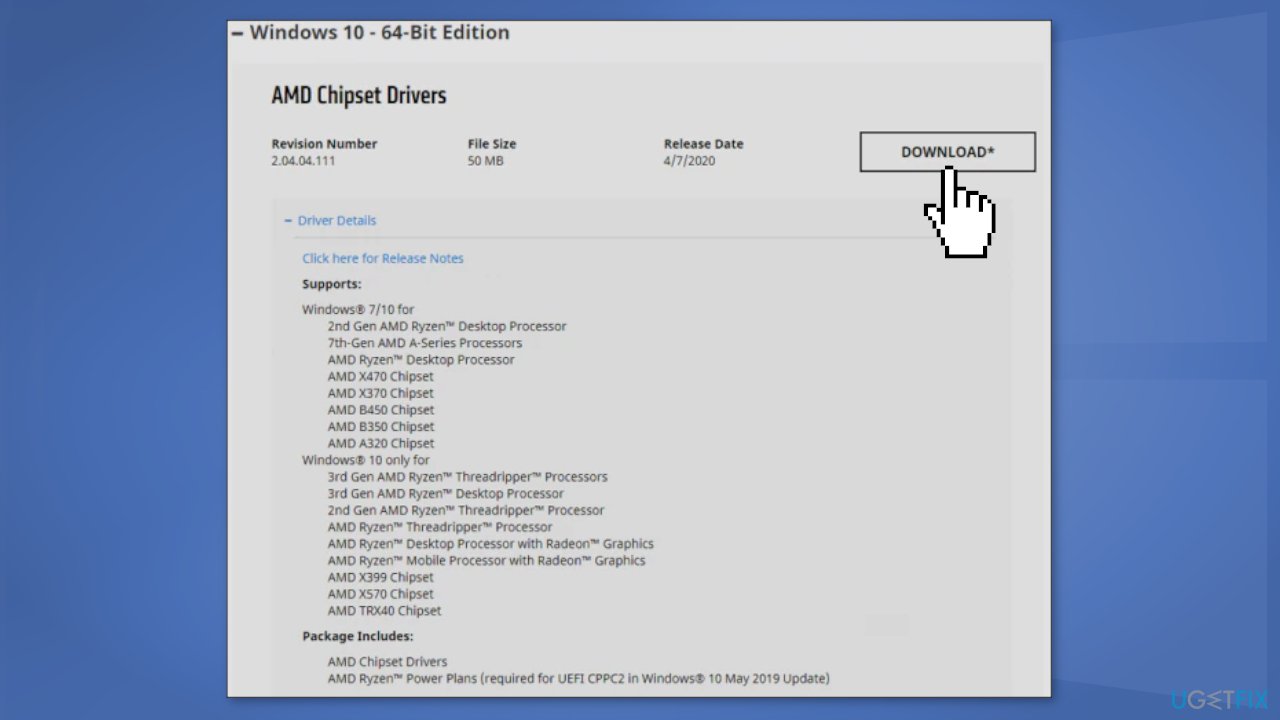
- Locate the chipset driver package and double-click the AMD Chipset Software executable file
- The AMD Chipset Software Installer will display a list of supported drivers to be installed
- If you agree to the terms and conditions, click Install to begin the installation process
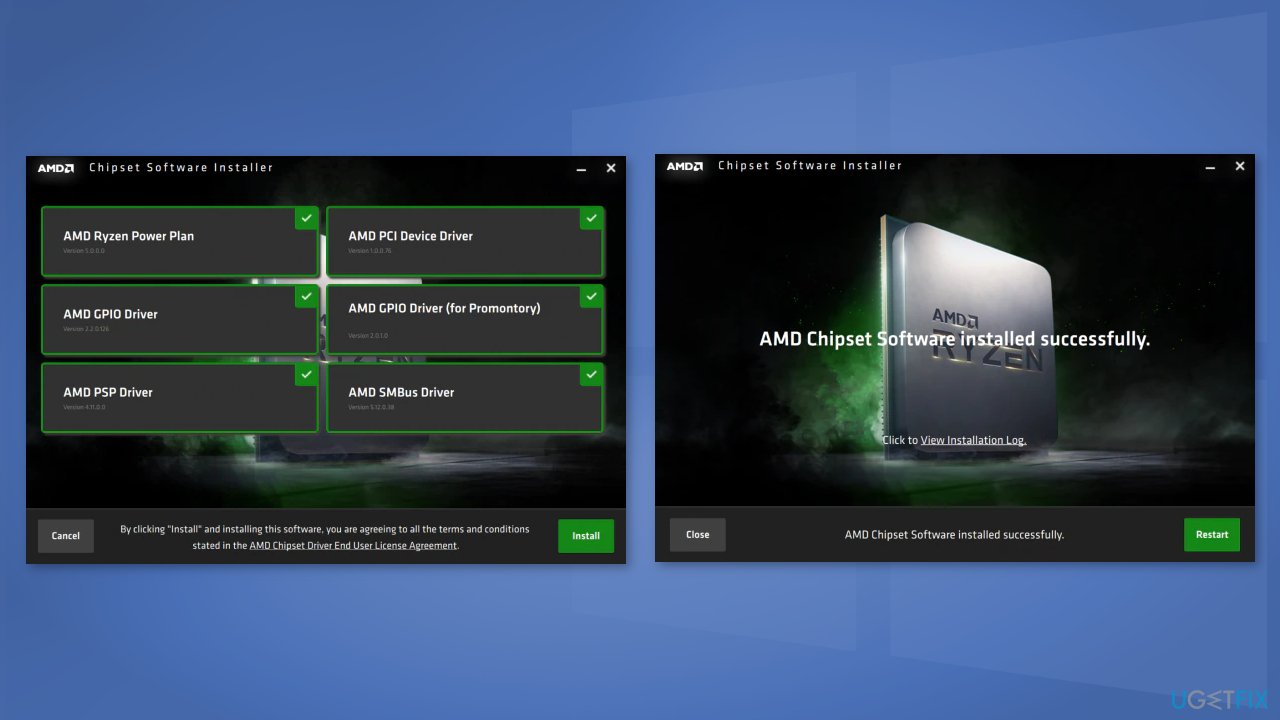
- Once the installation has been completed successfully, finish the setup by clicking Restart to reboot the system
Method 3. Reinstall GPU drivers
- Search for Device Manager in the search bar and open the utility
- Navigate to Display adapters, right-click on your GPU, and select Properties
- Navigate to the Driver tab and choose Uninstall Device
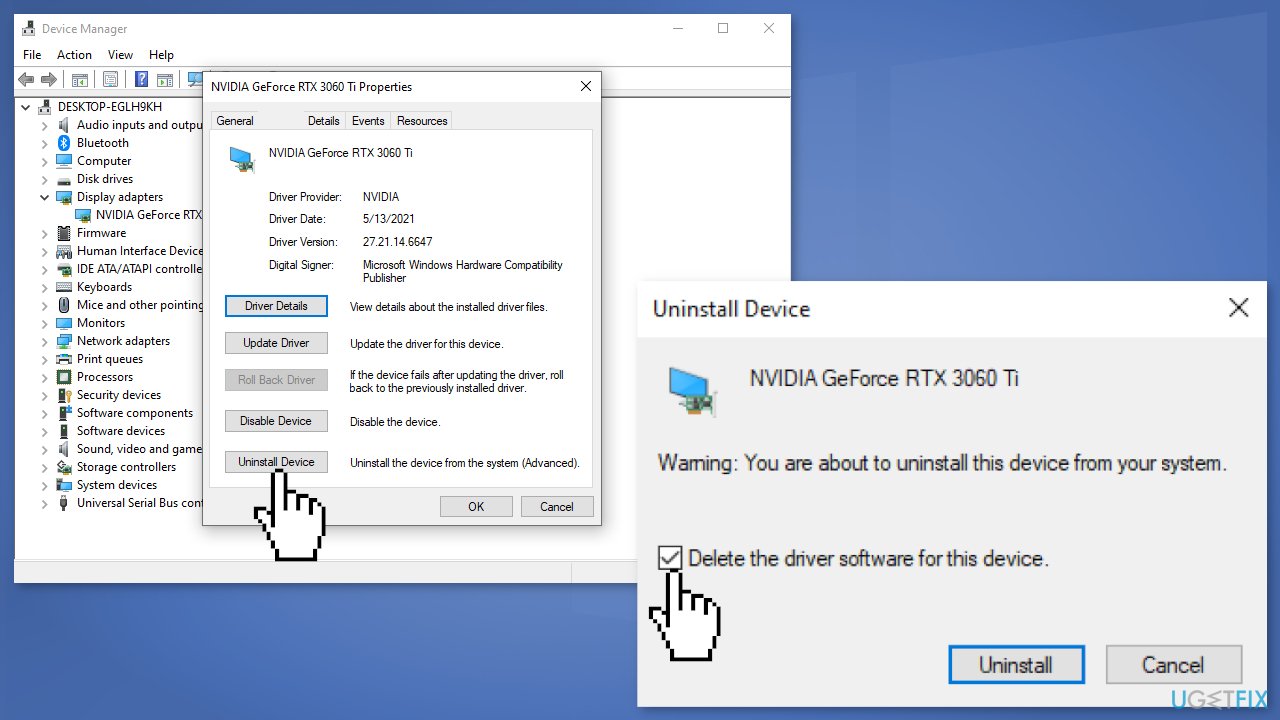
- Restart your PC
- You can also use a dedicated tool like [rev id="DriverFix"] that can find the best drivers for your device and install them automatically
Method 4. Contact a Local Computer Store
Some users found that the amdwddmg, amdkmdag, and OEM errors were caused by corrupted or damaged RAM (Random-Access Memory). Once they replaced RAM on their devices the issues disappeared completely. If you have tried out all the other troubleshooting steps but they did not help, think about contacting a computer repair shop.
Bottom line
To fix Event ID 4101 errors, you can disable the XMP profile, reinstall the chipset drivers, or use a repair tool to address system errors. If these methods do not resolve the issue, further troubleshooting may be necessary.
Frequently asked questions
Event ID 4101 typically indicates a problem with the AMD graphics driver, which can lead to display issues or system instability on Windows 10 or Windows 11.
To resolve the OEM error, you should update or reinstall your AMD graphics drivers through Device Manager or the official AMD website on Windows 11.
Yes, you can run the Windows Troubleshooter, check for driver updates, or roll back to a previous driver version to troubleshoot Event ID 4101 issues on Windows 10.




Report an issue
What's wrong with this guide? We review every report and update or remove content.
Report received — thank you. We'll review and fix it.
You need a free account to submit a report.
Be the first to comment