How to fix
Event ID 55 (Kernel-Processor-Power)
on Windows
Resolve Event ID 55 (Kernel-Processor-Power) issues in Windows 10 or 11 quickly with expert advice and proven solutions. Fixed in minutes!


What causes How to fix Event ID 55 (Kernel-Processor-Power) in Windows?
- Hardware issues
- Driver issues
- Problems with power settings
- Processor overheating
- Low power from motherboard or power supply
Repairs Windows system files, removes malware, and restores a clean OS state — without reinstalling.
Hello. I have been playing Halo and I noticed that the game started stuttering and lagging. I checked the Event Viewer and found an Event ID 55 (Kernel-Processor-Power) error. The issue does not seem to go away. How do I fix this?
Event ID 55 is an error message that may appear in the System log in Windows Event Viewer. It indicates that the Kernel-Processor-Power event has occurred. This event is related to the power management of the processor on your computer. The Kernel-Processor-Power event is generated when the system experiences an issue with the power management of the processor.
This could be caused by a variety of factors, including hardware issues, driver issues, or problems with the power settings on your computer. You may want to try troubleshooting the issue by checking for hardware issues, updating your drivers,[ref en-1] or adjusting your power settings.
If you are unable to resolve the issue on your own, there is a possibility that there is an error with the processor itself. This might happen when the processor is overheating or getting low power from the motherboard or in the power supply. In that case, you may want to consider contacting a technical support representative or a computer repair professional for further assistance.
In this guide, you will find 5 steps that should help you fix Event ID 55 (Kernel-Processor-Power) in Windows. However, if they do not help, you can also try running a maintenance tool like [d1]. It can fix most system errors, BSODs,[ref en-2] corrupted files, and registry[ref en-3] issues. Otherwise, you should check your system for hardware failures.
Method 1. Fix Corrupted System Files
Use Command Prompt commands to repair system file corruption:
- Open Command Prompt as administrator
- Use the following command and press Enter:
sfc /scannow
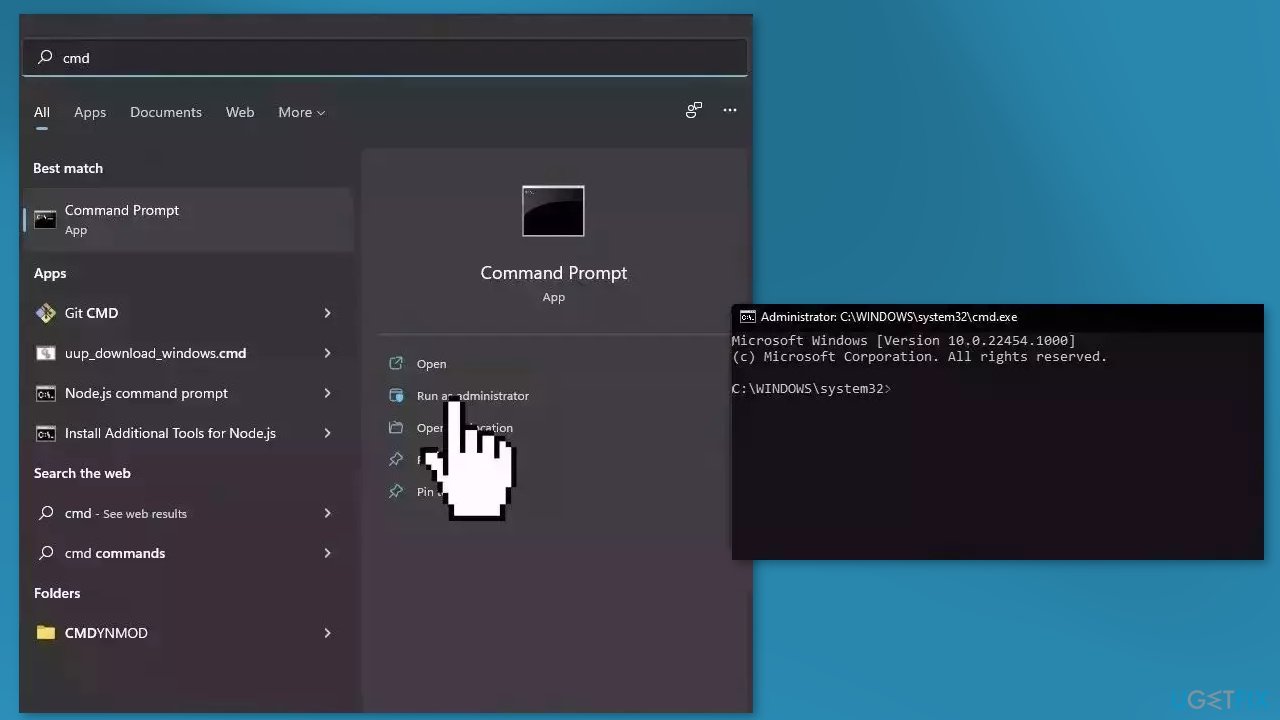
- Reboot your system
- If SFC returned an error, then use the following command lines, pressing Enter after each:
DISM /Online /Cleanup-Image /CheckHealth
DISM /Online /Cleanup-Image /ScanHealth
DISM /Online /Cleanup-Image /RestoreHealth
Method 2. Run Memory Diagnostic Tool
- Press the Windows key + R on your keyboard to open the Run box
- Type mdsched.exe and press Enter
- Click Restart now and check for problems (recommended)
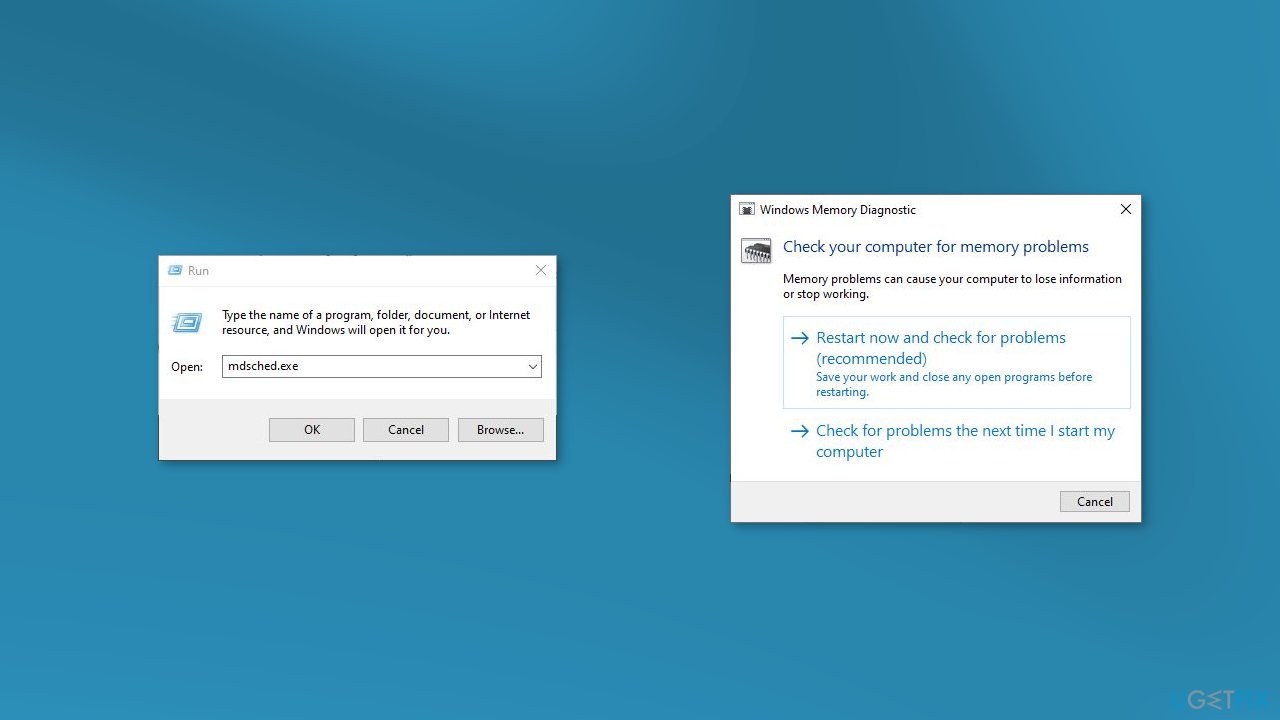
- Follow the on-screen instructions
Method 3. Update Drivers
Outdated drivers could be the cause of the error. In this case, you can fix it automatically by using [rev id="DriverFix"], which will scan your PC for missing and out-of-date device drivers. Or you can update them manually:
- Open Settings
- Click on Update & Security
- Click on Windows Update
- Click the Check for updates button
- Click the View optional updates option
- Click the Driver updates tab
- Select the driver you want to update
- Click the Download and install button
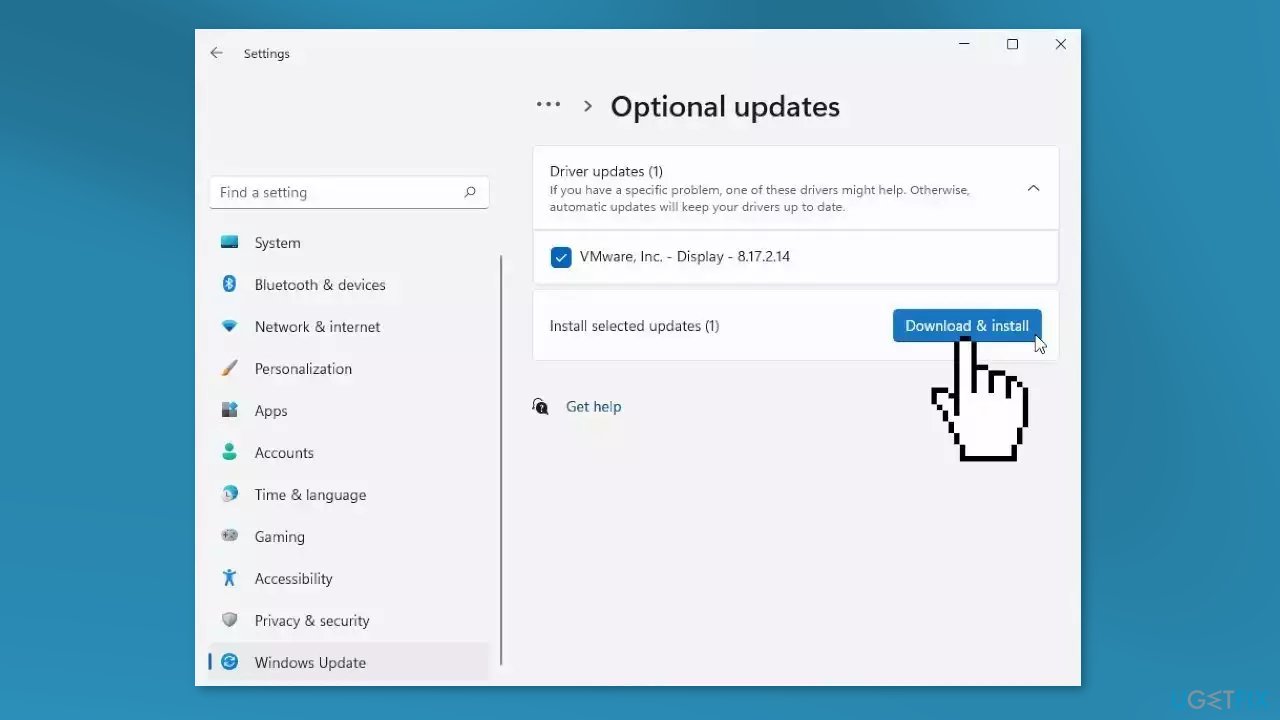
If the View optional updates link is not available after checking for updates, then Windows Update does not have any new drivers or any updates for other products at that particular time.
Method 4. Perform Clean Boot
- Type MSConfig in the Start Menu and hit Enter to open the System Configuration Utility
- Click on the General tab, and then click Selective Startup
- Clear the Load Startup Items checkbox, and ensure that Load System Services and Use Original boot configuration are checked
- Next, go to the Services tab
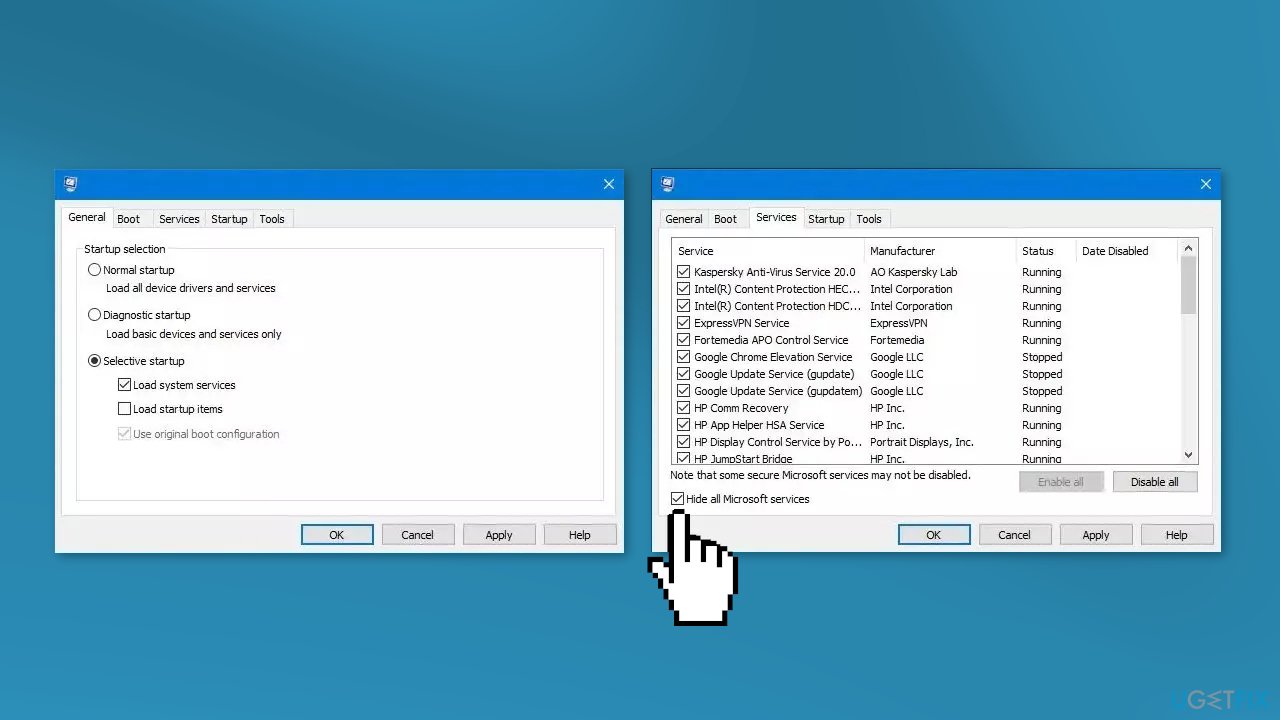
- Select the Hide All Microsoft Services checkbox
- Now click Disable all
- Click Apply and OK and restart the computer
Method 5. Repair Install Windows
- Visit the official Microsoft website to download Windows 11 or Windows 10 Installation Media
- Run the Media Creation Tool and select Create Installation Media for another PC
- Select your USB drive
- Let the Process complete of writing the Installation files to the USB drive
- Click Finish
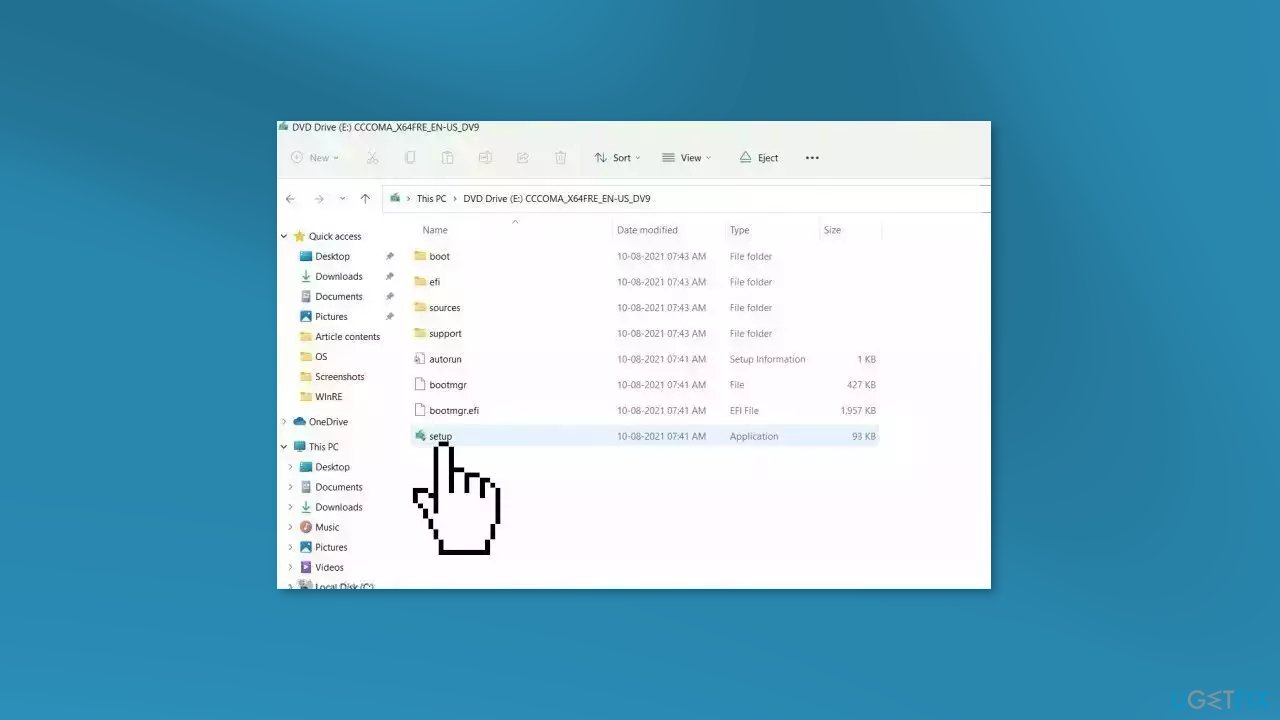
- On the PC you wish to upgrade, Press Windows + E to open the File Explorer
- Open the Removable drive and click Setup.exe
- Accept the license terms on the next screen
- Confirm the Upgrade options – Files, apps and Settings are kept
- Click Install, and the upgrade should start
Bottom line
To fix Event ID 55 (Kernel-Processor-Power), you can repair corrupted system files using Command Prompt, run the Memory Diagnostic Tool, update your drivers, or adjust your power settings. If these steps do not resolve the issue, consider contacting technical support or a computer repair professional.
Frequently asked questions
Event ID 55 indicates that there is a power management issue related to the processor, which may lead to system instability or performance problems in Windows.
To troubleshoot Event ID 55 in Windows 11, ensure that your system drivers are up-to-date and check your power settings to optimize performance.
Yes, you can adjust your power plan settings to 'High Performance' and disable any power-saving features that may affect processor performance to help resolve Event ID 55.




Report an issue
What's wrong with this guide? We review every report and update or remove content.
Report received — thank you. We'll review and fix it.
You need a free account to submit a report.
Be the first to comment