
How to fix Event ID 7000 in Service Control Manager?

Prefer to fix it yourself? The manual steps follow.
- 8methods
- 5 minutes to read the event, 5 to 30 minutes to fix it
- Intermediate
Applies to Windows 11, Windows 10
8 methods in this guide
Hello. I noticed that my Windows computer became really slow, and I saw Event ID 7000 in Service Control Manager. How can I fix this?
Event ID 7000 is logged by Service Control Manager when a Windows or program service fails to start. The event names the service and the real error on its second line, and that line decides the fix. Often it is harmless: a driver for a device that is not plugged in.
Open the event in Event Viewer and read two things: the service name and the error on the second line (Fix 1). If nothing on the PC is broken and the service is a driver for a device you do not use, the event is harmless (Fix 2). Otherwise the error tells you what to do: turn the service back on, fix its Log On account, give it more time, or repair the program it belongs to.
| Error | Event ID 7000, source Service Control Manager, level Error, in Windows Logs > System: "The <name> service failed to start due to the following error:" and a second line with the reason. |
|---|---|
| Where it appears | Only in Event Viewer (or a monitoring tool that reads the System log). Windows shows no window; you find it while looking for the cause of slowness, a crash or a feature that does not work. |
| Main cause | A service set to start with Windows cannot start: it is disabled or its device is missing (1058), its account cannot sign in (1069), it is too slow (1053), or its program file is gone (2). |
| Fastest fix | Read the service name and the second line of the event (Fix 1), then follow the table below. A driver for an absent device can be set to Manual (Fix 2). |
| Also written as | Event 7000, eventid 7000, 7000 event id, Service Control Manager 7000, Service Control Manager error 7000, event log 7000, event viewer error 7000. |
| Often seen with | Event 7009 (a timeout while waiting for the service to connect) and event 7026 (boot or system drivers that did not load). Microsoft documents 7000 and 7026 together for drivers of devices that are not connected. |
| Is it serious? | Only if the service is one you need. One 7000 entry at each start for a device driver you do not use changes nothing and does not slow the PC. |
| Microsoft's status | Not a bug. Microsoft's article on events 7000 and 7026 names an enabled driver service for a device that is not connected as one cause, with a registry workaround. |
| Time to fix | 5 minutes to read the event. 5 minutes for a startup type or Log On change, up to 30 minutes to repair a program or Windows files. |
Facts checked on 15 October 2026. Steps written for Windows 11 (25H2 and 26H2) and Windows 10 22H2.
What Event ID 7000 from Service Control Manager means
Service Control Manager is the part of Windows that starts and stops services: background programs of Windows, of drivers and of apps such as SQL Server, antivirus tools or game launchers. When it cannot start one, it writes Event ID 7000 to the System log. The event has two lines. The first names the service. The second is a standard Windows error message that says why it failed.
An Event ID 7000 entry, as Event Viewer shows it (the service and the second line change)
Log Name:      System
Source:        Service Control Manager
Event ID:      7000
Level:         Error
The Net.Pipe Listener Adapter service failed to start due to the following error:
The service did not respond to the start or control request in a timely fashion.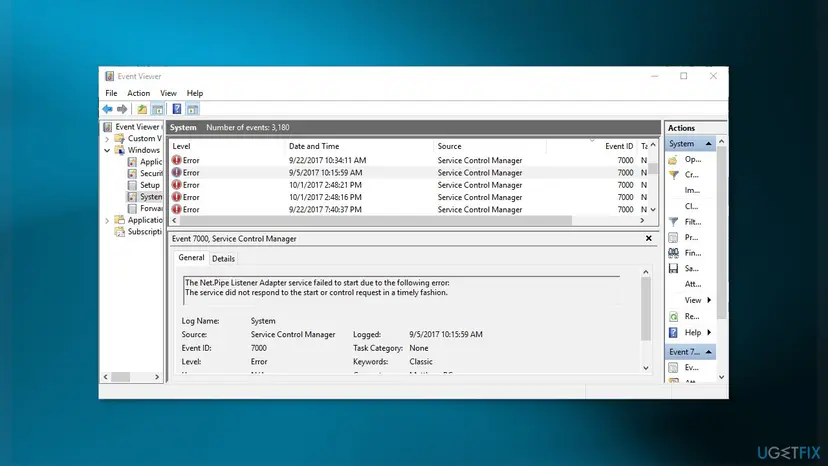
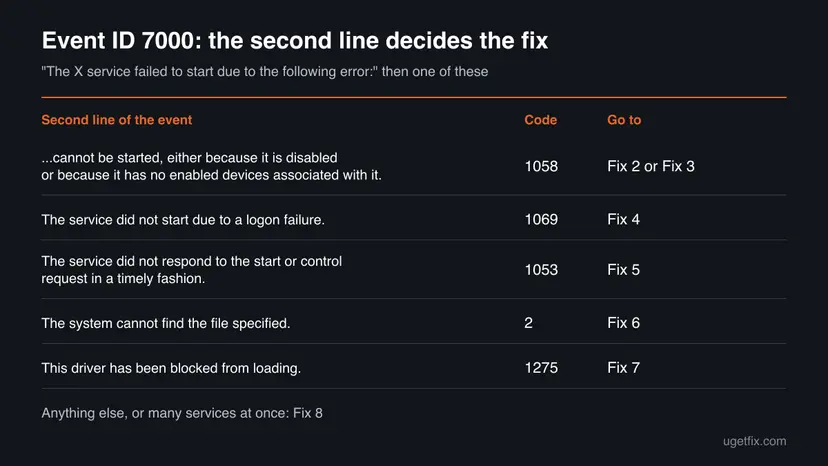
So the event itself is not one problem. It is a container, and the same fix never works for every 7000 entry. The table below lists the second lines you meet most often, with Microsoft's code for each one.
| Second line of the event | Code | What it means |
|---|---|---|
| The service cannot be started, either because it is disabled or because it has no enabled devices associated with it. | 1058 | The service is set to Disabled, or its device is not connected. Fix 2 or Fix 3. |
| The service did not start due to a logon failure. | 1069 | The account on its Log On tab cannot sign in, often after a password change. Fix 4. |
| The service did not respond to the start or control request in a timely fashion. | 1053 | It took too long to start, often at boot when the PC is busy. Fix 5. |
| The system cannot find the file specified. | 2 | The program file of the service was moved, renamed or removed. Fix 6. |
| This driver has been blocked from loading. | 1275 | Windows refused to load the driver behind the service. Fix 7. |
Why Event ID 7000 appears, most common cause first
Most often it is a driver service for hardware that is not there: an old printer, a parallel port, a CD drive, a removed graphics tablet or a virtual device from a program you uninstalled. Microsoft names exactly this case, with the cdrom and parport services as examples. Less often a service you need was disabled or lost its account. Rarely the program behind it is broken.
| Cause | How it looks | Fix |
|---|---|---|
| A driver service is enabled, but its device is not connected. | Error 1058, one entry at every start, nothing on the PC is broken. | Fix 2 |
| A service you need is set to Disabled, often by a tweak tool or a "speed up Windows" guide. | Error 1058, and a feature that uses it does not work. | Fix 3 |
| The service runs under a user account whose password changed, or which lost the right to run services. | Error 1069, "The service did not start due to a logon failure." | Fix 4 |
| The service is slow to start while Windows is busy at boot. | Error 1053, often with event 7009 a moment before. | Fix 5 |
| A program was removed or moved, but its service stayed. | Error 2, "The system cannot find the file specified." | Fix 6 |
| An old or incompatible driver is refused by Windows. | Error 1275, "This driver has been blocked from loading." | Fix 7 |
| Windows files are damaged. | Several Microsoft services fail with different errors. | Fix 8 |
A service that fails to start uses no memory or CPU afterwards. If the PC is slow, as in the question at the top, the 7000 entry is a clue only when the failing service is one your PC needs. A slow 1053 timeout at boot can add some seconds to startup; a missing printer driver adds nothing.
How to fix Event ID 7000 in Service Control Manager
Fix 1 shows which service fails and why in five minutes. Every other fix depends on that answer, so start there and use the table to jump.
| What Fix 1 showed | Go to |
|---|---|
| Error 1058, and the service is a driver for a device you do not use. | Fix 2 |
| Error 1058, and a feature you use is broken. | Fix 3 |
| Error 1069, a logon failure. | Fix 4 |
| Error 1053, a timeout, or event 7009 next to it. | Fix 5 |
| Error 2, the system cannot find the file specified. | Fix 6 |
| Error 1275, the driver has been blocked from loading. | Fix 7 |
| Several Windows services fail, or nothing above matches. | Fix 8 |
Fix 1. Read which service failed and why in Event Viewer
5 minutesNo riskEveryone with Event ID 7000, before changing anything.
The event ID alone says only that a service failed. The service name and the error on the second line are what decide the fix, and they differ from one entry to the next.
- Press Win + R, type
eventvwr.mscand press Enter. - Open Windows Logs > System.
- In the right pane select Filter Current Log, type
7000in the <All Event IDs> box and select OK. - Select an entry and read the General tab: the service name in the first line and the error in the second.
- Check the dates. One entry at every start is a pattern; one entry months ago is history.
- Note the service name and the error for each different service, then use the table above.
The same list in PowerShell (the last 20 entries)
Get-WinEvent -FilterHashtable @{LogName='System'; Id=7000} -MaxEvents 20 | Format-List TimeCreated, MessageTo see what the service is, open an administrator Command Prompt and run sc qc with its service name. BINARY_PATH_NAME shows the program file, START_TYPE shows how it starts, and SERVICE_START_NAME shows its account. A path in System32\drivers means a driver; a path under Program Files means an app.
It worked if: You know the service name, its program file and the error, for example 1058 for a driver of a missing device.
If not: If the event shows a name you cannot find in Services, it is a driver; sc qc with that name still works. Go to Fix 2 or Fix 7.
Fix 2. Set a driver service for a device you do not have to Manual
5 minutesLow riskError 1058 at every start, the service is a driver, and you no longer use or never had that device.
Microsoft's article on events 7000 and 7026 names this cause: a driver service is enabled although its device is not connected. A Manual driver no longer tries to load at boot, so the entry stops, and Windows can still load it if the device comes back.
- Confirm the device is really not in use: check Device Manager and what is plugged in.
- Open Command Prompt as administrator.
- Run
sc configwith the service name andstart= demand(keep the space afterstart=). - Restart the PC and check the System log again.
Example from Microsoft's article: the parallel port driver
sc config parport start= demandMicrosoft's workaround sets the driver's Start value in HKEY_LOCAL_MACHINE\SYSTEM\CurrentControlSet\Services\<name> to 3 (Manual) or 4 (Disabled), and warns that with 4 the device cannot be used. The sc config command above sets the same value to 3 without opening the registry. If you prefer the registry, back it up first: Back up the registry before editing it
It worked if: After a restart there is no new Event ID 7000 entry for that driver.
If not: If you do use the device, do not change it: update its driver with Fix 7. If the entry is for an app service, go to Fix 3 or Fix 6.
Fix 3. Turn a disabled service you need back on
5 minutesLow riskError 1058, and the service belongs to a feature or program you use.
A disabled service can never start, not even when Windows needs it at boot. Microsoft's text for 1058 names this case first: the service "is disabled".
- Press Win + R, type
services.mscand press Enter. - Double-click the service from the event.
- Set Startup type to Manual, or to Automatic if it ran that way before.
- Select Apply, then Start, and check that Service status shows Running.
- Restart the PC and check the System log.
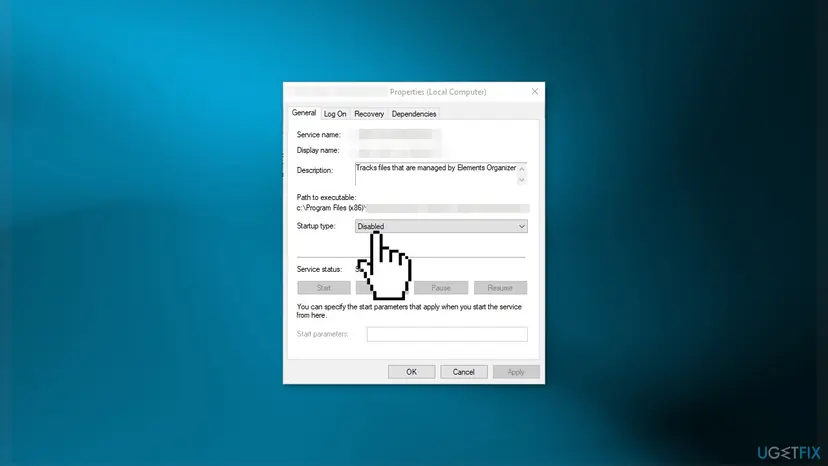
Opening Services, starting a service and changing its startup type: Check and restart Windows services
When the service will not start because another service it needs did not start, Windows logs that differently and the error is 1068. That has its own steps: error 1068: the dependency service or group failed to start.
It worked if: The service shows Running, and no new 7000 entry for it appears after a restart.
If not: If it goes back to Disabled after a restart, something keeps changing it: run a full scan with Windows Security (How to scan for malware with Microsoft Defender), then Fix 8. If it now fails with a logon failure, go to Fix 4.
Fix 4. Fix the Log On account when the error is a logon failure
5 to 10 minutesLow riskThe second line reads "The service did not start due to a logon failure." (1069).
Some app services run under a named user account with a saved password. When that password changes, or the account loses the right to run as a service, the service cannot sign in and fails at every start.
- In Services, open the service's Properties and select the Log On tab.
- If This account is selected with a user name, type the account's current password in both password boxes and select Apply.
- If the service belongs to Windows or to an app whose maker says it runs as Local System, select Local System account instead.
- Select OK, right-click the service and select Start.
- Restart the PC and check the System log.
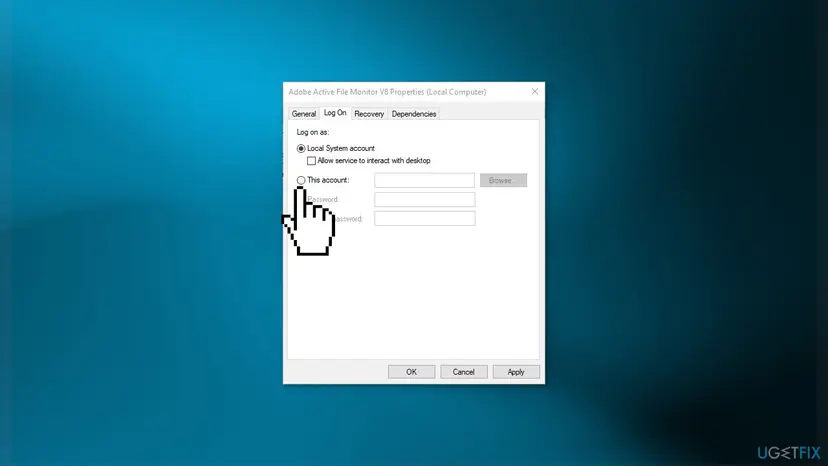
A named account also needs the Log on as a service right. On Windows Pro, Enterprise or Education, run secpol.msc and open Local Policies > User Rights Assignment > Log on as a service to check that the account is listed. Windows Home has no such editor; there, retype the password or use the account the program's maker names.
Change the account only back to what it should be. Running a service under your personal account, or adding its account to Administrators, gives that service more power than it needs and breaks again at your next password change.
It worked if: The service starts, and the logon failure is gone from the next start.
If not: If you do not know which account is right, ask the program's maker or reinstall the program with Fix 6, which writes its service settings again.
Fix 5. Give a slow service more time when it times out at startup
10 minutesRead the warningThe second line reads "The service did not respond to the start or control request in a timely fashion." (1053), often with event 7009 just before.
Windows waits only a limited time for each service to report that it started. At boot many services start at once, so a slow one runs out of time, although it starts fine later by hand.
- In Services, right-click the service and select Start. If it starts now, the problem is only timing.
- Open its Properties and set Startup type to Automatic (Delayed Start), then Apply.
- Restart and check the log. A delayed service starts shortly after the others, when the PC is less busy.
- Only if it still times out: raise the time limit in the registry, as below.
A wrong change in this key can stop Windows from starting services. Make a backup first so you can undo it: Back up the registry before editing it A longer limit also means Windows waits longer for a service that really hangs, so start will be slower in that case.
- Press Win + R, type
regeditand press Enter. - Go to
HKEY_LOCAL_MACHINE\SYSTEM\CurrentControlSet\Control. - If there is no ServicesPipeTimeout value, select Edit > New > DWORD (32-bit) Value and name it
ServicesPipeTimeout. - Double-click it, select Decimal, type
60000(60 seconds, in milliseconds) and select OK. - Restart the PC.
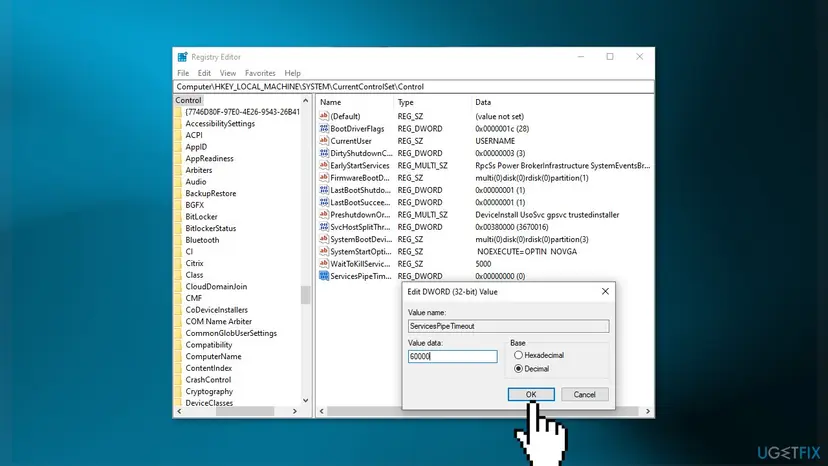
It worked if: The service starts at boot, and there is no new 7000 or 7009 entry for it.
If not: If it still times out with 60 seconds, the service hangs rather than starts slowly. Repair or update its program with Fix 6, and delete the ServicesPipeTimeout value again.
Fix 6. Repair or reinstall the program when its file cannot be found
10 to 20 minutesLow riskThe second line reads "The system cannot find the file specified." (2), or the service belongs to a program that misbehaves.
The service still points to a program file that is no longer there. Microsoft documents this for SQL Server: when Sqlservr.exe is renamed, event 7000 shows exactly this error, and the fix is to repair the installation.
- Run
sc qcwith the service name and copy the BINARY_PATH_NAME. - Open that folder in File Explorer and check whether the file is there.
- If the program is still installed, open Settings > Apps > Installed apps (Windows 10: Apps & features), select the program's ... menu and choose Modify or Repair if it offers one.
- If there is no repair, uninstall the program, restart, and install the current version from its maker.
- If you removed the program long ago, uninstall what is left of it, or run its maker's cleanup tool if it has one.
Uninstalling a program completely: Uninstall a program or app in Windows
sc delete <name> removes a service for good and cannot be undone. Use it only for a service of a program you have uninstalled, never for a Windows or driver service, and run sc qc <name> first to save its settings.
It worked if: The service starts, or it is gone with its program, and no new 7000 entry appears.
If not: If the missing file is in C:\Windows, Windows itself is damaged: go to Fix 8.
Fix 7. Update or remove the driver when it is blocked or fails to load
10 to 15 minutesLow riskThe second line reads "This driver has been blocked from loading." (1275), or a driver for a device you use fails with 1058.
Windows refuses some old or incompatible drivers. The device or tool that needs the driver then cannot work, and the event repeats at every start until a newer driver replaces it.
- Find the driver file from BINARY_PATH_NAME in
sc qc, and look up which device or program it belongs to. - Get the current driver from the device or PC maker, or update it in Device Manager.
- If the driver belongs to a program you no longer use, uninstall that program.
- Restart and check the System log.
Updating, rolling back or reinstalling a driver in Device Manager: Update, roll back or reinstall a driver
Do not turn off Windows security features to let a blocked driver load. A blocked driver is replaced, not forced.
It worked if: The device works with the new driver, or the old driver is gone, and the event stops.
If not: If the maker has no newer driver, the device may not support your Windows version. See the section below.
Fix 8. Repair Windows system files with DISM and SFC
15 to 30 minutesNo riskSeveral Microsoft services fail with different errors, or the missing file is a Windows file.
When a Windows service's own files are damaged, it fails whatever its settings are. DISM repairs the store of Windows components, and SFC then puts damaged system files back from it.
- Open an elevated command window. Right-click Start and select Terminal (Admin), or type cmd in the search box, right-click Command Prompt and select Run as administrator. Select Yes when Windows asks for permission.
- Run DISM first. Type the command below and press Enter. DISM downloads clean copies of damaged components from Windows Update, so it can take several minutes. Wait until it says The operation completed successfully.
DISM.exe /Online /Cleanup-Image /RestoreHealth - Run System File Checker. In the same window, type the command below and press Enter. Do not close the window until the verification reaches 100%.
sfc /scannow - Read the result and restart. Compare the last message with the table below this guide, then restart the PC so that repaired files are loaded.
These steps were written for Windows 11 24H2 and 25H2. The full page with the other versions and what each result means: Run DISM and SFC to repair Windows system files

It worked if: SFC reports no integrity violations or says it repaired them, and the services start after a restart.
If not: Go back to a restore point from before the errors began: Undo recent changes with System Restore Then collect the details in the next section.
If Event ID 7000 keeps coming back: what to read and what to collect
Before you post in Microsoft's forum or contact a program's maker, collect these. They answer the first questions anyone will ask.
- The full text of the event, both lines, from the General tab, and how often it repeats.
- The output of
sc qc <name>for the failing service: program file, startup type and account. - The entries just before and after it, especially 7009, 7026, 7001 or 7023 from Service Control Manager.
- What changed. Run
perfmon /relto open Reliability Monitor, which lists installs, updates and removals by day. - Your Windows version and build. Press Win + R, type
winverand note both.
| Sign | What it means |
|---|---|
| The failing driver belongs to a device that is in Device Manager with a warning sign. | The device or its driver fails. Check the device itself and its maker's driver. |
| The PC also freezes, restarts by itself or shows blue screens. | Event 7000 is a side effect. Look for event 41, 6008 or a crash dump, and check memory and disk. |
| Many services fail with different errors at once. | Windows is damaged. Fix 8, then System Restore or a repair install: Reinstall Windows without losing files |
| The service belongs to a program that does not support your Windows version. | No setting will fix it. Update the program or remove it. |
Windows 10 left support on 14 October 2025. Events and fixes are the same on Windows 10 22H2, but a Windows 10 PC gets no more security fixes, so old drivers and services there will not be repaired by updates.
How to avoid Event ID 7000 in the future
- Uninstall programs and device software with their own uninstaller, so their services go too.
- Change only the services a guide names, and note their old startup type first.
- Update the password on the Log On tab when you change the password of an account a service uses.
- Keep System Protection on for drive C:, so a restore point exists before big changes.
- Do not use "disable unneeded services" lists or tweak tools.
- Do not delete program folders by hand while the program is installed.
- Do not set every service to Automatic; it adds start time and more chances of a timeout.
- Do not raise ServicesPipeTimeout before you try Automatic (Delayed Start).
Frequently asked questions
What does Event ID 7000 mean?
Event ID 7000 means Service Control Manager could not start a service. It is logged in Event Viewer under Windows Logs > System with the level Error. The first line names the service, for example "The Net.Pipe Listener Adapter service failed to start due to the following error:". The second line gives the reason, such as a disabled service, a logon failure, a timeout or a missing file. That second line decides the fix, so read it before you change anything.
Is Event ID 7000 harmful, or can I ignore it?
You can ignore it when the failing service is a driver for a device you do not have and nothing on the PC is broken. Microsoft describes exactly this case for events 7000 and 7026. A failed service does not run, so it uses no resources and does not slow the PC down. It matters when the service belongs to something you use, such as a network feature, an antivirus or a database: then that feature does not work until you fix the error the event names.
How do I find which service causes Event ID 7000?
Open Event Viewer with eventvwr.msc, go to Windows Logs > System and filter the log by the ID 7000. The General tab of each entry names the service in its first line. Then run sc qc with that name in an administrator Command Prompt: BINARY_PATH_NAME shows the program file, so you can tell whether it is a Windows service, a driver or a part of an installed app. The PowerShell command in Fix 1 lists the last 20 entries at once.
What does "The service did not respond to the start or control request in a timely fashion" mean in event 7000?
It is Windows error 1053: the service did not report that it started within the time Windows waits. It happens most at boot, when many services start together, and it often comes with event 7009. Start the service by hand first; if it starts, set it to Automatic (Delayed Start). Raise the ServicesPipeTimeout value in the registry only if that does not help, and back up the registry first, as Fix 5 shows.
What does "The service did not start due to a logon failure" mean?
It is Windows error 1069. The service is set to sign in with an account that cannot log on, most often because its password changed and the old one is still saved on the Log On tab. Type the current password there, or put back the account the service should use, such as Local System for many Windows services. A named account also needs the Log on as a service right, which you can check in secpol.msc on Pro editions.
Is Event ID 7000 different on Windows 11 and Windows 10?
No. The event, its text, Service Control Manager and the fixes are the same on Windows 11 and Windows 10. Event Viewer, Services, sc qc and sc config look and work the same way. Only the Settings path to installed apps differs a little, and Fix 6 gives both. Windows 10 left support on 14 October 2025, so a Windows 10 PC no longer gets fixes for its own services and drivers.
What is the difference between Event ID 7000, 7009 and 7026?
Event 7000 says that one service failed to start and why. Event 7009 says Windows ran out of time while waiting for a service to connect, which is often followed by a 7000 entry with error 1053 for the same service. Event 7026 lists boot-start or system-start drivers that did not load. Microsoft documents 7000 and 7026 together for drivers of devices that are not connected. Read all of them together, but fix the service the 7000 entry names.
I see Event ID 7000 for SQL Server. What should I do?
Read the second line. Microsoft documents one case. When the SQL Server program file Sqlservr.exe is renamed, the service does not start. Event 7000 then says "The system cannot find the file specified." Check the SQL Server installation folder for the file and repair the installation with SQL Server Setup, as Fix 6 describes. If the second line is a logon failure instead, the service account's password changed, and Fix 4 applies.
Does Event ID 7000 mean my PC has a virus?
Usually not. Most 7000 entries come from drivers of absent devices, leftovers of removed programs or a changed password. Malware is worth checking when a security service, such as a Windows Security or firewall service, fails or keeps going back to Disabled after you turn it on. Then run a full scan and an offline scan with Windows Security before you change anything else.
Can System Restore fix Event ID 7000?
Sometimes. System Restore puts back service settings and drivers from an earlier day, which helps when the errors began after a tweak tool, a driver or a program changed them. It does not help with a driver for a device that is simply not connected. Try the fix that matches the error first, and use System Restore when several services broke at the same time or you cannot tell what the right settings were.
Sources
- Microsoft Learn: Event ID 7000 or 7026 is logged in the System log (driver service enabled for a device that is not connected; Start value 3 or 4) (learn.microsoft.com)
- Microsoft Learn: Event ID 7000 and SQL Server doesn't start (sample event text, "The system cannot find the file specified") (learn.microsoft.com)
- Microsoft Learn: System Error Codes (1000-1299), 1053, 1058, 1068, 1069 and 1275 (learn.microsoft.com)
Did this fix work?
One click, no account. It tells the next reader which guides are worth their time.
Questions and experiences: fix Event ID 7000 in Service Control Manager
Still broken, or found a fix we did not cover? Ask here: members and our editors answer. Reading is open; writing needs a free account.
…