How to fix
Event ID 800 error
on Windows
Resolve Event ID 800 error on Windows 10 and 11 effortlessly. Follow our expert-tested guide for quick fixes that restore your system's functionality.

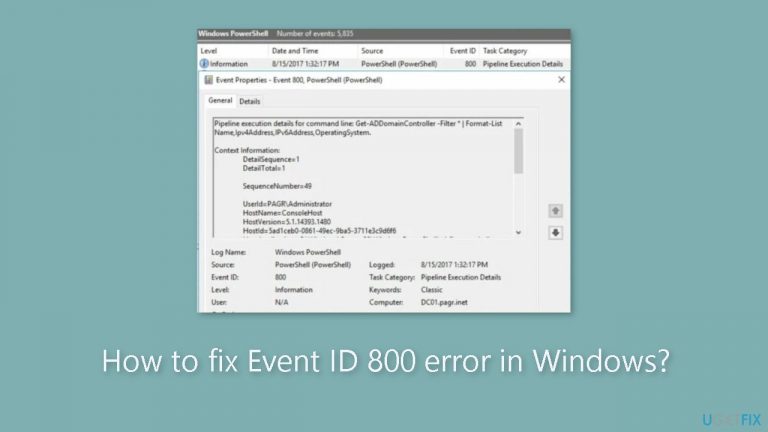
What causes How to fix Event ID 800 error in Windows?
- Misconfigured DNS settings on client machines
- Misconfigured primary DNS server
- Network connectivity issues
- Incorrect zone settings
- Missing or outdated DNS records
- Conflicts with other DNS servers
Repairs Windows system files, removes malware, and restores a clean OS state — without reinstalling.
Hello. I can't do DNS updates on my Windows PC and I get the Event ID 800 error. How do I resolve this?
When DNS clients are unable to resolve the primary server address for a specific zone, Event ID 800 occurs in Windows. This error typically indicates a DNS[ref en-1] configuration issue in which the clients are unable to locate the primary DNS server in charge of resolving domain names within the zone.
When this problem occurs, it can have a variety of effects on users and their network connectivity. Users may have trouble accessing websites because the DNS resolution process is unable to identify the correct IP address associated with the domain names they are attempting to access. This can lead to slow or failed webpage loading, disrupted internet connectivity, and impaired communication between network devices.
The Event ID 800 error can be caused by a range of factors. It could be due to misconfigured DNS settings on the client machines or the primary DNS server itself. Network connectivity issues, such as DNS server unavailability or incorrect network configurations, can also contribute to this error. Additionally, incorrect zone settings, missing or outdated DNS records, or conflicts with other DNS servers can be potential causes.
To resolve the Event ID 800 error, several troubleshooting steps can be taken. These may include verifying the DNS client settings, ensuring the primary DNS server is correctly configured, checking network connectivity, and reviewing the zone settings and DNS records. Solutions may involve updating DNS server addresses, checking network configurations, restarting DNS services, repairing or recreating DNS records, or resolving any conflicts with other DNS servers.
In this guide, you will find 3 steps that should help you fix Event ID 800 error in Windows. You can also try a maintenance tool like [d1] that can fix most system errors, BSODs,[ref en-2] corrupted files, and registry[ref en-3] issues. Otherwise, follow the step-by-step instructions below.
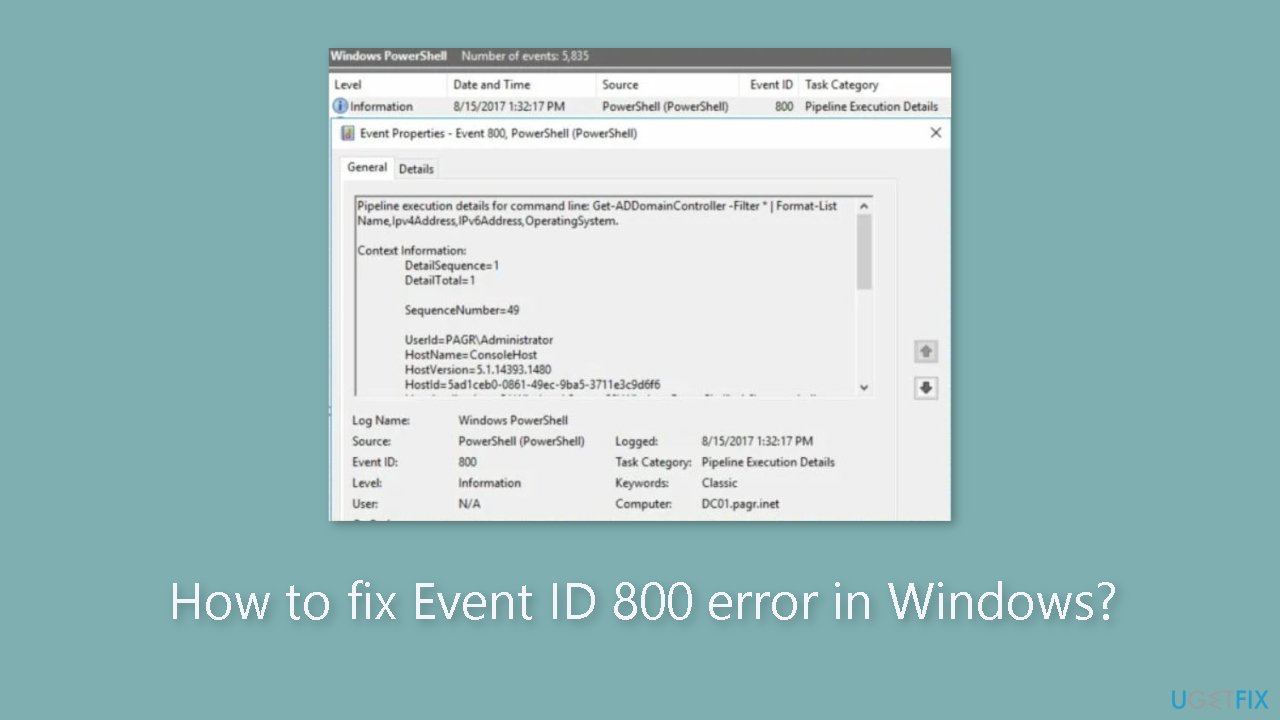
Method 1. Fix Zone SOA Configuration
- Press the Windows key to open the Start menu on the DNS server.
- Type server manager in the search bar of the Start menu.
- Select the relevant search result to launch Server Manager.
- In the left navigation pane, expand Roles, followed by DNS Server and DNS.
- Right-click the DNS server and select Properties from the context menu.
- Switch to the Start of Authority (SOA) tab.
- Verify that the correct server is enlisted as the Primary server.
- If needed, click the Increment button to apply the changes to other authoritative servers in case you change the primary server.
- Switch to the Name Servers tab.
- Verify that each server enlisted matches its IP address.
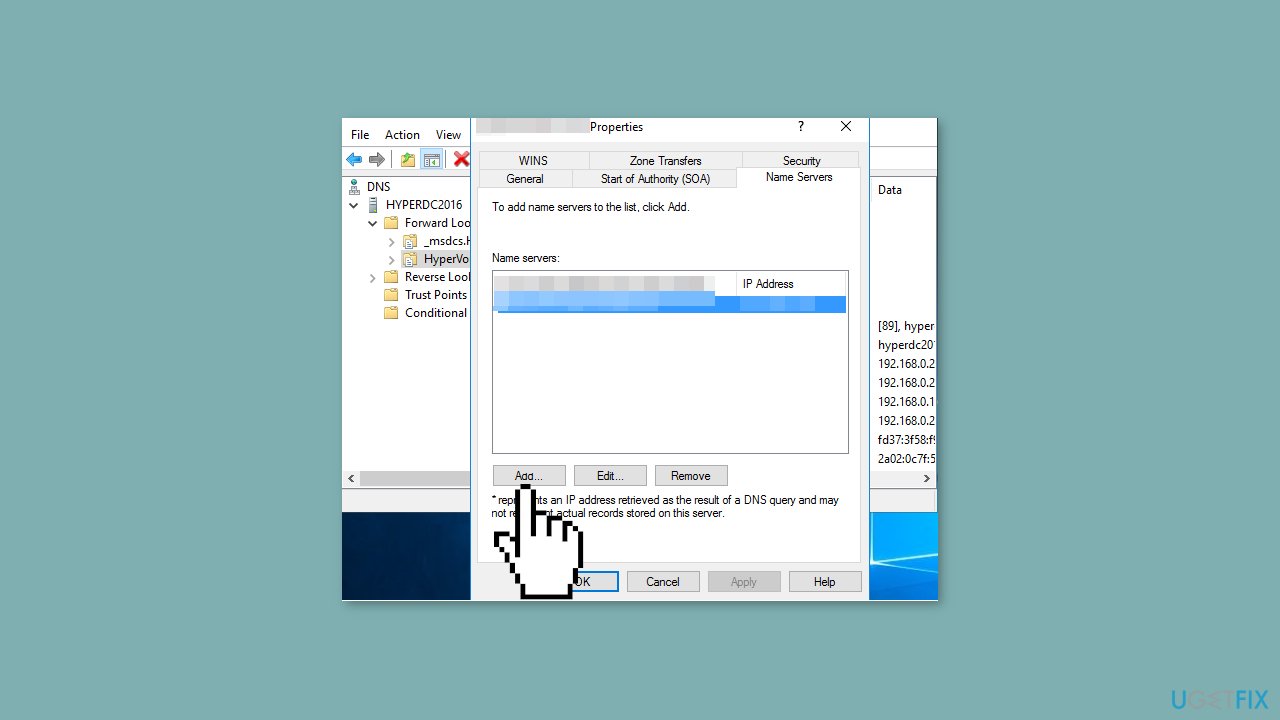
- Press the Add button to change and specify the correct IP address for the server.
- Click OK to save the changes.
- In the right navigation pane, verify that the zone includes a host (A or AAAA) resource record for the primary server.
- If the host resource record for the primary server is absent, right-click the Zone.
- Click New Host (A or AAAA).
- Type the name of the primary server in the Name field.
- Enter the IP address of the primary server in the IP address field.
- Click the Add Host button.
Method 2. Verify Domain Name System Configuration
- Press the Windows icon on the taskbar to open the Start menu.
- Type Server Manager in the search bar.
- Select the relevant Server Manager from the search results.
- Double-click on Roles in the console tree on the left.
- Double-click on DNS Server and then on DNS to expand the tree.
- Right-click on the DNS server and choose Properties from the context menu.
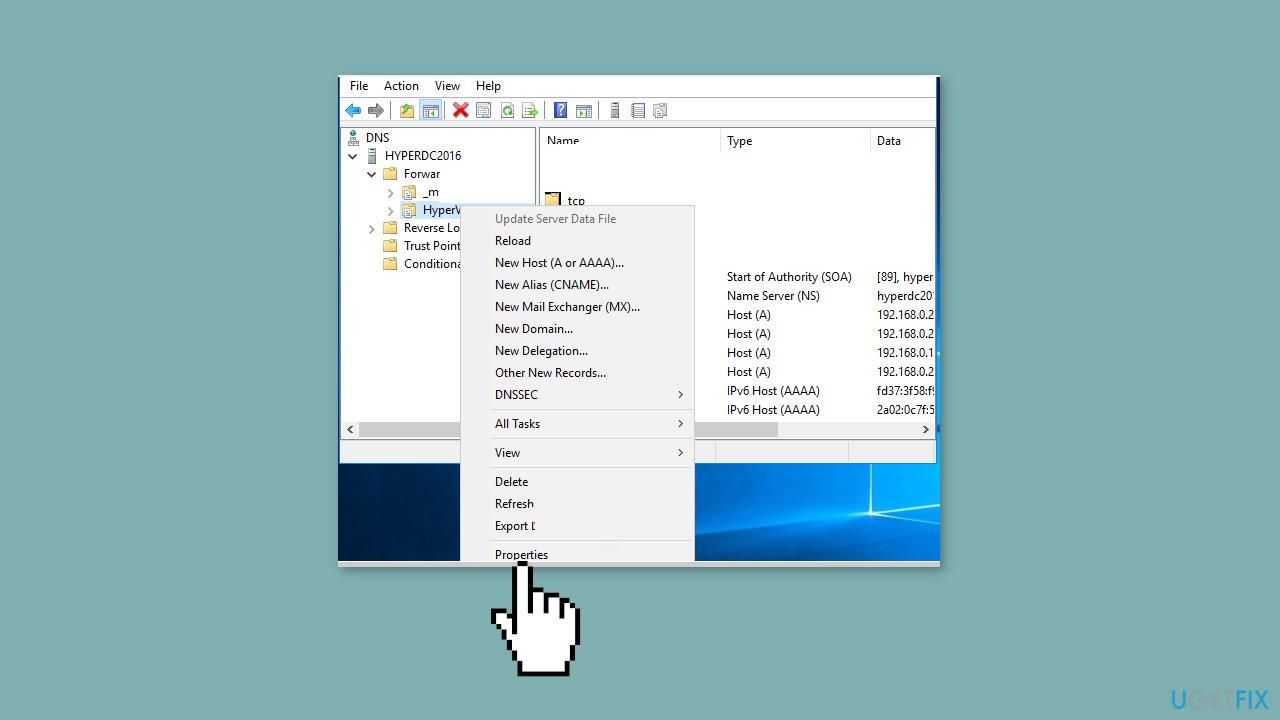
- Switch to each tab in the properties window and review the options, ensuring they have the correct values.
- Close the Properties window.
- Expand the DNS server in the console tree.
- Expand the zone folder.
- Right-click on a zone from the list and choose Properties from the context menu.
- Review the values assigned to all the options on each tab of the properties window and ensure they are correct.
- Repeat the steps for each zone in the list.
- Review the related settings for each zone on the DNS server.
Method 3. Ensure DNS Client Computers can Resolve Names
- Press the Windows key on the keyboard to open the Start menu.
- Type cmd in the search bar.
- From the search results, right-click on Command Prompt and choose Run as administrator.
- In the Command Prompt window, type or paste the following command:
ping hostname
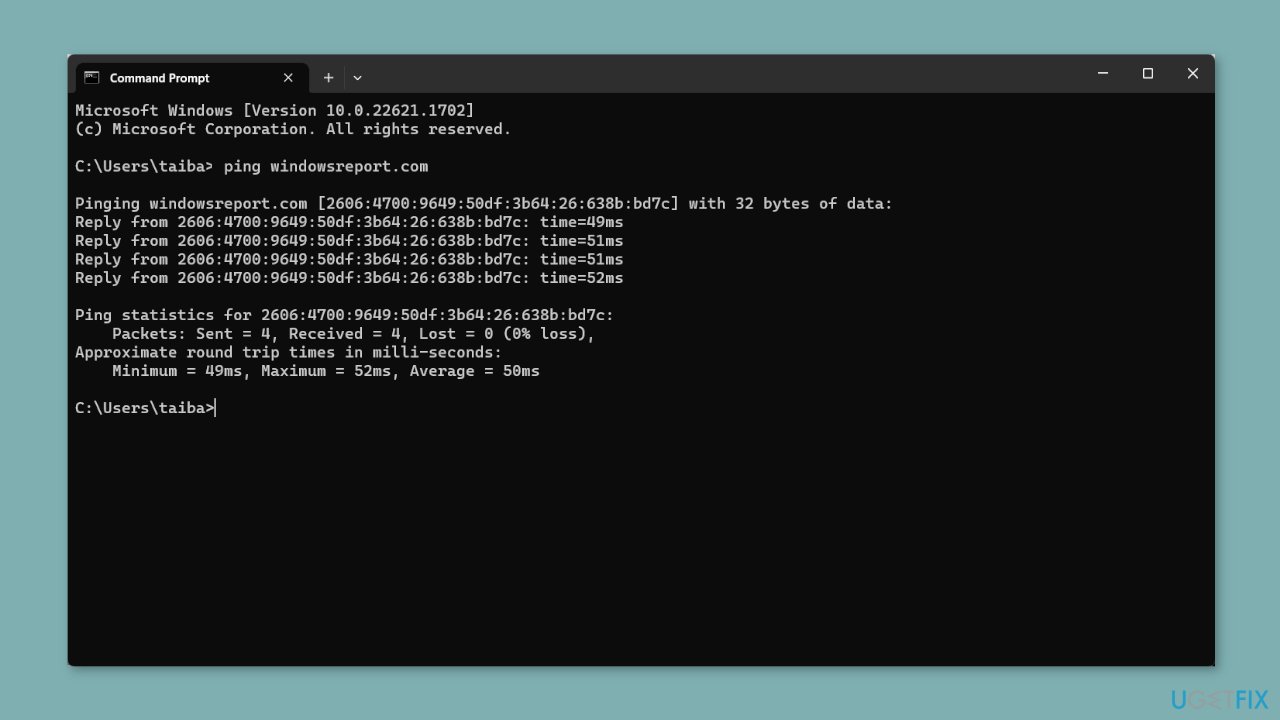
- Replace hostname with the DNS name of a computer with a known IP address.
- Press Enter to execute the command.
- If the DNS client can successfully resolve the name, the following message will be displayed in the Command Prompt window:
Pinging hostname [ip_address]
- If the name resolution is not successful, the following error message will be displayed:
Ping request could not find host hostname
Bottom line
To resolve the Event ID 800 error, you should verify DNS client settings, ensure the primary DNS server is correctly configured, and check network connectivity. Additionally, review zone settings and DNS records. If these steps do not resolve the issue, consider using a maintenance tool to fix system errors.
Frequently asked questions
Event ID 800 errors are often caused by issues with the Windows Event Log service, corrupted system files, or problematic software installations.
To resolve the Event ID 800 error on Windows 11, try running the System File Checker tool by executing 'sfc /scannow' in Command Prompt with administrator privileges.
To prevent Event ID 800 errors in Windows 10, ensure your system is updated regularly, and avoid installing unverified third-party applications that may interfere with system processes.




Report an issue
What's wrong with this guide? We review every report and update or remove content.
Report received — thank you. We'll review and fix it.
You need a free account to submit a report.
Be the first to comment