How to fix
Event ID 8193: Volume Shadow Copy Service error
on Windows
Resolve the Volume Shadow Copy Service error (Event ID 8193) in Windows 10 and 11 quickly with our proven fixes. Expert-tested solutions await!


What causes How to fix Event ID 8193: Volume Shadow Copy Service error in Windows?
- Permissions issues
- VSS service not running
- Interfering system settings
- Corrupted system files
- Registry issues
Repairs Windows system files, removes malware, and restores a clean OS state — without reinstalling.
Hello. I keep seeing the Event ID 8193: Volume Shadow Copy Service error in Event Viewer on Windows. How do I fix this?
Event ID 8193 is a common error that occurs in Windows' Volume Shadow Copy Service (VSS).[ref en-1] The VSS is a Windows feature that allows the creation of snapshots or shadow copies of files and folders on the system while they are in use. These shadow copies can be used to recover data in the event of accidental deletion or other types of data loss.
The Volume Shadow Copy Service allows backups and restore points to be created without shutting down the system or requiring users to close applications that may be using the files being backed up. This feature is especially beneficial to businesses and organizations that must ensure the availability and integrity of data on their systems.
When the VSS is unable to complete a backup or restore operation due to permissions or other system settings issues, the Event ID 8193 error occurs. This can have a variety of consequences, including data loss or the inability to restore data from a backup. It may also impair system performance or stability.
Checking system permissions, ensuring that the VSS service is running, and making changes to system settings that may be interfering with the VSS are all possible solutions to the Event ID 8193 error. It is important to note that changing the system registry or other system settings can be risky.
In this guide, you will find 5 steps that should help you fix Event ID 8193: Volume Shadow Copy Service error in Windows. Keep in mind that the manual troubleshooting process can be lengthy. You can use a maintenance tool like [d1] that can fix most system errors, BSODs,[ref en-2] corrupted files, and registry[ref en-3] issues. Otherwise, follow the step-by-step instructions below.
Method 1. Fix Corrupted System Files
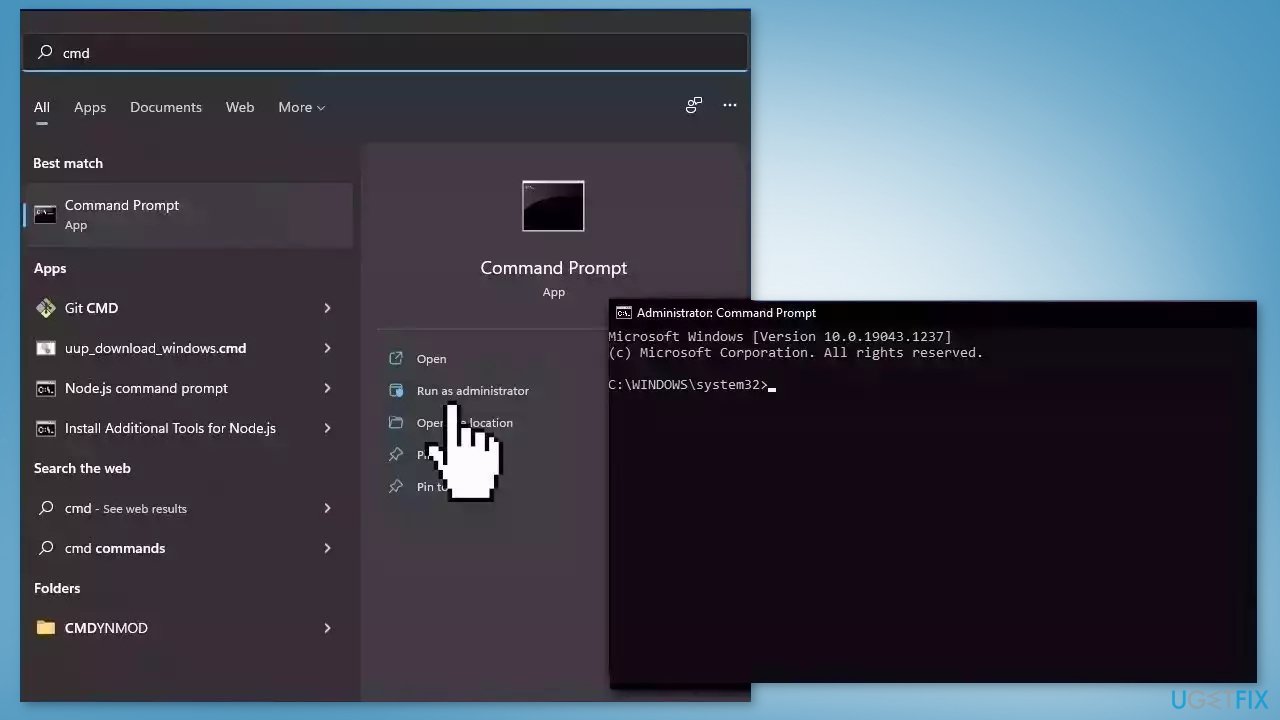
Use Command Prompt commands to repair system file corruption:
- Open Command Prompt as administrator
- Use the following command and press Enter:
sfc /scannow
- Reboot your system
- If SFC returned an error, then use the following command lines, pressing Enter after each:
DISM /Online /Cleanup-Image /CheckHealth
DISM /Online /Cleanup-Image /ScanHealth
DISM /Online /Cleanup-Image /RestoreHealth
Method 2. Allow Permissions for Diag
Registry Editor:
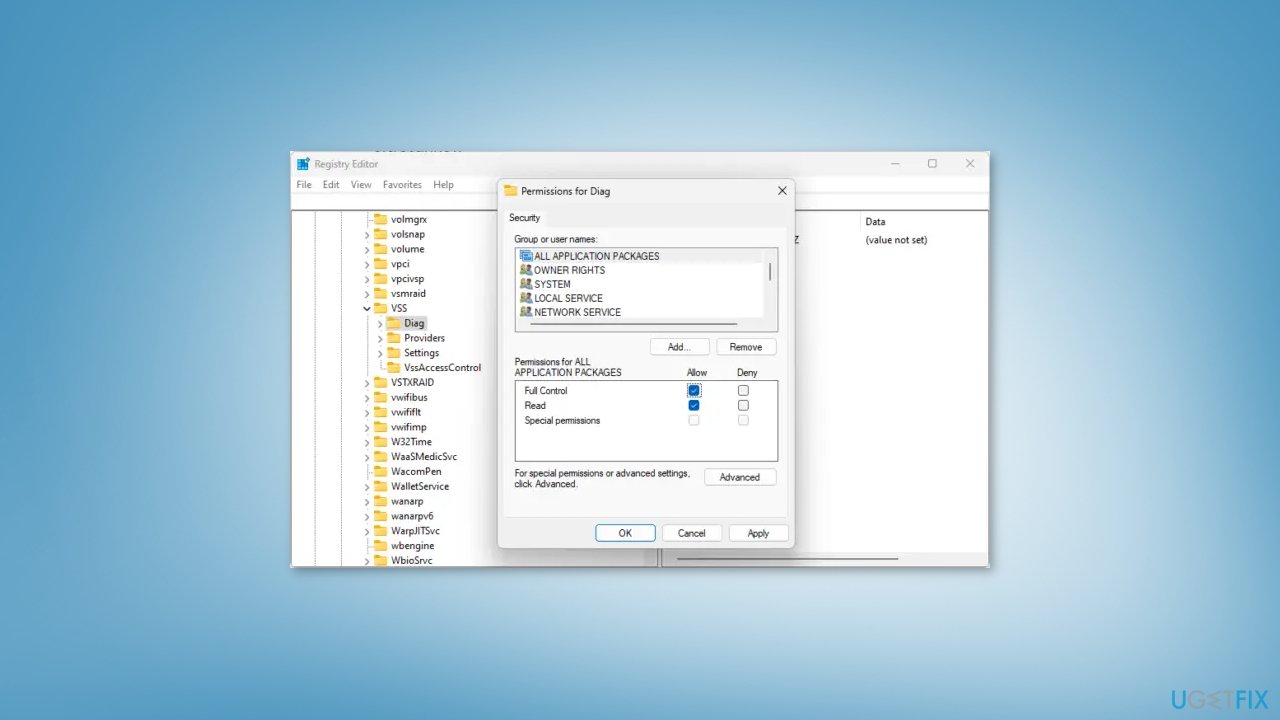
- Open the Registry Editor and navigate to the following path:
Computer\HKEY_LOCAL_MACHINE\SYSTEM\CurrentControlSet\Services\VSS\Diag
- Right-click on the Diag key and select Permissions
- Under Permissions Allow Full Control and click on OK to save the changes
- Close the Registry Editor and check if the issue is gone
PowerShell:
- Open Windows Powershell as an Administrator
- Type the following commands and hit Enter after each one:
$path = 'HKLM:\System\CurrentControlSet\Services\VSS\Diag\'
$sddl = 'D:PAI(A;;KA;;;BA)(A;;KA;;;SY)(A;;CCDCLCSWRPSDRC;;;BO)(A;;CCDCLCSWRPSDRC;;;LS)(A;;CCDCLCSWRPSDRC;;;NS)(A;CIIO;RC;;;OW)(A;;KR;;;BU)(A;CIIO;GR;;;BU)(A;CIIO;GA;;;BA)(A;CIIO;GA;;;BO)(A;CIIO;GA;;;LS)(A;CIIO;GA;;;NS)(A;CIIO;GA;;;SY)(A;CI;CCDCLCSW;;;S-1-5-80-3273805168-4048181553-3172130058-210131473-390205191)(A;ID;KR;;;AC)(A;CIIOID;GR;;;AC)S:ARAI'
$acl = Get-Acl -Path $Path
$acl.SetSecurityDescriptorSddlForm($sddl)
Set-Acl -Path $Path -AclObject $acl
- Close the PowerShell window
Method 3. Remove Temporary Internet Files
- Open File Explorer
- Type C:\Windows\Microsoft.NET\Framework64\v2.0.50727\TemporaryInternetFiles in the text box at the top and hit Enter
- This will open the Temporary Internet Files folder
- Select all files and folders within the folder by pressing Ctrl + A
- Press Delete to delete all files
- If prompted to confirm the action, click on Yes
- Restart your computer
- Check if the error has been fixed
Method 4. Use System Restore
System Restore is a feature in Microsoft Windows that allows users to revert their computer's state to a previous point in time. This can be helpful if you have made changes to your system that are causing problems.
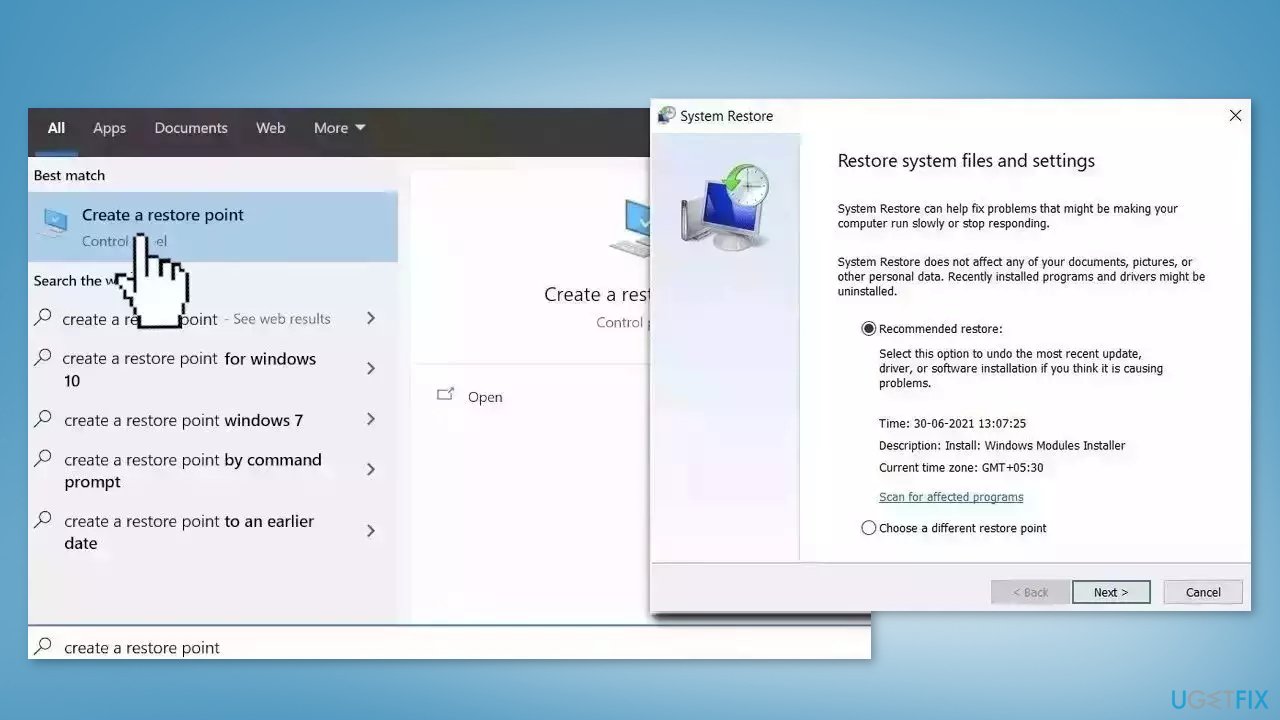
- Go to the Start menu, type restore, and click on Create a restore point
- Click System Restore, then follow the prompts until you can select a restore point
- Select the one you want (ideally before the issue started occurring) and go ahead with the process
Method 5. Repair Install Windows
- Visit the official Microsoft website to download Windows 11 or Windows 10 Installation Media
- Run the Media Creation Tool and select Create Installation Media for another PC
- Select your USB drive
- Let the Process complete of writing the Installation files to the USB drive
- Click Finish
- On the PC you wish to upgrade, Press Windows + E to open the File Explorer
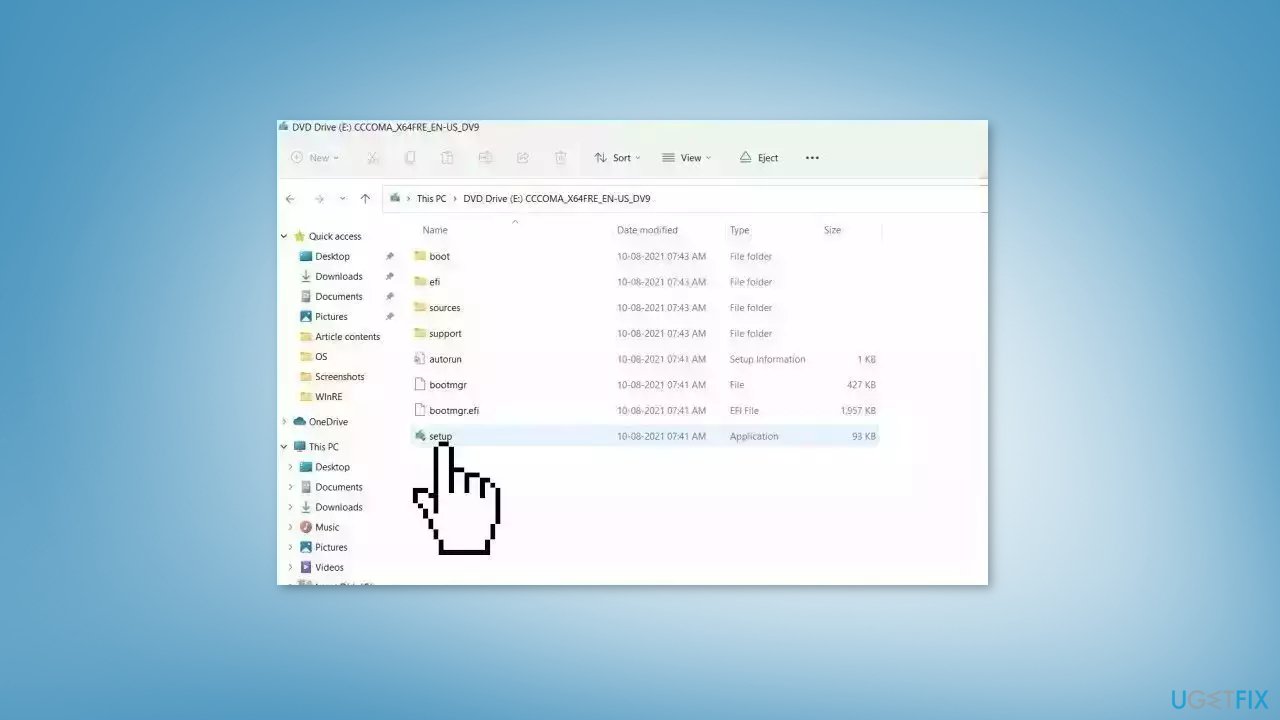
- Open the Removable drive and click Setup.exe
- Accept the license terms on the next screen
- Confirm the Upgrade options – Files, apps and Settings are kept
- Click Install, and the upgrade should start
Bottom line
To fix Event ID 8193, check system permissions, ensure the VSS service is running, and address any system settings that may interfere with VSS. Additionally, repairing corrupted system files using Command Prompt can help resolve the issue. If these steps do not work, consider using a maintenance tool to fix system errors.
Frequently asked questions
Event ID 8193 indicates a Volume Shadow Copy Service (VSS) error, which typically occurs when the system is unable to create a shadow copy of a volume due to configuration or permission issues.
To resolve the VSS error on Windows 11, you can try restarting the Volume Shadow Copy service and ensuring that the necessary permissions are set correctly for the VSS components.
Yes, you can run commands such as 'vssadmin list writers' to check the status of VSS writers and 'sfc /scannow' to repair any corrupted system files that may be causing the error.




Report an issue
What's wrong with this guide? We review every report and update or remove content.
Report received — thank you. We'll review and fix it.
You need a free account to submit a report.
Be the first to comment