How to fix
Event Viewer error “CldFlt service failed to start”
on Windows
Resolve the "CldFlt service failed to start" error in Windows 10 and 11 easily. Quick fixes and expert tips ensure smooth performance, updated 2025.

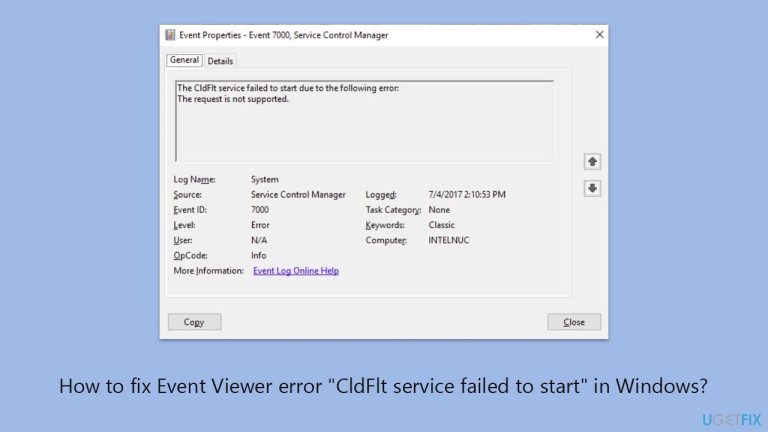
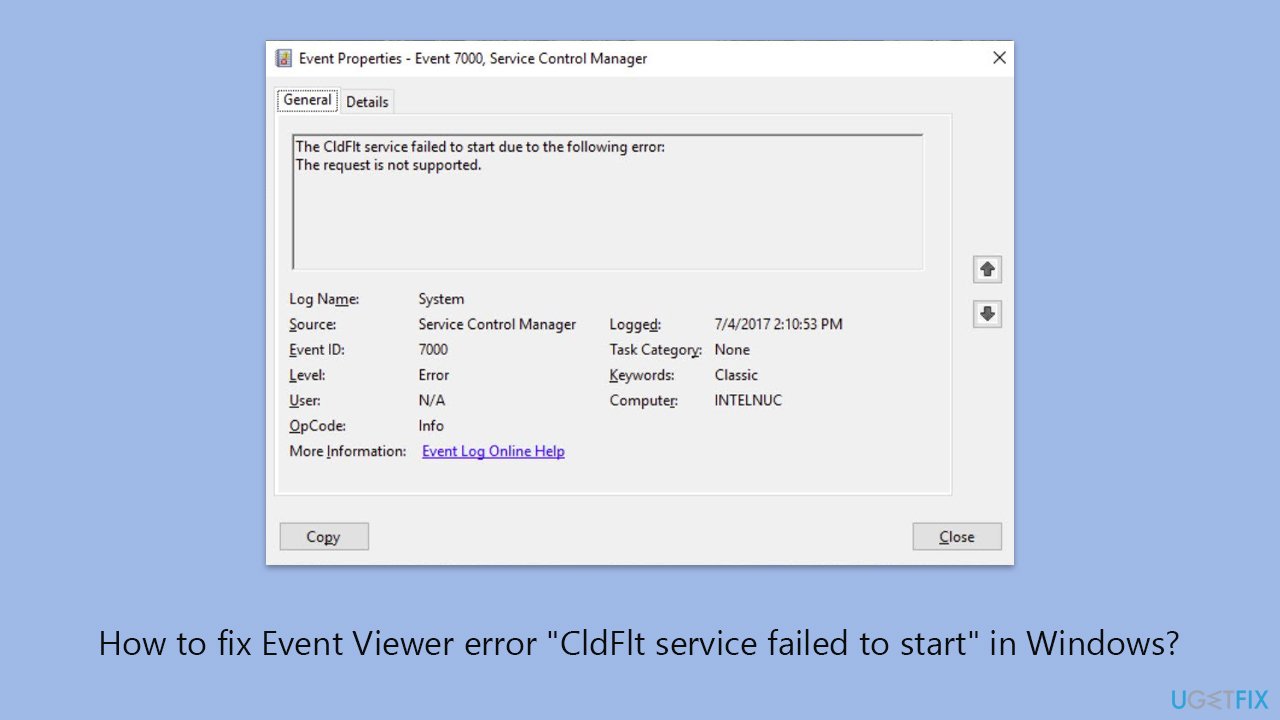
What causes How to fix Event Viewer error “CldFlt service failed to start” in Windows?
- CldFlt service is not required and fails to load
- OneDrive is disabled or not actively syncing
- Recent Windows update issues
- File system corruption
- Missing registry entries
Repairs Windows system files, removes malware, and restores a clean OS state — without reinstalling.
Every time I check Event Viewer, I see a warning that says “The CldFlt service failed to start.” I don’t notice anything wrong with how my PC runs, but it keeps showing up after every reboot. Should I be worried about this, and how do I fix it?
If you've been browsing through Windows Event Viewer and noticed the “CldFlt service failed to start” error, you're not alone. This message is fairly common and typically shows up after restarting or booting the system. While it might not come with obvious symptoms, it can raise concerns about background processes or services not working as intended.
The CldFlt service is part of the Cloud Files Mini Filter Driver system - a core component behind Windows' integration with OneDrive and its Files On-Demand feature. This service enables placeholder files to appear in File Explorer and download only when needed. If the driver doesn't start, those files might not load properly or could appear unavailable.
In most cases, the “CldFlt service failed to start” warning is benign, especially on systems where OneDrive is disabled or not actively syncing. The service may simply fail to load because it isn't required, and Windows logs it anyway.
However, if you do use OneDrive or other services that rely on placeholder file technology, this error could potentially interfere with syncing or accessing cloud-stored content. It may also signal an issue with a recent Windows update or file system corruption.
To resolve the CldFlt service failed to start error, manual fixes can involve enabling the service, repairing system files, or checking for missing registry entries. These solutions and more are listed below. If the issue continues or appears alongside other problems, the [d1] repair tool can help by scanning for and fixing related system-level conflicts automatically.
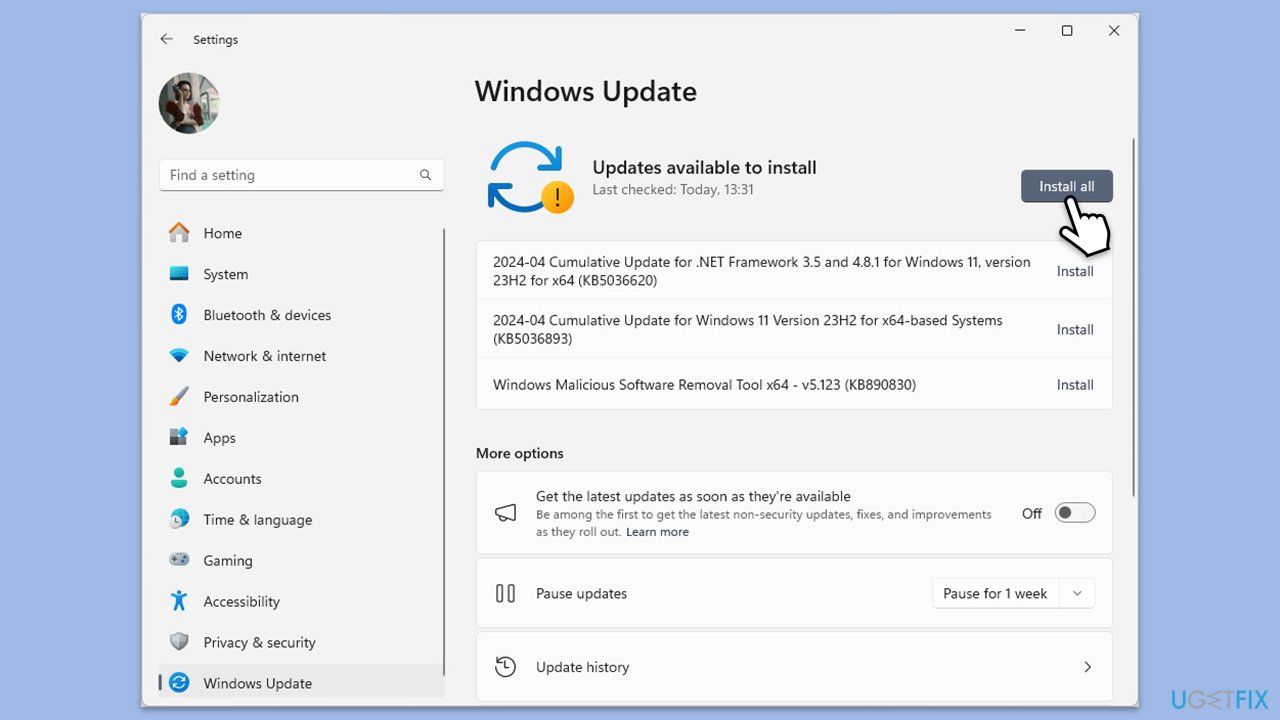
Fix 1. Check for recent Windows updates
Microsoft may release fixes for system service issues through updates.
- Type Updates in Windows search and press Enter.
- Here, click Check for updates or Install updates, depending on which one is available.
- Wait till Windows downloads and installs all the necessary files.
- If optional updates are available, install them too.
- Restart your computer and try logging in again.
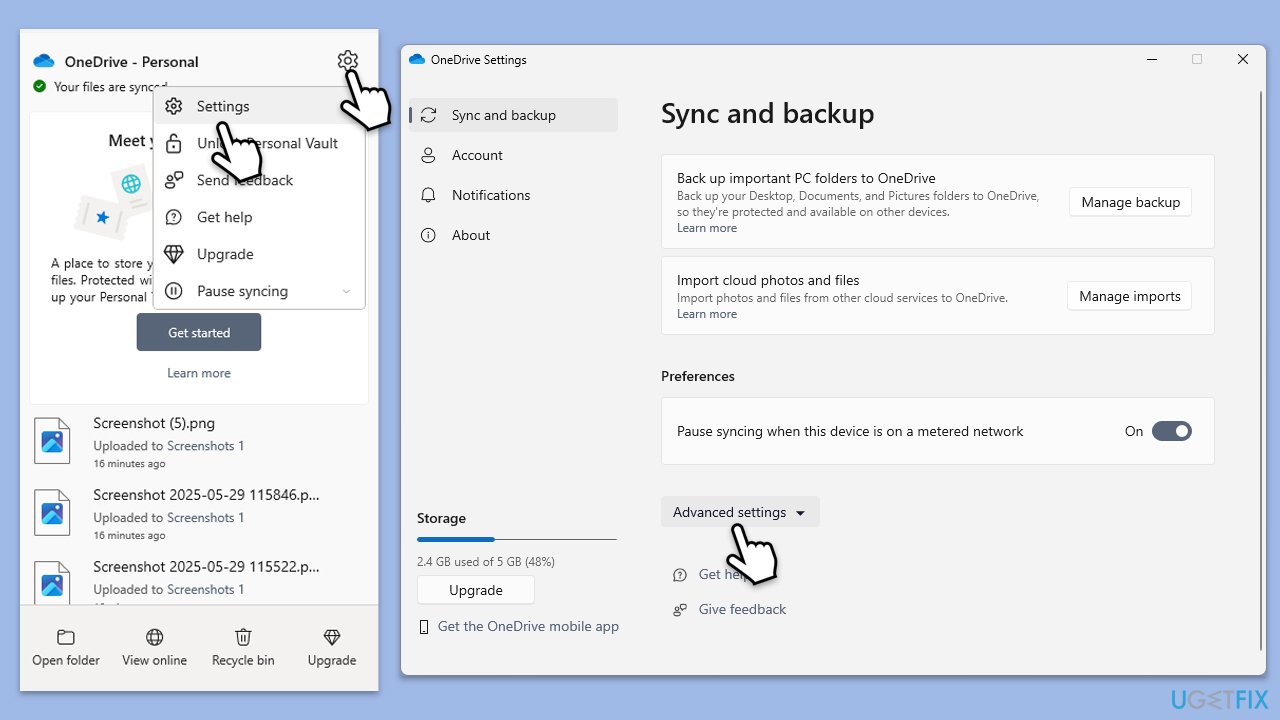
Fix 2. Check if Files On-Demand is enabled in OneDrive
The CldFlt service supports OneDrive's Files On-Demand. If the feature is disabled or OneDrive isn't in use, the service might fail to start.
- Click the OneDrive icon in the taskbar.
- Go to Settings.
- Under the Sync and backup tab, click on Advanced settings at the bottom.
- Check if Files On-Demand is enabled.
- If it's disabled and you use OneDrive, enable it and restart your PC.
- If you don’t use OneDrive, you can safely ignore the error or disable the service.
Fix 3. Enable the CldFlt service manually
Sometimes the service is simply not enabled, causing Windows to log a failure every time it boots.
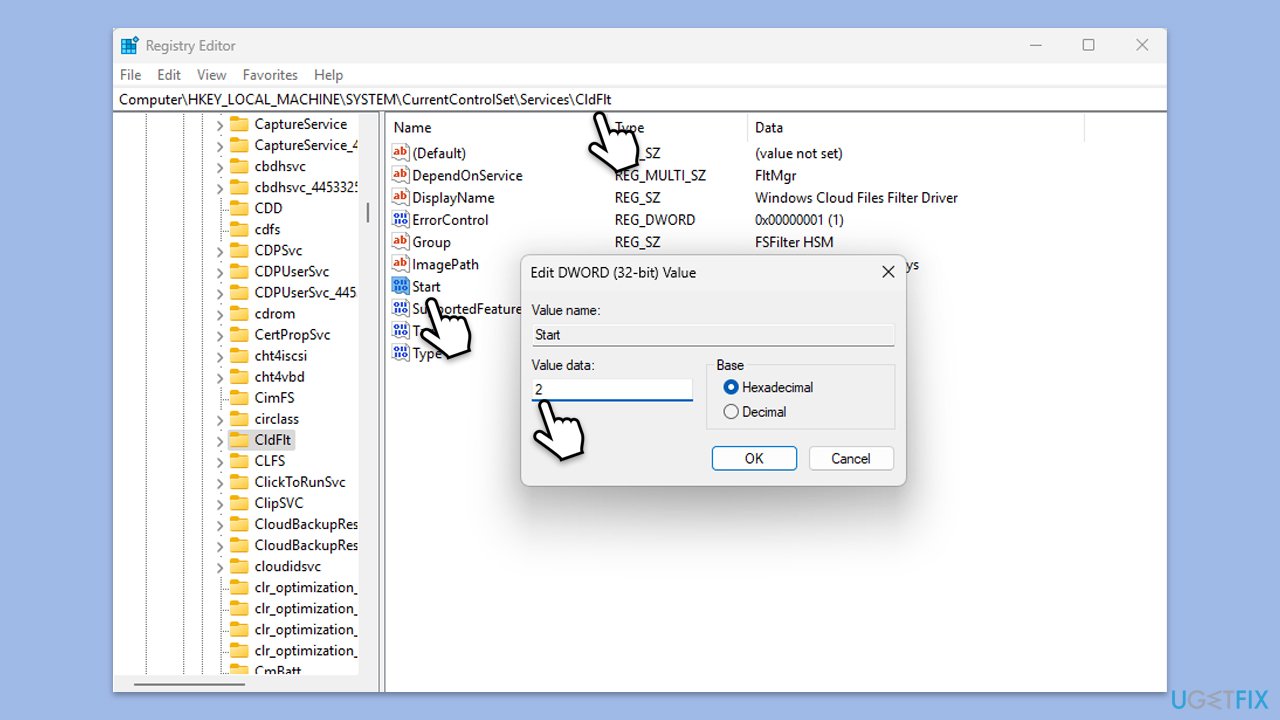
- Type regedit in Windows search and press Enter.
- When User Account Control shows up, confirm by pressing Yes.
- Navigate to:
HKEY_LOCAL_MACHINE\SYSTEM\CurrentControlSet\Services\CldFlt - On the right pane, double-click Start.
- Set the value to 2 to enable the service.
- Click OK and close Registry Editor.
- Restart your computer.
Fix 4. Run SFC and DISM scans
Corrupted system files can interfere with Windows services and cause them to fail. DISM can help you with repairing possible issues with the Windows image.
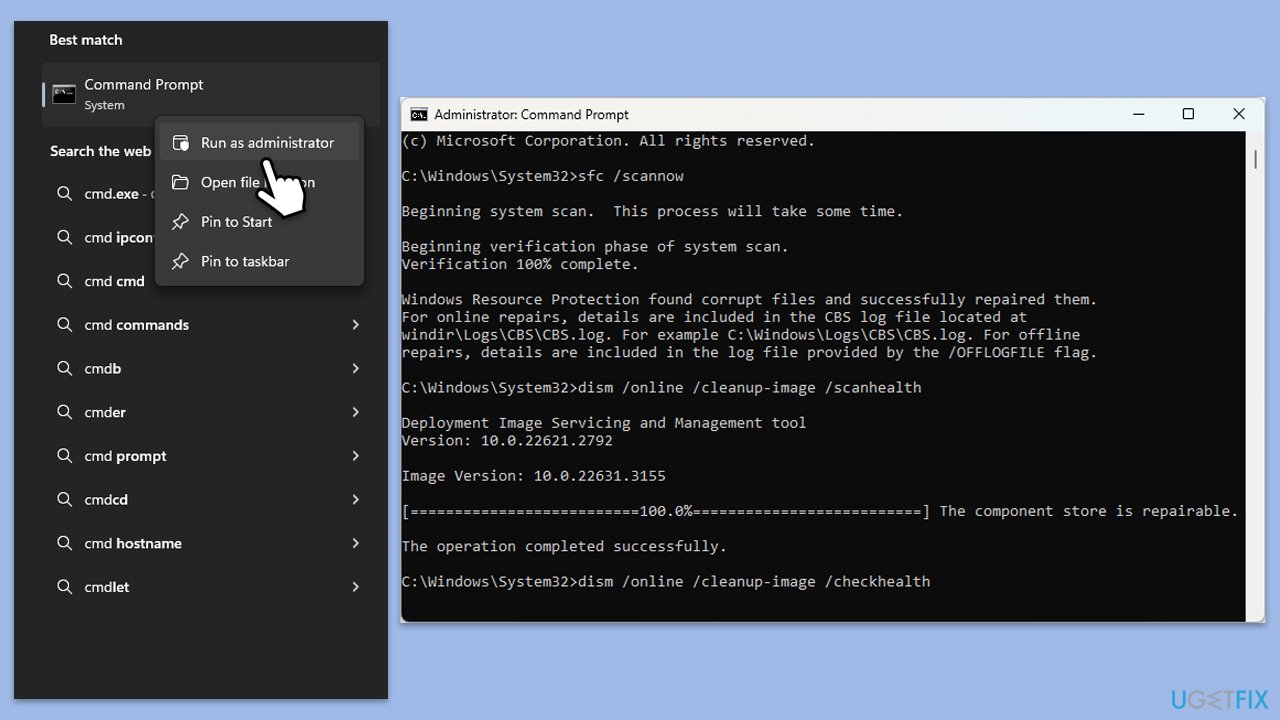
- Type cmd in Windows search.
- Right-click on Command Prompt and pick Run as administrator.
- Click Yes when prompted by User Account Control.
- Then, copy and paste the following command, pressing Enter after:
sfc /scannow - Wait till the scan is finished. If Windows finds system file integrity violations, it will attempt to fix them. After this, use the set of the following commands, pressing Enter each time:
DISM /Online /Cleanup-Image /CheckHealth
DISM /Online /Cleanup-Image /ScanHealth
DISM /Online /Cleanup-Image /RestoreHealth - (Note: if you get an error executing this last command, add /Source:C:\RepairSource\Windows /LimitAccess to it and try again).
- Close down the Command Prompt and restart your computer.
Fix 5. Re-register the CldFlt driver
If the driver is misconfigured or not linked properly, re-registering it can resolve the error.
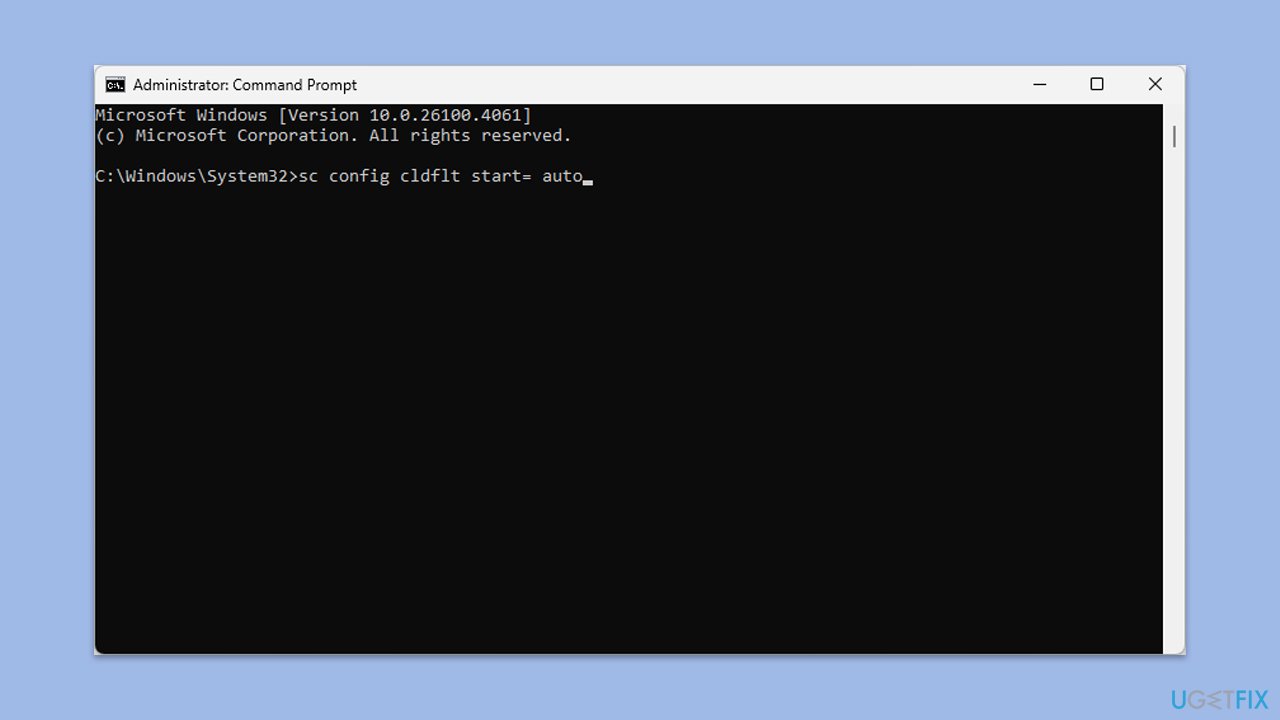
- Open Command Prompt as administrator.
- Type the following and press Enter:
sc config cldflt start= auto - Then type:
sc start cldflt - Restart your PC and check Event Viewer again.
Bottom line
To resolve the 'CldFlt service failed to start' error, you can check for recent Windows updates, enable the service, repair system files, or check for missing registry entries. If the issue persists or is accompanied by other problems, consider using a repair tool to automatically scan for and fix related system-level conflicts.
Frequently asked questions
This error typically occurs due to issues with the Cloud Files Filter Driver, often related to corrupted system files or misconfigured settings.
You can check the status of the CldFlt service by opening the Services app and looking for 'CldFlt' in the list; if it’s not running, you can attempt to start it manually.
If the service continues to fail, consider performing a system file check using the 'sfc /scannow' command in Command Prompt to repair any corrupted files.




Report an issue
What's wrong with this guide? We review every report and update or remove content.
Report received — thank you. We'll review and fix it.
You need a free account to submit a report.
Be the first to comment