How to fix
Event Viewer not working
on Windows
Resolve the Event Viewer issue on Windows 10 or 11 effortlessly. Follow our expert-tested guide and get it fixed in minutes.

What causes How to fix Event Viewer not working in Windows?
- Event Viewer service is not running
- Insufficient permissions for Event Viewer
- Corrupted system files
- Missing Event Viewer components
- Outdated Windows version
Repairs Windows system files, removes malware, and restores a clean OS state — without reinstalling.
Hello. The Event Viewer has stopped working on my Windows PC. Is there a way to fix this? Any suggestions would be highly appreciated.
Event Viewer is a Windows administrative tool that allows users to view and analyze system events and error logs. It provides detailed information about various operating-system events such as application crashes, system errors, security-related events, and more. Users primarily use Event Viewer to troubleshoot problems, diagnose errors, and monitor system performance.
The failure of Event Viewer in Windows can have a significant impact on users' ability to effectively manage their systems and troubleshoot issues. Users may struggle to identify the root causes of system issues, track down specific errors, or monitor critical events if they do not have access to Event Viewer. This can make it difficult for them to diagnose problems, make informed decisions, and take appropriate action to resolve technical issues on their computer.
The inability of Event Viewer to function may make troubleshooting software conflicts, diagnosing system crashes, or identifying security breaches more difficult. Furthermore, without Event Viewer, users may have difficulty monitoring system performance, tracking event trends, or identifying patterns that may indicate potential problems or risks.
Troubleshooting the underlying cause is required to resolve the issue of Event Viewer not working. Restarting the Windows Event Log service, ensuring appropriate permissions and settings for Event Viewer, verifying the integrity of system files, or reinstalling Event Viewer components are all possible solutions.
In this guide, you will find 7 steps that should help you fix Event Viewer not working. You can also run an automatic system repair tool like [d1] that can fix most system errors, BSODs,[ref en-1] corrupted files, and registry[ref en-2] issues. Otherwise, follow the step-by-step instructions below.
Solution 1. Install Windows Updates
- Press the Windows key + I on your keyboard to open the Settings window.
- From the left sidebar, click on the Windows Update tab.
- Click on the Check for updates button.
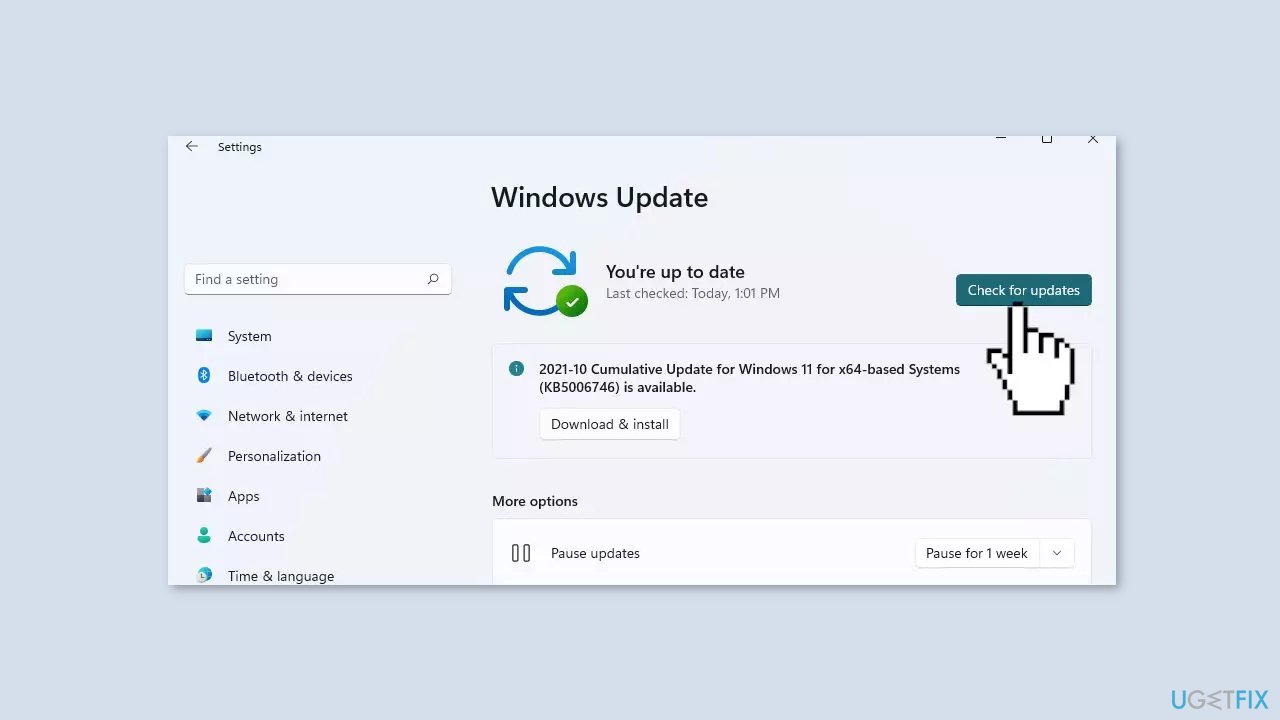
- Wait while Windows checks for available updates.
- If new updates are found, download and install them.
- Follow the on-screen instructions to complete the update process.
Solution 2. Fix Corrupted System Files
Use Command Prompt commands to repair system file corruption:
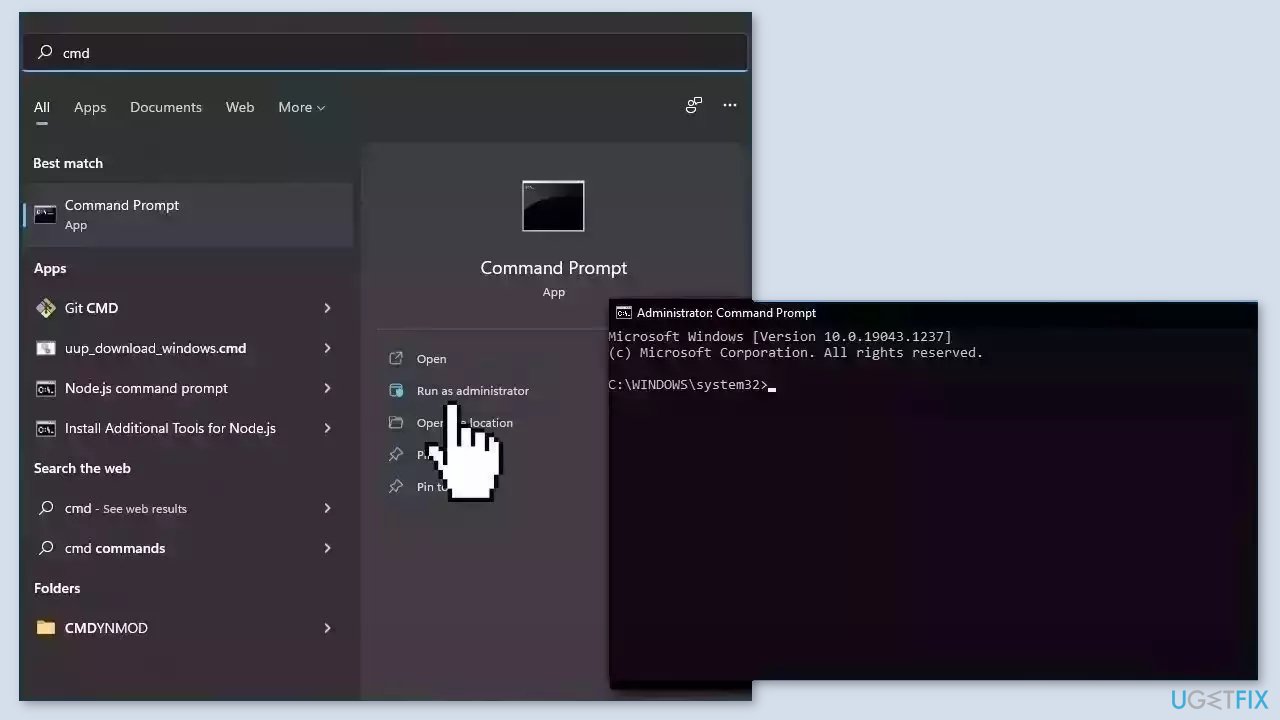
- Open Command Prompt as administrator
- Use the following command and press Enter:
sfc /scannow
- Reboot your system
- If SFC returned an error, then use the following command lines, pressing Enter after each:
DISM /Online /Cleanup-Image /CheckHealth
DISM /Online /Cleanup-Image /ScanHealth
DISM /Online /Cleanup-Image /RestoreHealth
Solution 3. Check Disk
Ensure that your disk is not damaged. You can perform checks using Administrative Command Prompt:
- If you are using an HDD as your main driver (where your operating system is installed – C: by default), use the following command and press Enter:
chkdsk c: /f - If you are using SSD, use this command:
chkdsk c: /f /r /x
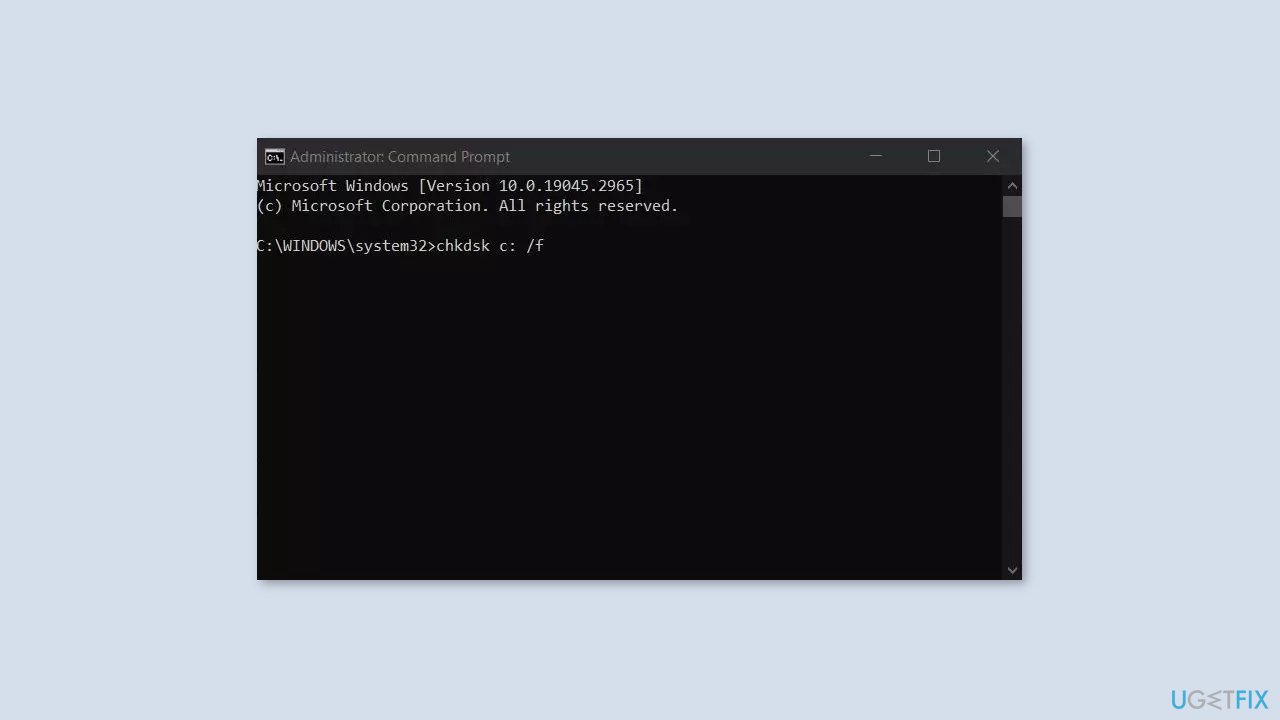
- If you receive an error, type in Y and hit Enter.
- Restart your device to perform the check.
Solution 4. Restart the Windows Event Log Service
- Press the Windows key + R to open the Run dialog box.
- Type services.msc into the Run dialog box.
- Click OK to open the Services app.
- In the right pane of the Services window, locate the Windows Event Log service.
- Right-click on the Windows Event Log service.
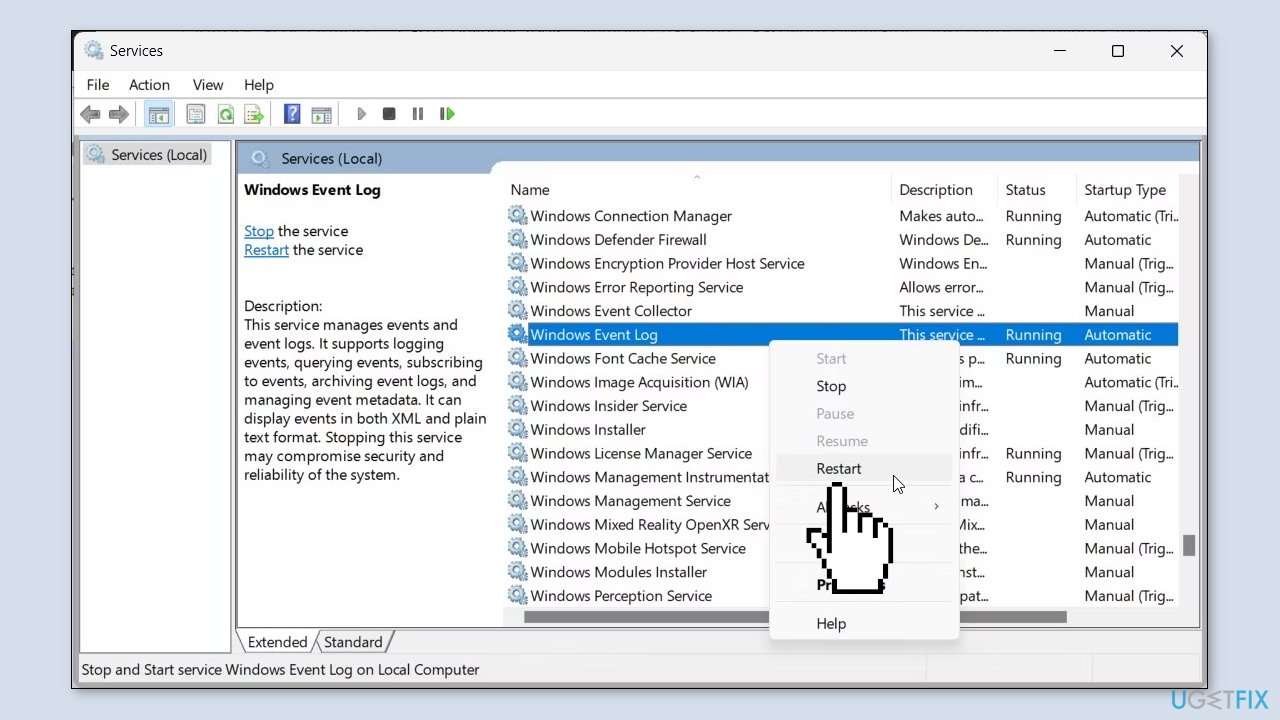
- Select Restart from the context menu.
- Wait for the service to restart completely.
- Close the Services app.
- Try to relaunch Event Viewer to check if the issue is resolved.
Solution 5. Use System Restore
System Restore is a feature in Microsoft Windows that allows users to revert their computer's state to a previous point in time. This can be helpful if you have made changes to your system that are causing problems.
- Press the Windows key + R on your keyboard to open the Run box.
- Type SystemPropertiesProtection and press Enter.
- Go to the System Protection tab.
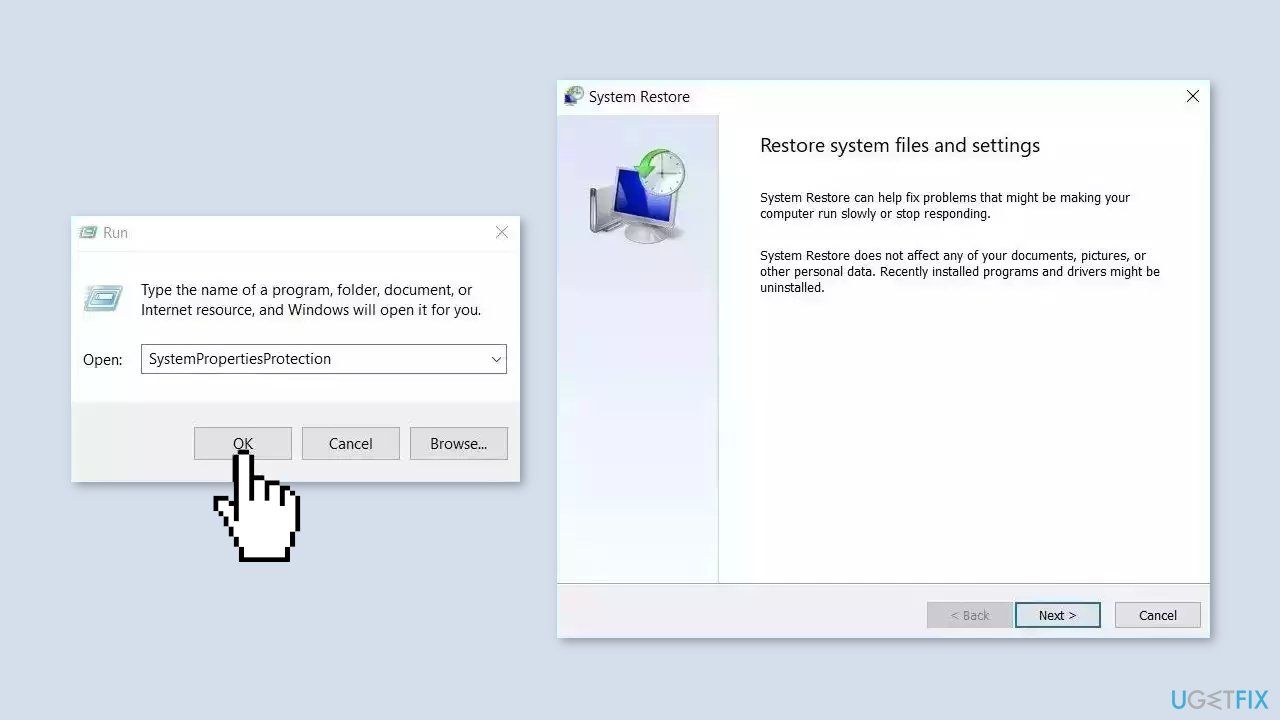
- You will see the System Restore… button. Click it to run System Restore.
- Follow the prompts until you can select a restore point.
- Select the one you want (ideally before the issue started occurring) and go ahead with the process.
Solution 6. Disable Windows Security
- Press the Windows key + I to open the Settings app.
- Choose Privacy & security from the left sidebar.
- Click the Open Windows Security button on the right pane.
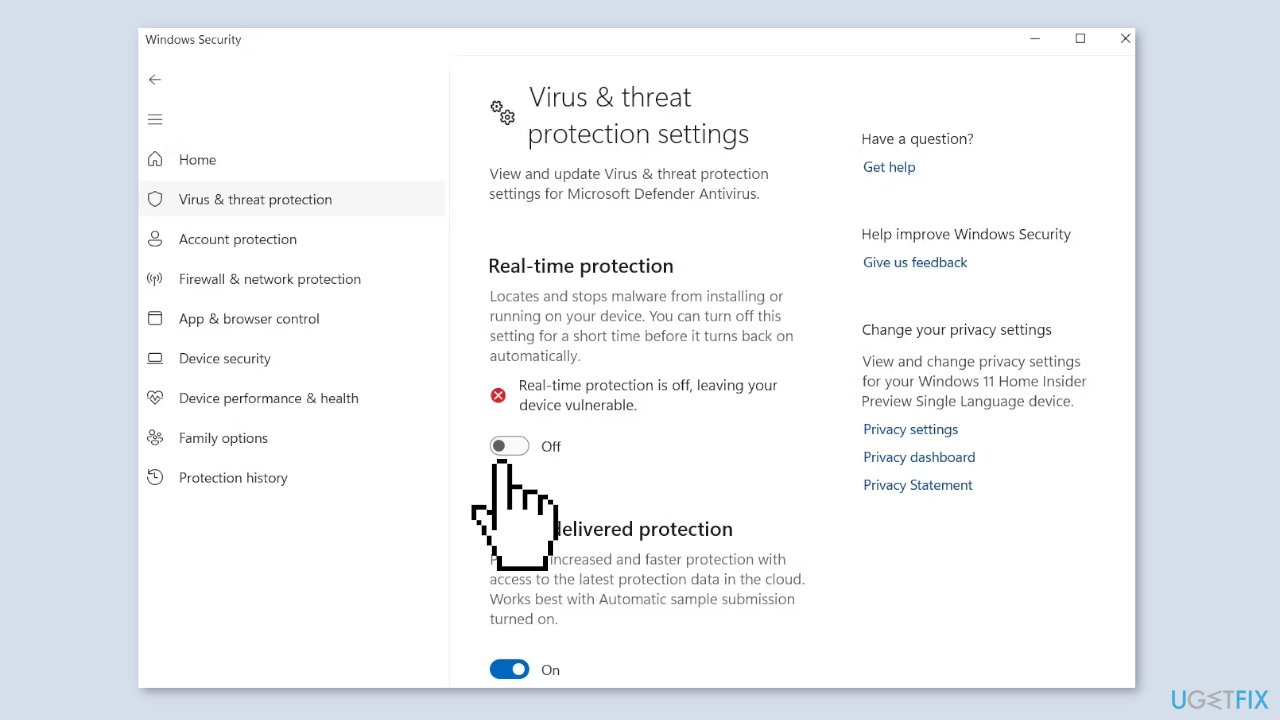
- In the Windows Security app, select Virus & threats protection from the left sidebar.
- Click Manage settings under the Virus & threats protection section.
- Disable the toggle switch under the Real-time protection option.
Solution 7. Repair Install Windows
- Download a Windows ISO file and save it to your PC.
- After the download is complete, right-click on the ISO file and select Mount.
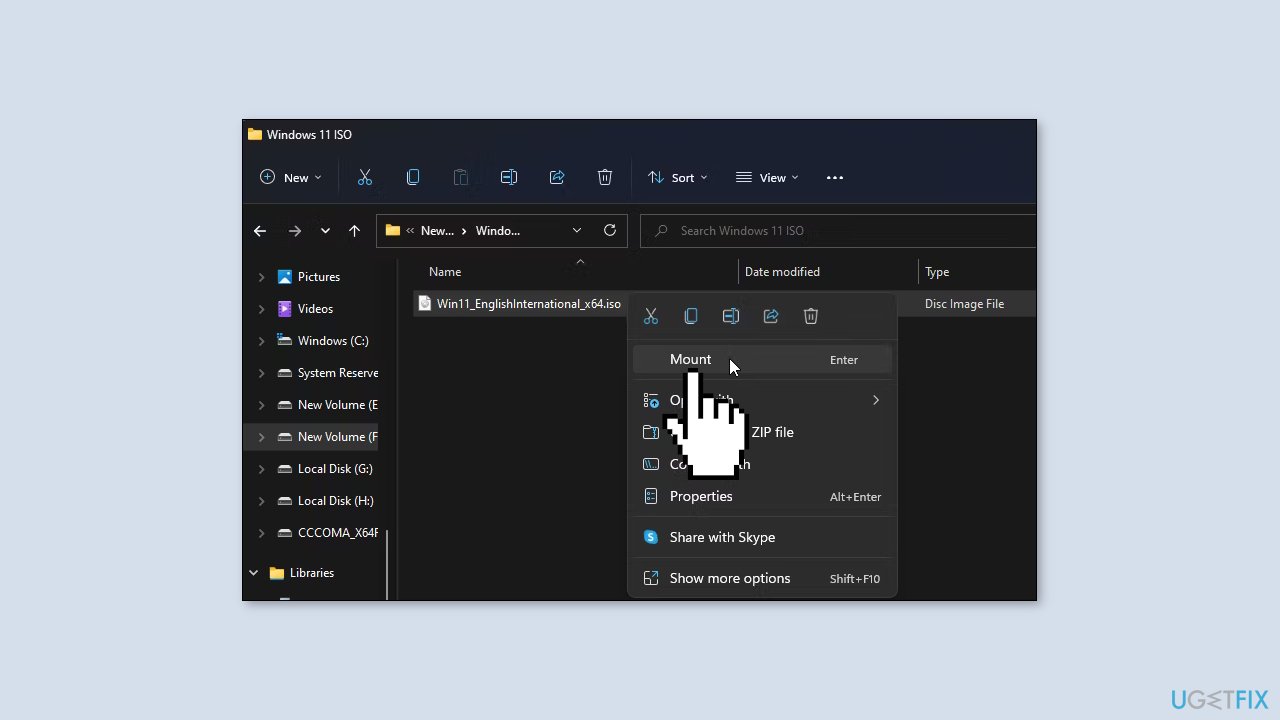
- In File Explorer, go to This PC > Devices and drives and double-click on the newly mounted virtual drive.
- In the Windows Setup window, click on Change how to set up and select Download updates not at the moment.
- Click Accept to continue.
- If a warning related to your display language appears, click OK.
- In the Ready to install window, click Change what to keep.
- Select Keep personal files and apps and click Next. Note that you won’t be able to use your PC during installation, so save all your work and close the apps.
- Next, click on the Install button to begin the process. The upgrade process will take a while to complete.
Bottom line
To fix Event Viewer not working, you can restart the Windows Event Log service, ensure appropriate permissions, verify system file integrity, or reinstall Event Viewer components. Additionally, installing Windows updates may resolve the issue. If none of these solutions work, consider using an automatic system repair tool.




Report an issue
What's wrong with this guide? We review every report and update or remove content.
Report received — thank you. We'll review and fix it.
You need a free account to submit a report.
Be the first to comment