How to fix
Excel files opening in Notepad
on Windows
Resolve the issue of Excel files opening in Notepad on Windows 10 and 11 effortlessly. Expert-tested solutions ensure quick fixes with zero traces left.

What causes How to fix Excel files opening in Notepad on Windows?
- Incorrect file associations for Excel files
- File association changed to Notepad
- Misconfigured system-level settings
- Potential issues with Office installation
- Corrupted Office Suite
Repairs Windows system files, removes malware, and restores a clean OS state — without reinstalling.
I suddenly found that all my Excel files are not opening in Notepad instead, which makes them useless. This happened rather suddenly and I'm not sure what caused it. Any ideas on how to revert this back to normal?
Excel is a powerful spreadsheet program that is an integral part of Microsoft Office Suite. It is widely utilized across a multitude of industries for various purposes like data analysis, financial modeling, tracking business performance, creating reports, and many other functions that make data interpretation and visualization easier. Excel is lauded for its flexibility, robustness, and the diverse functionalities it offers, making it a must-have tool for businesses and individuals alike.
However, some users have recently encountered a peculiar issue where their Excel files, instead of opening in Excel, have been opening in Notepad. This unexpected behavior not only disrupts workflow but also renders these files virtually useless, as Notepad is a text editor and lacks the capabilities to properly display or edit Excel data.
This issue generally arises due to incorrect file associations in the Windows operating system. The OS uses file associations to decide which software to use when a particular file type is opened. If, for any reason, the association for Excel files (.xls, .xlsx, .xlsm) is changed to Notepad, all Excel files will open in Notepad by default. It's important to note that it's not a problem with Excel or Notepad itself but rather a system-level setting that has been misconfigured.
So, what can be done to resolve this issue? Here are a few potential solutions:
- Change Default Programs: You can reset the file associations manually through Windows' Default Programs settings. This will allow you to set Excel as the default program for .xls, .xlsx, and .xlsm files.
- Repair Office Installation: If the issue persists, there may be a problem with your Office installation. Repairing the Office Suite through the control panel might help.
- System Restore: If all else fails, a system restore to a point before the problem starts occurring could be your last resort.
These suggestions can guide you to resolve the Excel file association issue. However, it is advised to follow the specific step-by-step instructions provided in the sections below. Before proceeding, we also recommend using the [d1] repair tool, which could address underlying issues that may be causing Excel files to open in Notepad.
Fix 1. Change default application via Windows settings
One of the easiest solutions to this problem is to set the default app for the particular file type that Excel uses. Here's how:
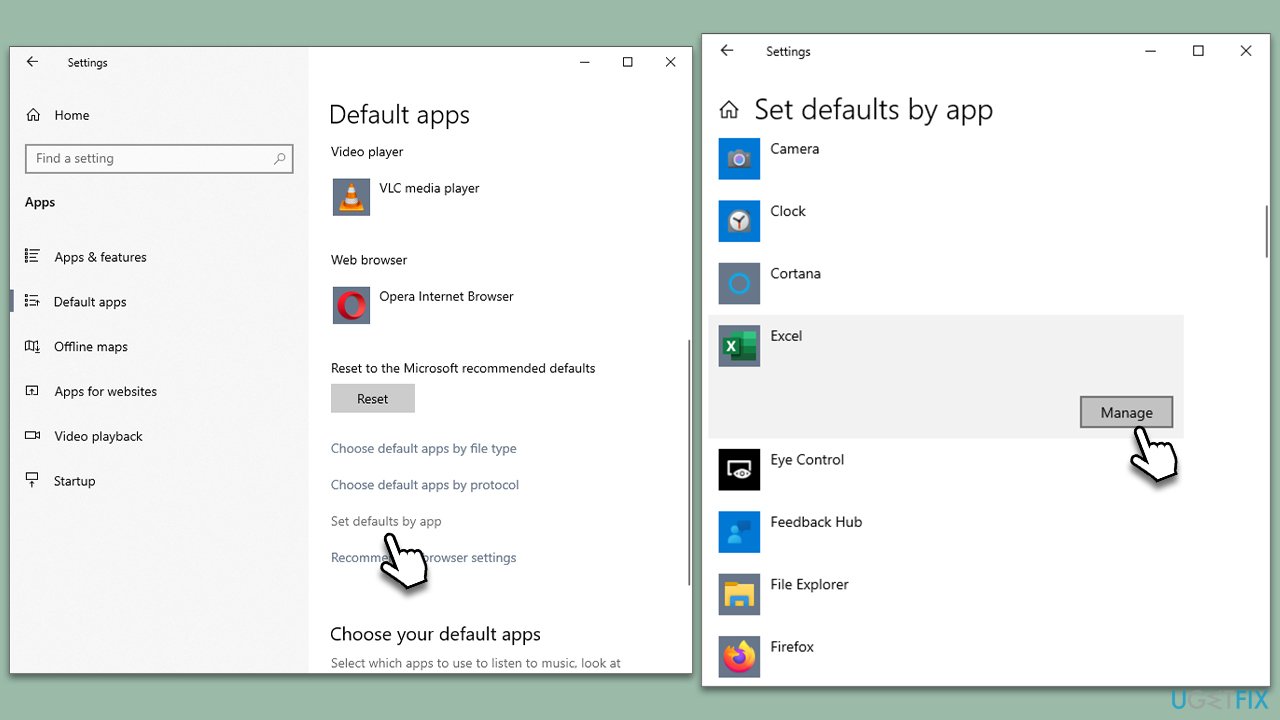
- Click on Start and pick Settings.
- Go to the Apps section.
- On the left, pick the Default apps section.
- Select Set defaults by app.
- Pick Excel and click Manage.
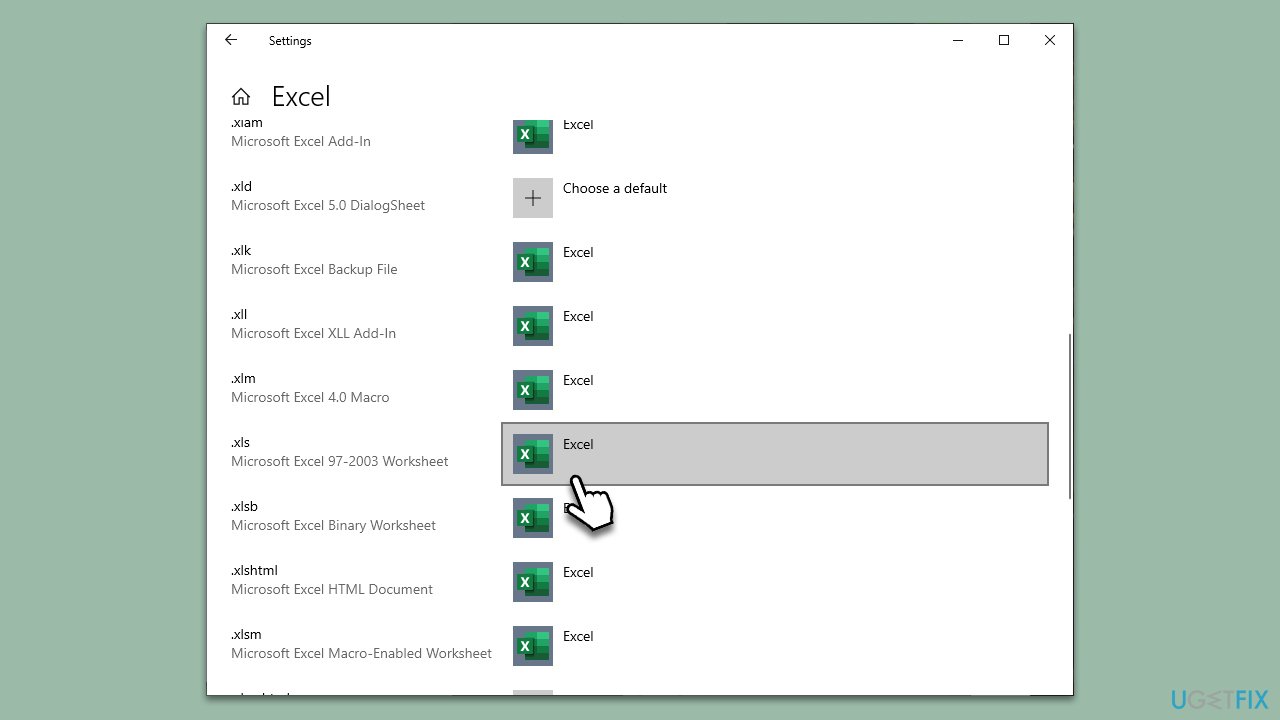
- Scroll down to the following file formats:
.xls
.xlsx
.xlsm - Make sure that Excel is selected instead of Notepad.
Fix 2. Use the "Open with" option
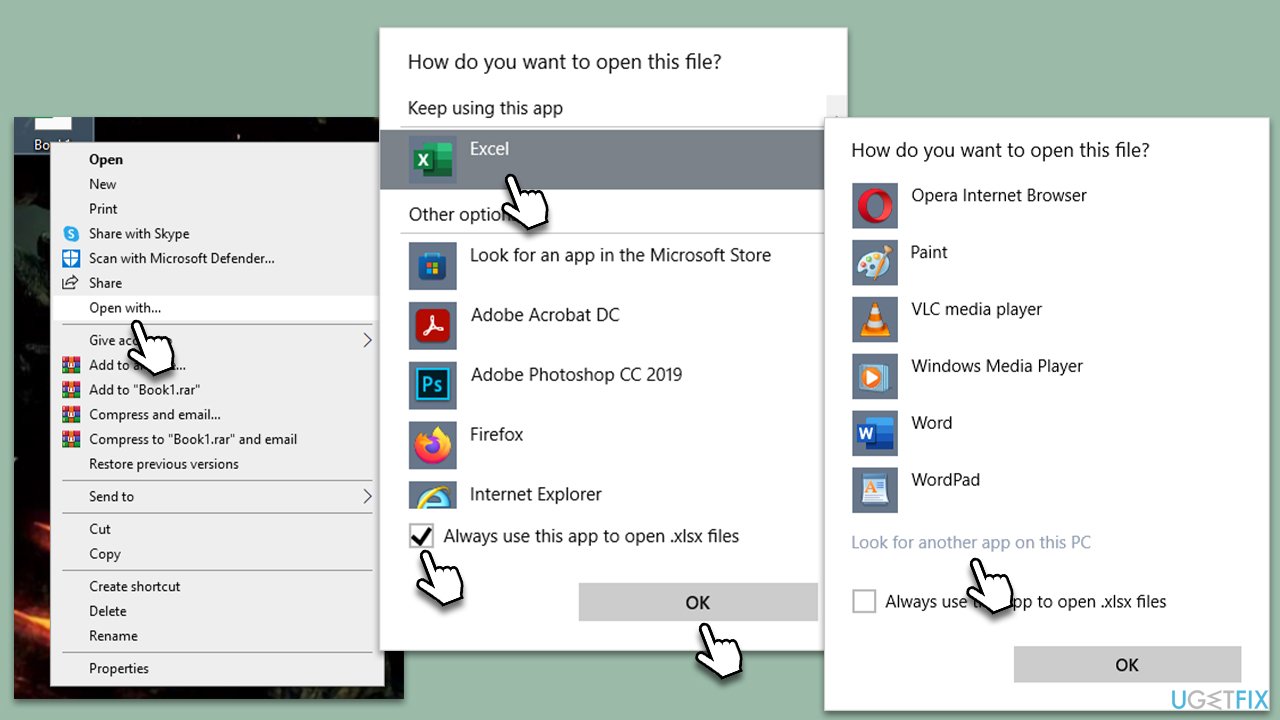
Another way to set the default app for particular file types is by using the "Open with" option. Here's how:
- Find any Excel file on your system (.xls, .xlsx, or .xlsm).
- Right-click on the file and select Open with...
- Select Excel from the list.
- Mark the Always use this app to open .xlsx files.
- If you can't see Excel on the list, you should click Look for another app on this PC at the bottom and search for the Excel.exe file.
Fix 3. Repair Office apps
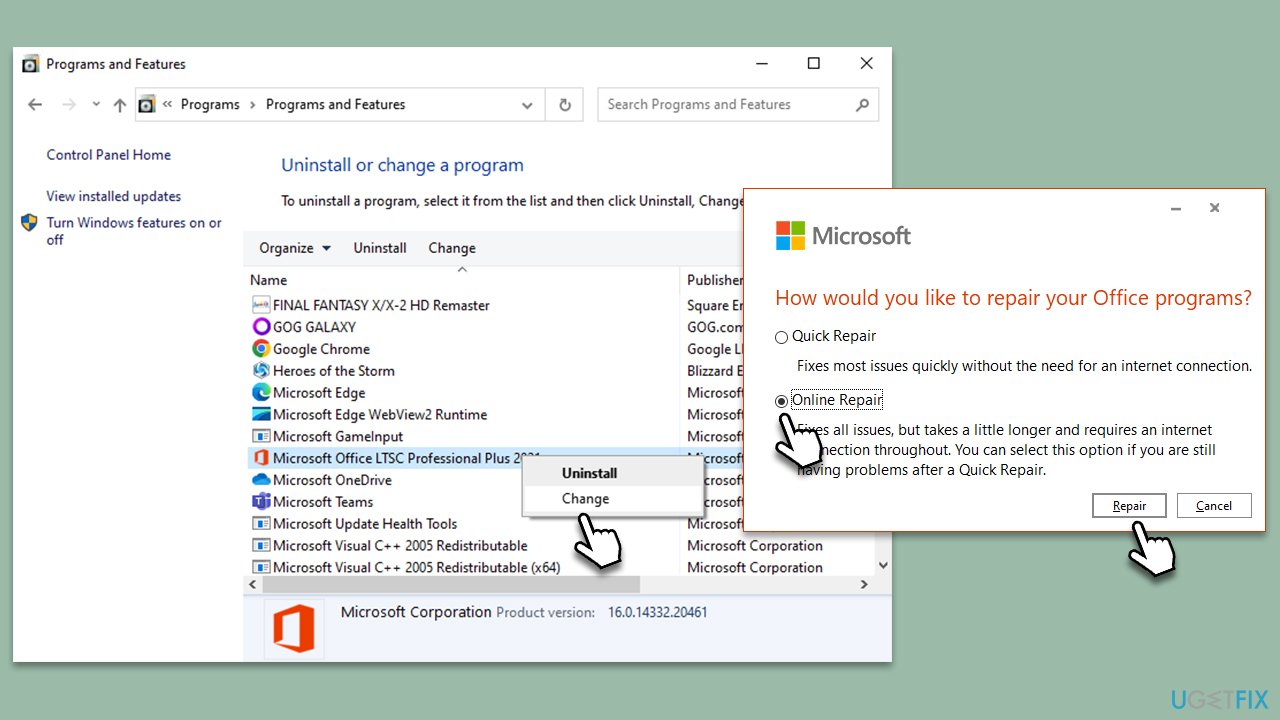
- Type Control Panel in Windows search and press Enter.
- Select Programs > Programs and Features.
- Select Microsoft Office and click on Change.
- Choose the option for Online Repair and click Repair.
- Follow the prompts to finish the process.
Fix 4. Run the troubleshooter
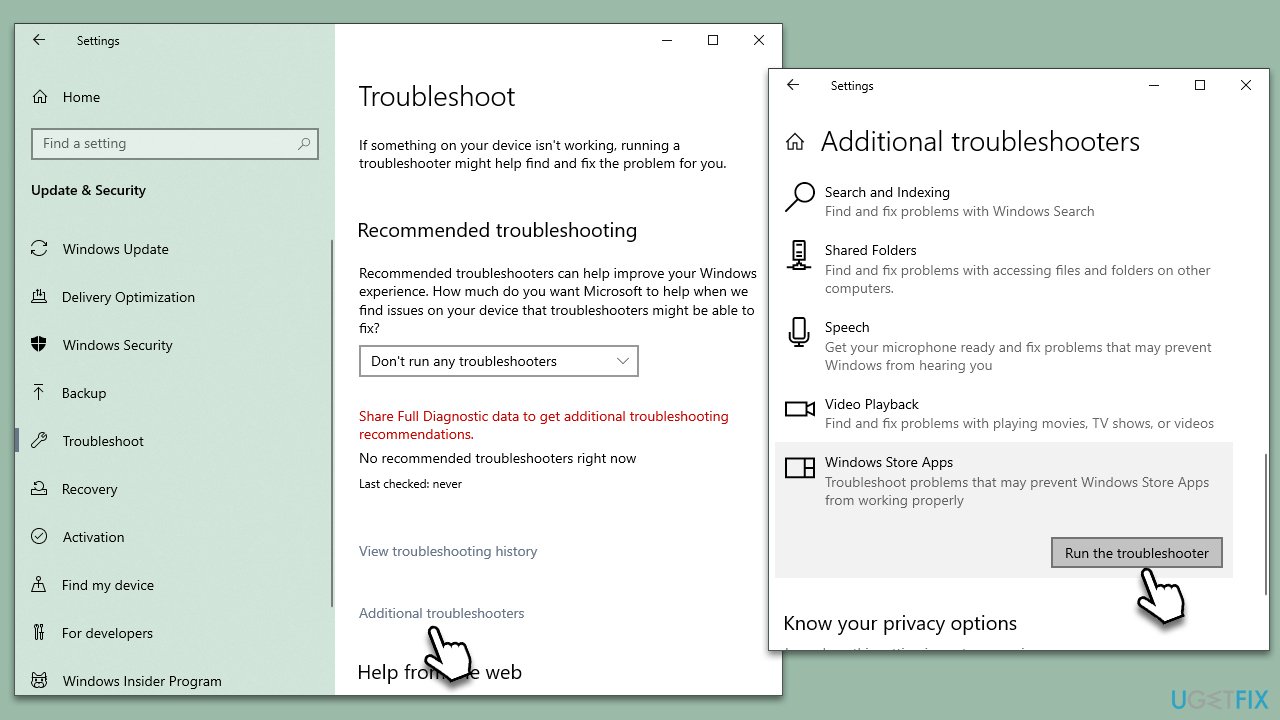
- Type Troubleshoot in Windows search and press Enter.
- On the right side, click Additional troubleshooters/Other troubleshooters.
- Scroll down to find the Windows Store Apps entry.
- Select it and click Run the troubleshooter/Run.
- Wait till the scan finishes and apply the suggested fixes, then reboot your system.
Fix 5. Reinstall Office Suite
- Right-click on Start and pick Apps and Features.
- Scroll down to find the MS Office installation.
- Click Uninstall and confirm with Uninstall.
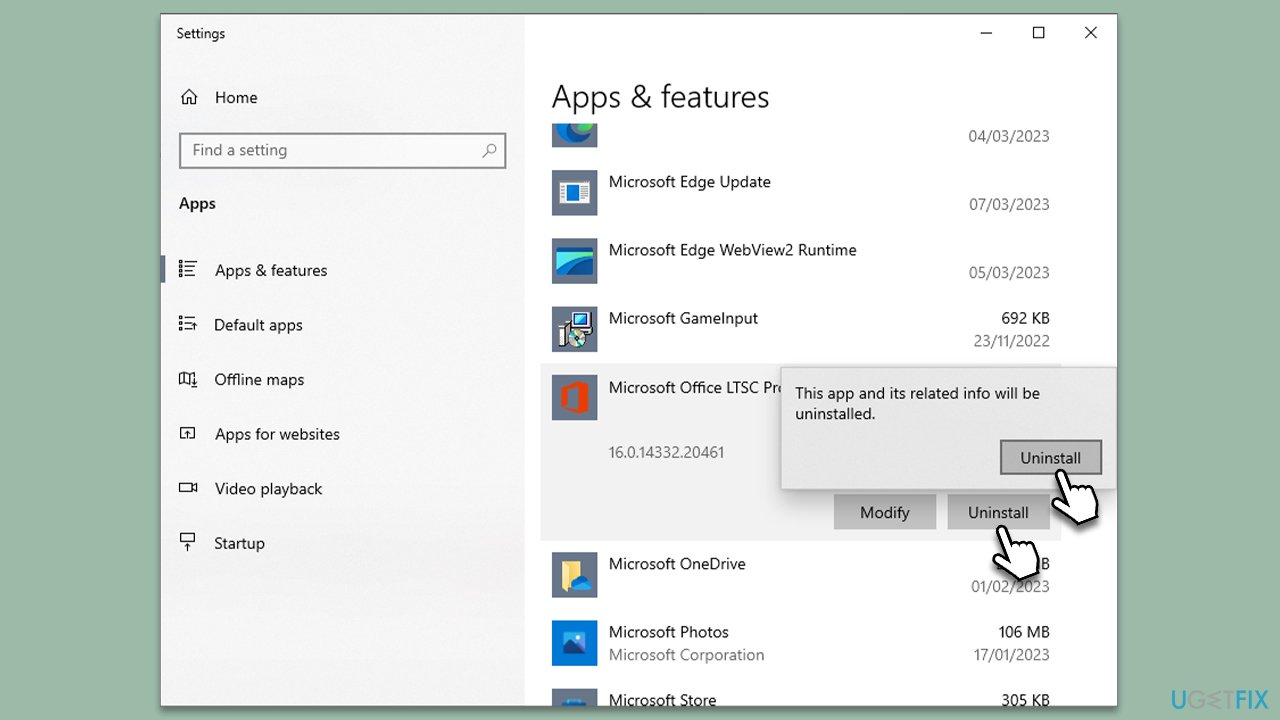
- Follow on-screen instructions to remove the app completely.
- Press Win + E to open File Explorer.
- Navigate to the following location and delete its contents:
C:\Program Files\Microsoft Office - Next, type regedit in Windows search and press Enter.
- Go to the following locations in the Registry Editor and delete these items:
Computer\HKEY_LOCAL_MACHINE\SOFTWARE\Microsoft\AppVISV
Computer\HKEY_LOCAL_MACHINE\SOFTWARE\Microsoft\Office\ClickToRun
Computer\HKEY_CURRENT_USER\Software\Microsoft\Office - Reboot the PC and then reinstall Microsoft Office.
Bottom line
To resolve the issue of Excel files opening in Notepad, you can change the default programs through Windows' Default Programs settings, repair your Office installation, or perform a system restore. If none of these solutions work, further troubleshooting may be necessary.
Frequently asked questions
This issue typically occurs due to incorrect file associations, where Excel files are linked to Notepad instead of Microsoft Excel. You can fix this by changing the default program for .xlsx files back to Excel in the 'Default Apps' settings.
To set Excel as the default program for .xls files, right-click on any .xls file, select 'Open with', then 'Choose another app', and select Excel, ensuring to check the box that says 'Always use this app to open .xls files'.
If the issue persists, you may need to reset the file associations to their default settings or repair your Office installation via the Control Panel to resolve any underlying issues.




Report an issue
What's wrong with this guide? We review every report and update or remove content.
Report received — thank you. We'll review and fix it.
You need a free account to submit a report.
Be the first to comment