How to fix
EXCEPTION_ON_INVALID_FILE Blue Screen
on Windows
Resolve the EXCEPTION_ON_INVALID_FILE Blue Screen error on Windows 10 or Windows 11 with our expert-tested solutions. Fixed in minutes!

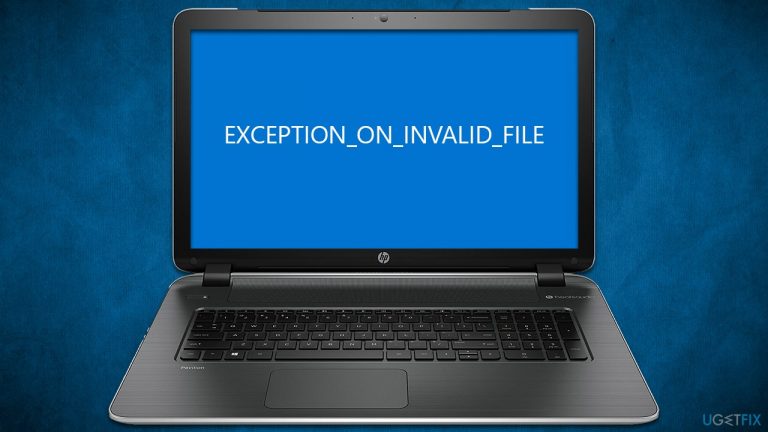
What causes How to fix EXCEPTION_ON_INVALID_FILE Blue Screen on Windows?
- Corrupted system data
- Bad drive sectors
- Boot data corruption
- Hardware failure
- Incompatible software
Repairs Windows system files, removes malware, and restores a clean OS state — without reinstalling.
Hi, I was using my computer as per usual, and suddenly I saw some error come up, immediately followed by a sudden EXCEPTION_ON_INVALID_FILE Blue Screen crash. I now can no longer boot into Windows, I tried restarting it several times, but it just returned to the BSOD screen. Please help me.
EXCEPTION_ON_INVALID_FILE is one of many Blue Screen of Death[ref en-1] errors users may encounter whenever they are operating their Windows 10 or 11 computer. In some cases, users may see a black screen instead of a blue one, which is rather unusual for these types of crashes.[ref en-2]
BSOD is a phenomenon that most people using Windows have encountered once or twice in their lives. While it may be extremely frustrating, it plays a vital role in how the software handles crashes, or otherwise, significant damage could be caused. Due to this, the system immediately seizes all activities and reboots automatically.
At this point, users are usually shown an error code that represents what caused the crash, and in this case, it is EXCEPTION_ON_INVALID_FILE. Even though it might be frustrating, this process usually ensures that the operation of the device can be continued without any further issues, and upon system bootup, people can continue as usual.
In this case, people have reported that they were unable to boot their systems up at all, as the blue screen came up instead every time. This is a major problem that could prevent many people from accessing their Windows in the first place. Luckily, there's a bypass to this, and we address it in our EXCEPTION_ON_INVALID_FILE fix list below.
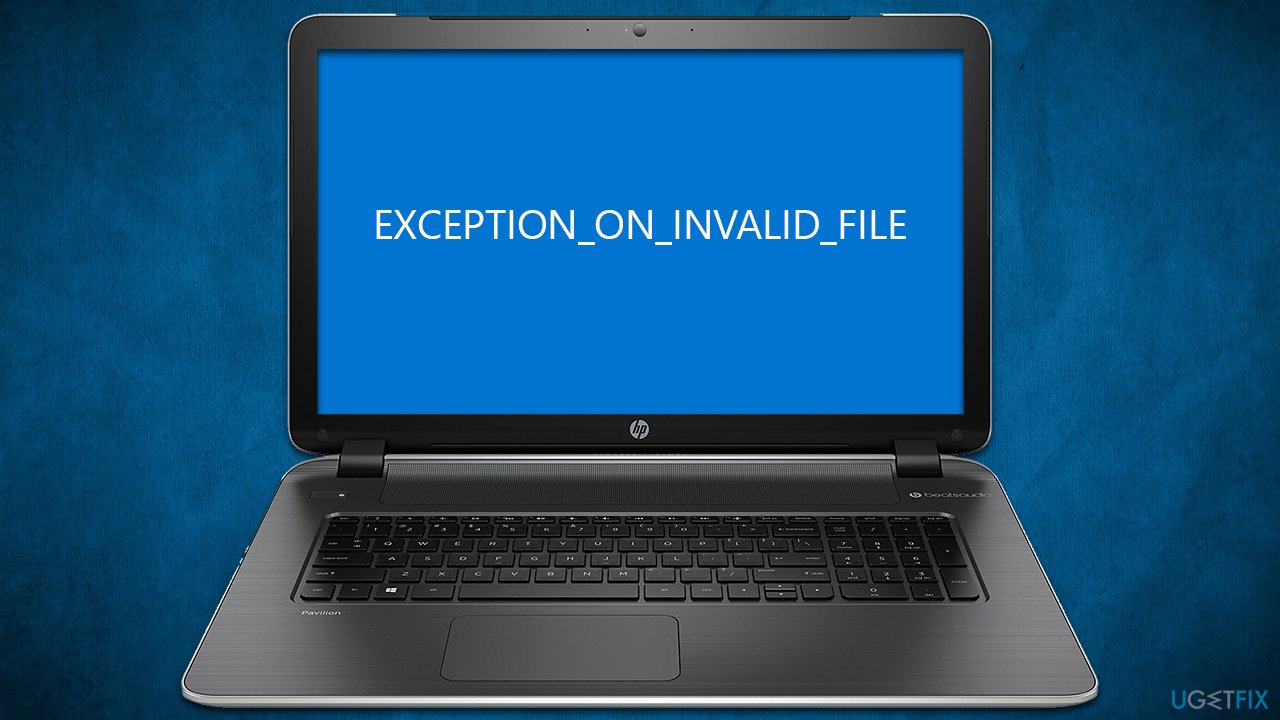
This blue screen may be caused by several different reasons, such as corrupted system data, bad drive sectors, and boot data corruption. Below we provide several solutions that should help you get rid of the crashes once and for all.
1. Repair corrupted files
You should first make some basic checks via the Command Prompt, which you can easily access via the Advanced Startup menu.
- Restart Windows
- Once the system starts booting, interrupt the loading process by pressing and holding the Power button – do this two more times
- Windows will automatically enter Advanced Startup mode
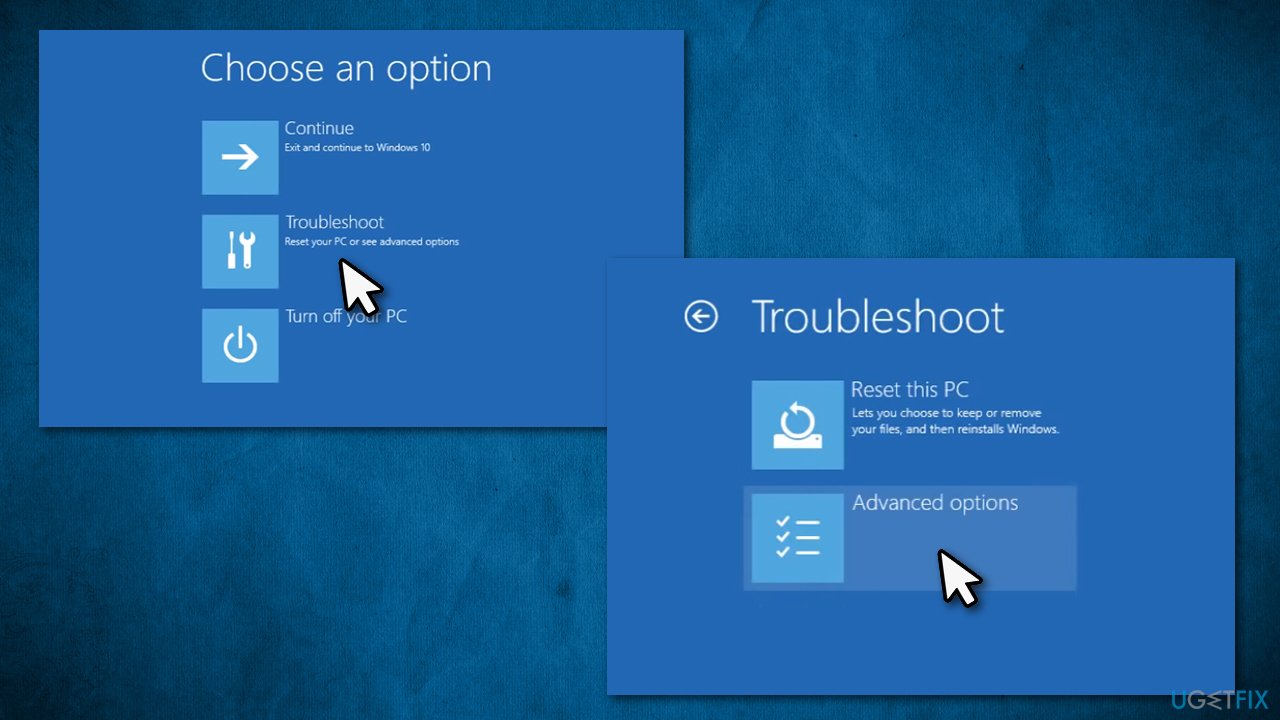
How to fix exception on invalid file blue screen on windows advanced options troubleshoot - Select Troubleshoot, then pick Advanced Options and Command Prompt
- When Command Prompt opens, you need to run several commands, pressing Enter each time:
chkdsk c: /f /r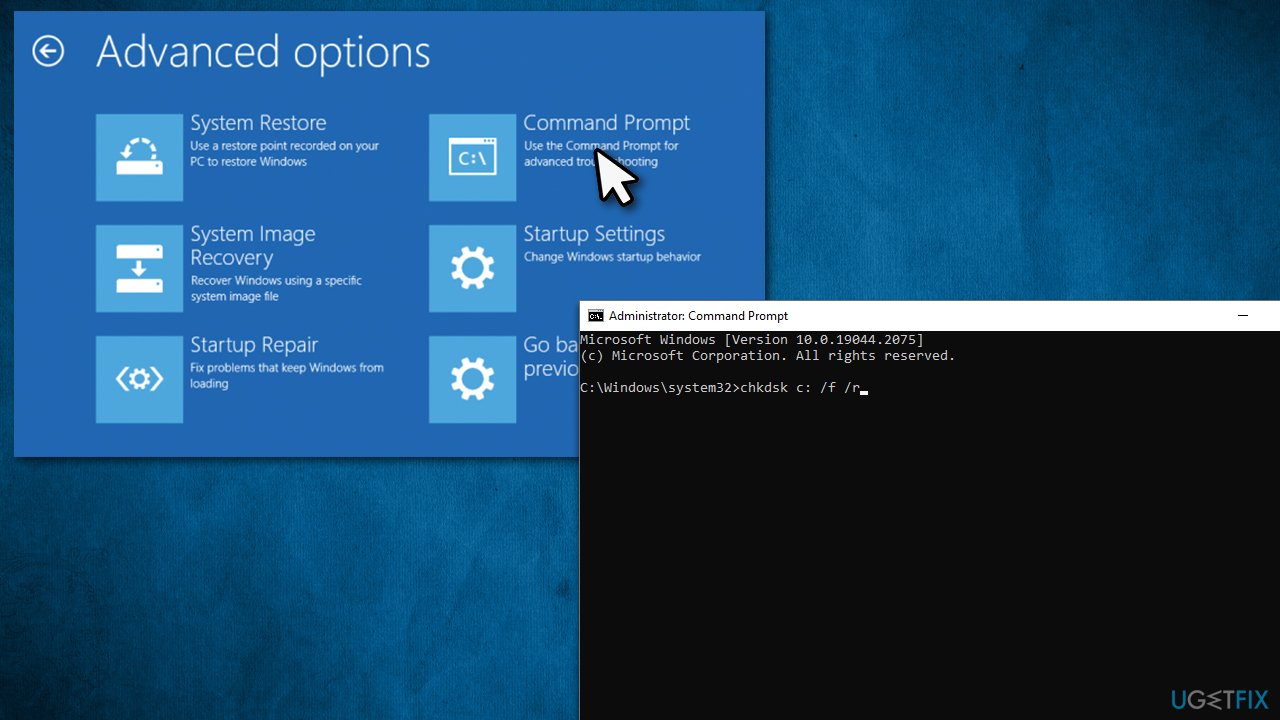
How to fix exception on invalid file blue screen on windows checkdisk sfc
sfc /scannow
bootrec /fixmbr
bootrec /fixboot
bootrec /scanos
bootrec /rebuildbcd - Close down the Command Prompt and return to the initial screen
- Select Continue and proceed with the normal bootup process.
2. Repair Master Boot Record (MBR)
If the steps above provided you with the error or your attempt to boot the system failed again, you should try repairing MBR.[ref en-3]
- Open Command Prompt as explained in previous steps
- Use the set of the following commands, pressing Enter after each:
sel vol C:
assign letter=Z:
cd /d Z:\EFI\Microsoft\Boot\
bootrec /FixBoot
ren BCD BCD.old
bcdboot c:\Windows /l en-us /s C: All
Note: the "C:" is a default drive users install Windows into. If you are using a different drive, change the letter of the drive in that command to the one you're using. - Return to the first screen and attempt to start the PC again.
3. Reinstall Windows
If the steps above did not manage to fix your problem, you should reinstall Windows. If you can't boot into Windows, you have to create an ISO file from a working computer.
- Visit the official Microsoft website and download Windows 10 installation media (Windows 11 version)
- Double-click the installer and select Yes when UAC shows up
- Agree to terms
- Pick Create installation media (USB flash drive, DVD or ISO file) for another PC option and click Next
- Select the Use Recommended options for this PC checkbox and click Next
- Choose the ISO file and click Next
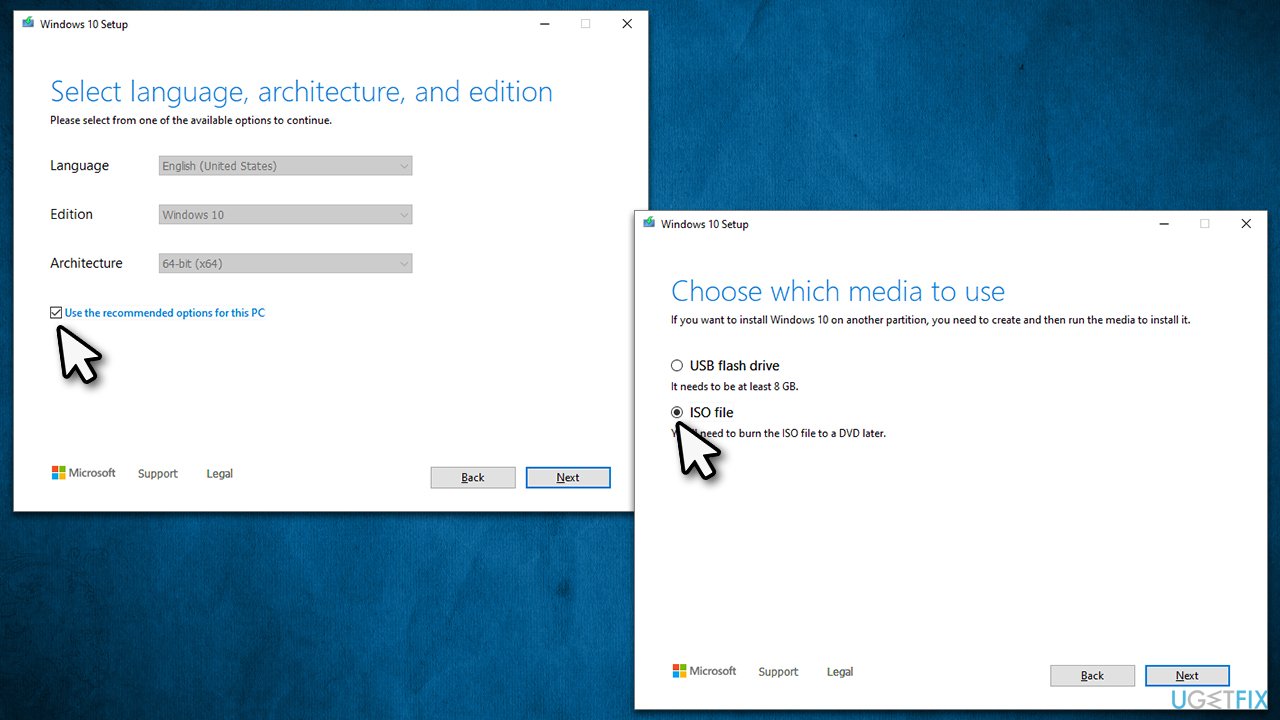
How to fix exception on invalid file blue screen on windows reinstall - Once you have prepared the ISO, put it into the malfunctioning PC
- Restart your machine and rapidly press F8, F10, F12, Del, or another button that would let you load into BIOS
- Here, go to the Boot section and set the boot priority to Flash drive
- Restart your system, and then proceed with on-screen instructions to reinstall Windows.
Bottom line
To fix the EXCEPTION_ON_INVALID_FILE Blue Screen error, you can start by repairing corrupted files using the Command Prompt. If the issue persists, consider checking for bad drive sectors and boot data corruption. If none of these solutions work, further investigation into hardware issues or software compatibility may be necessary.
Frequently asked questions
This error typically occurs due to corrupted system files, incompatible drivers, or hardware malfunctions. Identifying the root cause requires checking recent changes made to your system.
You can start by booting into Safe Mode and running a system file checker scan using the command 'sfc /scannow'. If that doesn't resolve the issue, consider updating or rolling back your drivers.
Regularly updating your Windows 10 or Windows 11 system and drivers, as well as performing routine maintenance checks, can help prevent this error. Additionally, avoid installing unverified third-party software.




Report an issue
What's wrong with this guide? We review every report and update or remove content.
Report received — thank you. We'll review and fix it.
You need a free account to submit a report.
Be the first to comment