How to fix
Exodus Kodi not working
on Windows
Fix Exodus Kodi not working on Windows 10 or 11 with expert tips and troubleshooting methods. Get back to streaming in minutes, guaranteed!

What causes How to fix Exodus Kodi not working?
- General buffering pop-up
- Exodus Error message
- No stream available screen
- Corrupted or unofficial add-ons
- Issues with third-party add-ons
- Geographical restrictions on streaming
Repairs Windows system files, removes malware, and restores a clean OS state — without reinstalling.
Hello. I have a problem with the Exodus add-on that is not working for some reason. I was trying to watch my show, but the steam is no available, and I do not know what might cause this issue. I have received general buffering pop-up, Exodus Error message, and No stream available screen. Can you help me resolve this Exodus Kodi not working issue?
Exodus Kodi not working error is the frustrating issue that users[ref en-1] might encounter while using the service. Especially when the TV show or any other stream was working fine before the error. The error is not crucial or indicating severe problems with the service.
You can find a fix for Exodus Kodi not working or No stream available issue. Exodus is the complex Python application that runs on Kodi.[ref en-2] Any application that is used needs occasional maintenance, so Exodus is also not an exception. Some of the errors and problems though can create more serious frustration and require drastic measures.
To fix Exodus Kodi not working issue you may need to consider different repositories and alternate add-ons if the product used is corrupted or not an official piece. The Kodi Exodus add-on was revived by other developers after original creators abandoned the product. So now the application receives needed updates occasionally. Sometimes, a patch or upgrade is the best solution.
You may encounter the issue with a third-party add on that is not the original Kodi Exodus product. Pirating, getting things from the internet directly can lead to shady installations of useless apps.[ref en-3] To fix Exodus Kodi not working, in this case, you would need to get either the alternative program or rely on the official Exodus add-on and use the service properly.
How to fix Exodus Kodi not working
Kodi add-ons offer unlimited streaming, but in some of the countries, this is not allowed. You may need to use a VPN service and avoid these issues regarding the service this way. [rev id="Private Internet Access"] might be a good software example for this. Other relevant methods are listed here now. It doesn't mean that you need to perform all the suggested processes, but for some of the users upgrading the app may be the best solution, and for others, cache files can create the issue with Exodus Kodi not working. Try at least a few of them before giving up completely.
Clear the Cache
- Find the Add-ons tab in Kodi.
- Go to My Add-ons, then Video Add-ons, and locate Exodus.
- Then select Tools option and scroll to find Clear cache.
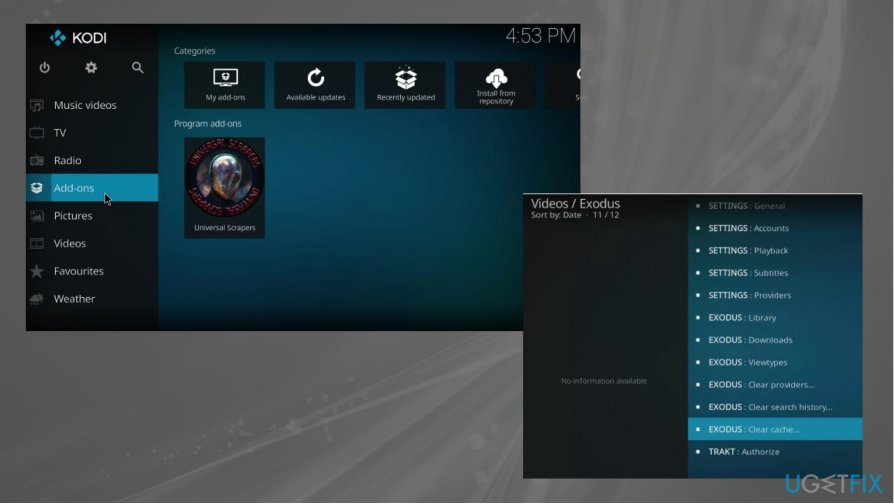
How to fix exodus kodi not working add ons cache - Confirm and clear the Exodus cache.
Change Timeout settings to fix Exodus Kodi not working
- Go to Exodus and find Tools listing.
- Choose General settings at the top and open the control panel.
- Find the bar named Providers Timeout and slide down from 60 to 30.
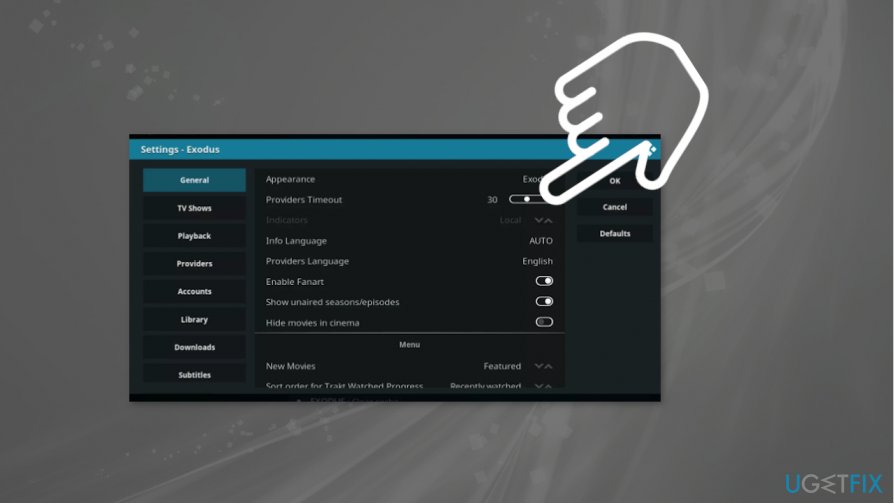
How to fix exodus kodi not working timeout - This reduction setting should stop Exodus from waiting around for the provider.
Look for an Update to fix Exodus Kodi not working
- Find the Add-ons tab and then go to Video add-ons and locate Exodus.
- Find the button at the bottom and check for updates.
- Select the latest one and install it when you get the list displayed before you.
Update Graphics Card Driver to fix Exodus Kodi not working
- Press Win +R and open Run window.
- Type devmgmt.msc to open Device Manager.
- Double-click Display adapters and expand the category.
- Right-click the graphics card and select Update driver.
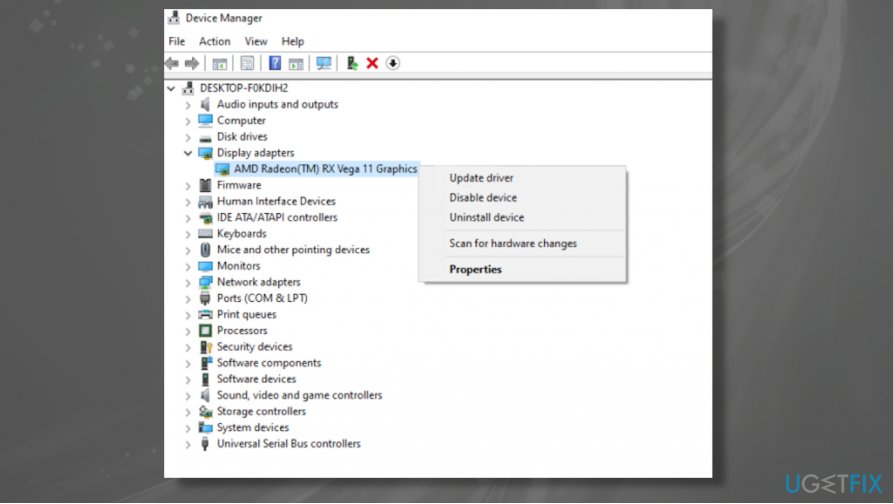
How to fix exodus kodi not working driver update - Search automatically and update software.
Install Exodus Redux Repository
- Go to the Kodi home screen and open Settings.
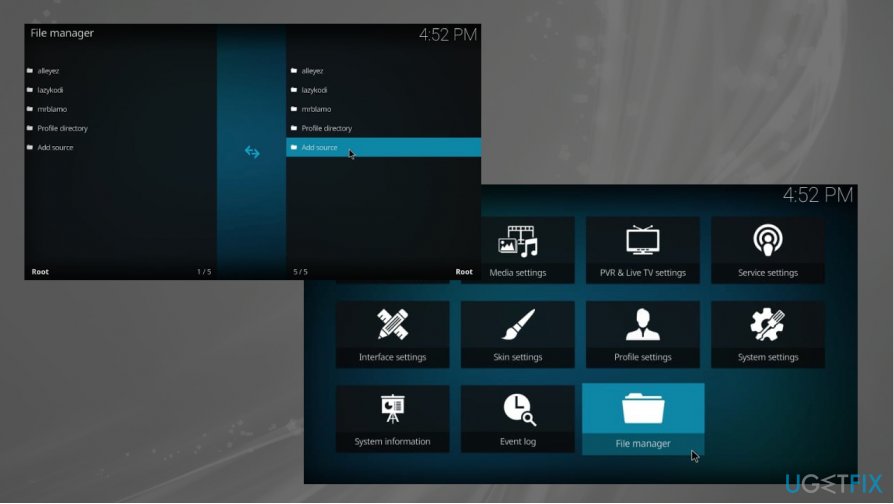
How to fix exodus kodi not working file manager - Open File manager from there and open Add source.
- Click the <None> on the window and type the following: https://i-a-c.github.io
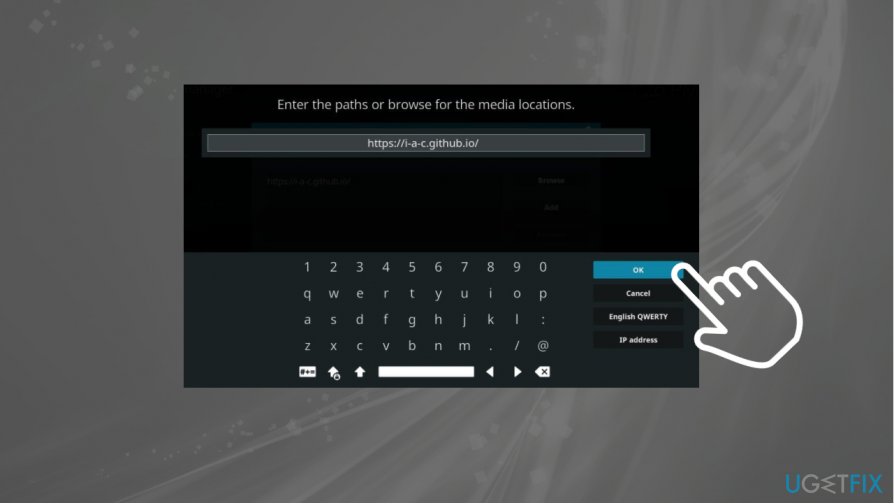
How to fix exodus kodi not working install - Confirm with OK.
- Enter redux or another name on the are Enter a name for the media source.
- Go to the home screen and click on Add-ons.
- Open the Package installer option and choose Install from zip file.
- Click reduce or the name you entered and click repository.exodusredux-0.0.6.zip
- Wait for the installation of Exodus Redux Repo.
Bottom line
To fix the Exodus Kodi not working issue, consider using the official Exodus add-on, checking for updates, or switching to alternative repositories and add-ons. Additionally, using a VPN service may help bypass geographical restrictions. If none of these solutions work, further troubleshooting may be necessary.
Frequently asked questions
Exodus may not work on Windows 10 if the add-on is outdated or if there are issues with your internet connection. Ensure that you have the latest version of Exodus and check your network settings.
Buffering issues in Exodus on Windows 11 can often be fixed by adjusting the video cache settings in Kodi or by using a VPN to improve streaming speeds. Additionally, clearing the cache and data of the add-on may help.
If Exodus won’t install on your Windows 10 device, make sure that you have enabled unknown sources in Kodi settings and that you are using the correct repository. Reinstalling Kodi may also resolve installation issues.




Report an issue
What's wrong with this guide? We review every report and update or remove content.
Report received — thank you. We'll review and fix it.
You need a free account to submit a report.
Be the first to comment