How to fix
Explorer crashing on right-click
on Windows
Resolve Explorer crashes on right-click in Windows 10 or 11 swiftly with our expert-tested solutions. Fix the issue in minutes, zero traces left.

What causes How to fix Explorer crashing on right-click in Windows?
- Corrupted system files
- Buggy Windows updates
- Software conflicts
- New features with bugs
Repairs Windows system files, removes malware, and restores a clean OS state — without reinstalling.
Explorer.exe crashes whenever I right-click in a window or on the desktop. This issue began occurring unexpectedly and was not triggered by a Windows update or any specific event (at least I don't think so). What should I do to fix this?
What happens when Explorer.exe crashes?
When you right-click within an Explorer window, on the taskbar, or on the desktop, you might encounter a sudden crash of Windows Explorer (Explorer.exe). This issue can begin unexpectedly and can be really frustrating due to its disruption of normal computer operations.
Why does Explorer.exe crashes on right-click?
There are several reasons why Explorer.exe might crash during a right-click operation:
- Corrupted system files. Vital files needed for Windows Explorer's operation might become damaged or corrupted, leading to instability and crashes.
- Buggy Windows updates. Occasionally, updates released for Windows might contain flaws that can cause system instability, particularly affecting Explorer.exe.
- Software conflicts. Programs that integrate with the Windows shell might conflict with each other. This is especially true for software that modifies the right-click context menu.
- New features with bugs. Updates to the context menu or other new features introduced in Windows might be buggy, which can cause crashes if they are not fully compatible with existing system components.
What can I do to fix Explorer crashing on right-click?
Understanding the triggers of Explorer.exe crashes is key to resolving them. If the issue is related to corrupted files, identifying and repairing these files may resolve the instability. In cases of software conflict, you may need to update or uninstall conflicting programs.
For issues caused by buggy updates or new features, you might consider rolling back recent updates or adjusting settings that control new features. To perform these and other steps that could lead to a solution, please check the guide below.
Is there a quick solution for Explorer crashes?
If you are looking for a quick and effective solution to resolve the crashing issues with Explorer.exe when right-clicking, consider using a PC repair tool [d1]. This tool is designed to automatically detect and fix underlying Windows problems that might be causing the crashes. It simplifies the troubleshooting process by handling the complexities of system diagnostics and repair, making it a suitable option for quickly restoring stability to your system.
Fix 1. Restart Windows Explorer
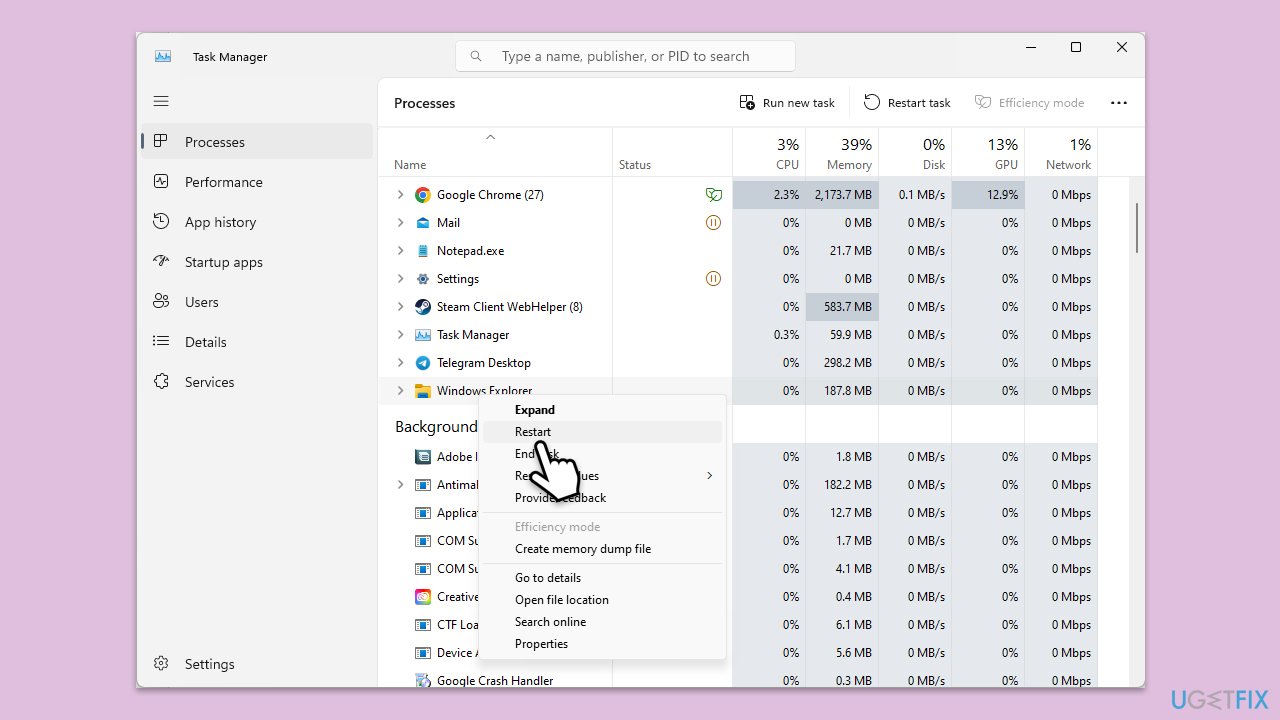
You should start from the easiest fix - restarting Explorer.exe.
- Press Ctrl + Shift + Esc to open Task Manager.
- Click More details if needed.
- Look for Windows Explorer.
- Right-click and select Restart.
- Several UI elements will disappear for a few moments and reappear soon thereafter.
Fix 2. Repair corrupted system files
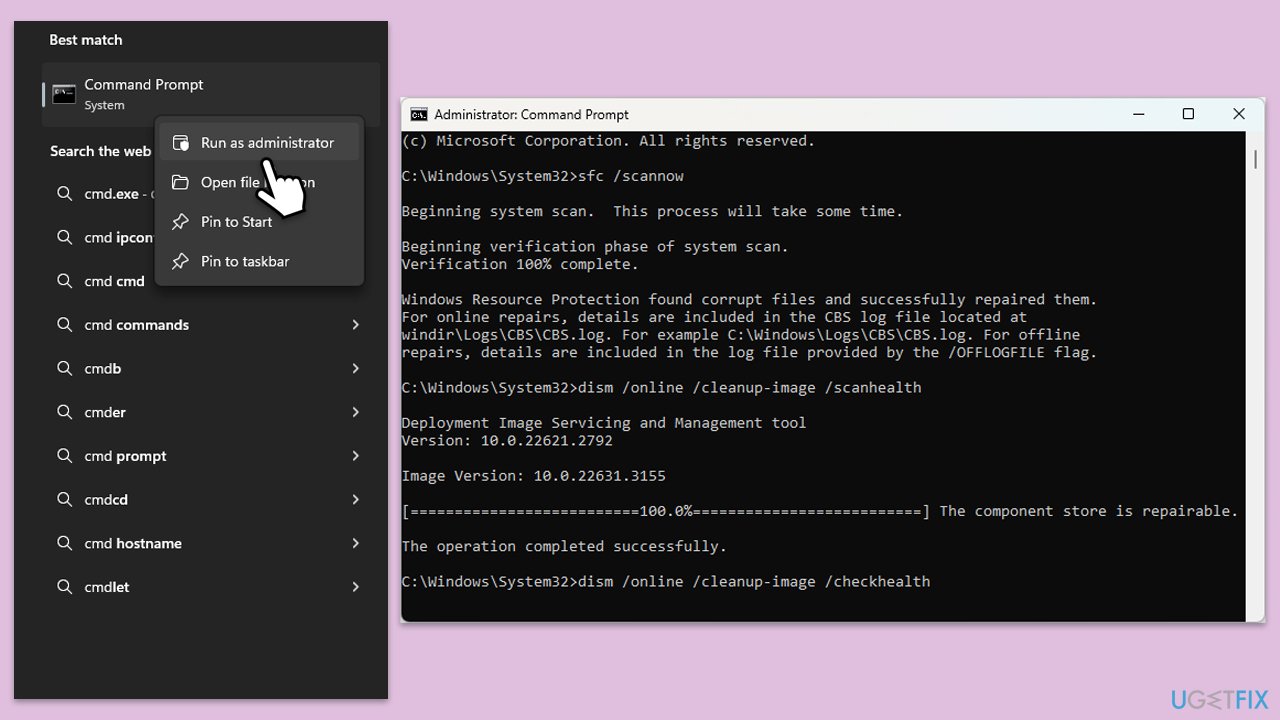
- Type in cmd in Windows search.
- Right-click on Command Prompt and select Run as administrator.
- In the User Account Control window, click Yes.
- In the Command Prompt window, paste the following command and press Enter:
sfc /scannow - Wait for the scan to complete.
- Once the SFC scan is finished, run the following set of DISM commands, pressing Enter after each one:
DISM /Online /Cleanup-Image /CheckHealth
DISM /Online /Cleanup-Image /ScanHealth
DISM /Online /Cleanup-Image /RestoreHealth - After completing the DISM commands, restart your system.
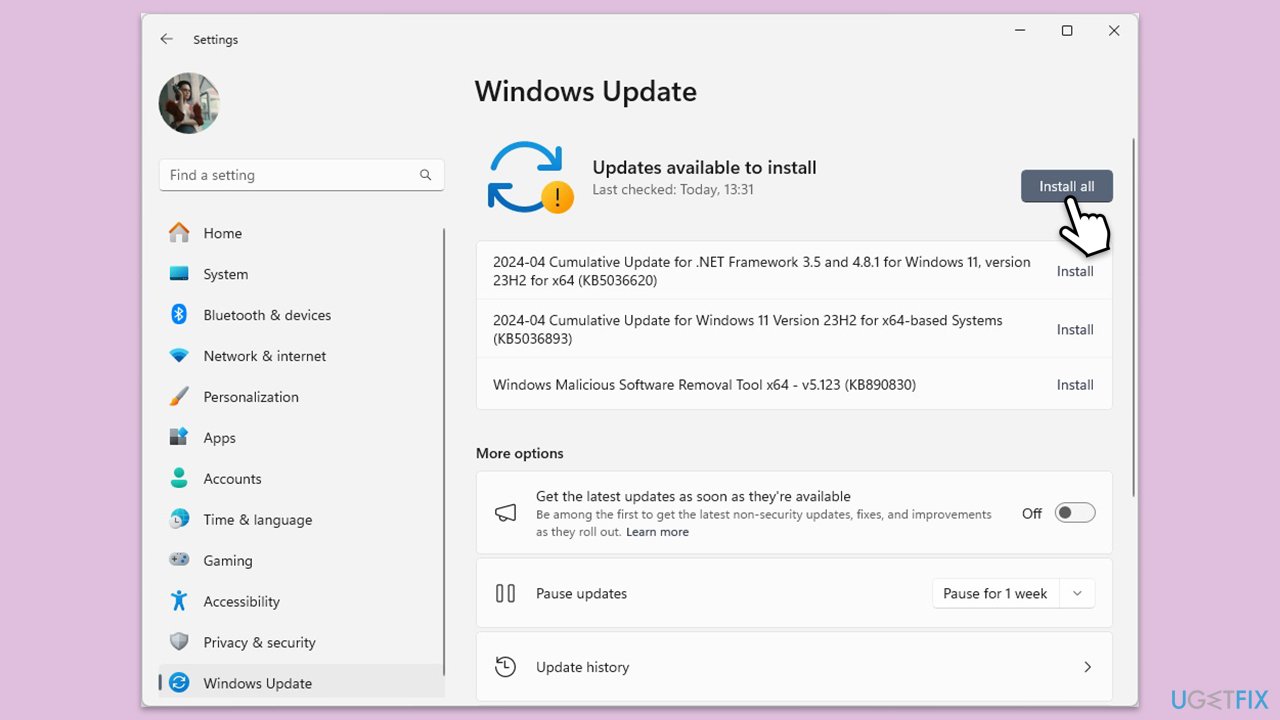
Fix 3. Install all Windows updates
Installing the latest Windows updates can fix bugs and improve system stability.
- In Windows search, type Updates and hit Enter.
- In the new window, click Check for updates and wait till everything is installed.
- Make sure you also install any available optional updates.
- When done, restart your system to implement the changes.
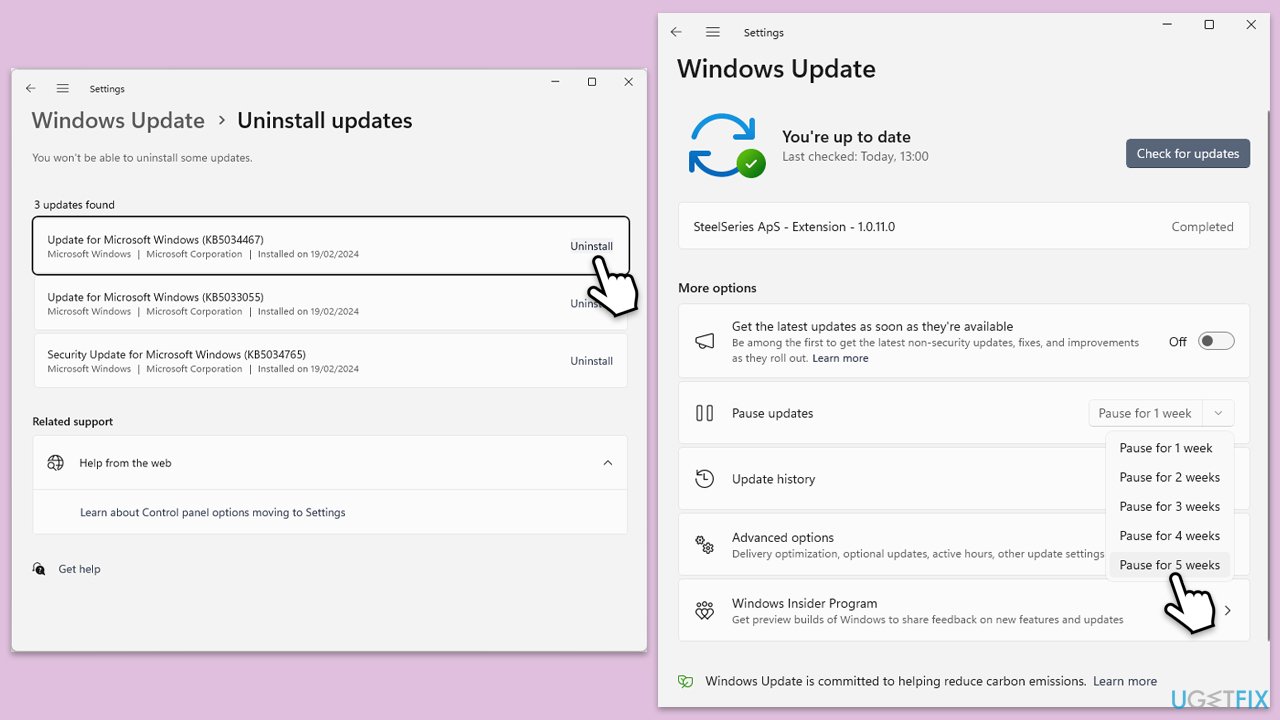
Fix 4. Uninstall the most recent update
If issues started after a recent update, removing it might resolve the problem.
- Type Control Panel in Windows search and press Enter.
- Select Programs > Uninstall a program.
- Click on View installed updates on the left side of the window.
- Uninstall the most recent update.
- Proceed with on-screen instructions.
- Don't forget to pause the update.
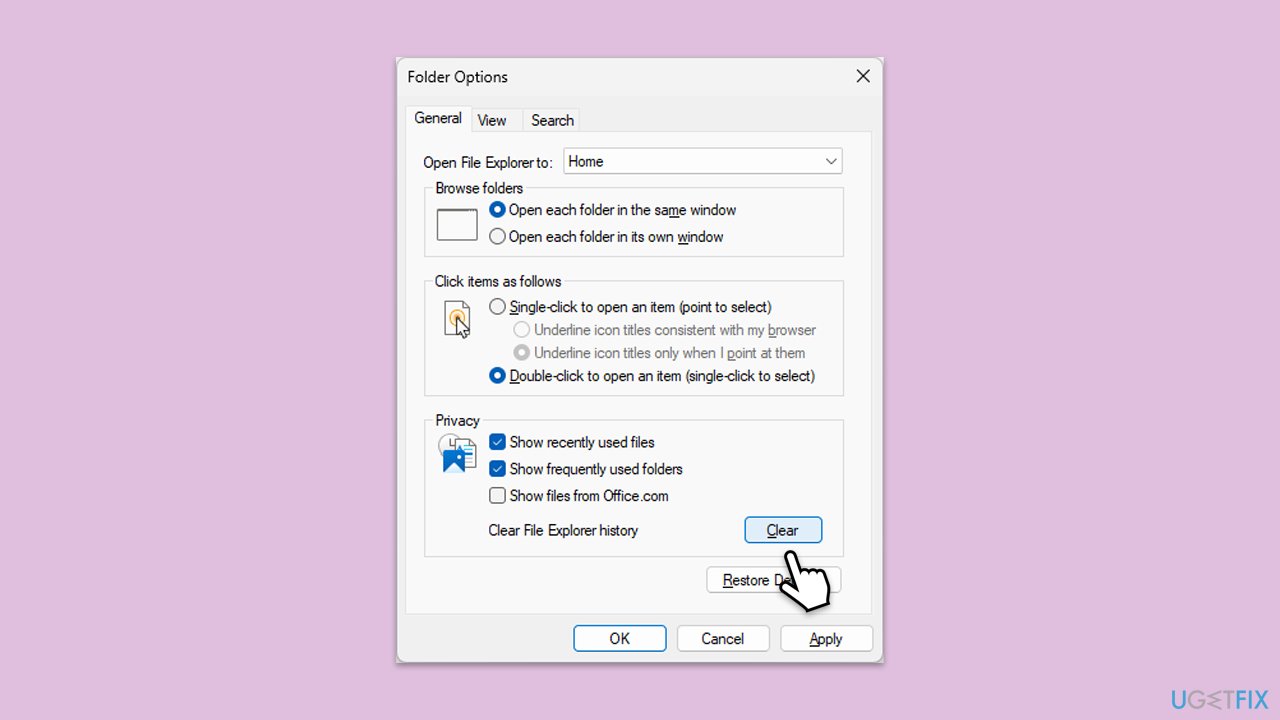
Fix 5. Clear File Explorer history
- Press Win + E to open File Explorer.
- Click on the View tab, then select Options to open Folder Options.
- In the General tab, under Privacy, click on the Clear button next to Clear File Explorer history.
- Click OK to apply the changes.
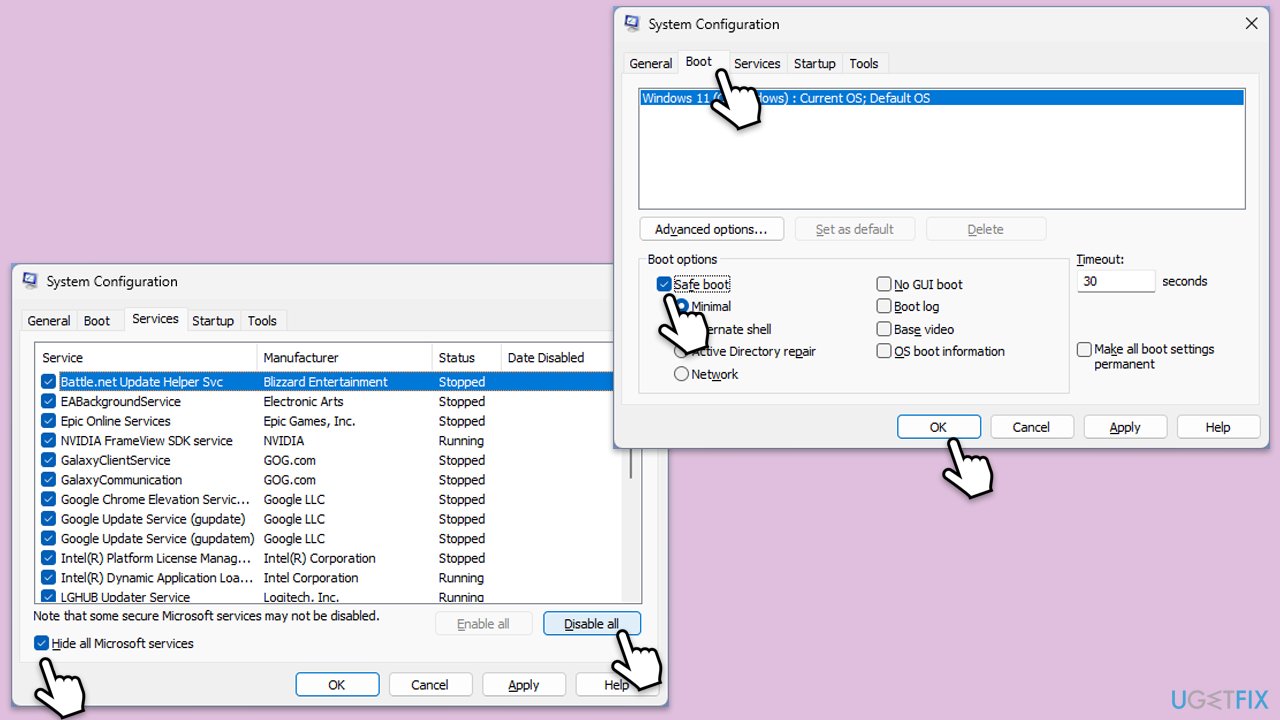
Fix 6. Perform Clean Boot
- Type msconfig in Windows search, then press Enter.
- Select the Services tab and tick the Hide all Microsoft services checkbox.
- Pick Disable all.
- Go to the Startup tab and click Open Task Manager.
- Here, right-click on each of the non-Windows entries and select Disable.
- Close down the Task Manager.
- Go to the Boot tab and tick the Safe boot option.
- Restart your device.
- After restarting, check if the issue persists. If it doesn't, one of the disabled items is causing the conflict. Enable services and startup items gradually to determine the problematic software.
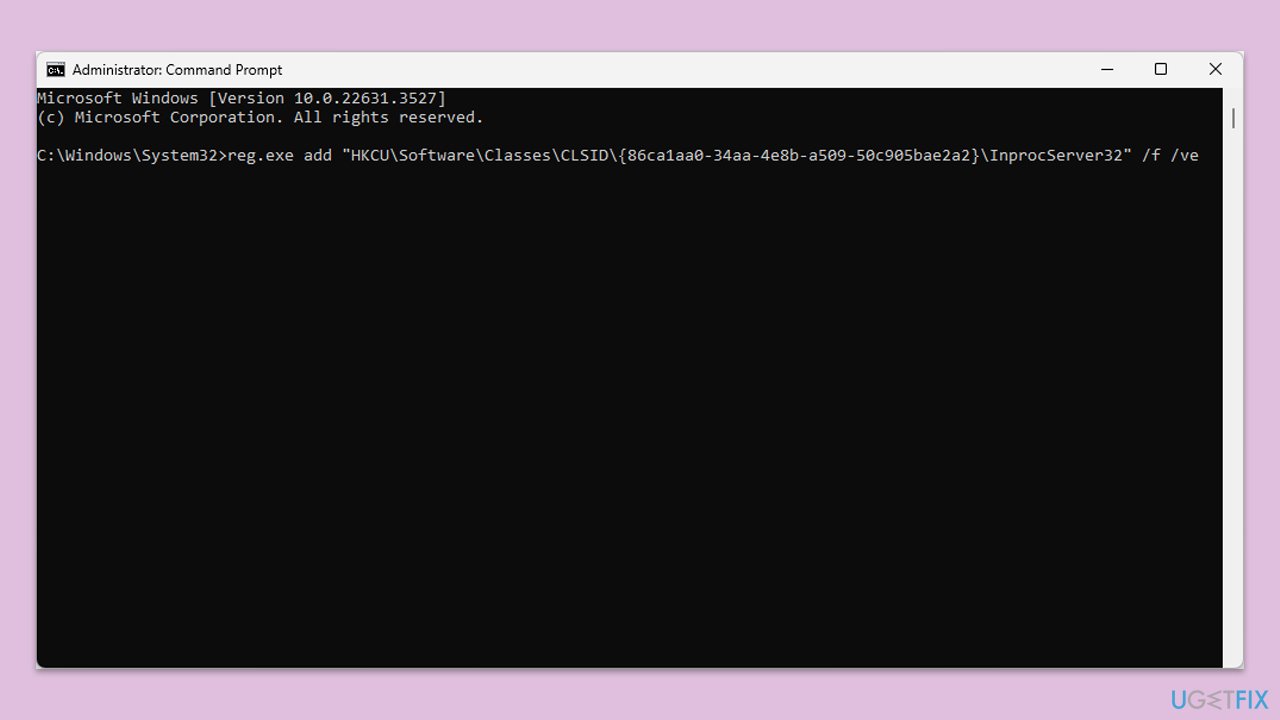
Fix 7. Disable context menu via Command Prompt
Disabling third-party extensions added to the context menu can help identify problematic software.
- Open Command Prompt as administrator.
- Copy and paste in the following command and press Enter:
reg.exe add "HKCU\Software\Classes\CLSID\{86ca1aa0-34aa-4e8b-a509-50c905bae2a2}\InprocServer32" /f /ve - Close down Command Prompt and restart your PC.
Fix 8. Try System Restore
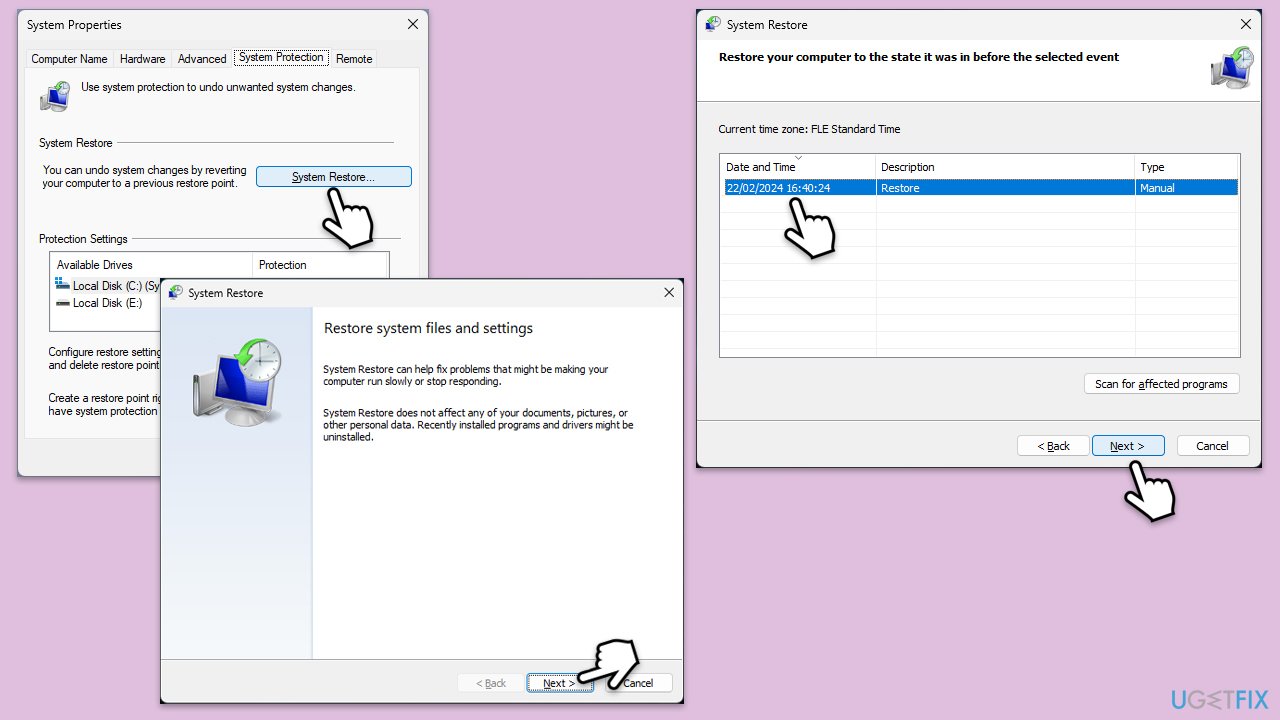
- Type Create a restore point in the Windows search bar and press Enter.
- In the System Properties window, click System Restore.
- Choose a restore point from before the issue started occurring.
- Click Next and follow the on-screen instructions to complete the system restore.
- Restart your computer after the process is finished.
Fix 9. Reset Windows
Resetting Windows reinstalls the operating system, which can fix persistent issues.
- Click on Start and pick Settings.
- Go to Windows Update/Update & Security.
- Select Advanced options.
- Under Additional options, select Recovery.
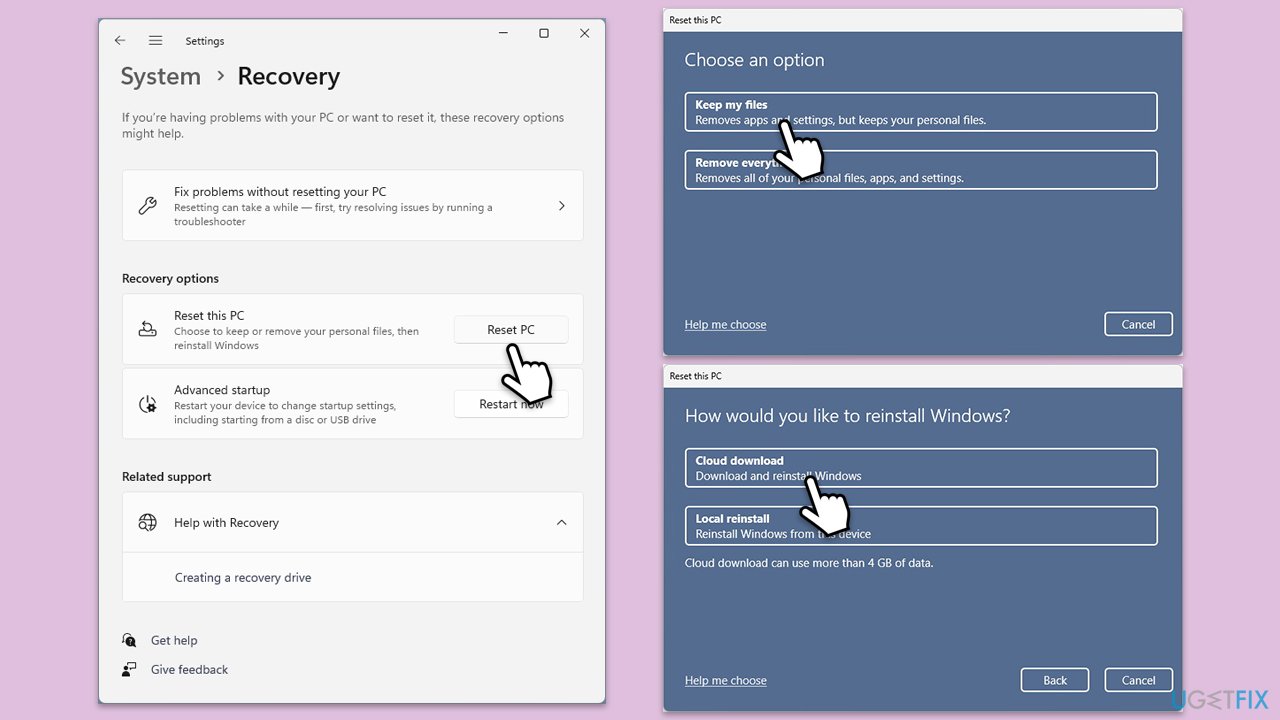
- Under Recovery options, click Reset PC.
- Select the option to Keep your files and then press Cloud download.
- Follow on-screen instructions to finish the process.
Bottom line
To fix Explorer crashing on right-click, you can identify and repair corrupted files, update or uninstall conflicting programs, or roll back recent updates. If these solutions do not resolve the issue, consider using a PC repair tool to automatically detect and fix underlying Windows problems.
Frequently asked questions
Try restarting Windows Explorer from the Task Manager by selecting it and clicking 'Restart.' If the issue persists, consider updating your graphics drivers or running a system file check.
You can disable third-party context menu extensions using a tool like ShellExView, which may resolve the crashing issue. Additionally, ensure your Windows 11 is up to date with the latest patches.
Yes, you can perform a clean boot to identify if a startup program is causing the issue, or use the SFC scan to repair corrupted system files in Windows 10 or 11.




Report an issue
What's wrong with this guide? We review every report and update or remove content.
Report received — thank you. We'll review and fix it.
You need a free account to submit a report.
Be the first to comment