How to fix
External hard drive freezing Windows
on Windows
Resolve external hard drive freezing issues on Windows 10 and 11 quickly and effectively, with expert-tested solutions that get you back to work in minu…


What causes How to fix external hard drive freezing Windows?
- Conflict between the external hard drive and the operating system
- Problem with the hard drive itself
- Temporary glitch with the connection
- Need for system updates or fixes
- Corrupted files or registry issues
Repairs Windows system files, removes malware, and restores a clean OS state — without reinstalling.
Hello. When I connect an external hard drive to my Windows computer, the operating system freezes and becomes unresponsive. What could be the reason behind this?
One potential issue that can arise when using an external hard drive with Windows is that the system may freeze or become unresponsive. This can be a frustrating problem, as it can prevent users from accessing their files and may even cause data loss. In most cases, this issue is caused by a conflict between the external hard drive and the operating system, or by a problem with the hard drive itself.
Some possible solutions to this issue include restarting the computer, unplugging and reconnecting the hard drive, and checking for any available updates or fixes for the hard drive. It may also be necessary to troubleshoot the hard drive to determine the cause of the problem and find a solution.
Keep in mind, that the manual troubleshooting process can be lengthy. That is why you should try using [d1] because it is a comprehensive maintenance tool for Windows that can fix a wide range of issues with the operating system. It can repair errors, including Blue Screen of Death (BSOD),[ref en-1] corrupted files, and registry[ref en-2] problems, or clear cookies and cache.[ref en-3]
Using this repair tool can help to improve the overall performance and stability of a computer, and can save users the time and hassle of trying to troubleshoot and fix these issues on their own. Additionally, it is easy to use and can be run automatically, making it a convenient solution for maintaining a healthy and functional computer. Otherwise, follow the step-by-step instructions below.
Solution 1. Reconnect the Drive
If you are experiencing issues with your external hard drive freezing whenever you use it, the first step you should take is to reconnect the drive. This simple action can sometimes fix the problem, as it may be caused by a temporary glitch. To do this, unplug your external hard drive, restart your computer, and then reconnect the drive. Hopefully, this will solve the issue for you.
Solution 2. Scan and Repair Drive
- Open File Explorer
- Click on This PC
- Right-click on your external drive and select Properties
- Now, go to the Tools tab
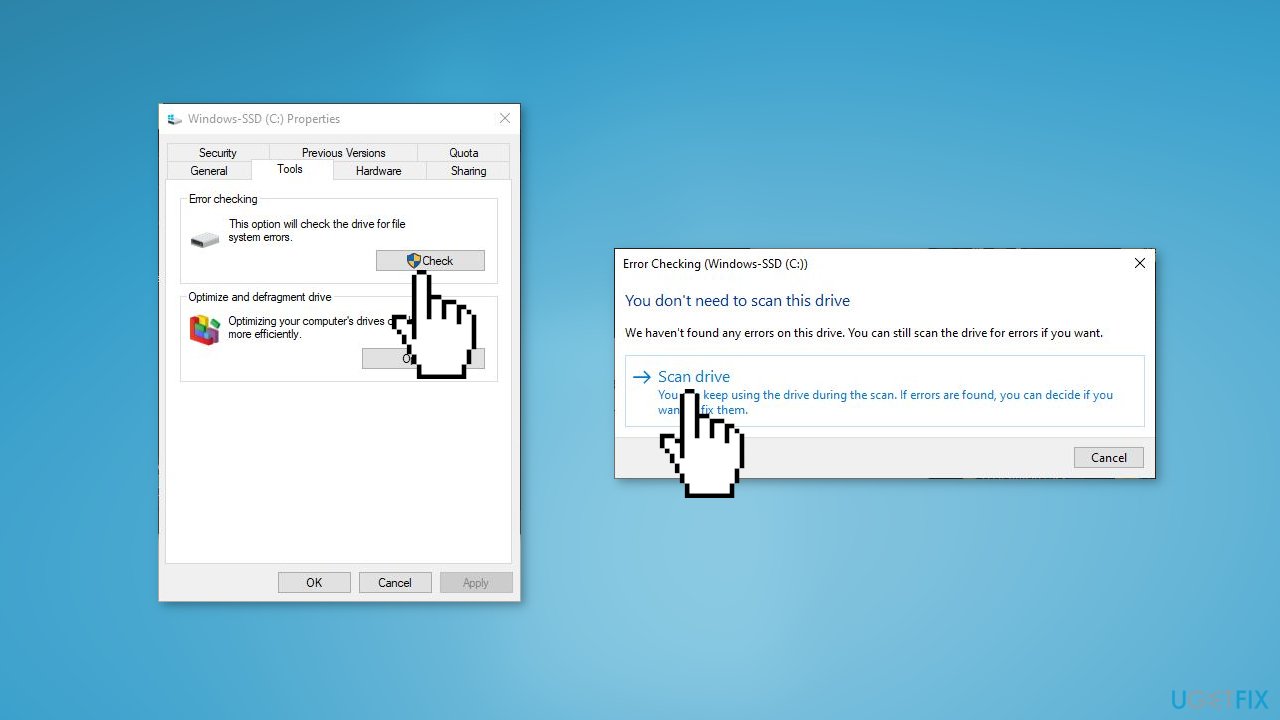
- Click on the Check button from the Error Checking section
- Finally, click on Scan and repair drive
Solution 3. Run Hardware and Device Troubleshooter
- Open the Command Prompt as administrator and run the following command:
msdt.exe -id DeviceDiagnostic
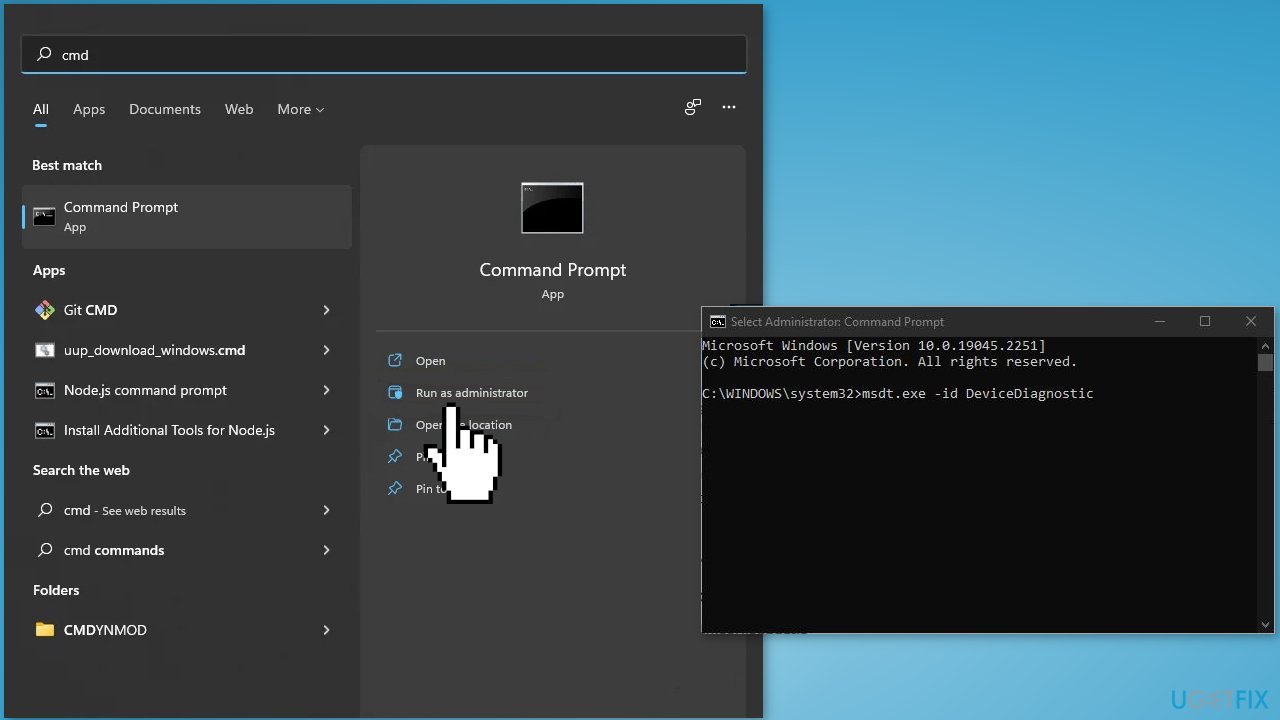
- Follow the on-screen instructions to scan and resolve the issue
Solution 4. Repair Bad Sectors
- Open Command Prompt as administrator and then execute the following command:
chkdsk C: /f /r /x
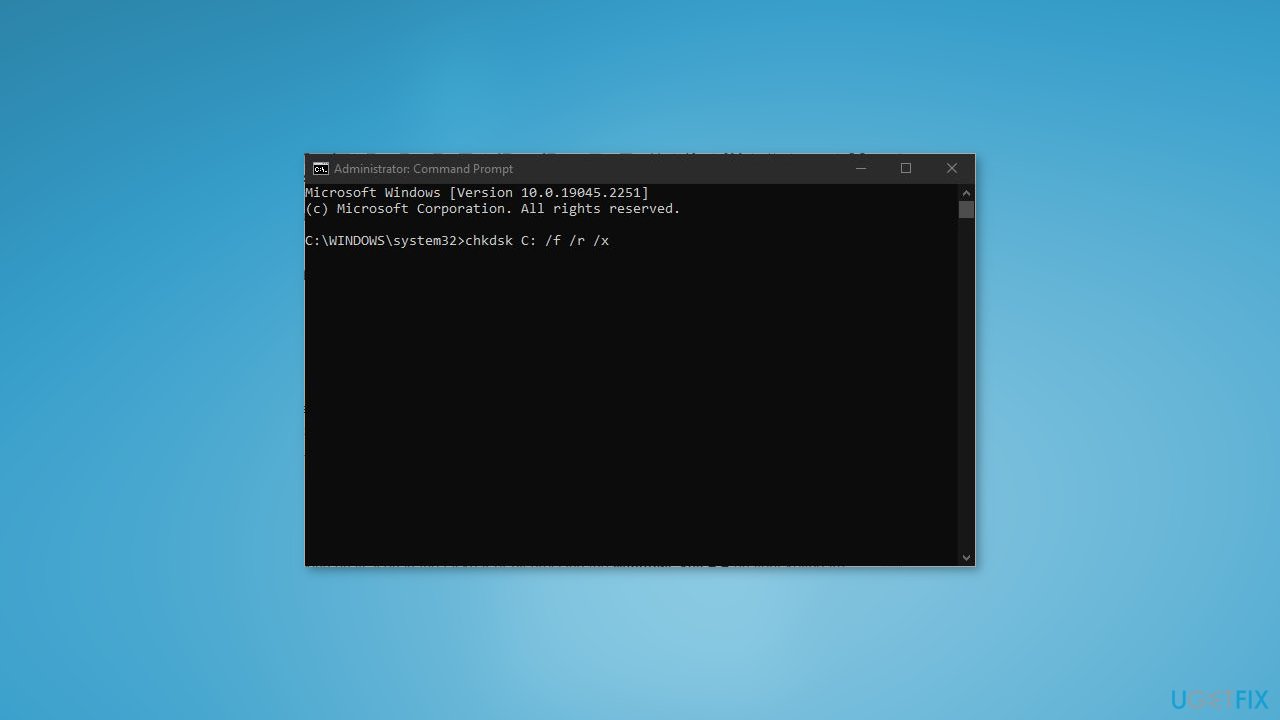
Note: Make sure to replace the letter "C" with the appropriate letter of the drive you want to check. This process may take some time, but once it is finished, check if the problem has been resolved. If all goes well, your computer should no longer freeze when you plug in an external hard drive.
Solution 5. Reformat the External Hard Drive
- Open File Explorer by clicking on its icon in the taskbar or by pressing the Windows key + E on your keyboard
- In the File Explorer window, click on This PC to view a list of all the drives connected to your computer
- Right-click on your external hard drive and select Format.. from the context menu. This will open the Format dialog box.
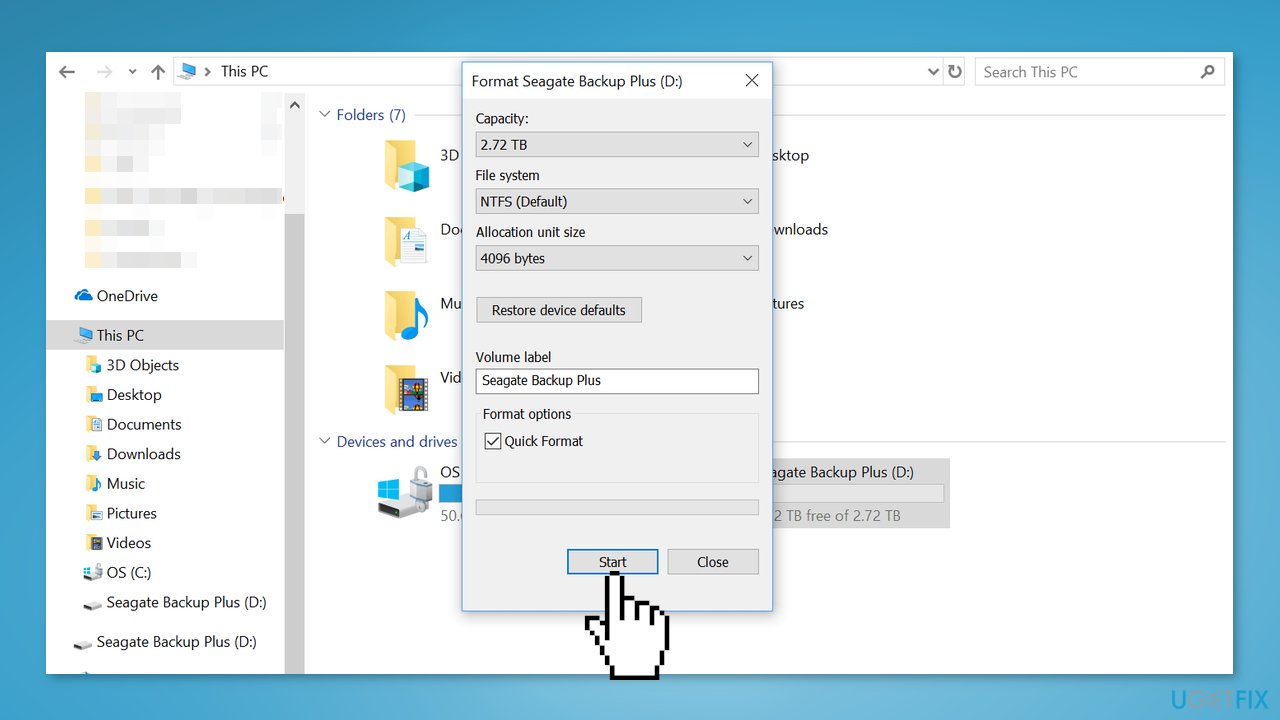
- Select the desired options and settings for formatting your hard drive, and then click on the Start button to begin the process
- Wait for the format process to finish, which may take several minutes depending on the size of your hard drive
- Once the format process is complete, check if the issue with your external hard drive freezing has been resolved
Bottom line
To fix the external hard drive freezing issue, you can try reconnecting the drive, restarting your computer, and checking for updates. If these solutions do not resolve the problem, consider using a comprehensive maintenance tool for further troubleshooting.
Frequently asked questions
Try disconnecting the drive and reconnecting it to a different USB port. If the issue persists, run the built-in Windows 10 Error Checking tool to scan for and fix any file system errors.
Ensure that your Windows 11 is up to date and check for driver updates for your external hard drive. Additionally, consider using a powered USB hub to provide adequate power to the drive.
Yes, you can attempt to recover data by using data recovery software or accessing the drive in Safe Mode on Windows. If the drive remains unresponsive, consider professional data recovery services.




Report an issue
What's wrong with this guide? We review every report and update or remove content.
Report received — thank you. We'll review and fix it.
You need a free account to submit a report.
Be the first to comment