How to fix
Facebook Notifications That Gone Missing
on Windows
Missing Facebook notifications? Discover quick fixes to restore them on Windows 10 or Windows 11. Expert-tested solutions that work!

What causes How to Fix Facebook Notifications That Gone Missing?
- Third-party software interfering with notifications
- Accidental modification of App Notification settings
- Custom Android versions limiting app functionality
- Background process management tools affecting notifications
- Malware or bugs affecting the app
Repairs Windows system files, removes malware, and restores a clean OS state — without reinstalling.
I don‘t get Facebook notifications. I clicked on „Get notifications“ option, but I still don‘t get anything. I would like to get my notifications back! Can someone please help?
Many Android users are complaining that they cannot either see notification bubbles at all, or when they click on Facebook app[ref en-1] and go to check them, the section is entirely blank. People tried resetting the app and turning the notification option on and off, but it still does not work. According to people‘s reports, the problem occurs out of nowhere and, therefore, causes many inconveniences.
Although it‘s not yet clear why Facebook notifications fails to work, Facebook support team associate this issue with the third-party software[ref en-2] that is running on your smartphone. In particular, you should draw your attention if there is a tool managing your smartphone‘s background processes. A more simpler explanation of the missing Facebook Notifications would be an accidental modification of App Notification settings.
It is also known that manufacturers that use custom versions of Android implement a function that tries to save battery charge[ref en-3] by all means. This does not allow applications function properly when the phone is inactive.
Regardless of what the cause is, our security experts complied a list of instructions that might help you to resolve this disturbing problem. However, before you proceed with these steps, we advise scanning your device with [d1] as various bugs with the program might be an indication of malware[ref en-4] attack.
Check App Notification Settings
You should start from basics and check if your App notifications are set to ON. Note that the path might differ depending on the manufacturer of the phone.
- Open Settings on your device and select Sound and notifications.
- Open App Notifications.
- Find Facebook app and make sure that the notificatios are enabled.
- If they have been disabled, make sure to enable them.
Uninstall Doubtful Third-Party Apps

Third-party apps might sometimes get into your device without noticing. This is extremely common when downloading applications from third-party websites. Additionally, some of these programs might be add-supported and spam your browser with continual ads; thus it is always a good practice to keep your phone clean of such pests.
- Open Settings on your device and select Apps.
- Check the list of installed applications and look for the background data restriction tools.
- Click on the undesired application and select Disable.
- You should also disable the apps that manage power saving modes.
Enable Auto-Sync on your Device
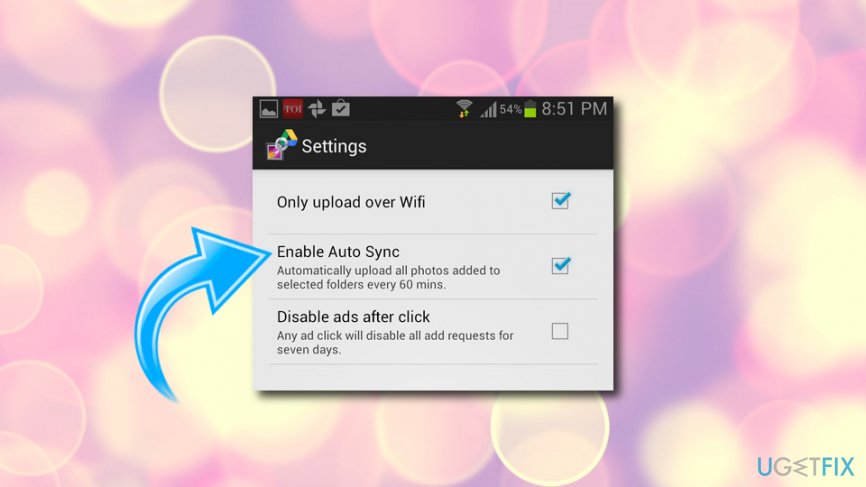
If you cannot see Facebook entry, you should click on Add account and enter your Facebook username and password.
- Open Settings on your device and locate Accounts and Sync section.
- If Facebook app is included in the list of apps being synced with your device, then skip this method. If Facebook is not included, then please follow these steps:
- Tap on Add account and enter your Facebook log in information.
- Click on More (or three-dot icon at the topo f the screen) and check if auto-sync feature is enabled.
- If it is disabled, tap on Enable auto sync option.
- Click OK to save changes.
Enable Push Notifications
- Open Menu and tapo on Settings.
- Open the list of apps running on your device and tap on Facebook app.
- Select Push Notifications option and slide the toggle next to Messages to ON.
- Do the same with each notification type (Comments, Wall Posts, Friend Requests, etc.)
Fixing Missing Notifications using a PC
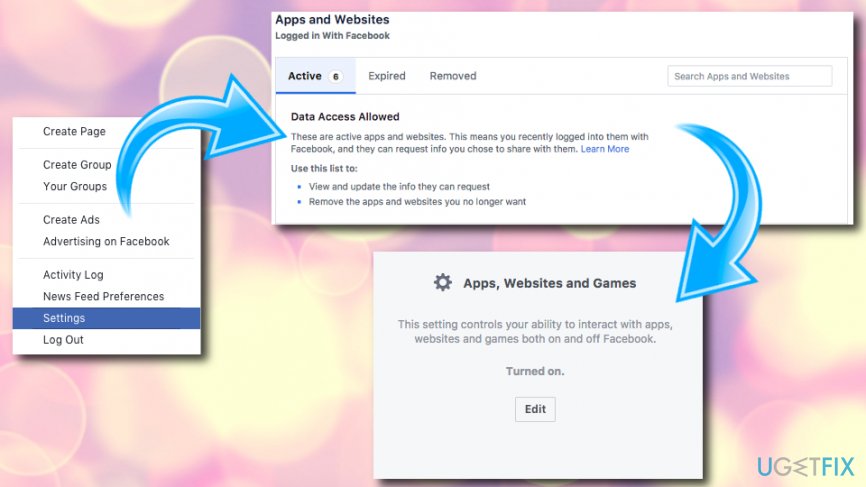
People reported that it‘s possible to fix missing Facebook Notifications on smartphone using a PC. To try this, you should:
- Launch Facebook on your PC and open Settings. (Alternatively, you can use a Facebook desktop version using Chrome browser on your smartphone).
- Click on Apps and remove all accounts under Logged in with Facebook.
- Now click Edit button and press Disable Platform under Apps, Websites and Pages.
- Once done, open Facebook on your smartphone and expand the action bar.
- Tap on Notifications and slide the toggle to Off and then back to On.
Facebook Notifications That Gone Missing fix for iPhone and iPad users
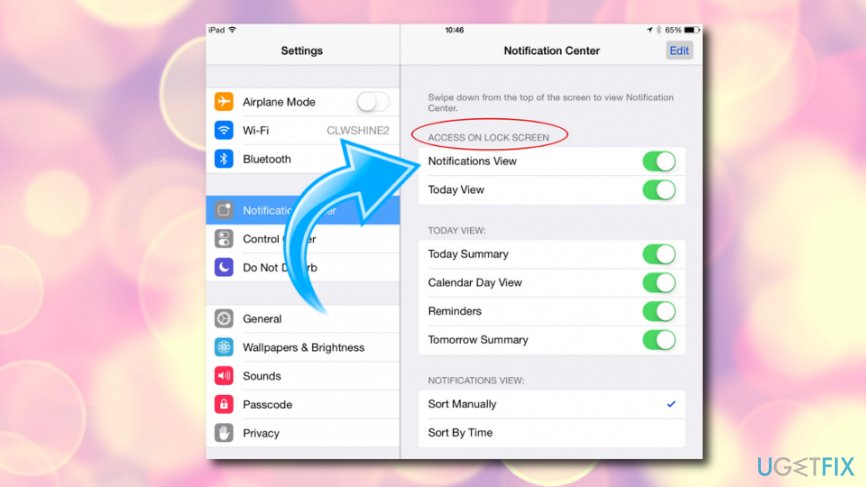
On iPhones and iPads, you need to enable Facebook to send you push notifications and have push notifications on in your Facebook Account Settings as well.
- Go to your Settings and find Notifications
- Tap on Facebook
- Notification Center and View in Lock Screen should be set to On
Bottom line
To resolve missing Facebook notifications, check your App Notification settings to ensure they are enabled, and consider uninstalling any doubtful third-party apps. If the problem persists, scan your device for malware, as this could be the underlying issue.
Frequently asked questions
Missing Facebook notifications on Windows 10 can be due to incorrect notification settings or browser issues. Check your notification settings in both Facebook and Windows to ensure they are enabled.
To restore Facebook notifications on Windows 11, try clearing your browser cache or using a different browser. Additionally, ensure that the Facebook app permissions are correctly set in Windows settings.
If notifications are still not appearing, consider reinstalling the Facebook app or resetting your browser settings. This can often resolve any underlying issues affecting notifications on Windows.




Report an issue
What's wrong with this guide? We review every report and update or remove content.
Report received — thank you. We'll review and fix it.
You need a free account to submit a report.
Be the first to comment