How to fix
Failed to connect with local Steam Client process fatal error
on Windows
Resolve the "Failed to connect with local Steam Client process" error on Windows 10/11 quickly and effectively. Expert-tested solutions included!

What causes How to fix Failed to connect with local Steam Client process fatal error?
- Outdated Steam Client version
- Insufficient user permissions
- Corrupted files or registry issues
- Application malfunctions due to cookies and cache
Repairs Windows system files, removes malware, and restores a clean OS state — without reinstalling.
Hello. I was trying to play a game I got from Steam but when I try to launch it, I receive a message "FATAL ERROR: Failed to connect with Local Steam Client Process." How do I fix this?
Steam is a video game digital distribution service launched in 2003. It provides users with an application where they can install games and update them all at once. Additionally, it provides users with saved game cloud synchronization, and community features such as friend messaging, in-game chat, and a community market.
Although Steam is the largest digital distribution platform for PC gaming, sometimes people run into issues when trying to use it. Recently, users have reported seeing this error message:
FATAL ERROR: Failed to connect with Local Steam Client Process
Please make sure that you are running latest version of Steam Client.
You can check for Steam Client updates using Steam main menu:
Steam > Check for Steam Client Updates.
Video game enthusiasts report that the Failed to connect with local Steam Client process fatal error appears when they try to launch specific games. Although it is unknown why exactly it appears, the error message suggests that it's because of an outdated Steam version.
In this guide, you will find 5 steps that could help you fix Failed to connect with local Steam Client process fatal error. But before proceeding you can try a simple troubleshooting step which consists of just logging out of Steam and logging in again. Sometimes, this simple action helps fix various application malfunctions.
You can also try using a maintenance tool like [d1] that can fix most system errors, BSODs,[ref en-1] corrupted files, and registry[ref en-2] issues. This powerful software can also clear cookies and cache[ref en-3] which are often the culprits behind many malfunctions. Otherwise, follow the step-by-step instructions below.
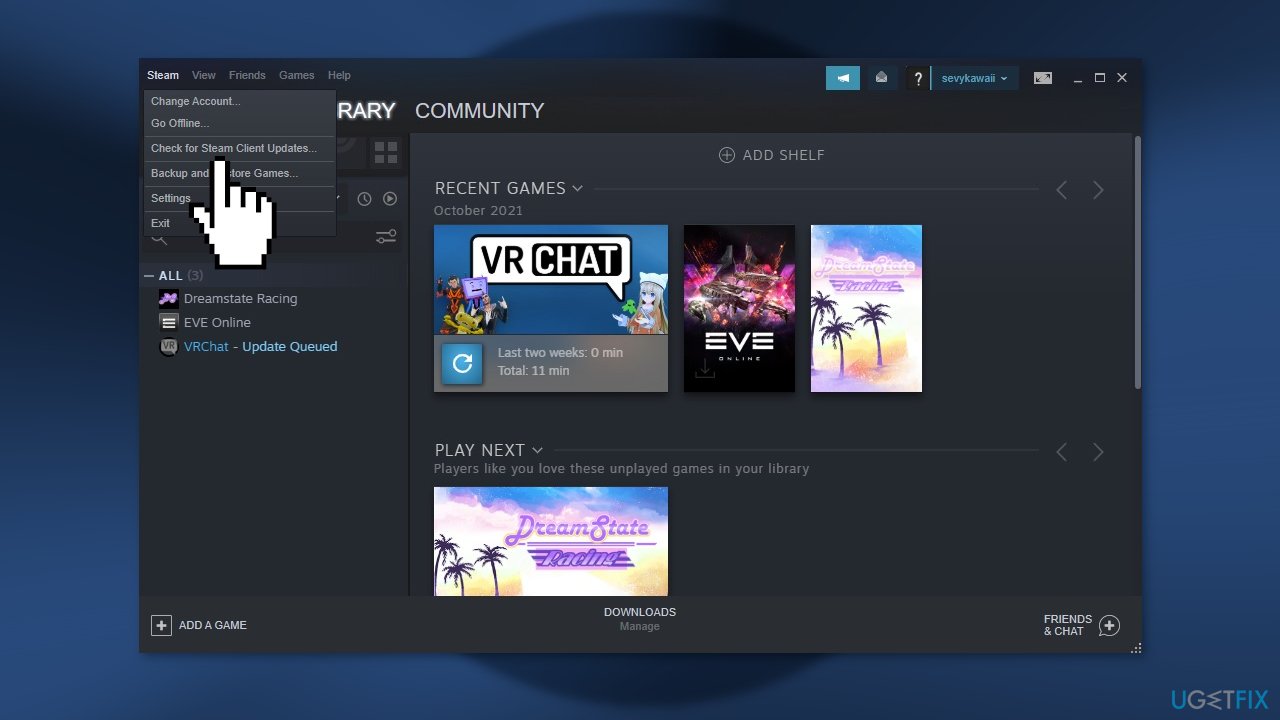
Solution 1. Update Steam
- Open the app, click on Steam, and check for Steam Client Updates…
- If there is an update available, it will be downloaded and installed
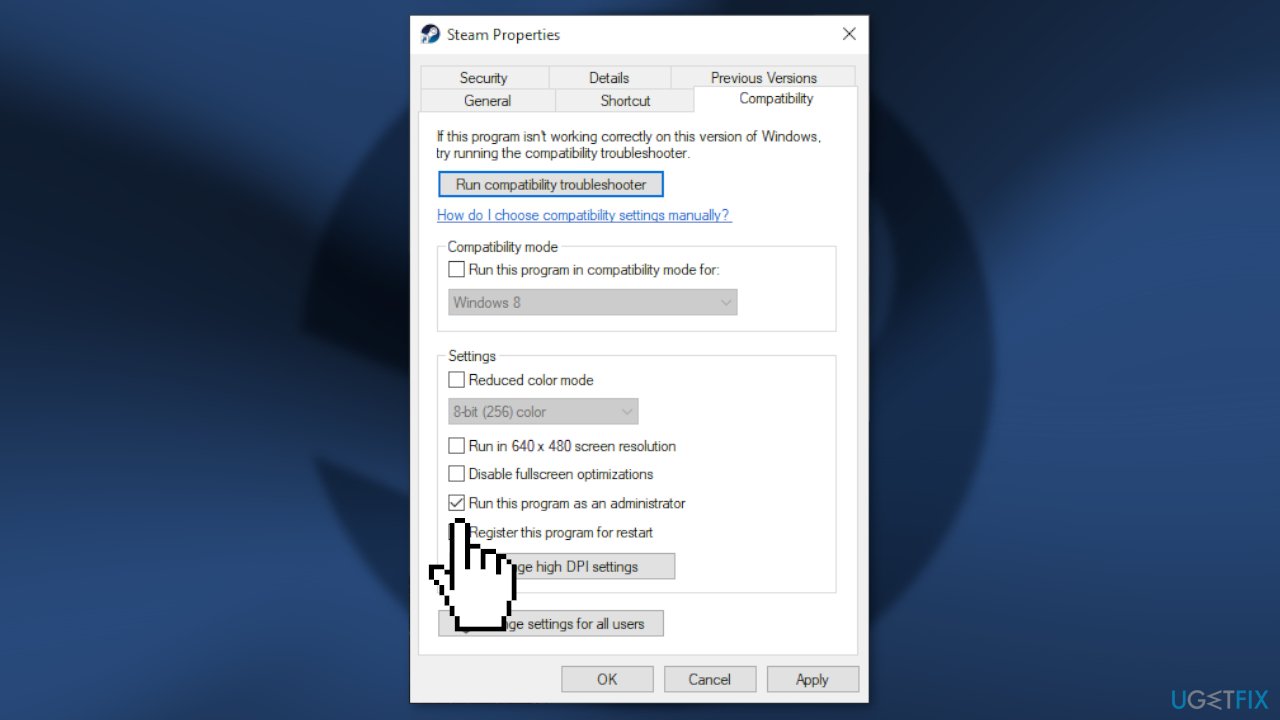
Solution 2. Launch Steam as an administrator
- Right-click on Steam and select Properties
- Go to the Compatibility tab
- Tick Run this program as an administrator and click Apply > Ok
Solution 3. Uncheck “Run as administrator” for the game
- Open Steam and go to the Library
- Right-click on the problematic game and select Properties
- Go to the Local Files tab and click Browse
- Right-click on the EXE file and select Properties
- Go to the Compatibility tab
- Untick Run this program as an administrator and click Apply and OK
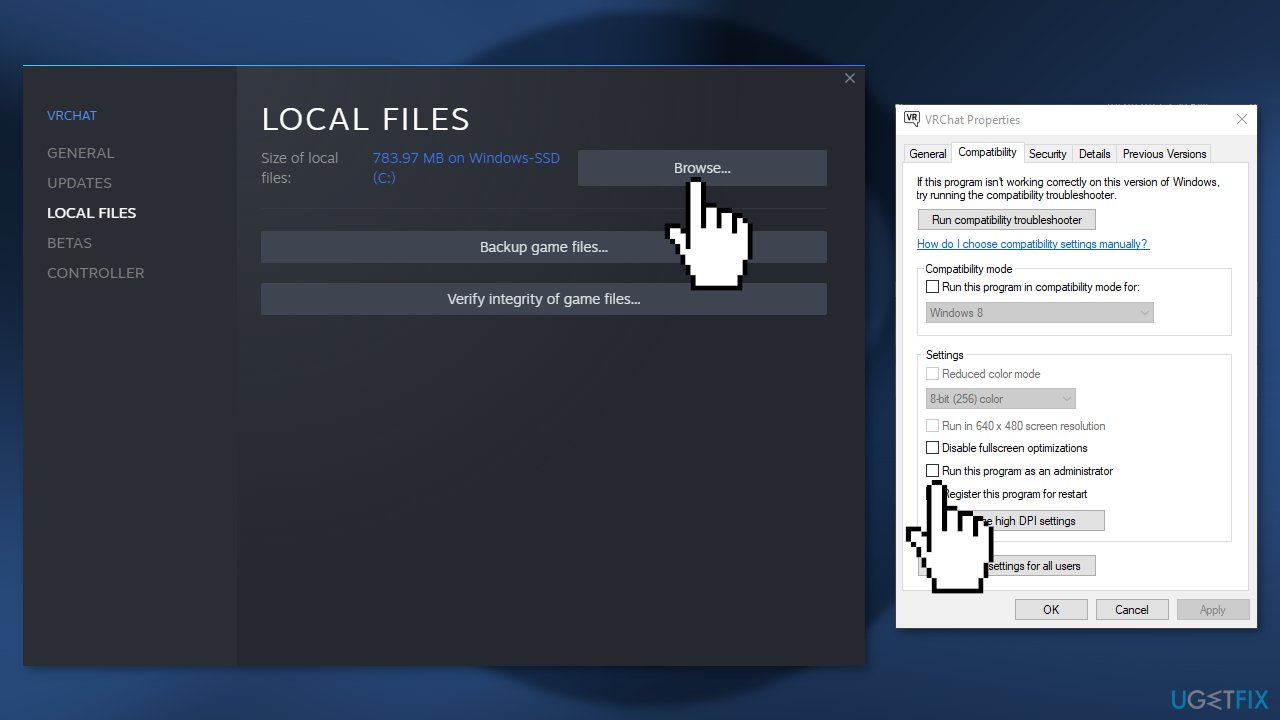
- Restart the game and check if the issue persists
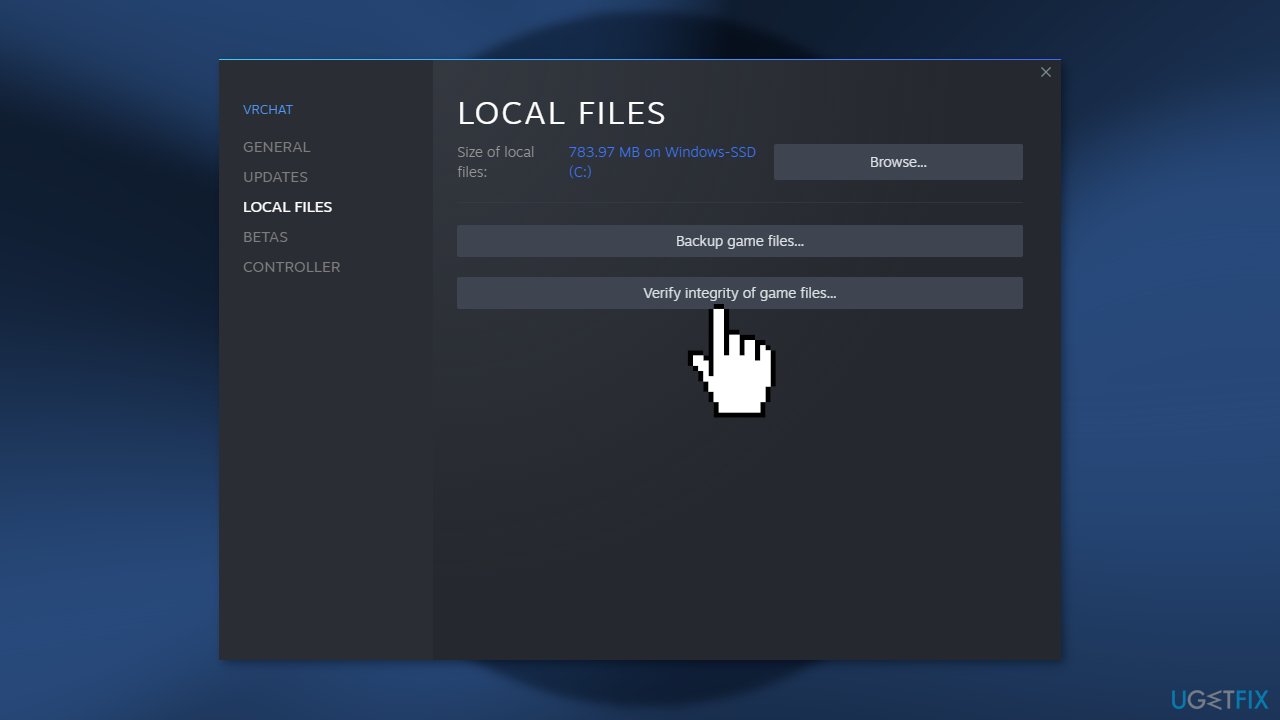
Solution 4. Verify integrity of game files
- Open Steam and go to the Library
- Right-click on the game you want to repair and select Properties
- Click Local Files and then choose Verify integrity of game files
Solution 5. Reinstall Steam
- Navigate to the following location:
C:\\Program Files (x86)\\Steam\\steamapps
- Delete all the content of the folder
- Go to Apps & Features, find Steam in the list and click Uninstall
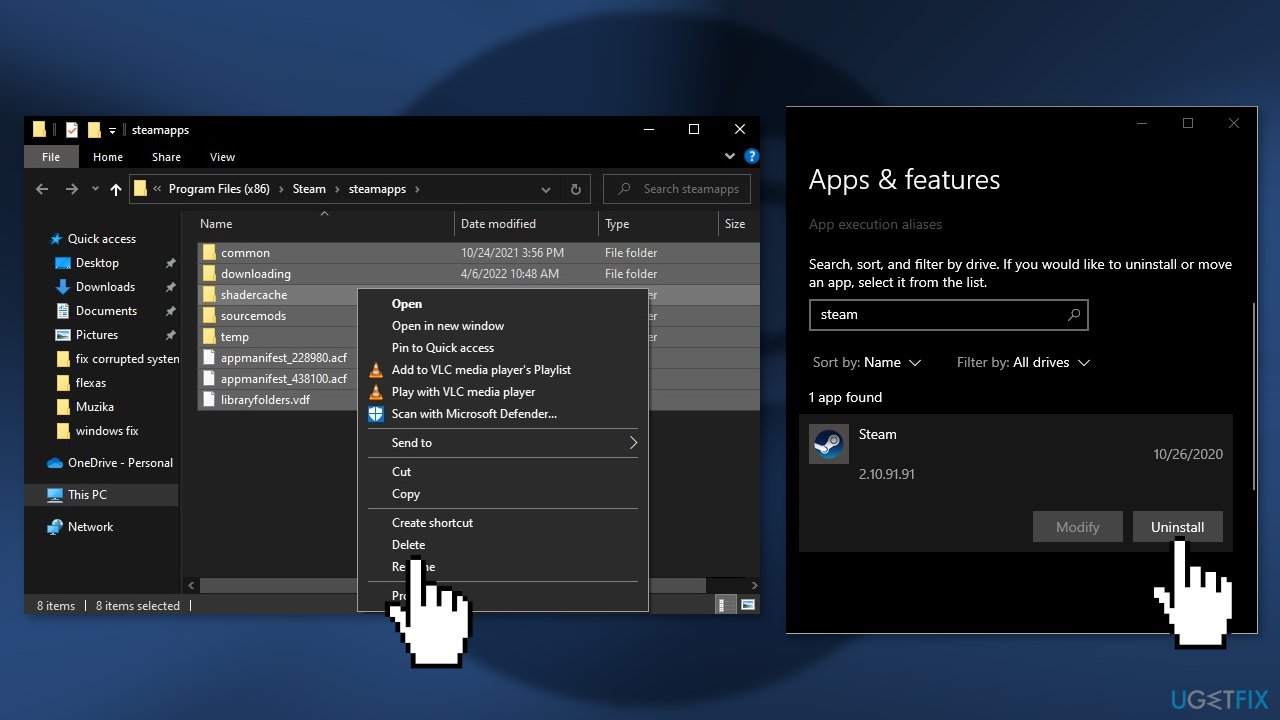
- Now redownload it
Bottom line
To fix the 'Failed to connect with Local Steam Client Process' error, you can try updating the Steam Client, launching Steam as an administrator, or logging out and back into your account. If these steps do not resolve the issue, consider using a maintenance tool to address potential system errors.
Frequently asked questions
This error usually occurs due to issues with the Steam client, such as corrupted files or improper installation. Additionally, firewall or antivirus settings may block the connection.
To fix this error on Windows 11, you can try restarting the Steam client, verifying the integrity of game files, or reinstalling Steam completely. Make sure to also check your firewall settings.
Yes, a quick fix is to run Steam as an administrator, which can resolve permission issues causing the error. Additionally, clearing the download cache in Steam settings may help.




Report an issue
What's wrong with this guide? We review every report and update or remove content.
Report received — thank you. We'll review and fix it.
You need a free account to submit a report.
Be the first to comment