How to fix
“Failed to enumerate objects in the container. Access is denied” error
on Windows
Resolve the "Failed to enumerate objects in the container" error on Windows 10/11 effortlessly. Get expert-tested solutions that work in minutes.


What causes How to fix “Failed to enumerate objects in the container. Access is denied” error in Windows?
- Clash in file or folder permissions
- Incorrect folder settings
- Lack of necessary permissions to view or modify folder permissions
- Misconfigured ownership of the folder
- Improperly set inheritance of permissions
Repairs Windows system files, removes malware, and restores a clean OS state — without reinstalling.
Hi, I suddenly don't have access to my C drive. I attempted to take ownership but received an error "Failed to enumerate objects in the container. Access is denied." Any tips on this would be appreciated.
Folder access in Windows 10/11 refers to the permissions granted to users for viewing, modifying, or deleting files and folders stored in a particular directory. Administrators and regular users have different levels of access.
Administrators, also known as "superusers," have full control over the system and can perform tasks such as installing software, modifying system settings, and managing user accounts. They can also grant or revoke permissions for other users, including setting permissions for folders and files.
Regular users, on the other hand, have limited access and can only perform actions that are allowed by the permissions granted to them by the system administrator. They can create, edit, and delete files and folders within their own user profiles or shared directories, but they cannot modify permissions for other users or system files.
However, sometimes users may encounter the error message "Failed to enumerate objects in the container. Access is denied" when attempting to modify folder permissions. It occurs when the user account lacks the necessary permissions to view or modify the permissions of a folder.
There are two main reasons that may lead to this "Failed to enumerate objects in the container. Access is denied" error. The first reason is a clash in a file or folder permissions. For example, if multiple users or groups have conflicting permissions on the same folder, it may result in the "Failed to enumerate objects in the container" error.
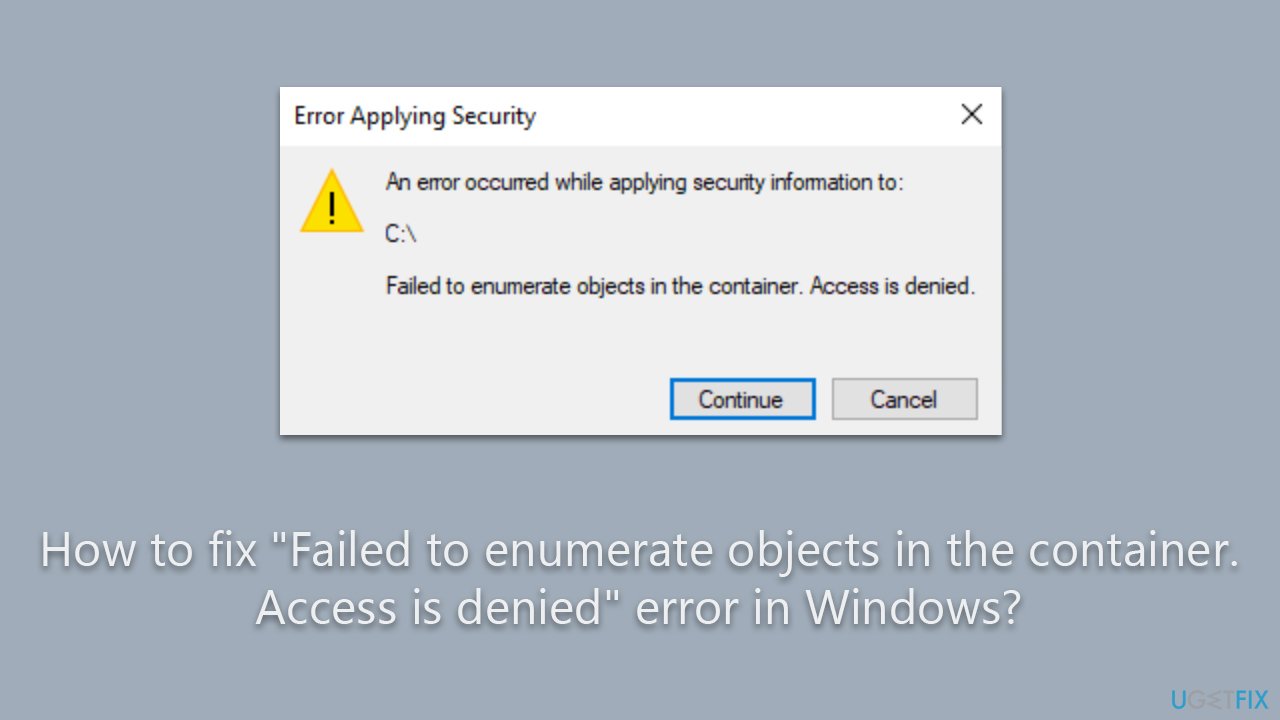
The second reason is incorrect folder settings. Folder settings such as ownership, inheritance, or access control list (ACL) entries could be misconfigured. For instance, if the ownership of the folder is not properly set or if the inheritance of permissions is not configured correctly, it may cause the error to occur.
Please check out the instructions below to fix the issue at hand. If you would rather take an automatic approach, you can use [d1] to check for underlying Windows issues.
Fix 1. Set your account as administrator
One of the main reasons why users receive the error is because their account is not set as an administrator. To set it as one, follow these steps:
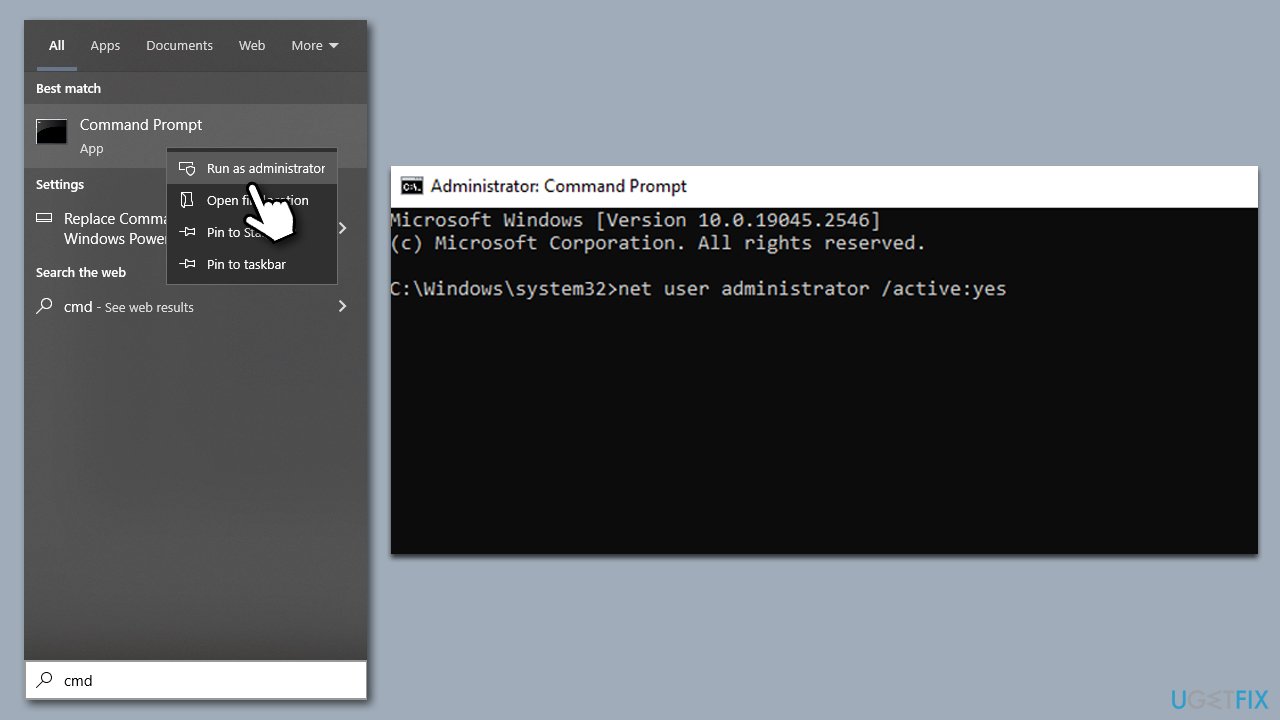
- Type cmd in the Windows search field.
- Right-click on Command Prompt and select Run as administrator.
- When User Account Control asks whether you want to allow changes, click Yes.
- In the new window, copy and paste the following command:
net user administrator /active:yes - Press Enter and close down Command Prompt.
Fix 2. Take ownership
If you can't access specific folders because of this error, you can attempt to take ownership as follows:
- Right-click on the folder you can't access and select Properties.
- Go to the Security tab and click Advanced at the bottom.
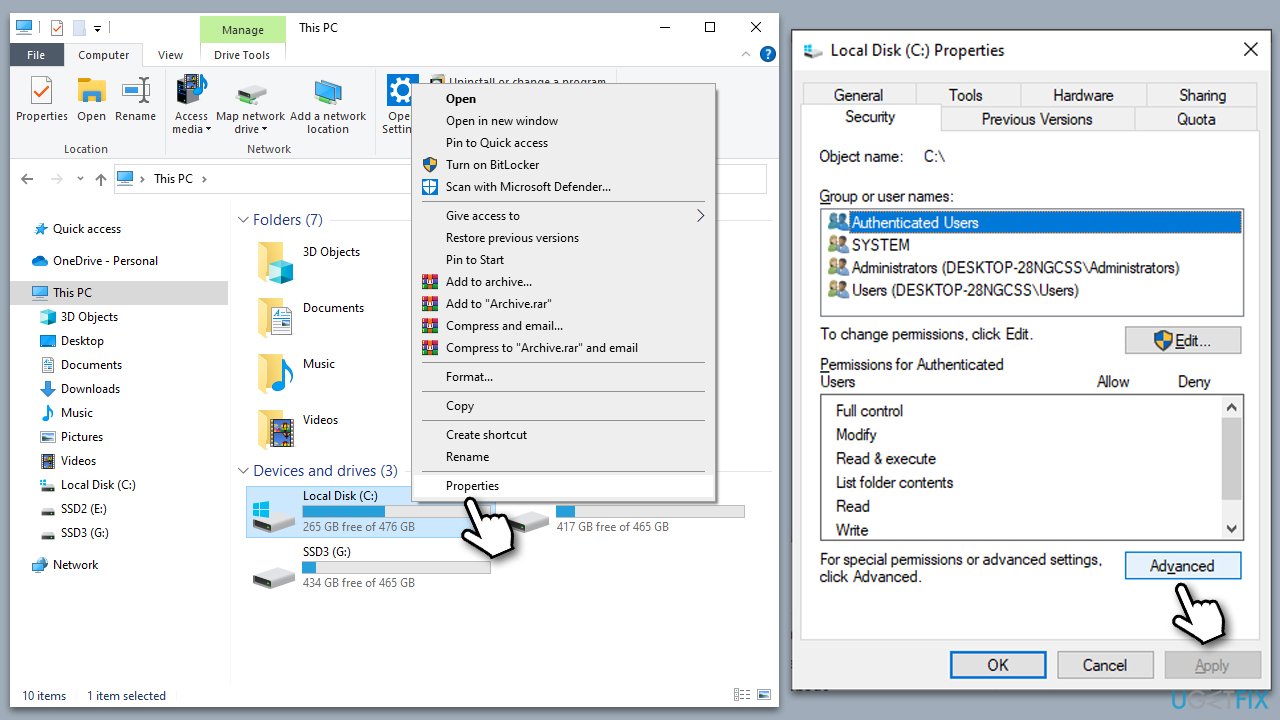
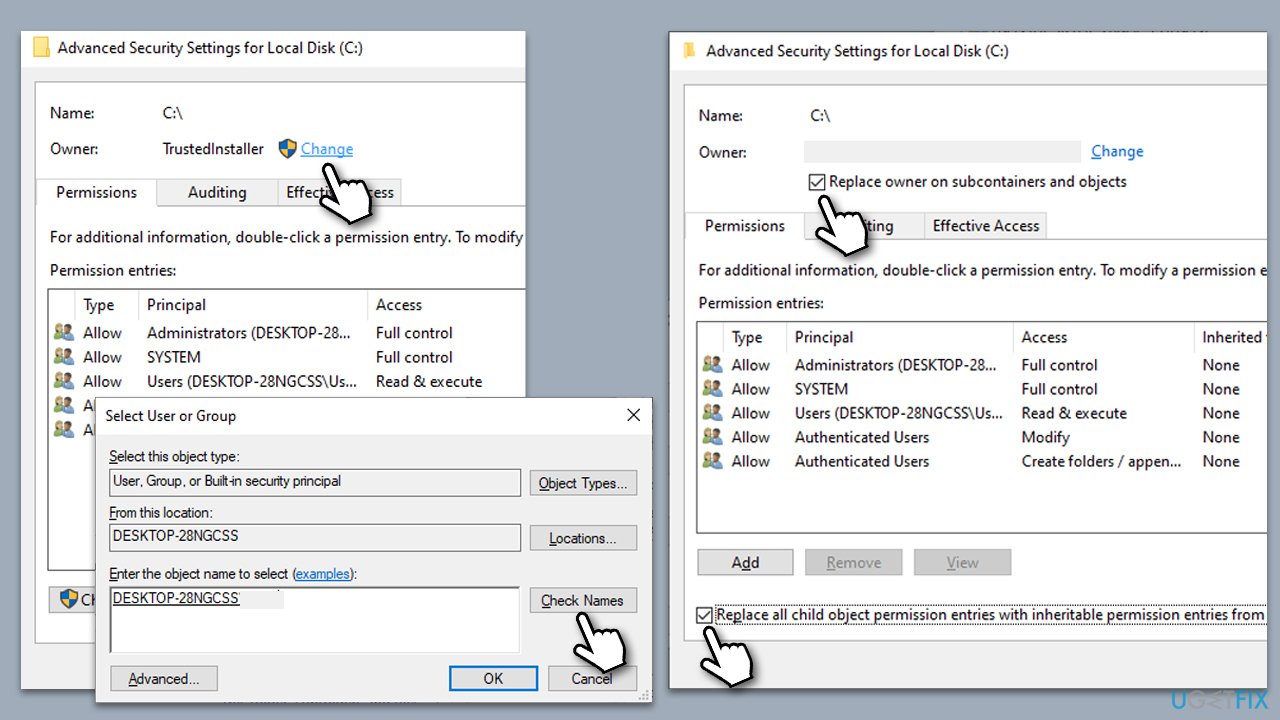
- Under Owner, click Change.
- In the Select User or Group window, type in your username (or simply use Administrator) and click Check names.
- When shown, select your account and click OK.
- Mark the Replace owner on subcontainers and objects and Replace all child object permission entries with inheritable permission entries from this object checkboxes and click Apply and OK.
- Now go back to Properties > Security tab of the folder and select Edit under Permissions.
- Select the group that you are using (for example, User group) and make sure that Full control is selected.
- Click Apply and OK.
- In the Properties window of the problematic folder, go to the Security tab again.
- You should see Everyone present on the list. If not, you should add it.
- Click Advanced at the bottom.
- Under Permission entries, click Add (or first, click .
- Under Principal, click Select a principal.
- Write Everyone in the field and click Check names, then click OK.
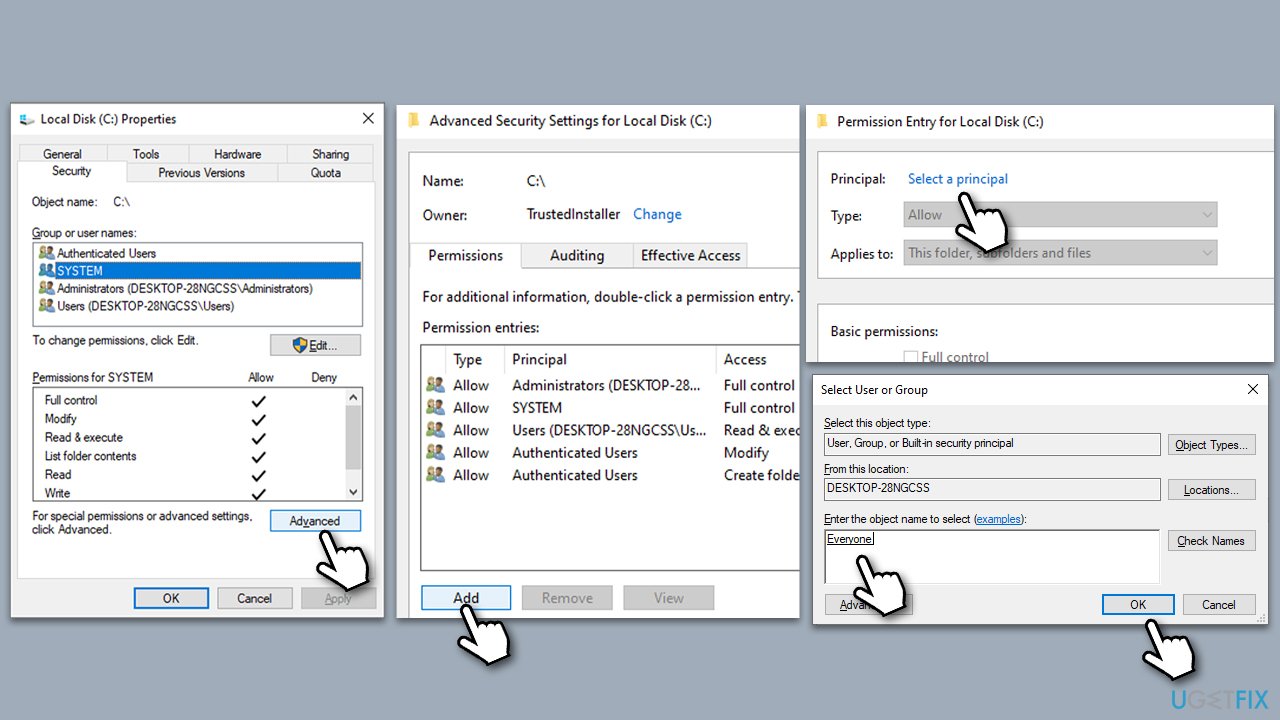
- Close down all the windows and check if the problem is solved.
Fix 3. Use Command Prompt to take ownership
If the method above did not work, you could try implementing changes via an elevated Command Prompt.
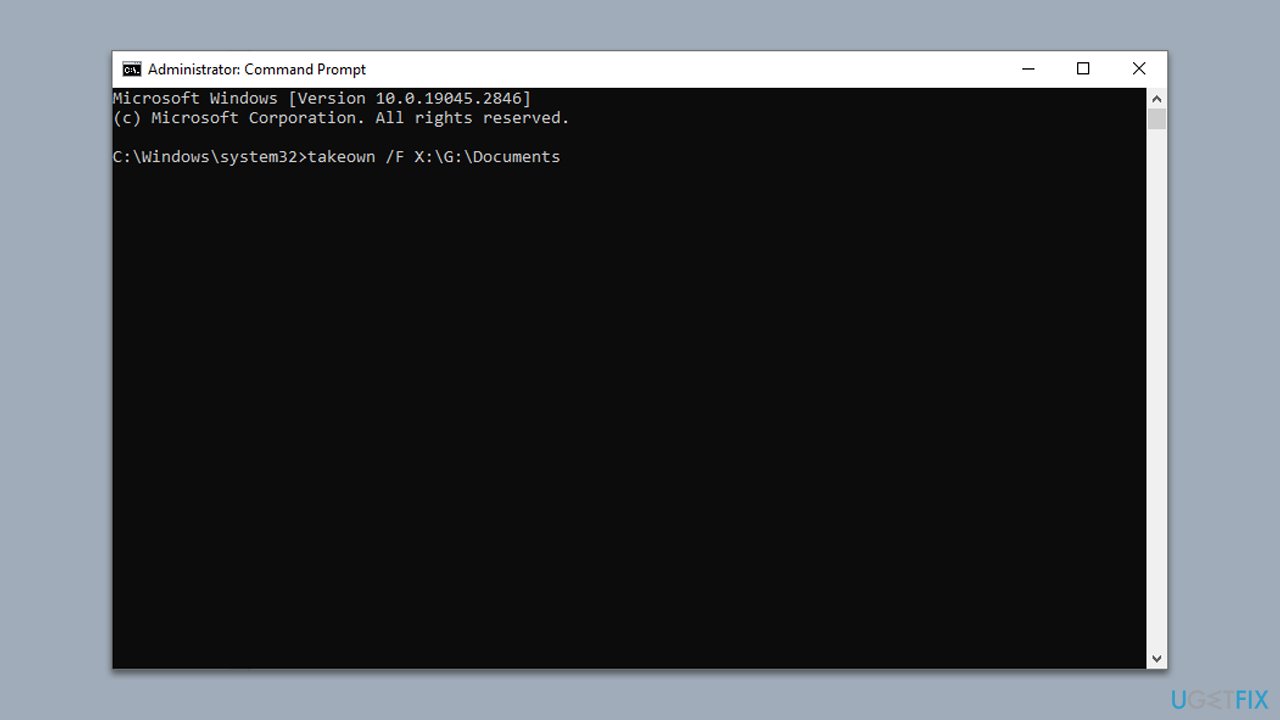
- Open Command Prompt as administrator, as explained before.
- When Command Prompt opens, copy and paste each of these commands, pressing Enter every time:
- (Note: replace the FOLDER PATH with the path you are trying to access, for example, C:\ or G:\Documents - simply copy the path from the address bar in File Explorer)
takeown /F X:\FOLDER PATH
takeown /F X:\FOLDER PATH /r /d y
icacls X:\FOLDER PATH /grant Administrators:F
icacls X:\FOLDER PATH /grant Administrators:F /t - Close down Command Prompt.
Bottom line
To fix the 'Failed to enumerate objects in the container. Access is denied' error, check for conflicting permissions among users, ensure correct folder ownership, and verify that permission inheritance is properly configured. If these steps do not resolve the issue, consider seeking further assistance or using advanced troubleshooting methods.
Frequently asked questions
This error typically occurs due to permission issues or corruption within user profiles or system files in Windows 10 or 11.
You can resolve this by taking ownership of the folder or adjusting the permissions through the Security tab in the folder properties.
Yes, you can use the built-in System File Checker tool by running 'sfc /scannow' in the Command Prompt to repair corrupted system files.




Report an issue
What's wrong with this guide? We review every report and update or remove content.
Report received — thank you. We'll review and fix it.
You need a free account to submit a report.
Be the first to comment