
How to fix "Failed to find Steam" error in Windows?

Prefer to fix it yourself? The manual steps follow.
- 8methods
- 2 minutes for the first fix, 5 to 30 minutes for the repairs
- Easy
Applies to Older games bought on Steam, such as Jade Empire: Special Edition, on Windows 11 or Windows 10
8 methods in this guide
Hello. Yesterday, I tried launching Jade Empire on Steam (I bought it a few months ago, so I won't be able to get a refund), but I kept receiving a "Failed to find Steam.dll" error. I also tried to open the config launcher, but that doesn't work either.
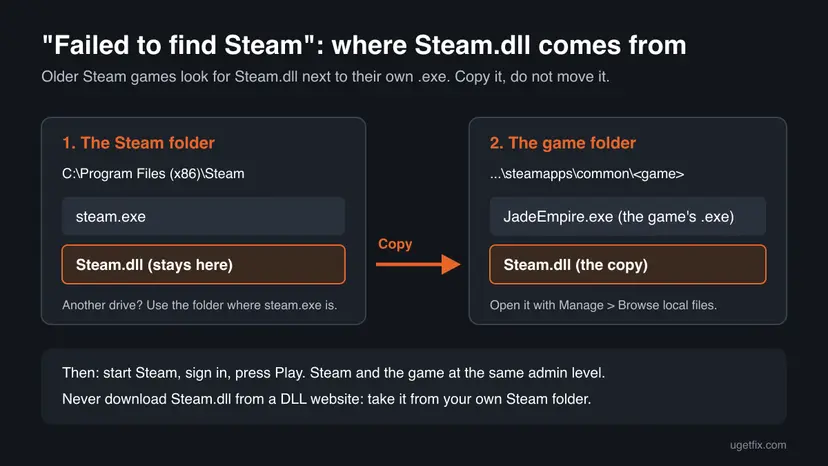
"Failed to find Steam" comes from the game, not from Steam: an older Steam title such as Jade Empire: Special Edition starts, looks for Steam and gives up. Players fix it most often by copying Steam.dll from the Steam folder into the game's own folder. Do that first, then start the game from Steam.
The game looks for the file Steam.dll in its own folder and does not find it. Start with Fix 1: open C:\Program Files (x86)\Steam, copy Steam.dll, open the game's folder with Manage > Browse local files in the Steam Library and paste it next to the game's .exe. Then start Steam, sign in and press Play. If the error stays, Fix 2 checks that Steam and the game run at the same permission level.
| Error | A small window with the text "Failed to find Steam", sometimes "Failed to find Steam.dll". Some players see it in a window titled Application Error. |
|---|---|
| Where it appears | A moment after you press Play or start the game's .exe, before any menu or logo. The game's own configuration tool can fail with the same text. |
| Main cause | An older Steam game cannot reach Steam. Most reports point to a missing Steam.dll in the game's folder; less often Steam is closed or runs at another permission level than the game. |
| Fastest fix | Copy Steam.dll from the Steam folder into the folder that holds the game's .exe, then launch from the Steam Library (Fix 1). |
| Also written as | Failed to find Steam, Failed to find Steam.dll, Application Error: Failed to find Steam, failed to find steam error. |
| What Steam is here | Steam is Valve's game store and launcher. A game bought on Steam checks with the running Steam client that you own it before it starts. |
| Affects | Players report it mostly for older Steam releases: Jade Empire: Special Edition, Deus Ex: Game of the Year Edition and Geometry Wars: Retro Evolved. Windows 11 and Windows 10. Windows 10 lost Microsoft support on 14 October 2025, which does not change this error. |
| Vendor status | We found no Valve or publisher page for this message and no patch that fixes it. Valve's Steamworks documentation lists why a game fails to connect to Steam; the Steam.dll copy is a fix players found, not an official one. |
| Time to fix | 2 minutes for Fix 1 and Fix 2. 5 to 30 minutes to verify or reinstall the game. |
Facts checked on 16 October 2026. Steps written for the Steam client on Windows 11 (25H2 and 26H2) and Windows 10 22H2, read against the Steamworks documentation and Steam Support.
What "Failed to find Steam" means and why older games show it
Every game sold on Steam asks the Steam client, when it starts, whether the signed-in account owns it. Newer games do that through files of their own, such as steam_api.dll. Several older Steam releases from the mid 2000s do it differently: they look for Steam's own file Steam.dll, and when they cannot find it or cannot reach Steam through it, they stop with "Failed to find Steam".
Steam.dll is part of the Steam client. On a default install it sits next to steam.exe in C:\Program Files (x86)\Steam. Players of Jade Empire: Special Edition report, on the game's own Steam store page and in its community discussions, that the game starts once a copy of that file sits in the game's folder. A Steam Community guide adds that the game fails to find Steam on 64-bit Windows or when Steam is installed in a custom location. We could not confirm the exact reason in a Valve or publisher document, so treat it as the players' finding.
| Text on screen | What it is | Covered here? |
|---|---|---|
| Failed to find Steam / Failed to find Steam.dll | An older Steam game on Windows that cannot reach Steam through Steam.dll | Yes, all fixes |
| Application Error: Failed to find Steam | The same text in a window titled Application Error. Players report it on Windows and in Android apps that run Steam games, such as GameNative | Windows: yes. Android: see the FAQ |
| Steam must be running to play this game | A newer game whose SteamAPI_Init call failed | No: see our Steam must be running guide |
| Unable to find Steam process, make sure Steam is running | A program that looks for a running Steam client and finds none | Partly: Fix 3 starts Steam the right way. See the FAQ |
| Failed to find check pattern | Not a Steam or game message we could trace to a source | No |
Steam itself needs Steam.dll in its own folder. If you cut the file instead of copying it, Steam stops working. Always use Copy and Paste, so that the original stays where it was.
What causes the "Failed to find Steam" error, from most to least likely
Valve publishes no numbers for this message. The order below follows what players of the affected games report and the reasons Valve's Steamworks documentation gives for a game that cannot connect to Steam.
| Cause | How to tell | Fix |
|---|---|---|
| No Steam.dll in the game's folder. The most common report for Jade Empire, Deus Ex and other older titles. | The game is an older Steam release and fails every time, also from the Library. | Fix 1 |
| Steam and the game at different permission levels. Valve: a game fails when it is "not running under the same OS user context as the Steam client, such as a different user or administration access level". | You ticked Run this program as an administrator for the game or for Steam, often after an older guide told you to. | Fix 2 |
| Steam not running, or the game started outside Steam. Valve: "The Steam client isn't running. A running Steam client is required." | You started the .exe or the config tool from the game folder or a shortcut while Steam was closed. | Fix 3 |
| An old game on a new Windows. The game was built for Windows XP or Vista. | Steam.dll is in place and the game still stops, or the config tool will not open. | Fix 4 |
| Damaged or missing game files. | Only this game fails, after a crash, a cleaner program or an antivirus alert. | Fix 5, then Fix 7 |
| Damaged Steam client files. | Several older games fail and the steps above changed nothing. | Fix 8 |
| An account that does not own the game. Valve: "Your game must show up in your Steam library." | The game is not in the Library of the signed-in account. | Fix 3 |
Many guides, including our old version of this page, tell you to tick Run this program as an administrator for the game. Ticked for the game alone, that can stop it from reaching Steam, because Valve names a different administration level as a reason for failure. Fix 2 explains how to match the two.
How to fix the "Failed to find Steam" error
Fix 1 solves it for most players of the affected games and takes two minutes. Fixes 2 and 3 make sure the game can reach a running Steam. Fixes 4 to 7 deal with an old game on a new Windows and with damaged files, and Fix 8 repairs Steam itself.
| What you see or have | Start with |
|---|---|
| Jade Empire, Deus Ex or another older Steam game shows "Failed to find Steam" or "Failed to find Steam.dll". | Fix 1 |
| Steam.dll is already in the game folder and the error stays. | Fix 2, then Fix 3 |
| You started the game or its config tool with Steam closed. | Fix 3 |
| The game window opens and closes, or the config tool will not open at all. | Fix 4 |
| Only this game fails after a crash, a cleaner or an antivirus alert. | Fix 5 |
| Several older Steam games show it. | Fix 1 for each, then Fix 8 |
| You see it on an Android phone or handheld. | The FAQ: the fixes on this page are for Windows |
Fix 1. Copy Steam.dll from the Steam folder into the game's folder
2 minutesLow riskEveryone with an older Steam game such as Jade Empire: Special Edition or Deus Ex: Game of the Year Edition. Start here.
The game looks for Steam.dll next to its own .exe. Players report that a copy of the file there is enough for the game to find Steam and start. The copy comes from your own Steam install, so it matches your Steam version.
- Press Win + E to open File Explorer.
- Open the Steam folder:
C:\Program Files (x86)\Steam. If Steam is on another drive, use that drive letter; it is the folder that holdssteam.exe. - Find Steam.dll. Right-click it and select Copy, or press Ctrl + C. Do not cut it.
- Open Steam, go to Library, right-click the game and select Manage > Browse local files. The game's folder opens, on whichever drive it is installed.
- Make sure you are in the folder that holds the game's main .exe, for Jade Empire
JadeEmpire.exe. If the .exe sits in a subfolder, open that subfolder. - Right-click an empty space and select Paste, or press Ctrl + V.
- If Windows asks to replace a file with the same name, select Replace the file in the destination.
- Go back to Steam and press Play.
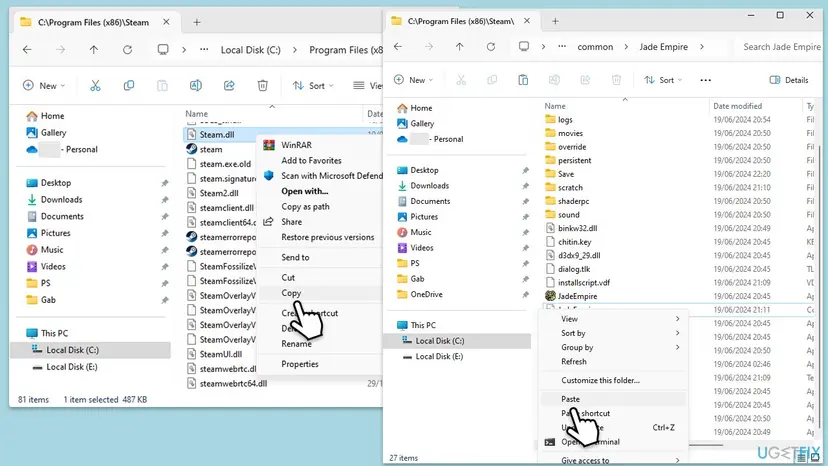
The only safe copy is the one in your own Steam folder. A Steam.dll from a download site can be outdated or carry malware. If the file is missing from your Steam folder too, repair Steam with Fix 8 instead.
It worked if: The game shows its logo or menu instead of "Failed to find Steam". Its configuration tool opens too.
If not: If the copy is in place and the message stays, check the permission level of Steam and the game with Fix 2.
Fix 2. Run Steam and the game at the same permission level
3 minutesLow riskSteam.dll is in the game folder and the error stays, or you ticked an administrator box for the game or for Steam.
Valve's documentation lists a different "administration access level" between the game and the Steam client as a reason the game cannot connect. A game started as administrator does not see a Steam that runs normally, so Steam.dll alone cannot help it.
- Open the Steam menu and select Exit.
- In File Explorer, open the game's folder from Fix 1 and right-click the game's .exe. Select Properties and the Compatibility tab.
- Look at Run this program as an administrator. Clear the box and select Apply and OK.
- Right-click
steam.exein the Steam folder, select Properties > Compatibility and clear the same box there. - Start Steam normally and press Play.
If a game only starts as administrator, tick the box for both the game and Steam, never for one alone. The full rules for permission levels and Steam, with the other Windows user case, are in our guide to Steam must be running to play this game.
It worked if: Steam and the game run at the same level and the game starts from Play.
If not: If both boxes were already clear, start the game the way Fix 3 shows.
Fix 3. Start Steam first, then the game or its config tool
1 minuteNo riskYou start the game's .exe, its config tool or a desktop shortcut while Steam is closed, or you have more than one Steam account.
Valve: "A running Steam client is required." Starting the .exe from the game folder works for these older games only while Steam is open and signed in to the account that owns them. Without a running Steam, the copied Steam.dll has nothing to connect to.
- Start Steam and wait until the Library has loaded.
- Check the account name in the top right corner. The game must be in this account's Library.
- Press Play on the game. To use the config tool, keep Steam open and continue with the next step.
- Right-click the game and select Manage > Browse local files.
- Double-click the game's .exe or its configuration tool in that folder.
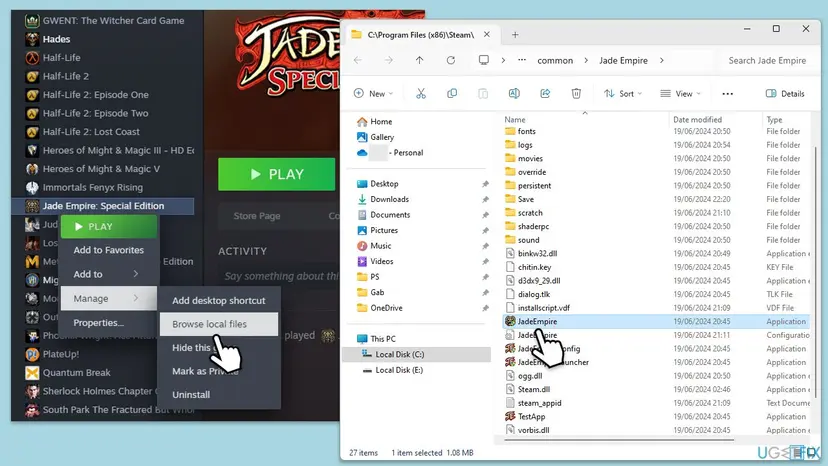
It worked if: With Steam open and signed in, the game or its configuration tool opens without the message.
If not: If the game still stops, or its window opens and closes, run it in compatibility mode with Fix 4.
Fix 4. Run the game in compatibility mode for an older Windows
3 minutesLow riskSteam.dll is in place and Steam is open, but the game or its config tool still will not start.
The games that show this message were built for Windows XP and Vista. Compatibility mode makes Windows answer the game the way an older Windows would, which can help an old launcher start. We could not confirm which mode works best for each game, so try one at a time.
- Open the game folder with Manage > Browse local files, right-click the game's .exe and select Properties.
- Open the Compatibility tab and tick Run this program in compatibility mode for.
- Pick an older Windows in the list, for example Windows 7 or Windows XP (Service Pack 3).
- Tick Disable fullscreen optimizations. Leave Run this program as an administrator as it is set for Steam (Fix 2).
- Select Apply and OK, then press Play in Steam. Do the same for the config tool if it fails.
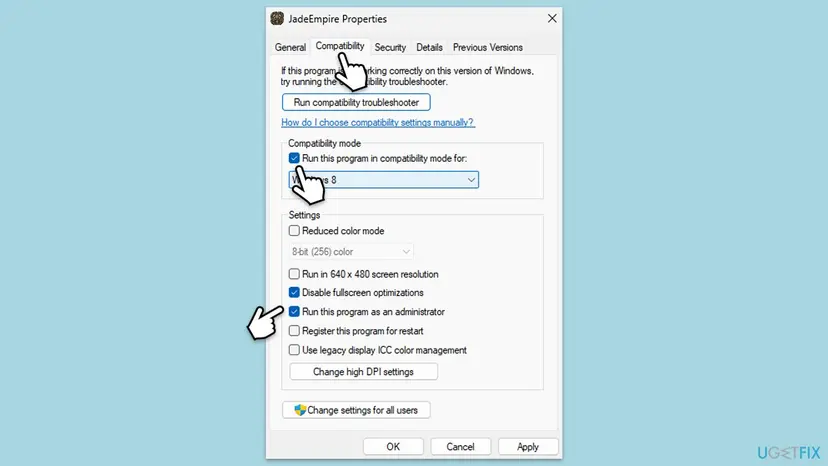
Step by step, with Windows 11 screenshots: How to run a program as administrator or in compatibility mode
It worked if: The game window stays open and the menu loads.
If not: If no mode helps, clear the compatibility box again and check the game's files with Fix 5.
Fix 5. Verify the game's files in Steam
5 to 30 minutes, by the size of the gameLow riskOnly this game fails, after a crash, a cleaner program or an antivirus alert.
Steam Support: "If a game won't launch, this is often caused by corruption in your extracted game files." A damaged .exe can fail to find Steam even with Steam.dll in place. Verifying downloads the original files again.
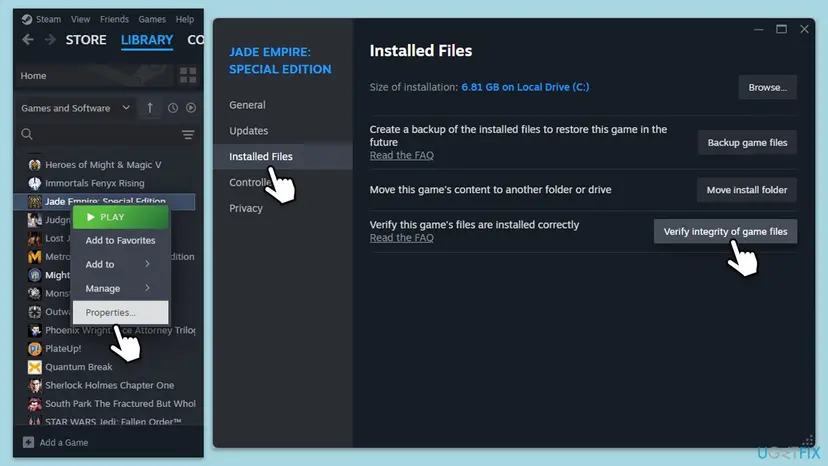
- Restart and open Steam. Restart your computer and launch Steam.
- Open the game's menu. Right-click the game in your Library, or open the game's Library page and select the gear icon on the far right.
- Open Properties. Select Properties in the menu.
- Verify the files. Select the Installed Files tab and select Verify integrity of game files.
- Wait for the result. Steam checks the game's files. This can take several minutes.
These steps were written for Steam on Windows. The full page with the other versions and what each result means: How to verify game files in Steam, Epic Games, Xbox app, EA app, Battle.net and GOG Galaxy
Steam Support says one or more files may fail to verify and that this is normal. Afterwards, look in the game folder: if Steam.dll is no longer next to the game's .exe, copy it again with Fix 1.
It worked if: Steam reports that all files were validated or that it downloaded some again, and the game starts.
If not: If verifying changes nothing, try Fix 6, then reinstall the game with Fix 7.
Fix 6. Register Steam.dll again with regsvr32
3 minutesLow riskFixes 1 to 5 did not help and you want one more check before a reinstall. It may not apply to your copy of the file.
The old version of this page gave this step. regsvr32 only works on a DLL that offers Windows a way to register it. If Steam.dll does not, Windows says so, nothing changes on your PC, and you move on to Fix 7.
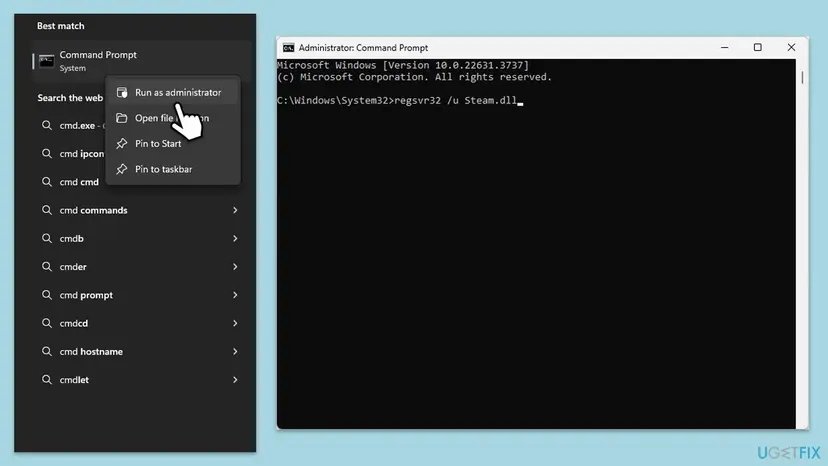
- Type cmd in Windows search.
- Right-click Command Prompt and select Run as administrator.
- Go to the Steam folder: type
cd "C:\Program Files (x86)\Steam"and press Enter. - Type
regsvr32 /u Steam.dlland press Enter. - Type
regsvr32 Steam.dlland press Enter. - Read the message. If it says the entry point DllRegisterServer was not found, Steam.dll does not need registering; skip to Fix 7.
- If both commands succeeded, restart your PC and press Play.
It worked if: Either both commands report success and the game starts after the restart, or regsvr32 tells you the file is not registrable and you know this is not the cause.
If not: Reinstall the game with Fix 7.
Fix 7. Uninstall the game in Steam and install it again
10 to 30 minutesRead the warningThe game still fails after Fixes 1 to 6, or the game folder looks incomplete.
A fresh install writes a clean game folder. It also removes the old compatibility settings and leftovers of mods, which an older game can trip over.
Older games often keep saves in the game folder or under Documents, not in Steam Cloud. Before you uninstall, copy the game folder's save folder and the game's folder in Documents to another drive.
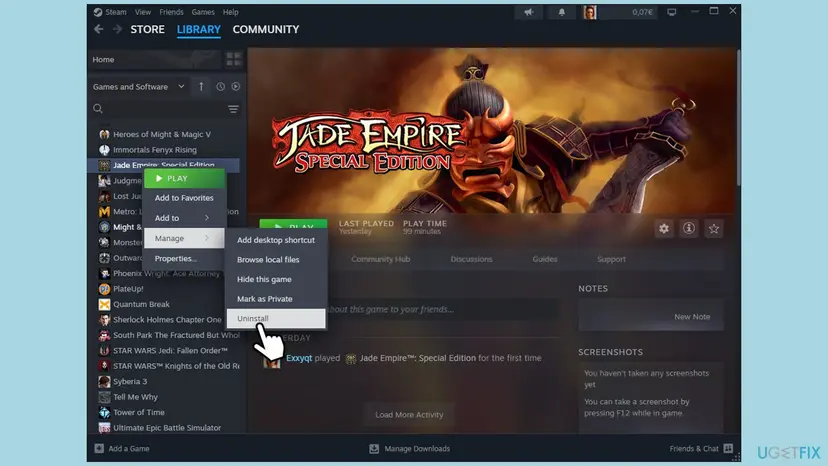
- Open Steam and go to Library.
- Right-click the game and select Manage > Uninstall.
- Confirm with Uninstall.
- Restart your PC.
- In the Library, select the game and press Install.
- When the download is done, copy Steam.dll into the new game folder again with Fix 1 and press Play.
It worked if: The game installs again and starts with the fresh Steam.dll copy next to its .exe.
If not: If a fresh install fails too, and other older games show the same message, repair Steam with Fix 8.
Fix 8. Repair the Steam client by installing it into the same folder
10 minutesRead the warningSeveral older games fail, or Steam.dll is missing from the Steam folder itself.
Steam.dll belongs to the Steam client. If the original is damaged or missing, every copy you make is too. A fresh client writes a new Steam.dll, which you then copy again.
Our old guide said your games stay when you uninstall Steam. That is wrong for an uninstall through Windows: it removes the games installed in the Steam folder too. Install Steam over itself instead, into the folder it already uses.
- Exit Steam with Steam > Exit.
- Download the Steam installer from Steam's official site and run it.
- Choose the folder where Steam is already installed, by default
C:\Program Files (x86)\Steam. - Start Steam and let it update and sign in.
- Copy the new Steam.dll into the game folder with Fix 1 and press Play.
The reinstall over the old folder, with Steam Support's warnings and the deeper repair, is in Fix 7 of our guide to Steam must be running to play this game.
It worked if: Steam starts with your games still in the Library, and the game opens after the new Steam.dll is copied.
If not: If the error survives a repaired Steam, follow the section below to contact the game's support.
If the game still says "Failed to find Steam": what to check and whom to ask
We found no log file for this message: the game shows it and closes, before it writes anything you could send. What helps support is a clear picture of your setup.
- Take a screenshot of the message with its window title.
- Write down the full path of the game folder and of the Steam folder, and whether Steam.dll is in both.
- Note how you started the game: Play, the .exe or the config tool, and whether Steam was open.
- Note the boxes ticked on the Compatibility tab of the game and of
steam.exe. - In the Library, open the game's page and use its Support link to reach the publisher, or Steam Support at
https://help.steampowered.com.
- When it is the account: the game is not in the Library of the signed-in account. Valve's rule is that the game "must show up in your Steam library". Sign in to the account that bought it.
- When it is not a Steam copy: a copy from outside Steam has no Steam licence behind it, so it cannot find a Steam that owns it. No fix on this page applies.
- When it is the drive: files fail to verify again soon after Fix 5. Check the drive that holds the game: Check a disk for errors (chkdsk)
How to keep "Failed to find Steam" from coming back
- After every reinstall of an older game, copy Steam.dll into its folder again.
- Start the game with Steam open and signed in.
- Keep Steam and the game at the same administrator setting.
- Repair Steam by installing it into the same folder.
- Do not move or delete Steam.dll from the Steam folder.
- Do not download Steam.dll from a DLL website.
- Do not tick Run this program as an administrator for the game alone.
- Do not let a cleaner program remove files from the game folder.
A Steam update can replace Steam.dll in the Steam folder. If the game worked and suddenly shows the message again after a Steam update, copy the new file into the game folder once more.
Frequently asked questions
How do I fix "Failed to find Steam" in Jade Empire: Special Edition?
Copy Steam.dll into the Jade Empire folder. Open C:\Program Files (x86)\Steam, copy Steam.dll, then in the Steam Library right-click Jade Empire, select Manage > Browse local files and paste the file next to JadeEmpire.exe. Start Steam, sign in and press Play. Players on the game's Steam store page and in its discussions report that this is the fix, and the game's configuration tool opens afterwards too. If it still fails, clear the administrator box on the game's .exe (Fix 2) and try compatibility mode (Fix 4).
Jade Empire Special Edition startet nicht: "Failed to find Steam". Was tun?
Same fix in German Windows: the menu names are just translated. Copy Steam.dll from the Steam folder, by default C:\Program Files (x86)\Steam, into the Jade Empire folder next to JadeEmpire.exe. In Steam, the folder opens from the game's right-click menu, through the entry that is Manage > Browse local files in English; on German Steam it has the German name in the same place. Start Steam first and launch the game from the Library. If the game was set to run as administrator, clear that box or tick it for Steam too. The other fixes on this page follow in the same order on German Windows.
Does the same fix work for Deus Ex and other old Steam games?
Players report the same message and the same fix for Deus Ex: Game of the Year Edition and Geometry Wars: Retro Evolved. All of them are Steam releases from the mid 2000s. Copy Steam.dll into the folder that holds each game's main .exe, as Fix 1 shows. In Deus Ex, the .exe sits in the game's System subfolder, so paste the file there. We could not confirm a full list of affected games. If a newer game shows a similar text, it is probably a different error, such as "Steam must be running to play this game".
I see "Failed to find Steam" in GameNative on Android. Does this page help?
No, the fixes here are for Windows. GameNative and similar Android apps run Windows Steam games on a phone or handheld, and players report the same "Application Error: Failed to find Steam" there. In that case the game cannot reach the Steam layer of the Android app, which is a matter for the app itself. Make sure you are signed in to Steam inside the app and that it is up to date, then check the app's own help or community. We could not confirm a fix from the app's developers.
Is it safe to download Steam.dll from a DLL website?
No. You already have the right file: it is part of the Steam client, in the folder that holds steam.exe. A Steam.dll from a download site may be an old version that does not match your Steam, or a file with malware in it, and Valve does not offer the file on its own. If your Steam folder has no Steam.dll, repair Steam by installing it into the same folder (Fix 8). That writes a new original that you can copy into the game folder.
What is the difference between Steam.dll and steam_api.dll?
Steam.dll belongs to the Steam client and sits in the Steam folder. Older games look for it to reach Steam, which is why copying it fixes "Failed to find Steam". steam_api.dll and steam_api64.dll belong to each newer game and come with it in its own folder. When one of those is missing, the game names that file, and the fix is different: see our steam_api.dll guide. Do not rename one file to the other.
What does "Unable to find Steam process, make sure Steam is running" mean?
A program looked for the running Steam client and did not find it. That is not the same message as "Failed to find Steam", and we could not trace which program writes it. The first step is the same as Fix 3: start Steam, wait until it has signed in and the Library has loaded, and then start the game or tool. If Steam is open and it still appears, check that Steam and that program run at the same administrator setting, as Fix 2 shows.
Can I play the game without Steam or with a no-Steam patch?
No, and this page does not help with that. A game bought on Steam checks that the signed-in account owns it, and "Failed to find Steam" is that check failing. Files that promise to remove the check are cracks, often carry malware, and break the game's updates. Copying your own Steam.dll is different: it only helps the game find the Steam client you have, with your licence behind it.
Will Steam remove the copied Steam.dll again?
It can happen after a reinstall of the game, and possibly after a verify. A reinstall writes a new game folder without the copy, and a Steam update can replace the original in the Steam folder. Neither breaks anything; the game just shows the message again. Look in the game folder after a reinstall, a verify or a Steam update, and copy the file again if it is missing. The copy takes up little space and does not affect other games.
Sources
Did this fix work?
One click, no account. It tells the next reader which guides are worth their time.
Questions and experiences: fix "Failed to find Steam" error in Windows
Still broken, or found a fix we did not cover? Ask here: members and our editors answer. Reading is open; writing needs a free account.
…