How to fix
Failed to initialize Direct3D error
on Windows
Resolve the Failed to initialize Direct3D error on Windows 10 quickly and easily with expert-tested solutions. Get back to gaming in no time!


What causes How to fix Failed to initialize Direct3D error on Windows 10?
- Problems with hardware
- Incorrectly installed application
- Old DirectX version
- Visual C++ problems
- Corrupt or outdated drivers
Repairs Windows system files, removes malware, and restores a clean OS state — without reinstalling.
Hi, I am currently running Windows 10, and whenever I want to start a video game, I get the following message: Failed to initialize Direct3D. Make sure you have at least DirectX 9.0c installed, have drivers for your graphics card and have not disabled 3D acceleration in display settings. InitializeEngineGraphics failed." I am not sure how to fix this? Hope that somebody can help me. Thanks for advice.
Direct3D is a graphics application programming interface (API)[ref en-1] designed for Windows operating systems. The app is part of DirectX and is used to render 3D graphics in programs which require intense graphics processing, such as HD video rendering or video games. The API works closely with the GPU to give the best results. Unfortunately, problems with Direct3D arise which might result in "Failed to initialize Direct3D" error.
Many reports were coming from multiple users complaining about the Direct3D error. It appears during startup of the application and affects numerous games, including Dungeons and Dragons,[ref en-2] Command and Conquer, RIFT and many others. It is incredibly annoying for users, as they want to dig into their favorite game as soon as possible.
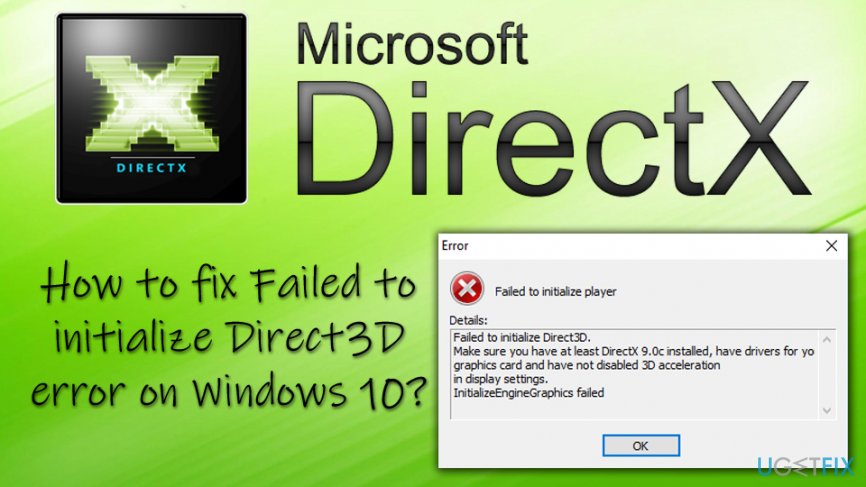
The truth is, the error is not connected to the actual game (regardless of which one). Errors relating to Direct3D may be initiated because of the following issues:
- Problems with hardware
- Incorrectly installed application
- Old DirectX version
- Visual C++[ref en-3] problems
- Corrupt or outdated drivers
- Due to some virtualization apps, etc.
Nevertheless, if these error pop continually you should pay close attention to other symptoms, such as slow computer performance, apps crashing, random freezes, the intensive workload of CPU/GPU, and so on. In this case, your machine may be infected with malware (such as trojan horse[ref en-4] or a worm). Thus, to make sure that it is not the virus causing several error messages, make sure to scan your machine with [d1].
Regardless of what is the cause of the problem, let's jump "Failed to initialize Direct3D" error fix - our team prepared several solution methods that could help you.
This video will help you:
[youtube rfObubVnx9I]
Fix 1. Run Hardware troubleshooter
One of the best solutions are to use built-in Windows tools to determine the cause of problem. For that, run Hardware and Devices Troubleshooter:
- Click on Start button and type Troubleshoot into the search bar
- Click on Troubleshoot and scroll down in the Settings window
- Find Hardware and Devices and click Run troubleshooter
- Wait till Windows scans your device and see if the problem is fixed
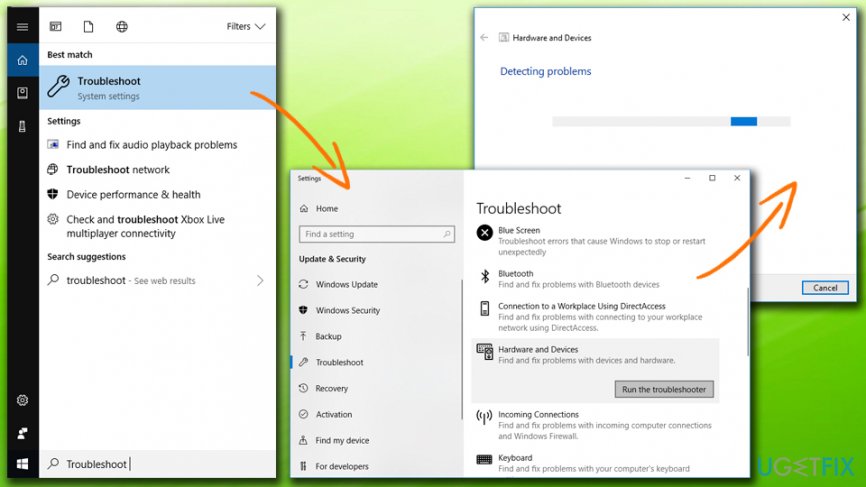
Direct3d error run troubleshooter
Fix 2. Make sure your DirectX version is up to date
"Failed to initialize Direct3D" error might occur because your DirectX version is outdated and does not meet the requirements (DirectX 9.0c and later). If these requirements are not met, you should update your DirectX version in the following way:
- Press Windows button + R and type in dxdiag
- DirectX diagnostic Tool should open
- Under the System tab, make sure that the DirectX version is 9.0c or later (download and install the newest version of DirectX from Microsoft website)
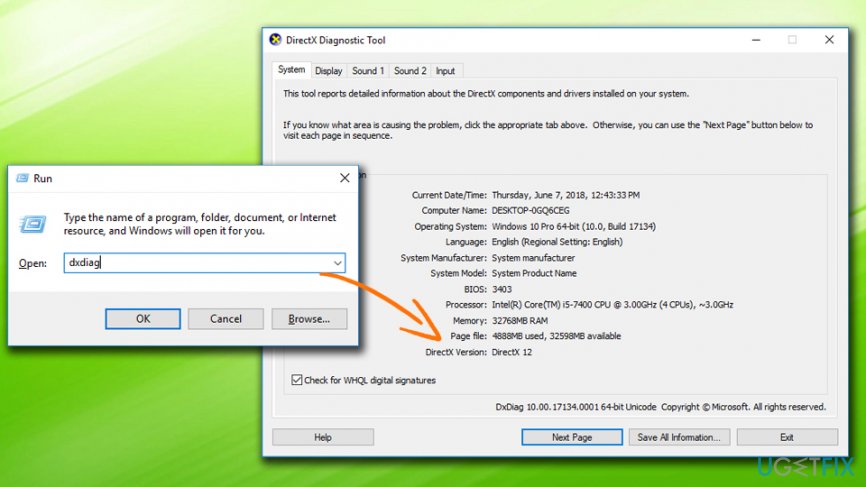
Direct3d error check and update directx - Then, under Display tab, make sure that Direct3D Acceleration is enabled
Fix 3. Update your graphics card driver
The problem might be in corrupted or outdated drivers. Please follow these steps to manually update your graphics card drivers:
- Right-click on Start and select Device Manager
- Expand your Display adapters and locate your graphics card
- Right-click on it and select Update Driver
- Select Search automatically for updated driver software and wait till new drivers are installed
- Restart your computer
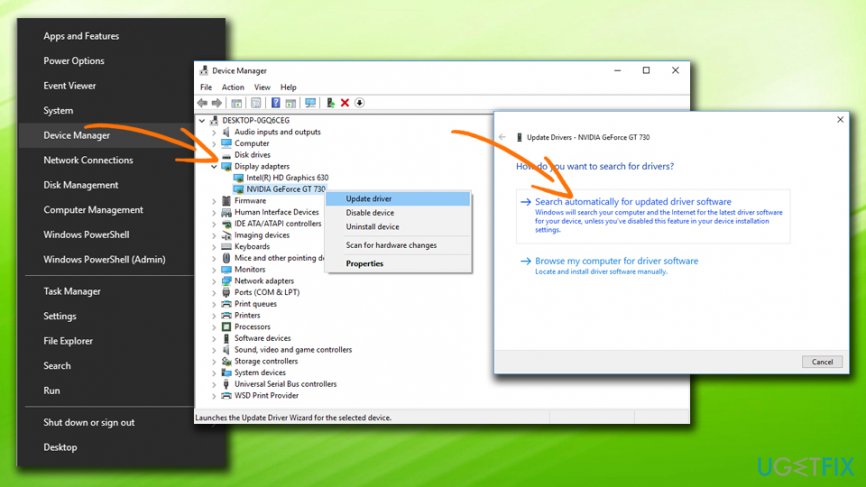
Direct3d error update graphics drivers
For automatic driver update, we recommend using [rev id=”Smart Driver Updater”]. By using this tool, you can ensure that all drivers are up to date just with one click.
Fix 4. Reinstall Visual C++ Redistributables
To reinstall Visual C++, follow these steps:
- Click on Start button and type Control Panel into the search box
- Under Programs, select Uninstall a program+
- Select the Redistributable you want to remove, right-click on it and press Uninstall
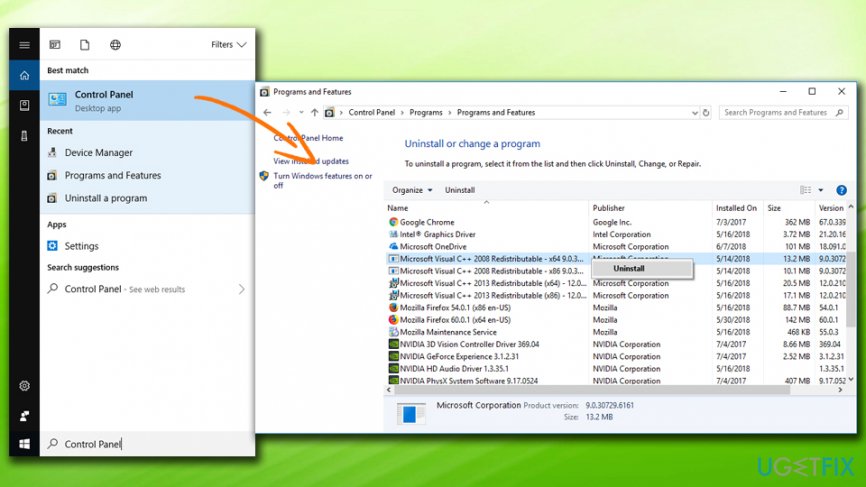
Direct3d error reinstall visualc - You can download and install the appropriate file from official Microsoft page
- After all that is complete, restart your computer
Bottom line
To fix the 'Failed to initialize Direct3D' error, you can run the Hardware troubleshooter, ensure you have the correct drivers installed, and check your DirectX version. If these solutions do not resolve the issue, consider scanning your machine for malware or seeking further assistance.
Frequently asked questions
First, ensure that your graphics drivers are updated to the latest version. If the issue persists, try reinstalling the game or adjusting the DirectX settings.
Yes, right-click on the game executable, select 'Properties', go to the 'Compatibility' tab, and run the program in compatibility mode for an earlier version of Windows.
You can resolve this error by updating your graphics drivers and ensuring that Windows 11 is fully updated. Additionally, check your DirectX installation to ensure it's functioning correctly.




Report an issue
What's wrong with this guide? We review every report and update or remove content.
Report received — thank you. We'll review and fix it.
You need a free account to submit a report.
Be the first to comment