How to fix
“Failed to install BattlEye Service” error
on Windows
Resolve the “Failed to install BattlEye Service” error on Windows 10 and 11 with expert-tested solutions and clear screenshots. Fix it in minutes!


What causes How to fix “Failed to install BattlEye Service” error in Windows?
- Temporary corruption on the computer
- Issues with user permissions
- Outdated drivers
- Problems with the installation of the BattlEye service
- System configuration nuances
Repairs Windows system files, removes malware, and restores a clean OS state — without reinstalling.
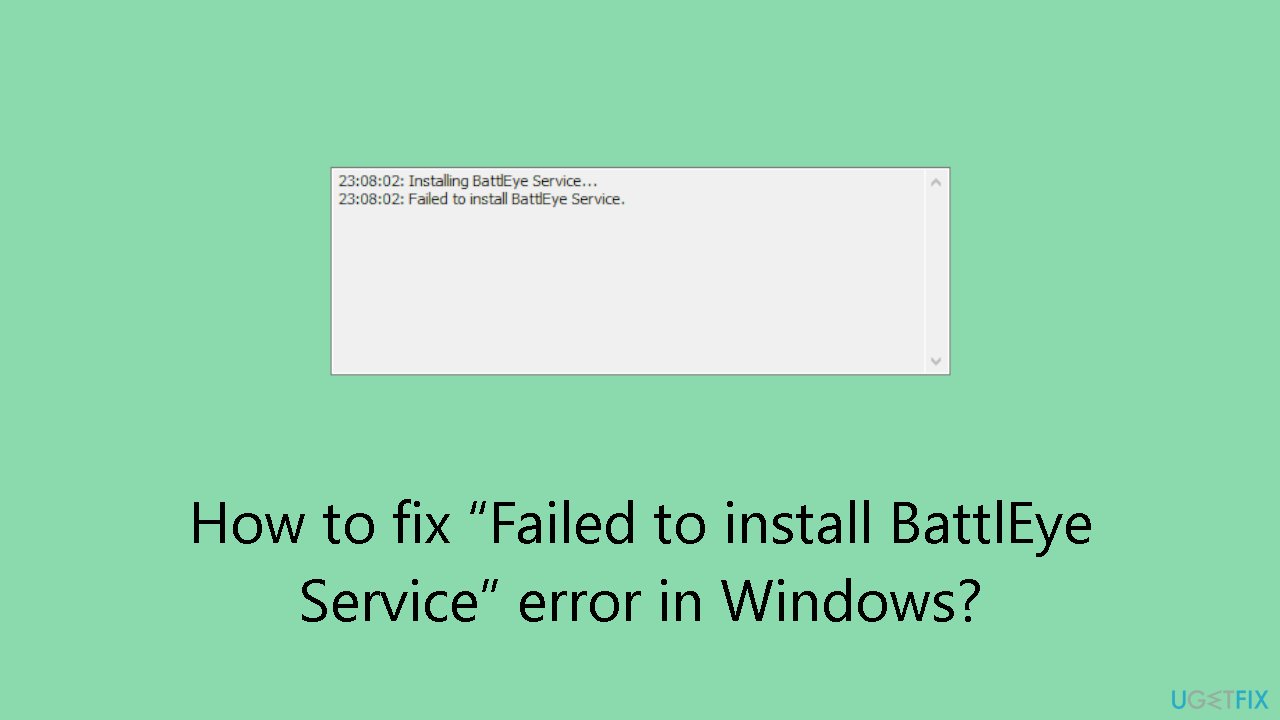
Hello. When I try to launch Fortnite in Windows I get the “Failed to install BattlEye Service” error in Windows. Is there a way to fix it?
Many Windows gamers frequently see the "Failed to install BattlEye Service" error, especially when starting games that are integrated with the BattlEye anti-cheat service. Popular titles such as PUBG, Fortnite, ARMA 3, Tom Clancy’s Rainbow Six Siege, and others utilizing BattlEye are notably affected by this issue. The problem occurs as the BattlEye service is initializing, interfering with the game's usual launch procedure.
Users may experience severe consequences from this issue, making it more difficult for them to play games that use BattlEye's anti-cheat features. The lack of the BattlEye service may prevent players from accessing specific game modes or from playing online, which could negatively affect their overall gaming experience. The fact that these games frequently have competitive multiplayer components, where fair play is essential - only serves to exacerbate the problem.
The error's nature implies that there might be deeper problems with the user's system's installation or operation of the BattlEye service. Because BattlEye undermines the integrity of the anti-cheat mechanisms intended to preserve fair play, there may be a higher chance of coming across cheating or unfair behaviors in the impacted games.
Some solutions involve modifying settings, updating drivers, or reinstalling the BattlEye service. Users may need to explore these options based on their specific system configurations and the nuances of the error. In this guide, you will find 6 steps that should help you fix “Failed to install BattlEye Service” error in Windows.
You can also run a maintenance tool like [d1] that can fix most system errors, BSODs, corrupted files, and registry issues. Otherwise, follow the step-by-step instructions below.
Solution 1. Restart your PC
The installation of your BattlEye service may encounter issues due to temporary corruption on your computer. Attempt to resolve this by restarting your computer and check if it resolves the error.
Solution 2. Run the Game as an Administrator
- Right-click on the executable (.exe) file of your game or the desktop shortcut and select Properties.
- Click on the Compatibility tab.
- Check the box that says Run this program as an administrator.
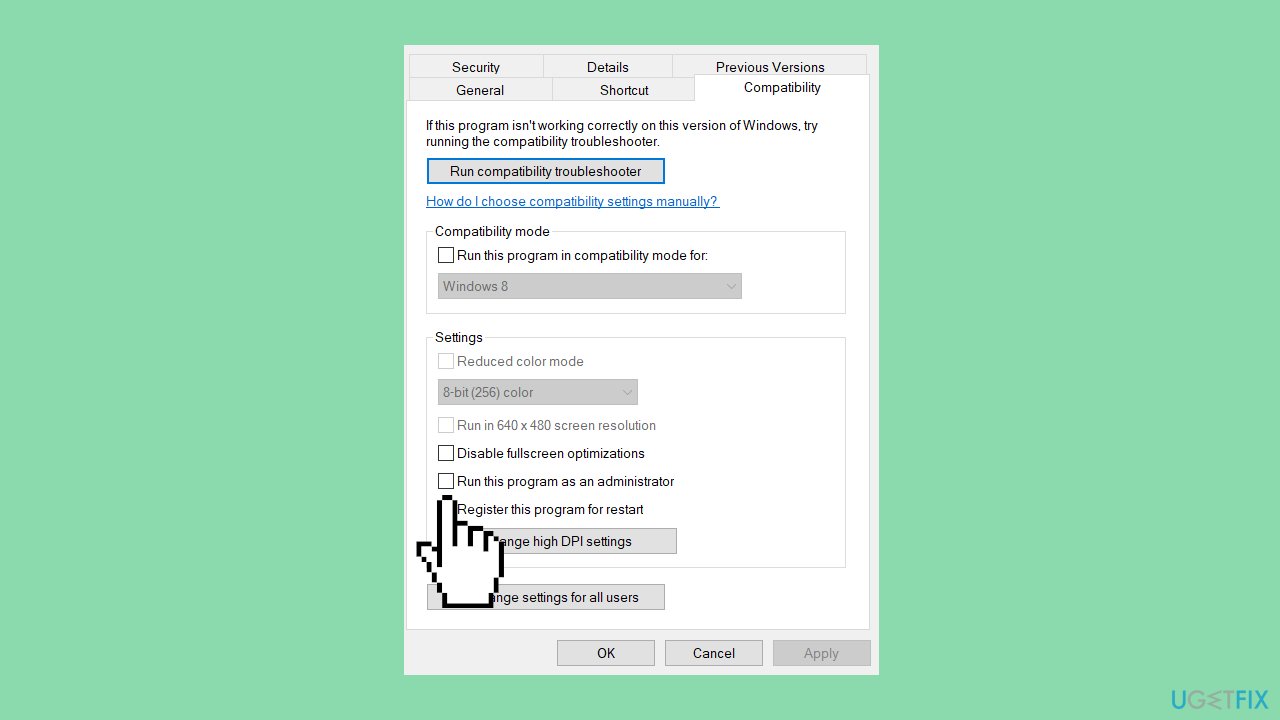
- Click OK to apply the changes.
- Double-click the executable (.exe) file of your game or the desktop shortcut.
- Verify if the "failed to install" error has been resolved.
Solution 3. Run the Launcher as an Administrator
- Open File Explorer by pressing the Windows key + E on your keyboard.
- Navigate to the directory where your game is installed.
- Locate the BattlEye launcher of your game (an executable file with _BE at the end of its name).
- Right-click on the BattlEye launcher and select Properties.
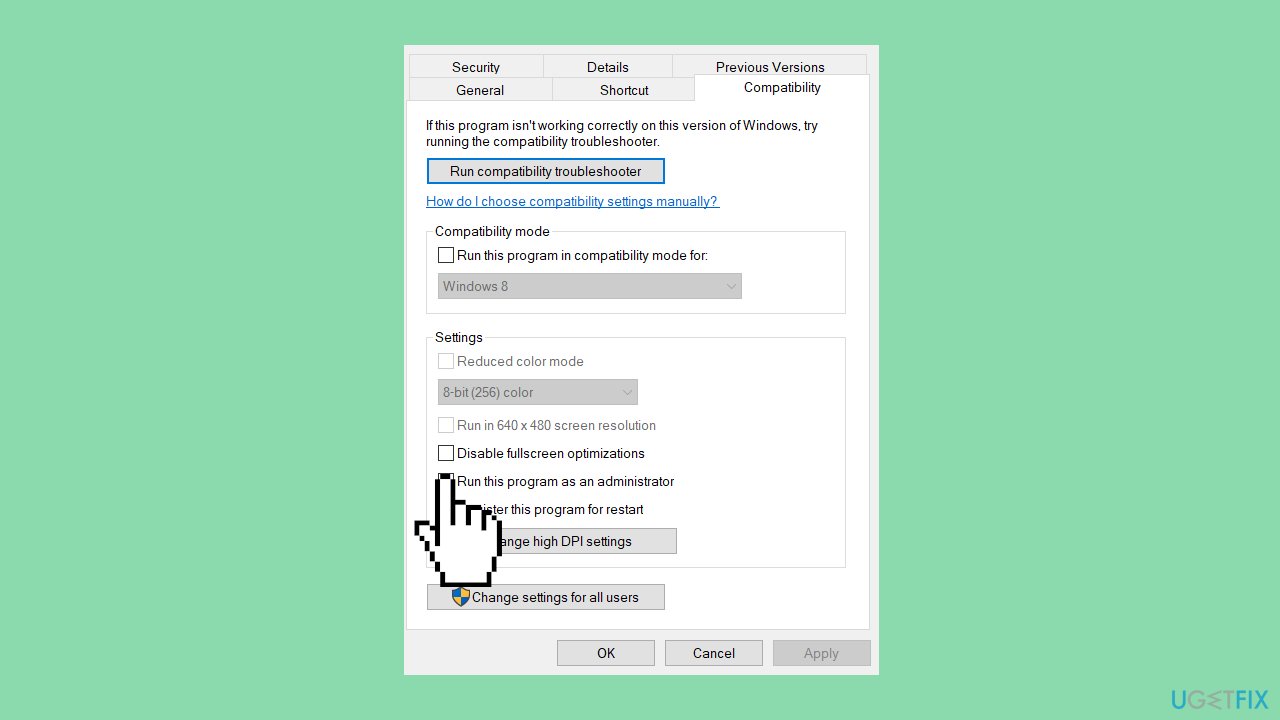
- Click on the Compatibility tab.
- Check the box labeled Run this program as an administrator.
- Click OK to apply the changes.
Solution 4. Run the BattlEye Installer Manually
- Open File Explorer by pressing the Windows key + E on your keyboard.
- Navigate to the BE Service directory, which is typically located at C:\Program Files (x86)\Common Files\BattlEye.
- Run the install_BattlEye.bat or install_BattlEye executable. This step installs the BattlEye service.
- Launch your game and check if this resolves the error you were experiencing.
Solution 5. Verify Integrity of Game Files
- Open the Steam client and log in.
- In the LIBRARY section, right-click on the title of your game and choose Properties.
- Navigate to the Installed Files tab.
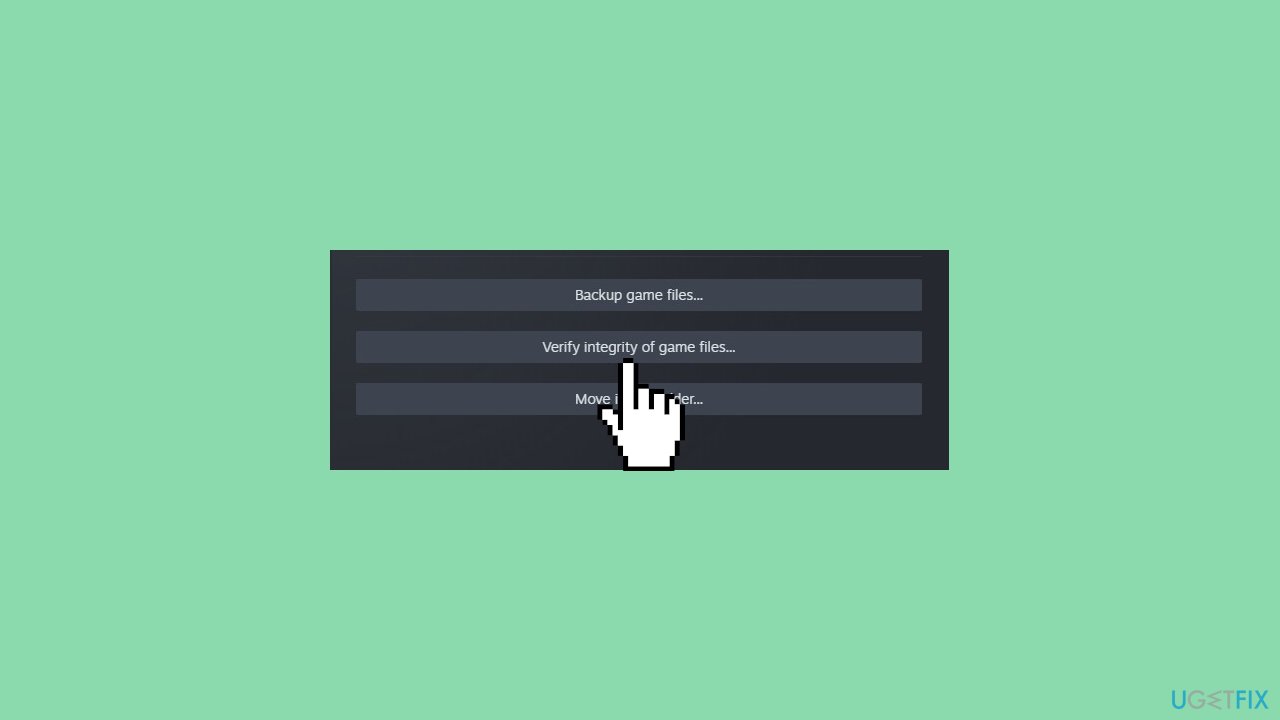
- Click on the Verify integrity of game files button.
- Wait for the process to complete.
- Launch your game.
- Check to see if the error has been resolved.
Solution 6. Update Drivers
Outdated drivers could be the cause of this issue. In this case, you can fix it automatically by using [rev id="DriverFix"], which will scan your PC for missing and out-of-date device drivers. Or you can update them manually:
- Open Settings.
- Click on Update & Security.
- Click on Windows Update.
- Click the Check for updates button.
- Click the View optional updates option.
- Click the Driver updates tab.
- Select the driver you want to update.
- Click the Download and install button.
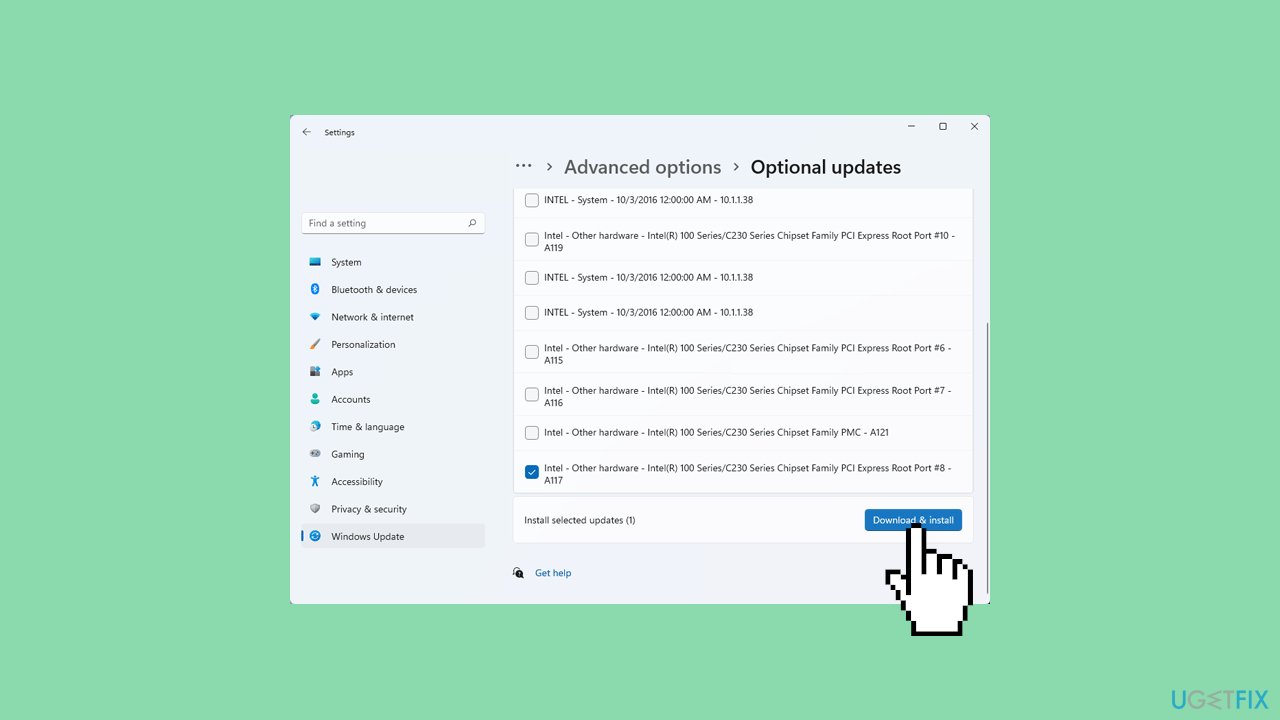
If the View optional updates link is not available after checking for updates, then Windows Update does not have any new drivers or any updates for other products at that particular time.
Bottom line
To fix the 'Failed to install BattlEye Service' error, you can try restarting your PC, running the game as an administrator, updating drivers, or reinstalling the BattlEye service. If none of these solutions work, consider using a maintenance tool to address system errors.
Frequently asked questions
This error often occurs due to corrupted game files, insufficient permissions, or conflicts with antivirus software. Ensuring that your game and BattlEye are up to date can also help resolve the issue.
Right-click the game executable or launcher, select 'Run as administrator,' and then try to install BattlEye again. Additionally, you can adjust the folder permissions for the game directory to ensure full access.
If disabling your antivirus doesn't help, consider adding the game and BattlEye to the antivirus exclusion list or temporarily uninstalling the antivirus software. You may also want to verify the integrity of the game files through the game client settings.




Report an issue
What's wrong with this guide? We review every report and update or remove content.
Report received — thank you. We'll review and fix it.
You need a free account to submit a report.
Be the first to comment