How to fix
“Failed to load this broadcast” error on Steam
on Windows
Resolve the "Failed to load this broadcast" error on Steam for Windows 10 and 11 effortlessly. Expert-tested solutions to get you gaming in minutes!

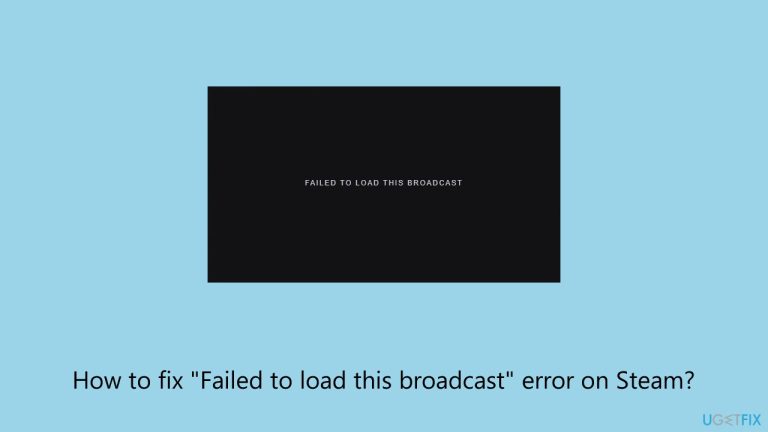
What causes How to fix “Failed to load this broadcast” error on Steam?
- Network connectivity issues
- Outdated software
- Conflicts with security programs
- Problems with broadcasting settings
- Using the new Steam Chat interface
Repairs Windows system files, removes malware, and restores a clean OS state — without reinstalling.
Hello. I can't view friend's broadcast on Steam every time I try. Instead, I see an error message "Failed to load this broadcast." I tried several times yesterday, and today I am facing the same thing. What can be done to address it?
The "Failed to load this broadcast" error on Steam is quite common and does not allow users to view streams in live mode. The issue can be related to anything, from network connectivity and problems with outdated software to conflicts with security programs. Some people say that this error happens when trying to watch broadcasts via the new Steam Chat interface, which might have introduced some complications into the mix.
To fix this "Failed to load this broadcast" error, a number of solutions could be tried. First and foremost, keep your Steam client updated since many known bugs are fixed with updates. Furthermore, check your broadcasting settings to see if everything is set up properly.
For some users, it worked just to watch broadcasts through a web browser instead of the Steam client, which can avoid potential issues within the application itself.
Network-related issues also can be one of the reasons for the "Failed to load this broadcast" error. Poor or unstable internet may be the reason why broadcasts won't load. Reboot your router or ensure that the connection is stable to work your way around this issue.
Sometimes, security applications like firewalls or antivirus programs can interfere with the broadcasting feature of Steam. Temporarily disabling these programs or adding exceptions for Steam can help determine if they are the source of the problem.
For users desiring an automated solution, the use of a tool, such as [d1] repair, can help determine and fix deeper issues contributing to the "Failed to load this broadcast" error and expedite the process of troubleshooting.
Fix 1. Check your internet connection
A poor or unstable internet connection is a common cause of the "Failed to load this broadcast" error. Ensuring your connection is stable can often resolve the issue.
Windows 11
- Type Troubleshoot in Windows search and press Enter.
- Select Other troubleshooters.
- Find Network & Internet troubleshooter from the list and select Run.
- Wait till the process is finished and apply the offered fixes.
- Restart your system.
Windows 10
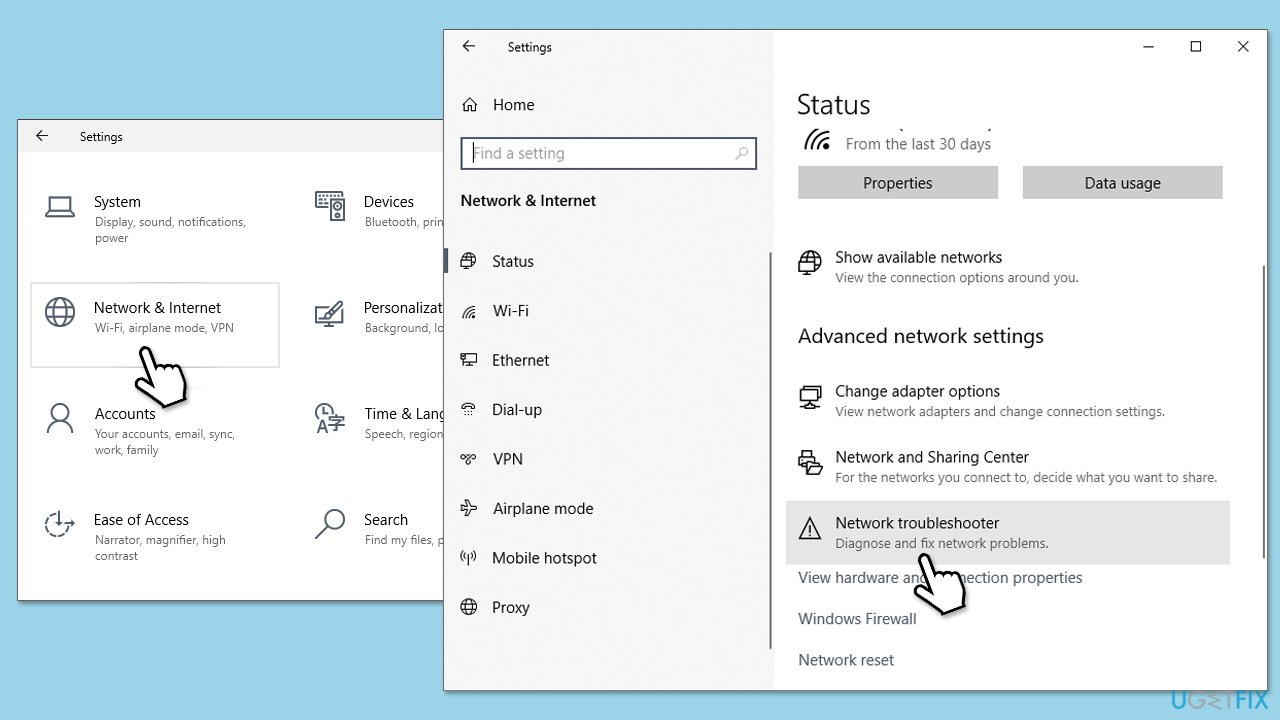
- Right-click on Start and pick Settings.
- Go to the Network & Internet section.
- On the right side, find the Advanced network settings section.
- Click Network troubleshooter and wait.
- The fixes will be automatically applied.
Fix 2. Update Steam client
Using an outdated Steam client may cause compatibility issues, leading to broadcast errors. Keeping Steam updated ensures you have the latest bug fixes and features.
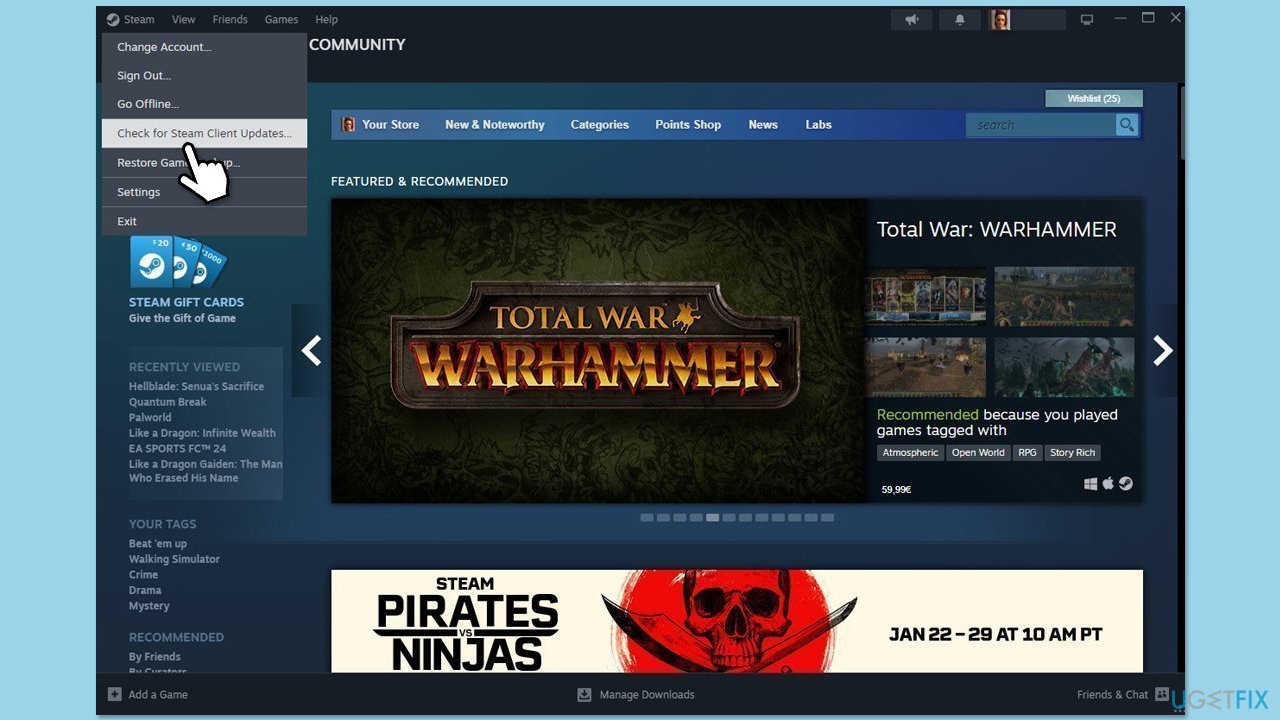
- Open the Steam client.
- Click on Steam in the upper left corner of the window.
- Select Check for Steam Client Updates.
- If an update is available, follow the prompts to install it.
- Restart Steam after the update is complete.
Fix 3. Clear Steam cache
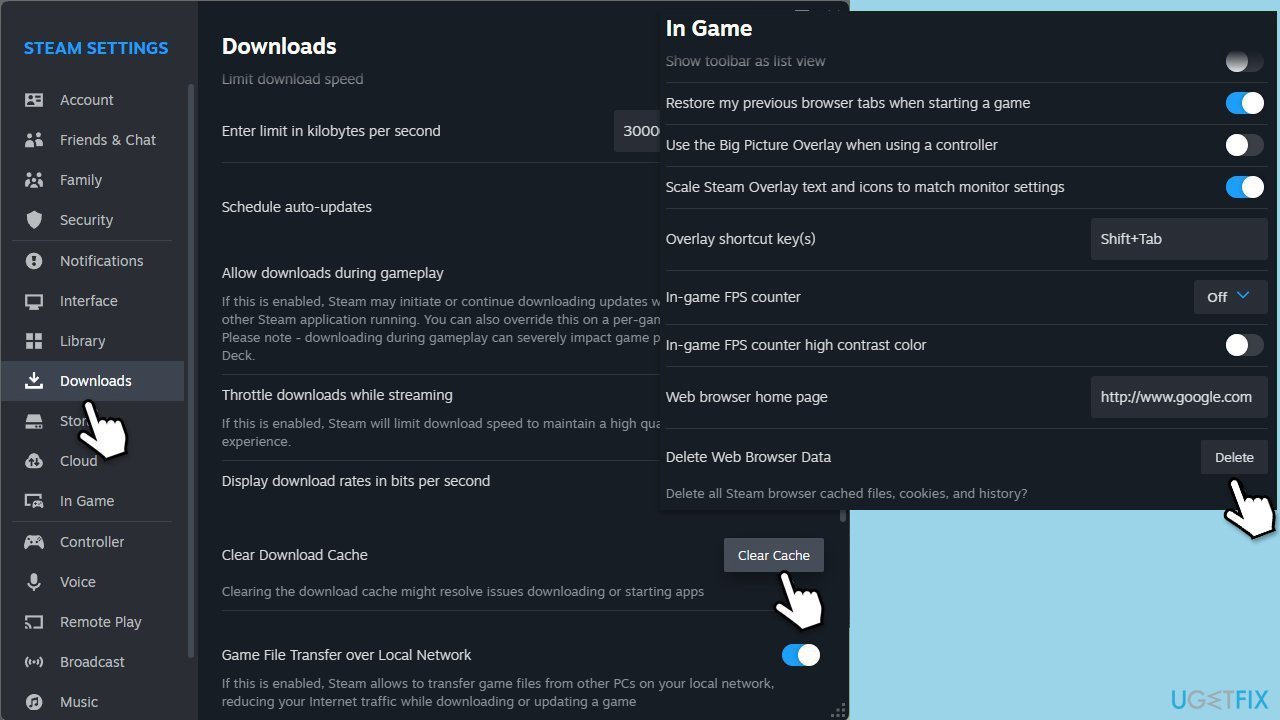
Corrupted cache files can disrupt broadcasts. Clearing Steam’s cache can resolve these issues.
- Open the Steam app.
- Go to Steam > Settings.
- Select the In Game section on the left.
- Scroll down to the Delete Web Browser Data section.
- Click Delete.
- Go to the Downloads section.
- Under Clear Download Cache, click Clear Cache.
- Restart Steam.
Fix 4. Check your broadcasting settings
Improper configuration of broadcasting settings may prevent streams from loading correctly.
- Open Steam and go to Settings.
- Select Broadcasting from the left menu.
- Ensure the Allow broadcasting option is enabled.
- Under Privacy settings, select Friends can watch my games.
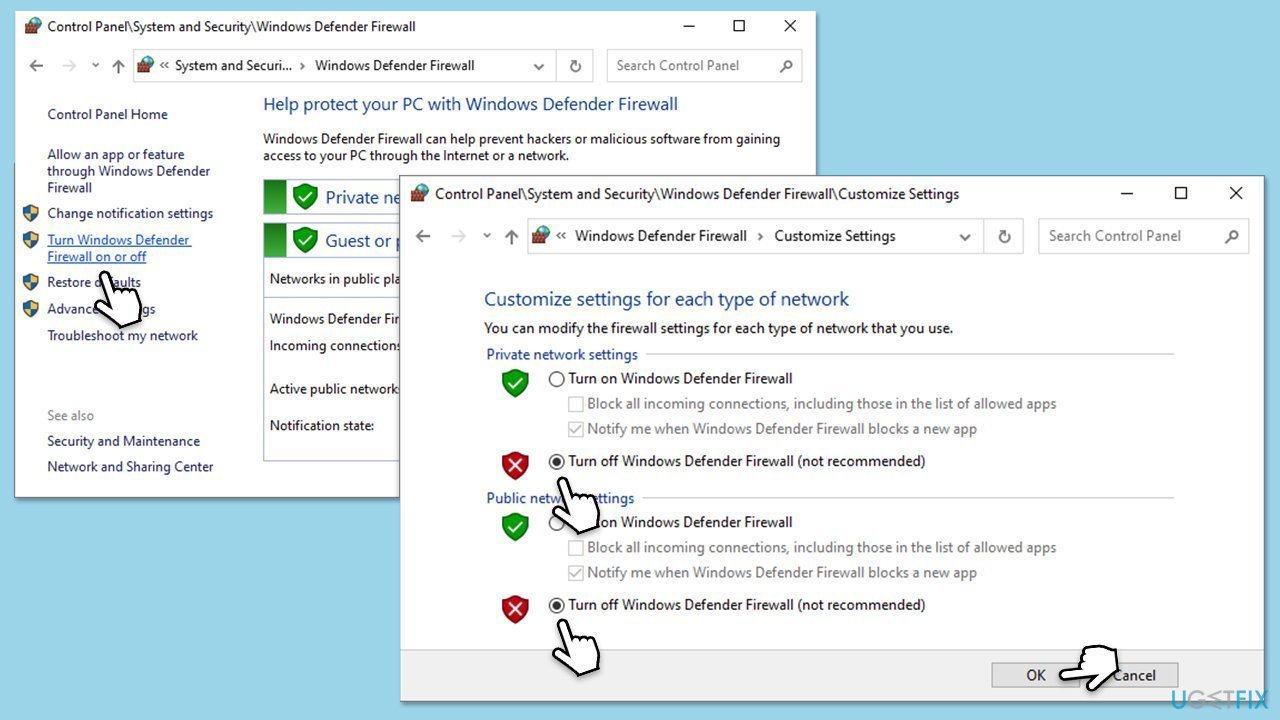
Fix 5. Temporarily disable antivirus or firewall software
Security programs can sometimes block Steam broadcasts from loading. Disabling these temporarily can help identify if they are the cause.
- Type Firewall in the Windows search bar and select Windows Defender Firewall.
- Click Turn Windows Defender Firewall on or off.
- Select Turn off Windows Defender Firewall for both private and public network settings.
- If you have a third-party antivirus, open its control panel and look for the option to disable it temporarily.
- Try to log into Steam. Remember to turn your Firewall and antivirus back on afterward.
Fix 6. Watch broadcasts through a web browser
Try watching the broadcast using Steam's browser page - many users managed to fix the "Failed to load this broadcast" error this way.
- Open a web browser and go to Steam’s official website.
- Log into your account.
- Navigate to the broadcast you wish to watch and view it directly from the browser.
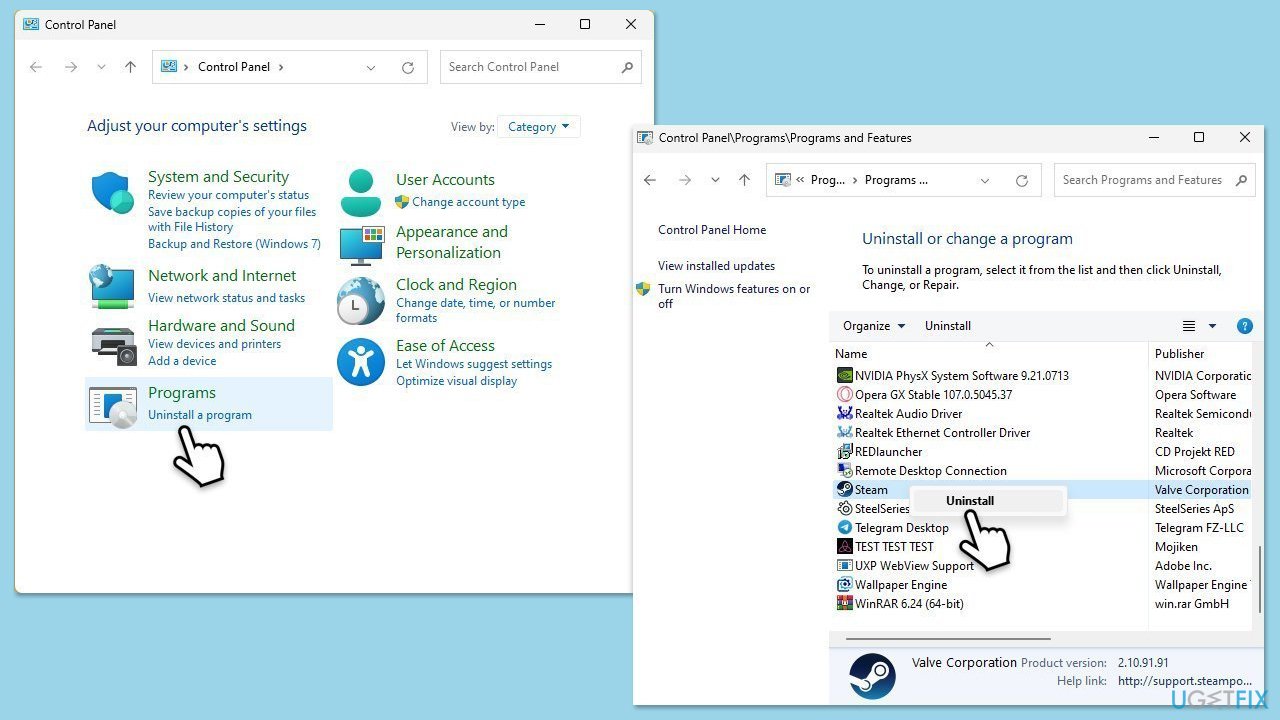
Fix 7. Reinstall the Steam client
If none of the above methods work, reinstalling Steam will help fix corrupted files or installation problems.
- Type Control Panel in Windows search and press Enter.
- Go to Programs > Uninstall a program.
- Find Steam in the list and select Uninstall.
- Follow the prompts to remove Steam from your system.
- After uninstallation, restart your computer.
- Download the latest version of Steam from the official website.
- Run the installer and follow the instructions to install Steam.
Fix 8. Reset your network settings
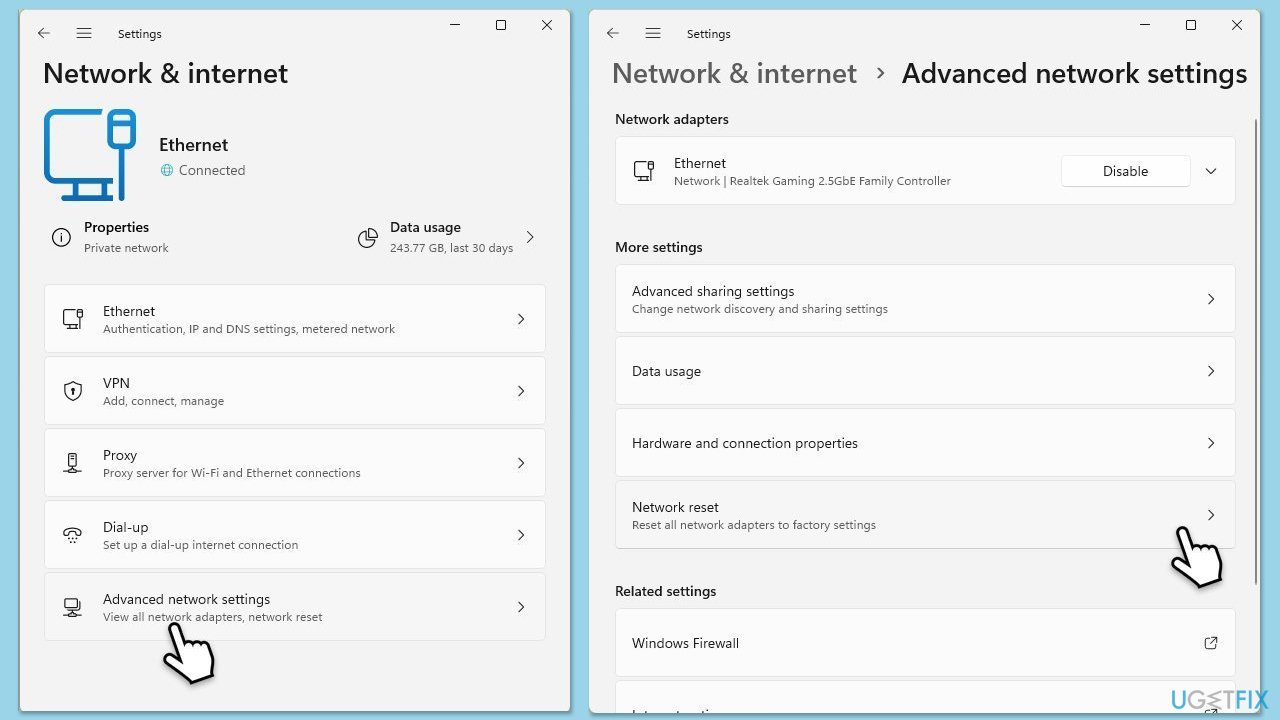
Network misconfigurations can disrupt Steam broadcasts. Resetting your network settings can resolve these issues.
- Right-click on Start and pick Settings.
- Go to Network & Internet.
- Under Advanced network settings, click Network reset.
- Click Reset Now.
- Confirm the action and then restart your system.
Bottom line
To fix the "Failed to load this broadcast" error, ensure your Steam client is updated, check your broadcasting settings, and consider watching broadcasts through a web browser. Additionally, verify your internet connection and temporarily disable any security applications that may interfere. If none of these solutions work, consider using a repair tool to identify deeper issues.
Frequently asked questions
First, ensure that your Steam client is up to date. If the error persists, try clearing the Steam cache or restarting your router.
Yes, you can try verifying the integrity of game files through Steam's settings, which may resolve the issue. Additionally, check your internet connection and firewall settings to ensure Steam is not being blocked.
Disable the VPN temporarily, as it may interfere with Steam's connection. If the error goes away, consider switching to a different server or contacting your VPN provider for assistance.




Report an issue
What's wrong with this guide? We review every report and update or remove content.
Report received — thank you. We'll review and fix it.
You need a free account to submit a report.
Be the first to comment